

I this article we have compiled a rundown of the ten best video recovery software tools for you to make an informed decision.
A quick Google search for video recovery software reveals hundreds of programs, all claiming to be the best. No surprise it can drown you in options, especially when you're trying to fix an urgent issue. That’s exactly why we created this list of the 10 best video recovery tools - to help you make sense of it all. Of course, no video recovery program is perfect—a highly effective video recovery tool may be let down by its subpar UI, or vice versa. So, to arrive at this list, we assessed each program across a wide range of relevant parameters like recovery capabilities, ease of use, supported video file types, preview features, and value for money. Here’s what we found.
Before moving on to our complete ranking, here is a quick recap of the best deleted video recovery apps:



What is a Video Recovery Tool?
Video recovery tools help you retrieve deleted or lost videos from your hard drive, USB flash drive, memory cards, camera cards (including Canon cameras), camcorder cards, dashcam cards, drone cards, etc. And when the underlying data hasn’t been too damaged or overwritten, these tools can often recover the video with its original name and folder path intact.
The best video recovery tools don’t just stop at video files - they handle all the above and support a wide range of file types. Apart from recovering deleted videos, they also salvage photos, audio, and videos from drives that may be logically damaged, formatted, or corrupt.
How We Evaluated Video Recovery Programs
There are many ways to choose a video recovery app. You may only want to use a free solution, or be more interested in the feature set of a given recovery application.
We tested these video recovery programs across the following parameters:
Parameter |
Description |
Recovery capabilities |
A good video recovery tool should be versatile. It should support data recovery from all major storage drive types like HDDs, SSDs, USB drives, external hard drives, and SD cards. Additionally, support for a variety of file systems like HFS/HFS+, NTFS, FAT, exFAT, and more is a must feature to recover your video files along with their metadata. The program should also be effective across different data loss scenarios, whether it’s a simple case of accidental deletion or a more complex issue like logical corruption. |
Ease of use |
What’s the point of having a bazillion features if the average user has to rack their brains to figure them out? A good video recovery app should have a clean layout, clearly labeled buttons, and a flow that makes sense - whether you're tech-savvy or not. File filtration features, such as dividing files into file types like images, video, audio, documents, and archives, are nice to have as well. Not every app in this guide checks all those boxes (especially the free ones), but if they made the cut, it’s because they stood out in other areas. We’ll make sure to call that out clearly in the pros and cons for each tool. |
Supported video file types |
The more video formats a data recovery program supports, the better. A decent program should also recognize lesser-known video formats, in addition to common formats like .mkv, .mp4, .avi, etc. |
Video preview |
Being able to preview video files before recovery is a huge help - it makes sure you’re not blindly restoring the wrong clips. This feature is a godsend in cases when it’s possible to recover the actual video file, but not its filename and metadata. |
Value for money |
Naturally, a program that offers more bang for your buck is always preferable over a blatant cash grab. On this page, we’ve separated fully free tools from commercial ones, but keep in mind, most paid apps are actually freemium. That means you can often scan your drive and even sometimes save recoverable videos without paying a cent. So even with commercial options, you can usually test the waters before committing. |
Top 5 Best Commercial Video Recovery Software
If you’re willing to maxime your recovery rates and shell out some money, we recommend going for a paid video recovery tool. These programs usually have more features, a better UI, and better customer support if things go south. The following paid video recovery programs offer a good blend of features and usability, earning them a spot on this list:
Please note that we selected these solutions, considering that they have a generous trial/demo period. This extended evaluation window allows you to not only assess the software's functionality but also to personally observe the actual amount and types of video files the program can find and recover before committing to the full version.
1. Disk Drill Data Recovery – Our Choice 👍
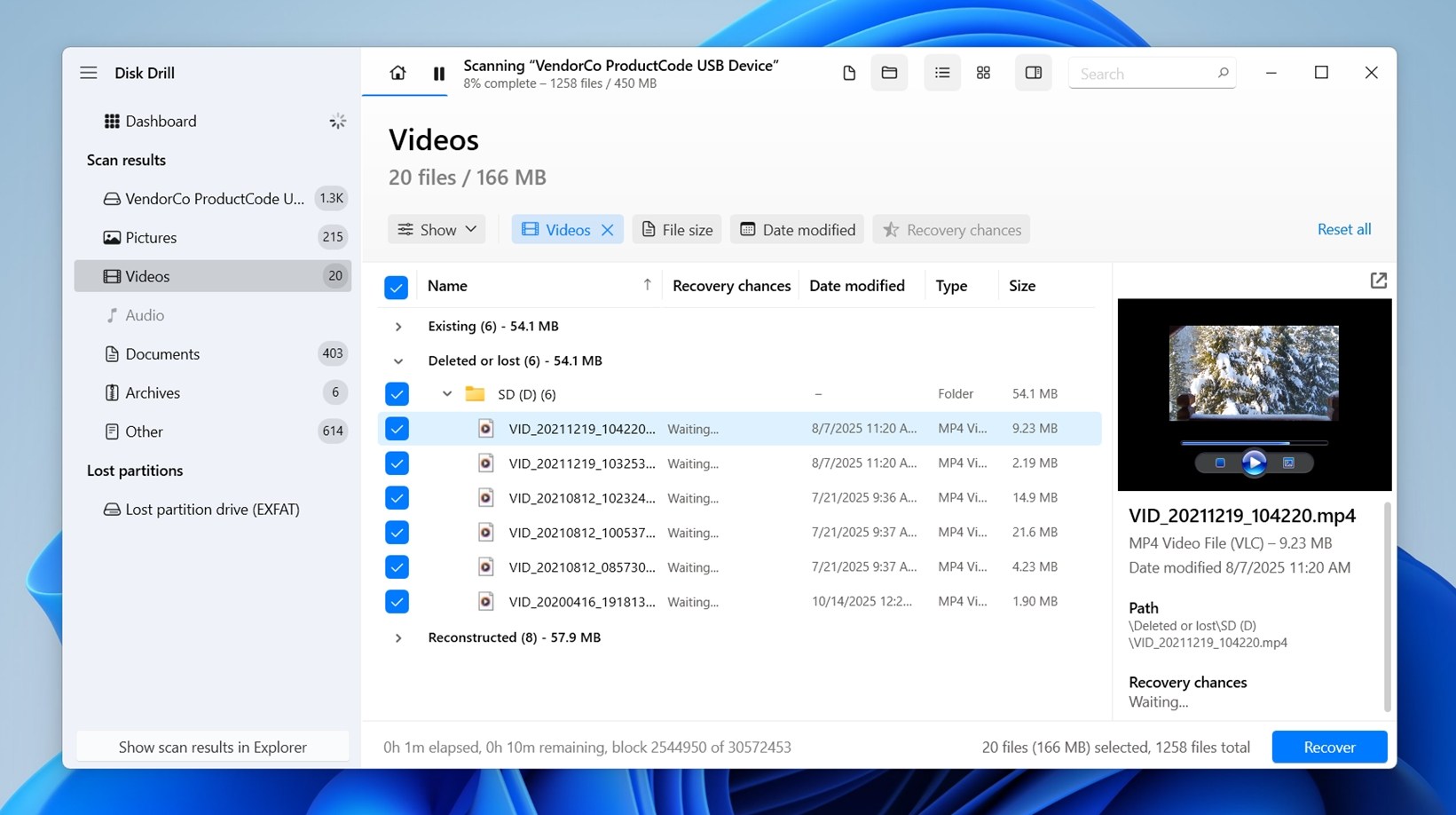
Disk Drill takes the cake in our list, mainly because it perfectly combines an advanced feature set with a welcoming user experience. Most programs either do one or the other. It scores well across all our other testing parameters as well.
With Disk Drill, you can recover deleted videos from an HDD, SSD, USB drive, SD card, or camera, as well as from your Android or iOS device (the Mac version). In addition to common data loss scenarios like accidentally emptying the Recycle Bin, and accidental formatting, the program is also effective in cases where the target disk or partition has become RAW. Disk Drill is compatible with a range of file systems including FAT, exFAT, NTFS, HFS/HFS+, APFS,ext2,ext3,ext4, and more.
It supports around 400 file formats, many of which are video formats—MP4, MKV, FLV, AVI, 3GP, BRAW, SWF, and more. You can preview your videos all the way through, before recovering them.
And in the latest Disk Drill update, there’s a new feature called Advanced Camera Recovery. It’s built specifically for handling fragmented video files (ones that would normally be a nightmare to reconstruct). This module does a great job with footage from GoPro, DJI drones, Canon and Panasonic cameras, Insta360, Sony, Olympus, and other major brands. If your files are scattered across the card, this tool gives you a real shot at putting them back together.
Additional features like Byte-to-byte backup, Recovery Vault, and S.M.A.R.T. monitoring make Disk Drill an extremely value-for-money proposition.
Despite all these features, Disk Drill is not without its shortcomings. For one, we wish the features were consistent across the tool’s Windows and Mac versions. One example is that if you wish to recover deleted videos from your Android or iOS device, you can only do so on Disk Drill for macOS.
Pros:
- User-friendly interface
- Supports many video file formats
- Market-leading RAW video scanner
- Offers multiple data recovery options
- Can reconstruct truly fragmented videos
- Full video previews before recovery
- Fast scans, even on large drives
- Works on both macOS and Windows, with scan sessions transferable between them
Cons:
- Won't show a file's quality before recovering it
Download Disk Drill Data Recovery
- Free version available? Disk Drill can recover up to 100 MB of data for free on Windows. Mac users don’t get free recovery, but they can still preview all recoverable files before paying.
- Paid Plans: $89.99 for a lifetime license
- Additional features: Recovery Vault, Disk Health Monitoring, Byte-to-Byte Backup
- Supported platforms: Windows, Mac, iOS, Android
Don’t miss our full review of Disk Drill.
2. Stellar Data Recovery
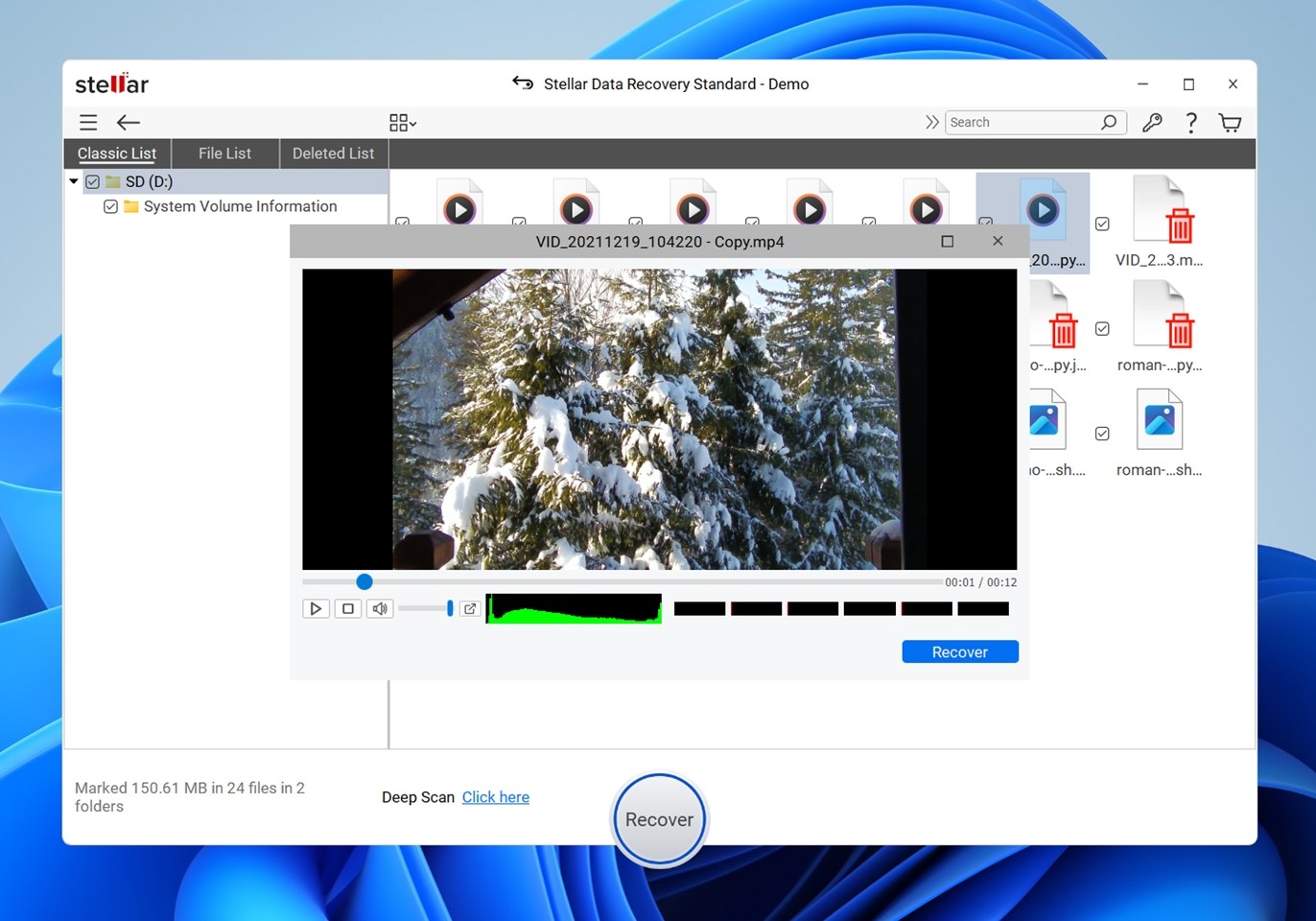
Stellar Data Recovery comes with all the bells and whistles you could ask for in a video recovery tool. The company places special emphasis on customer support—an area where many other data recovery programs are lacking.
We especially loved the flexibility Stellar Data Recovery offers. It recovers deleted videos from HDDs, SSDs, USB drives, and more. Additionally, it supports numerous file systems like NTFS, FAT (16/32), APFS, HFS/HFS+,ext2,ext3,ext4, and exFAT.
Stellar Data Recovery recognizes and recovers most of the popular video formats including MP4, AVI, 3GP, MKV, and more. Like Disk Drill, Stellar Data Recovery lets you preview your videos before recovery.
The program lets you create and mount disk images, which is a valuable feature, especially if you’re dealing with drives that are on the verge of failure.
If you opt for the Premium tier, you also get access to its built-in video repair module - useful for fixing videos that were recovered but won’t play correctly. That said, it’s not the fastest tool out there, and its default file signature support could use some improvement.
Pros:
- Lets you sort files by type, size, and location
- Supports all standard file types
- Lets you preview recoverable video Video repair module (Premium tier)
- Gives online ticket, live chat, and phone support options to its users
Cons:
- Deep scan takes ages to complete
Download Stellar Data Recovery
- Free version available? Yes
- Paid Plans: Standard ($59.99/yr.), Professional ($89.99/yr.), Premium ($99.99/yr.), Technician ($199/yr.), Toolkit ($299/yr.),
- Additional features: Unbootable system recovery, optical media recovery, corrupt file repair.
- Supported platforms: Windows, and macOS.
Discover what our professional reviewer thinks of Stellar Data Recovery.
3. EaseUS Data Recovery Wizard
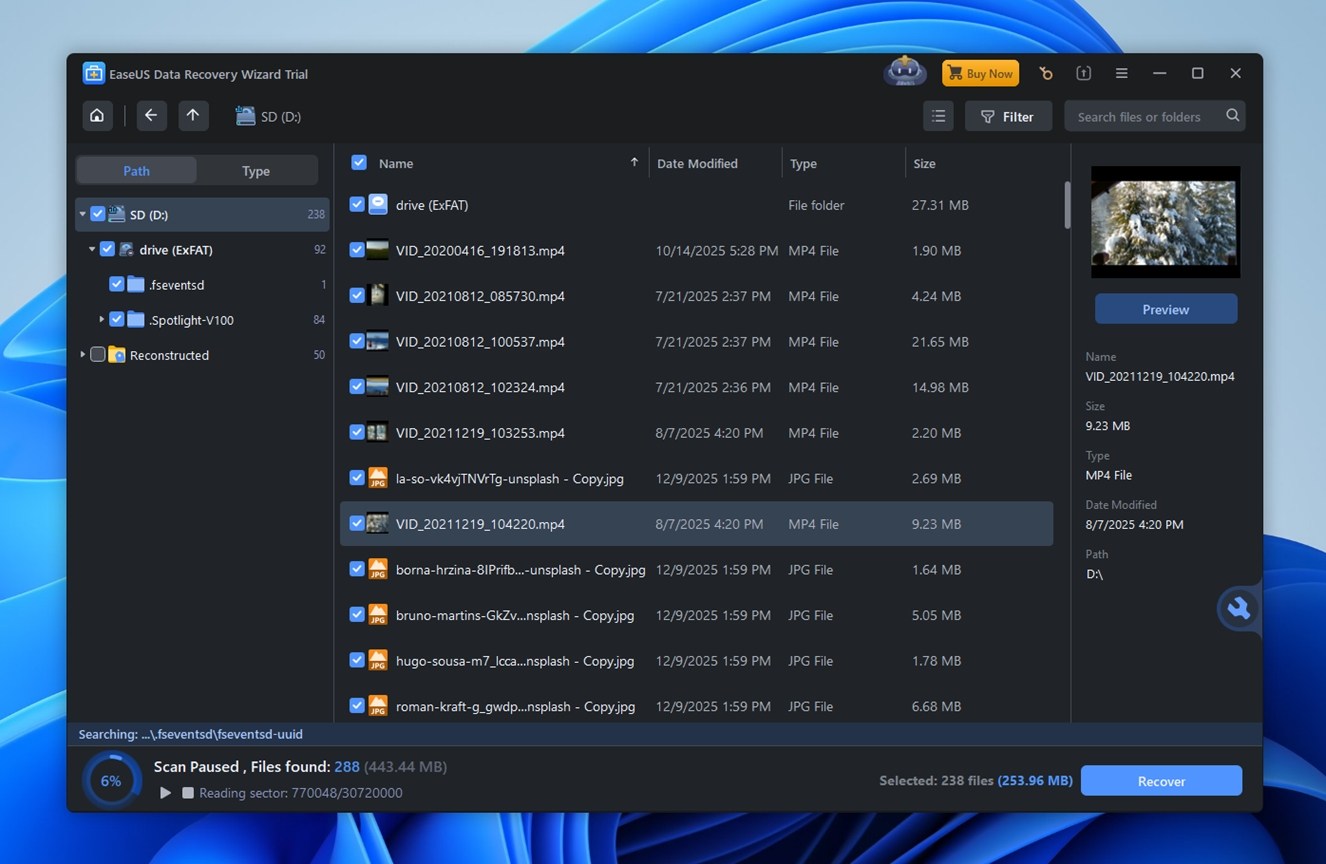
EaseUS Data Recovery excels in two main areas when it comes to video recovery—its simple, yet effective UI, and fast scan speeds. Thanks to a free remote assistance feature in the program, you can use expert help from the comfort of your home.
The program recovers deleted videos from most storage drive types, including NAS. EaseUS Data Recovery Wizard is useful in all common data loss scenarios, be it formatting, accidental deletion, malware attacks, and more. It supports all major file systems—NTFS, FAT, exFAT, APFS, HFS, ext2/3/5, and ReFS.
Pro Tip: Never attempt DIY data recovery on a physically damaged storage drive—it’s not worth the risk. Instead, let a professional data recovery service handle it.
Supported video formats include MP4, AVI, MOV, WMV, FLV, MKV, 3GP, and more. While EaseUS Data Recovery Wizard has a preview feature, not all video formats can be previewed before recovery.
A few obvious cons of EaseUS Data Recovery include, an inability to create disk images, a severely limited free version, and a pricey Pro license.
Pros:
- Excellent user interface
- Quick deep scanning function
- Organized results
- Responsive customer support
Cons:
- Pricey paid licenses
- Preview limitations
- No disk imaging
- Weak support for niche/pro video formats
Download EaseUS Data Recovery Wizard Pro
- Free version available? Can recover up to 2GB of data
- Paid Plans: For Windows Users – Pro License ($69.95/month; $99.95/year; $149.95 for life). For Mac Users – Unlimited Pro Version ($89.95/month; $169.95 for life)
- Additional features: Remote assistance, iTunes backup recovery, bootable USB drive creation
- Supported platforms: Windows and Mac
Read more about EaseUS Data Recovery in our full review.
4. DiskDigger
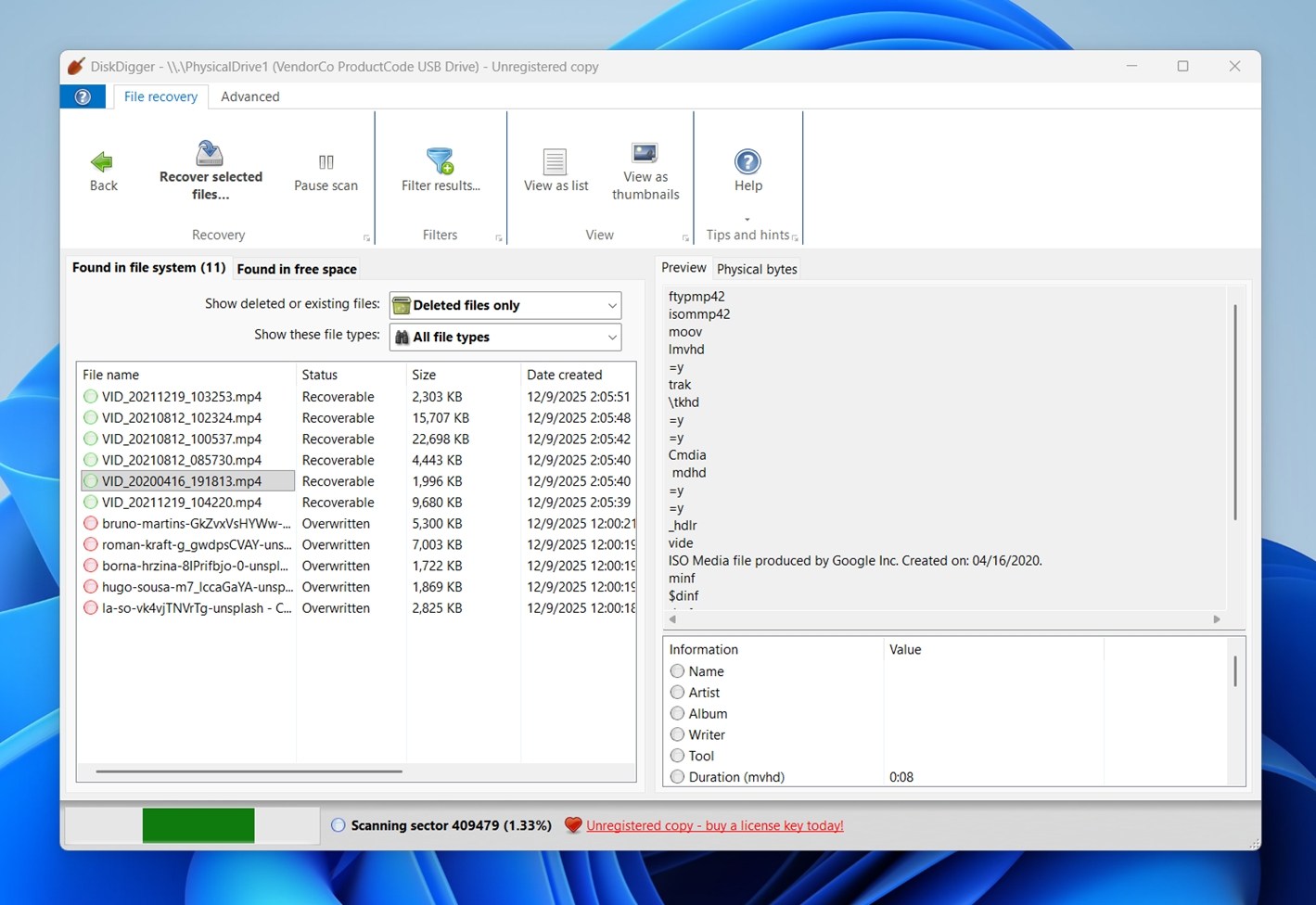
Disk Digger’s strength lies in its simplicity. It doesn’t have a fancy UI, nor a horde of additional features that other programs in this list do. However, the tool has a high success rate, and a cheap Pro license priced at $14.99.
The program supports video recovery from hard drives, SSDs, pen drives, SD/microSD cards, and USB drives. However, Disk Digger offers limited file system support on Windows—it only works with NTFS, FAT, and exFAT partitions.
You can choose from two scan modes in Disk Digger—Dig Deep, and Dig Deeper, with the latter taking up substantially more time to complete. Keep in mind, the app recommends you use Dig Deep for large videos.
As for supported video formats, the list is surprisingly broad - it ranges from the usual suspects like MP4, AVI, and MKV, to less popular formats like WEBM, 3GP, and RMVB.
DiskDigger also has a dedicated Android app.
Unfortunately, Disk Digger’s greatest strength—simplicity—is also its greatest weakness. While it can scan disk images, it doesn’t support .DMG images, a common disk image format. The inability to recover filenames and the subpar preview feature make video recovery tougher than it should be.
Pros:
- Straightforward interface
- Low‑cost option
- Reasonable on resources
- Works on Windows, Linux, Android, and Mac
Cons:
- Doesn't let you scan a specific folder
- Mixed success on fragmented or large video files
- No advanced recovery features
- Limited reliability for obscure video formats
- On Android, DiskDigger’s dedicated app recovery capabilities are limited if your device isn’t rooted
- Free version available? Yes
- Paid Plan: $14.99 for life
- Additional features: Virtual disk image file scanning
- Supported platforms: Windows, Mac, Android, Linux
Read more about DiskDigger for PC in our full review.
5. R-Studio
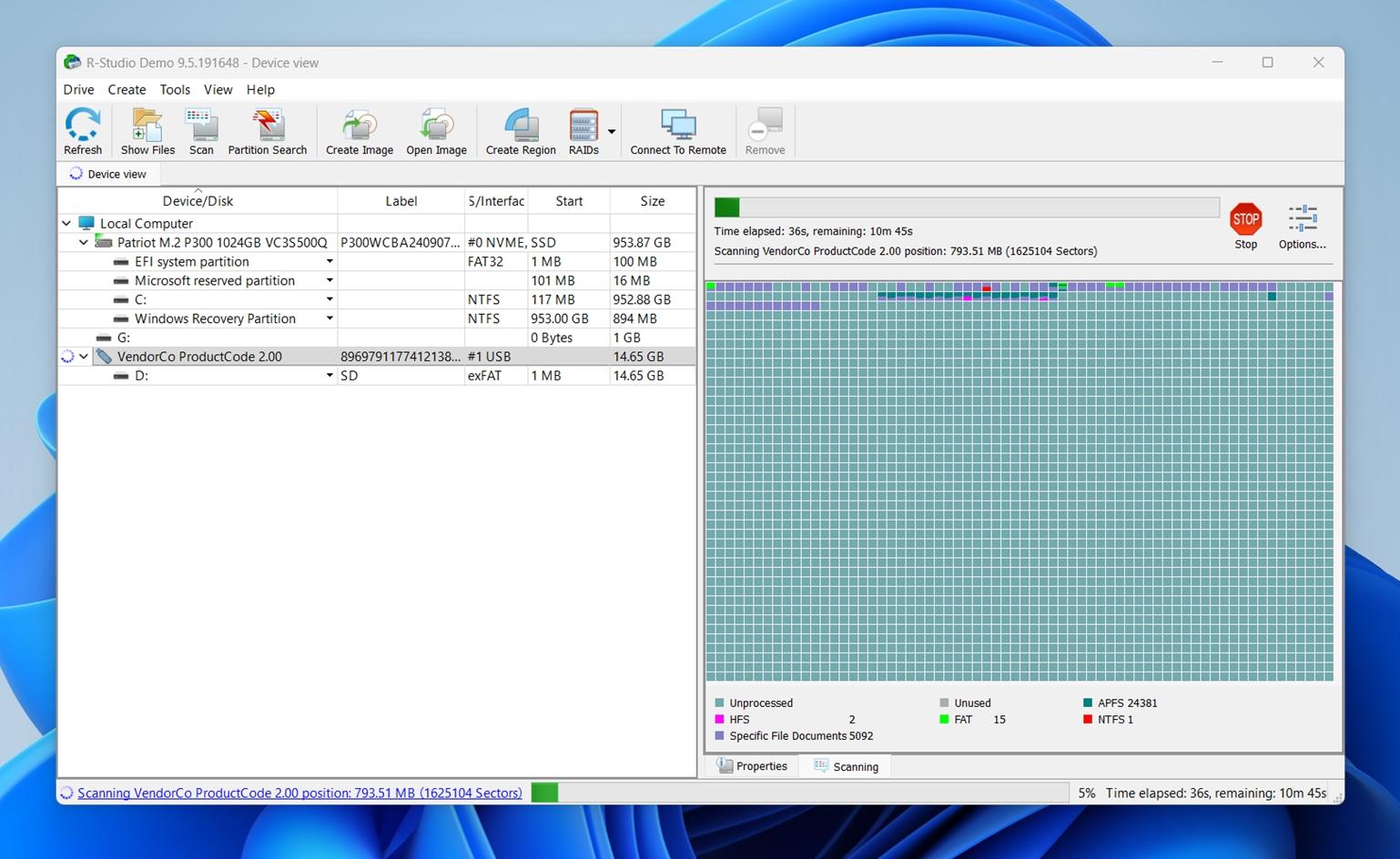
R-Studio has an advanced data recovery algorithm, along with a boatload of other features. The software supports a wide range of storage media and file systems, including rarer ones like UFS1 and UFS2, which most other tools completely ignore.
If you’re dealing with complex setups like RAID arrays or networked drives, R-Studio is designed with that in mind. You also get extremely flexible scan and recovery settings: custom file signature editing, sector-level hex viewing, partial imaging, and more. It’s not the most beginner-friendly option, but if you want control and depth, this one delivers.
R-Studio supports over 20 video formats including AVI, FLV, MOV, MP4, BFI, ASF, and more. Expand the supported file types option on this webpage for a complete list.
However, the program is geared towards tech-savvy users and data recovery experts. If you just want to recover deleted videos and don’t need all the expert features, something simpler makes much more sense. In fact, R-Studio’s own pared-down sibling, R-Undelete, is better suited for that (and we’ll cover it a bit later).
Pros:
- Operates very reliably
- Compatible with multiple OS
- Supports virtually all major file systems used in video storage
- Handles complex setups
Cons:
- Rather technical in options and language
- Limited free version (lets you recover files under 256 KB - not remotely useful for videos)
- No “simple mode” for casual users
- Free version available? No
- Paid Plans: From $79.99 to $899.00
- Additional features: Built-in file viewer, disk image creation, advanced RAID reconstruction
- Supported platforms: Mac, Windows, Linux
There’s more useful info about R-Studio in our detailed review.
Top 5 Best Free Video Recovery Software
If you’d rather choose a free video recovery program, here are some worth your time. Keep in mind, that these programs don’t have as many features as their paid counterparts. The most common compromises are—a lackluster UI, missing technical support, and supported file types. However, in simple video recovery scenarios, these programs are more than enough.
1. Recuva
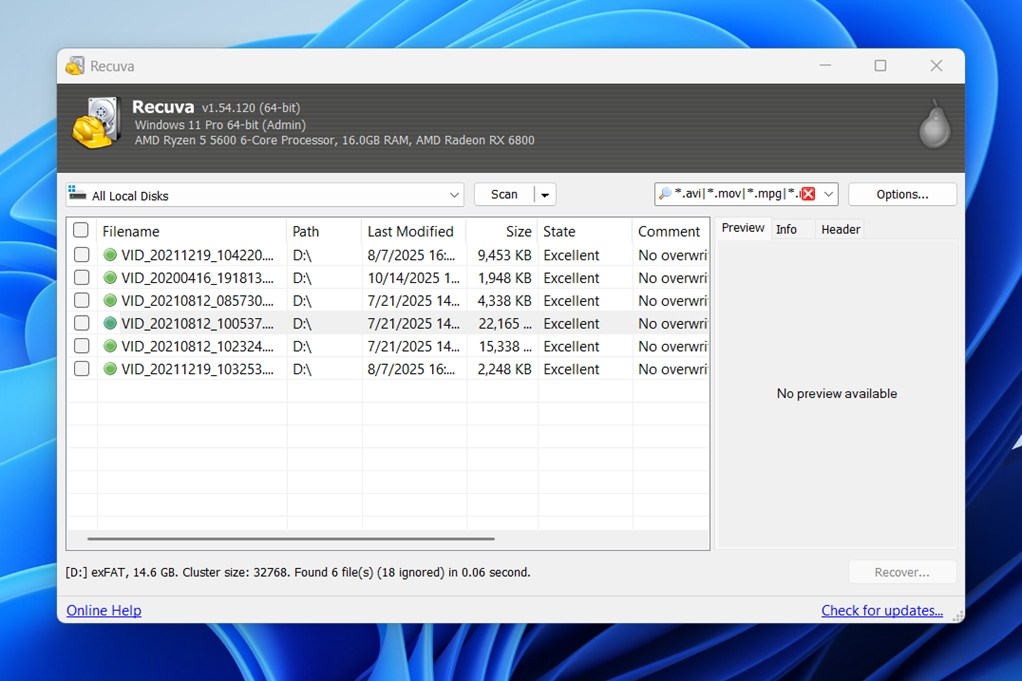
Recuva’s effective-enough video data recovery algorithm, user-friendly interface, and decent list of supported video formats can hold a candle to many paid video recovery software. The program first performs a quick scan that typically discovers recently deleted videos. If needed, you can perform a deeper scan as well.
The program can scan internal and external storage drives like HDDs. SSDs, USB drives, and SD cards. While you can scan disk images, Recuva doesn’t allow you to create one. You’ll need to use a separate program to create the disk image. (The free version doesn’t support virtual hard drives. That feature’s reserved for a Recuva Pro - the paid edition.)
Recuva recognizes major video formats like MP4, MKV, FLV, WMV, and more. However, it may not recognize lesser-known video formats. File system support is underwhelming—it only recognizes NTFS, FAT, and exFAT drives.
Recuva does have a file preview feature, but we found it to be hit or miss. We’d only recommend Recuva for recovering videos if you’re on Windows and dealing with a basic video loss scenario (like a recent accidental delete). It’s not ideal for complex cases or damaged drives.
Pros:
- Free version available with decent recovery capability
- Visually pleasing interface design
- Draws very little processing power
- Quick and deep scan modes
Cons:
- Only compatible with Windows
- Preview feature is unreliable
- Not great for complex scenarios
- Additional features: Scans formatted drives, and disk images
- Supported platforms: Windows.
Learn more about the pros and cons of Recuva here.
2. TestDisk
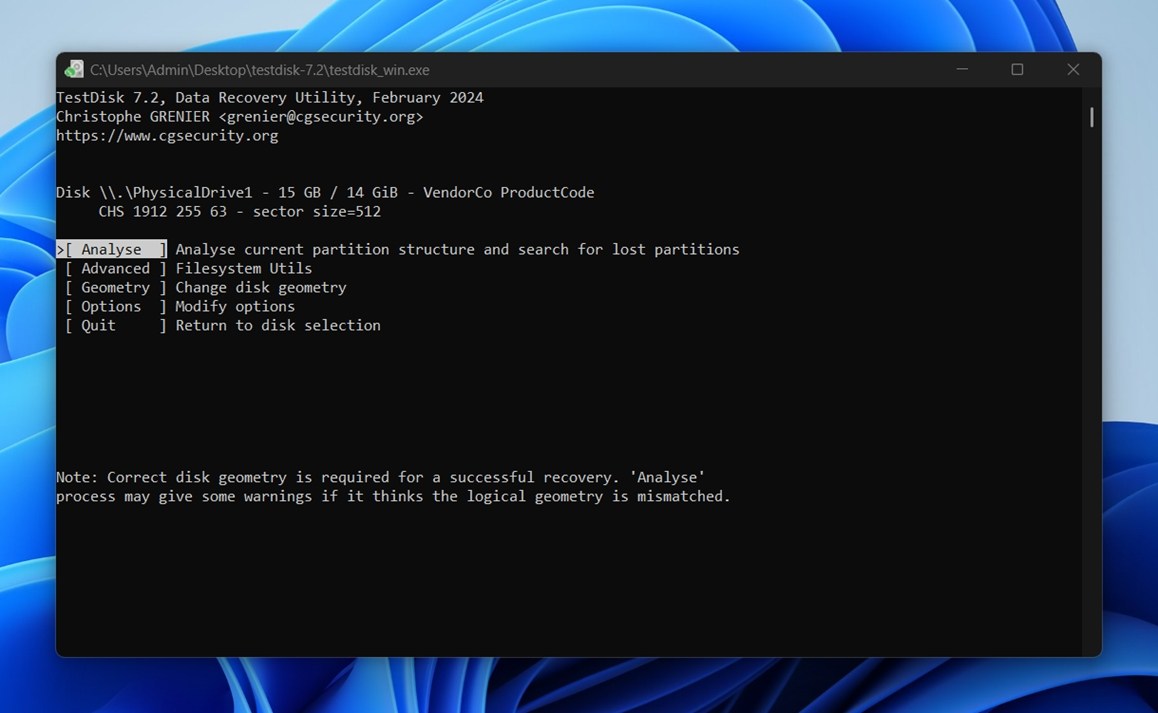
TestDisk’s forte is recovering deleted or corrupt partitions and thereby restoring any files stored in these partitions. It’s not strictly a video recovery program. However, if you’re having trouble accessing the partition containing your videos, TestDisk can help you regain access to it. But many users hesitate to use the tool because of its command-line interface.
TestDisk works with nearly every major file system on Windows, macOS, and Linux. It’s designed to recover entire partitions, so it doesn’t filter for specific file types - if the file was in the partition, it’ll try to bring it back. That also means no preview feature to help you spot the exact video you want. There is a basic undelete feature, but it’s extremely limited and not very effective for modern file systems or fragmented files.
You can use TestDisk to fix unbootable disks as well because TestDisk is included in boot disk recovery utilities like Hiren’s BootCD. This feature is especially useful if your videos are stored in your PC’s primary hard drive.
Pros:
- Can recover entire lost partitions
- Totally free and open-source
- Works on Haiku and BSD
- High-speed operation
Cons:
- Not the most user-friendly
- No graphical user interface
- Can’t target specific files
- Additional features: Fix FAT tables, Copy files from deleted partitions
- Supported platforms: Windows, macOS, Linux, and Haiku
Learn more about TestDisk in our detailed review.
3. PhotoRec
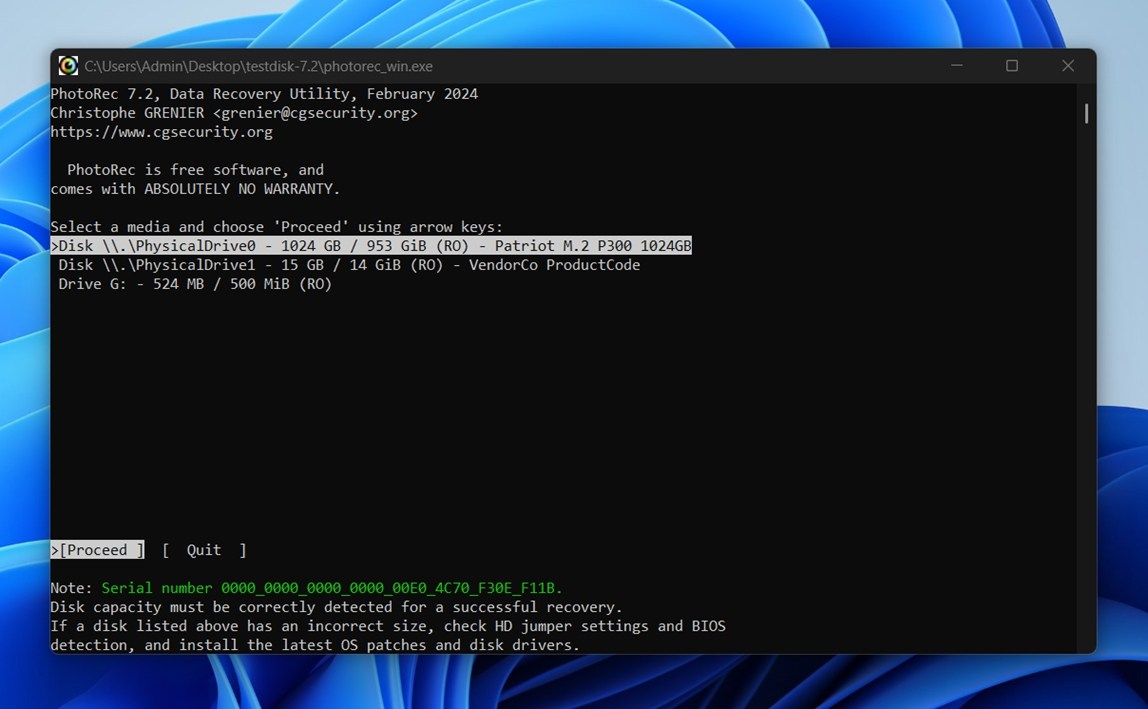
PhotoRec is a sister program to TestDisk. It has the same command-line interface (CLI). However, unlike TestDisk, PhotoRec’s primary focus is on data recovery, and not partition repair. The program performs a read-only data recovery operation and copies recoverable files to a different destination.
Since PhotoRec bypasses the file system entirely, it can recover files from any file system. It also supports most storage drive types, including HDDs, SSDs, USB drives, SD cards, and more. You also get the ability to recover many video formats (you can find the full list of supported formats here). In fact, you can manually select the exact video format you wish to recover, before scanning.
A major drawback of PhotoRec is its inability to recover filenames and metadata. This considerably increases the time spent on sorting through recovered files and reorganizing them. But, like TestDisk, the fast scan speeds somewhat make up for the extra time spent.
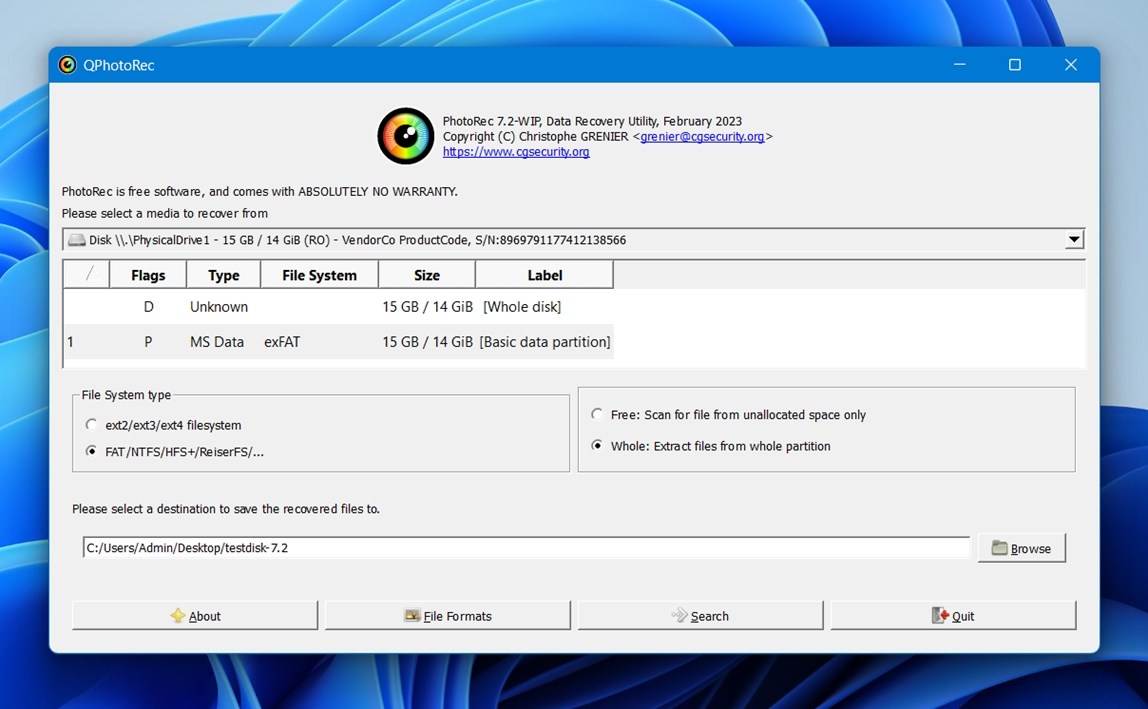
By the way, if you're on Windows, there's also QPhotoRec included in the same download archive. It’s essentially a graphical front-end for PhotoRec - same recovery engine, but with buttons and a more user-friendly layout. Good option if you’re not comfortable with the command line.
Pros:
- Fast scan speeds
- Supports many video formats
- Works on virtually any file system
- Available on Windows, macOS, Linux, and more
Cons:
- Doesn’t recover filenames and metadata
- No additional features
- No file preview
- Additional features: Open-source.
- Supported platforms: Windows, macOS, and Linux.
Get familiar with our PhotoRec review.
4. Kickass Undelete
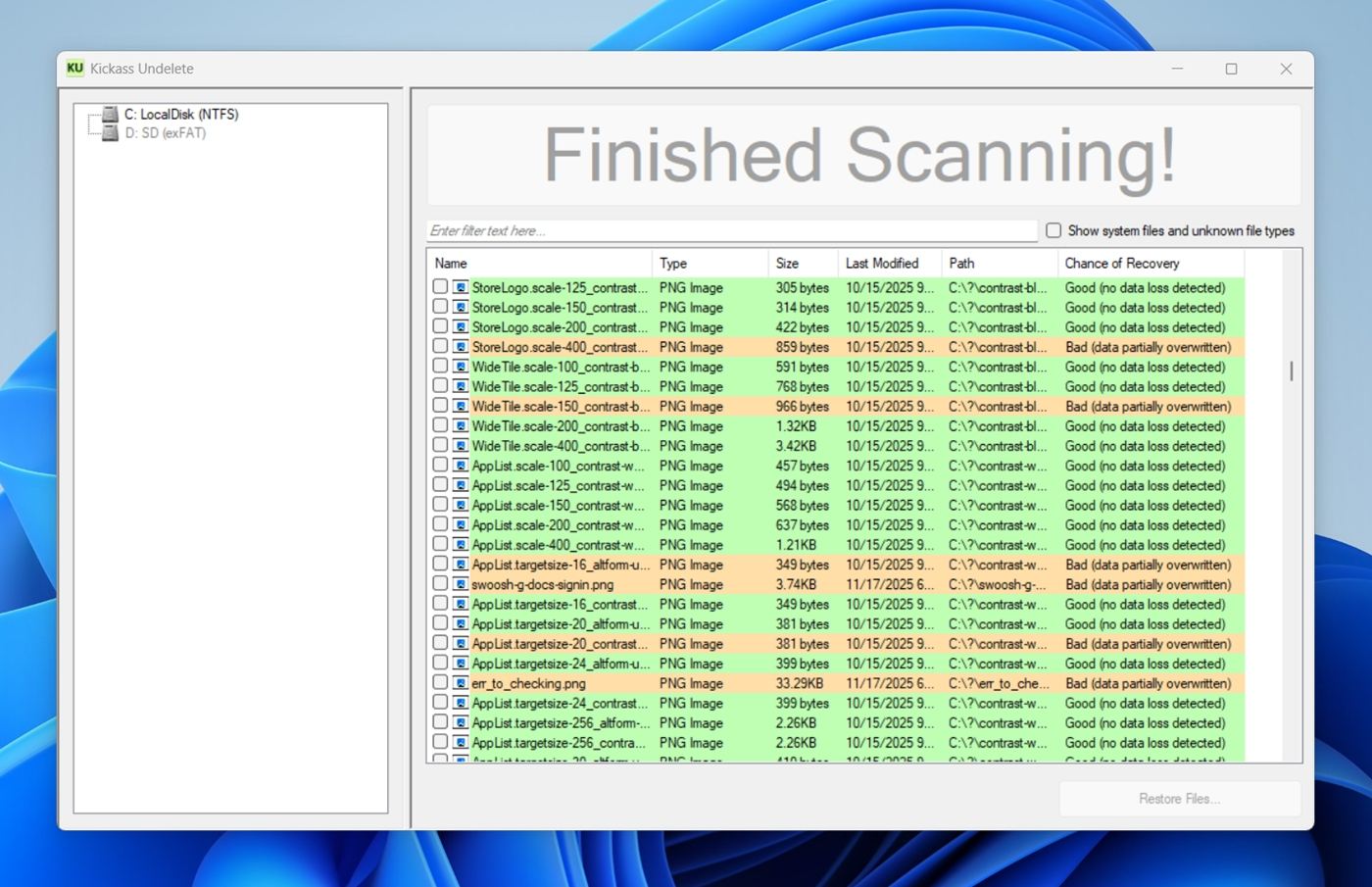
A listed feature of Kickass Undelete, is its “unreasonably large scan button.” But, there’s more to the program. The tool’s simple guise hides a reasonably efficient data recovery algorithm. That’s about it.
Kickass Undelete supports two file systems—NTFS, and FAT. The developer doesn’t provide a list of supported video formats, but in our tests, the tool was able to detect and recover common ones like MP4, MKV, and AVI. Anything beyond that (especially less popular or proprietary formats) might be out of its reach. It's a barebones app built for simple undeletes rather than full-scale recovery.
While there’s no preview feature in the program, you can filter recoverable files by filename and extension.
Kickass Undelete comes in the form of a portable executable file. You can download and run the file from an external storage drive like a USB.
Pros:
- Free and open source
- Filters by extension and filename
- Incredibly easy to use interface
- Works on older systems
Cons:
- Only supports NTFS and FAT file systems
- Doesn’t support newer or complex video formats
- Additional features: Portable, and open-source.
- Supported platforms: Windows only.
5. R-Undelete
Free, for home users only, R-Undelete is a more user-friendly version of R-Studio. It comes with an advanced data recovery algorithm like the one used in R-Studio. However, the free version can only scan FAT (FAT16/32, and exFAT) disks.
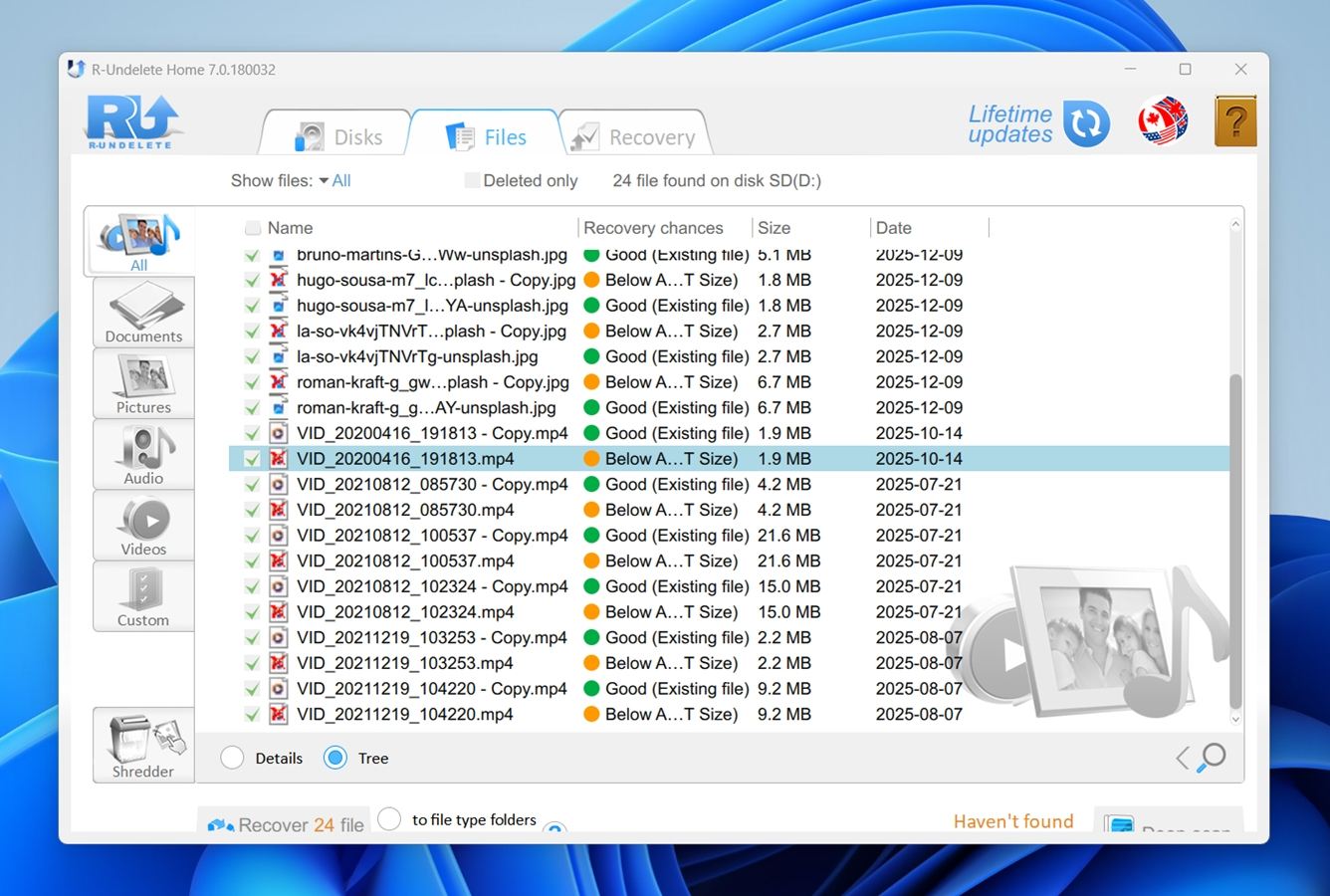
The support for video formats is expansive—R-Undelete recognizes both popular, and obscure video formats. Additionally, you can preview your videos before recovery. Recovery chances are listed next to the filenames as well.
R-Undelete’s free version lets you scan pre-created disk images, while the paid version can simultaneously create, as well as scan the disk image while it’s being created.
Pros:
- Supports numerous video formats
- Highly effective data recovery algorithm
- Relatively fast scan speeds
- Free lifetime updates
Cons:
- Much simpler tool compared to its big brother R-Studio
- Additional features: Lifetime updates, and file filtering.
- Supported platforms: Windows only.
Honorable Mentions
There were many more video recovery tools on our initial long list, like GetDataBack, iBeesoft Data Recovery, and a few others. Some of them showed decent results in specific cases or had unique features. But in the end, we decided not to include them in the main list either due to inconsistent performance, poor UX, outdated design, or limitations that made them hard to recommend over the options we did choose. Still, worth checking out if you’ve exhausted the main picks.
GetDataBack is, on paper, an excellent data recovery tool. Compatibility with Windows, Linux, and Mac exclusive file systems, support for several video formats, and four different scan levels make it a versatile tool. It also has a preview feature and disk imaging capabilities.
However, the limited free trial–you can only preview files not recover them in the free version, complex UI, and inconsistent performance across file systems prompted us to exclude it from our final list.
iBeesoft Data Recovery is simple to use and performs reasonably well in a variety of data loss scenarios. It can recover MP4, MKV, AVI, and other video formats with ease. In addition to scanning drives with a file system, iBeesoft Data Recovery also supports RAW drives.
But again, like GetDataBack, iBeesoft Data Recovery’s free trial is quite limited—only allowing file preview, not recovery. Its incompatibility with Linux, and excruciatingly slow scan speeds didn’t help the program’s case either.
Bonus: Check out our detailed reviews of GetDataBack, and iBeesoft Data Recovery for more details about the tools.
Conclusion
Your search for the best video recovery software ends here. Our detailed guide hasn't only introduced you to the best recovery tools on the market. It has also provided you with information that allows you to choose the solution that works best for you.
However, if you ask us to choose for you, our vote goes in favor of Disk Drill. Right now, we think Disk Drill is the best video recovery software for almost everyone. It hits a rare sweet spot: a recovery engine that delivers excellent results (especially with video files), a clean UI, and a one-time license that doesn’t break the bank. If you’re looking for something completely free, Recuva is still a decent choice for simple video recovery jobs on Windows. And if you’re dealing with more complex cases, R-Studio or TestDisk might make more sense, as long as you’re comfortable with a steeper learning curve.
One more thing we were curious about: which of these tools people actively look up. And here’s what we found:
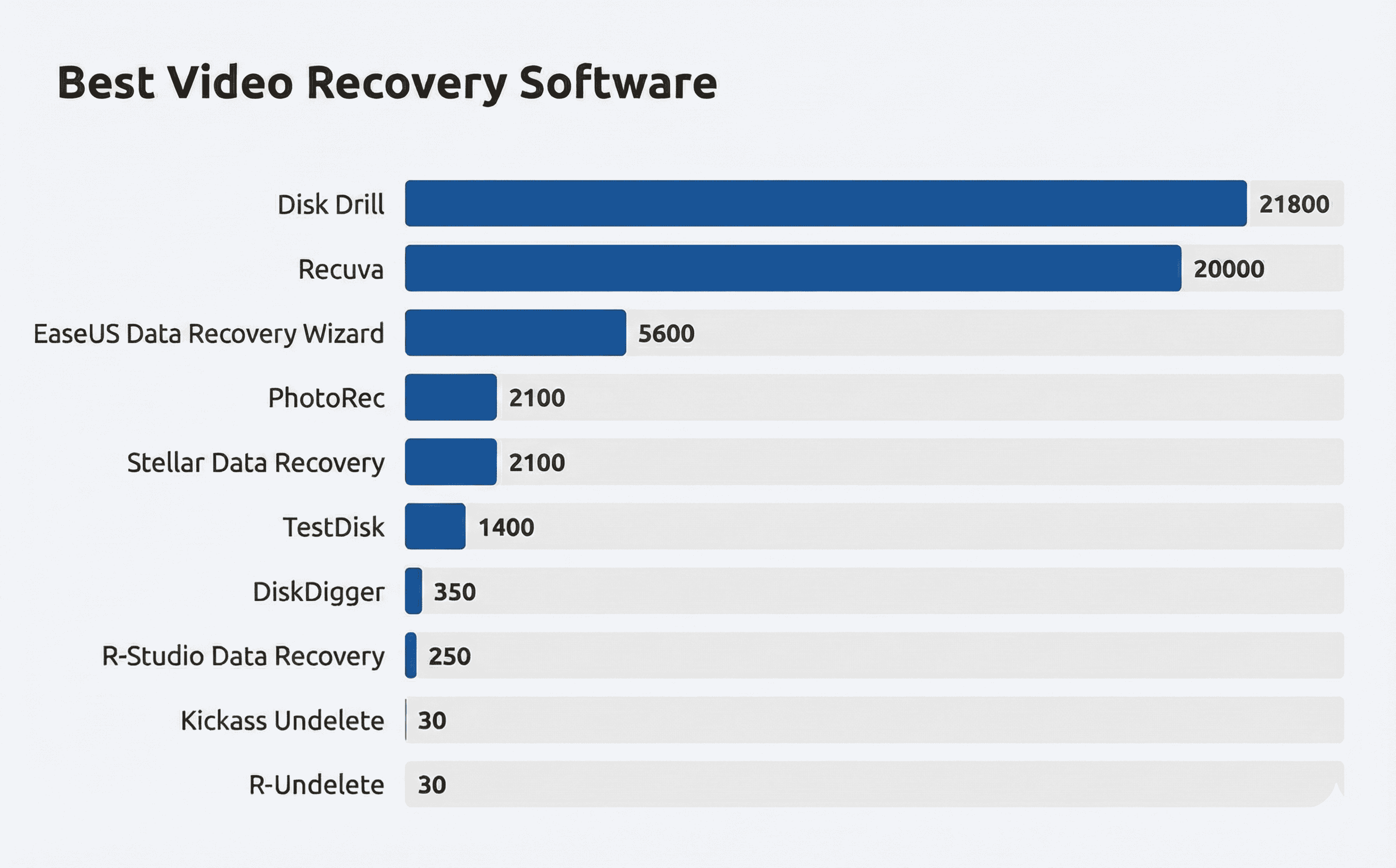
This chart shows the average monthly U.S. search volume for branded queries tied to the video recovery tools in our ranking, using Ahrefs data. We added it alongside our hands-on testing so you get a fast, objective read on real-world demand and plain old brand awareness for each product.
Search volume is not a quality score, and it never will be. Aggressive marketing can spike interest, and some genuinely solid tools stay niche, with low search numbers, because they do not chase the spotlight. Still, according to our data, a tool that keeps letting people down usually cannot hold high demand for long, users move on. The chart helps you tell big mainstream names from lesser-known niche picks, and it explains why some products pop up everywhere while others stay under the radar.
FAQ
How does video recovery software work?
Most video recovery tools rely on multiple scan modes to locate lost/deleted data. The idea is simple: try the fastest method first, then fall back to deeper techniques if needed.
Here’s how it usually breaks down:
Quick Scan looks at the file system itself. It checks structures like NTFS’s MFT or FAT tables for entries that were marked as deleted but not yet overwritten. When this works, recovery is clean: original filenames, folder structure, timestamps, everything. But it’s only useful if the deletion was recent and the file system metadata is still intact.
Deep Scan goes further. Depending on the tool, this can mean:
- digging through older or damaged file system records (after a format, partition loss, or RAW state), or
- scanning the disk sector-by-sector for known file signatures to try to rebuild files from raw data.
A lot of modern tools don’t even ask you to choose anymore. They run both. There’s actually a pretty interesting discussion about Quick vs Deep Scan on our forum here.
Does Windows have native video recovery tools?
Short answer: no. Windows doesn’t include a built-in tool designed specifically for file recovery. There is a Microsoft utility called Windows File Recovery, available for free from the Microsoft Store, but it’s a command-line tool with major limitations. It doesn’t offer video previews, struggles with large or fragmented video files, and isn’t practical for most video recovery scenarios.
Can video recovery software fix a video that shows glitches, missing frames, or broken audio?
In some cases, a video may be successfully restored but still play with glitches. That usually means the file was partially recovered or some of its fragments were missing or out of order.
A few things you can try:
- Rescan with a more capable recovery tool. Different tools handle fragmentation and reconstruction differently. A second scan with a stronger engine can sometimes recover a cleaner copy of the same video. For example, Disk Drill includes an Advanced Camera Recovery module that can do a much better job with camera/drone/action-cam footage when files are fragmented.
- Use recovery software that includes a repair module. Some apps bundle basic repair features. For example, Stellar Data Recovery (Premium tier) includes a video repair module that can fix minor structural issues after recovery.
That said, video recovery software isn’t primarily designed to repair corrupted videos. You’re usually better off with dedicated video repair tools.
This article was written by Jeff Cochin, a Author at Handy Recovery Advisor. It was recently updated by Manuviraj Godara. It was also verified for technical accuracy by Andrey Vasilyev, our editorial advisor.
Curious about our content creation process? Take a look at our Editor Guidelines.