

When a recovery tool calls itself “wise,” it certainly sets the bar high. At the very least, you expect it to know how to find your files and not complicate the process. The tool promises fast scans, broad file type support, and a recovery flow that’s easy to follow even for first-time users. We put those claims to the test in our Wise Data Recovery review. Here is what we found.
TL:DR; Wise Data Recovery works best for recently deleted files and simple recovery tasks on healthy drives. The free 2 GB limit gives enough space to test real recovery results before paying, which is a strong advantage. That said, scan times tend to be slow, especially on larger drives, and recovery becomes inconsistent after formatting or in more complex scenarios. It’s a decent option for basic use, but advanced cases usually call for a more powerful tool.
Want to help make our content better? Please vote for the best alternative to Wise Data Recovery:



Key Features of Wise Data Recovery
Wise Data Recovery is a lightweight, easy-to-use recovery tool rather than a professional solution. According to the developer, it offers fast scans and broad file-type support with minimal system impact. Based on our testing here is what the software actually delivers. fast scans and broad file-type support with minimal system impact. Based on our testing here is what the software actually delivers.
Recovery Capabilities
Wise Data Recovery supports recovery from common data loss scenarios, including accidental deletion, emptied Recycle Bin, quick formatting, and basic file system damage. In our tests, the software performed most consistently when files had been deleted recently and the underlying drive remained healthy.
The tool works with several widely used file systems like NTFS, FAT32, exFAT, HFS, HFS+, HFSX, Ext2, and Ext3. On Windows systems, this covers the majority of consumer storage configurations. Recovery from formatted drives is possible, but success rates drop compared to simple deletion scenarios.
Wise Data Recovery does not offer advanced recovery logic such as custom signatures, file reconstruction, RAID recovery, or partition rebuilding. Its recovery process relies on predefined patterns and metadata scanning rather than low-level disk analysis.
Supported File Types
Wise Data Recovery claims support for over 1,000 file types and covers all major consumer and semi-professional formats:
While file detection is broad, Wise Data Recovery does not attempt advanced media reconstruction. Files appear as found, and integrity depends on how intact the original data remains.
Portable Version and System Impact
One great feature is the availability of a portable version, which runs without installation and reduces the risk of overwriting recoverable data on the target drive. This makes it useful in situations where installing software on the affected system is not advisable.
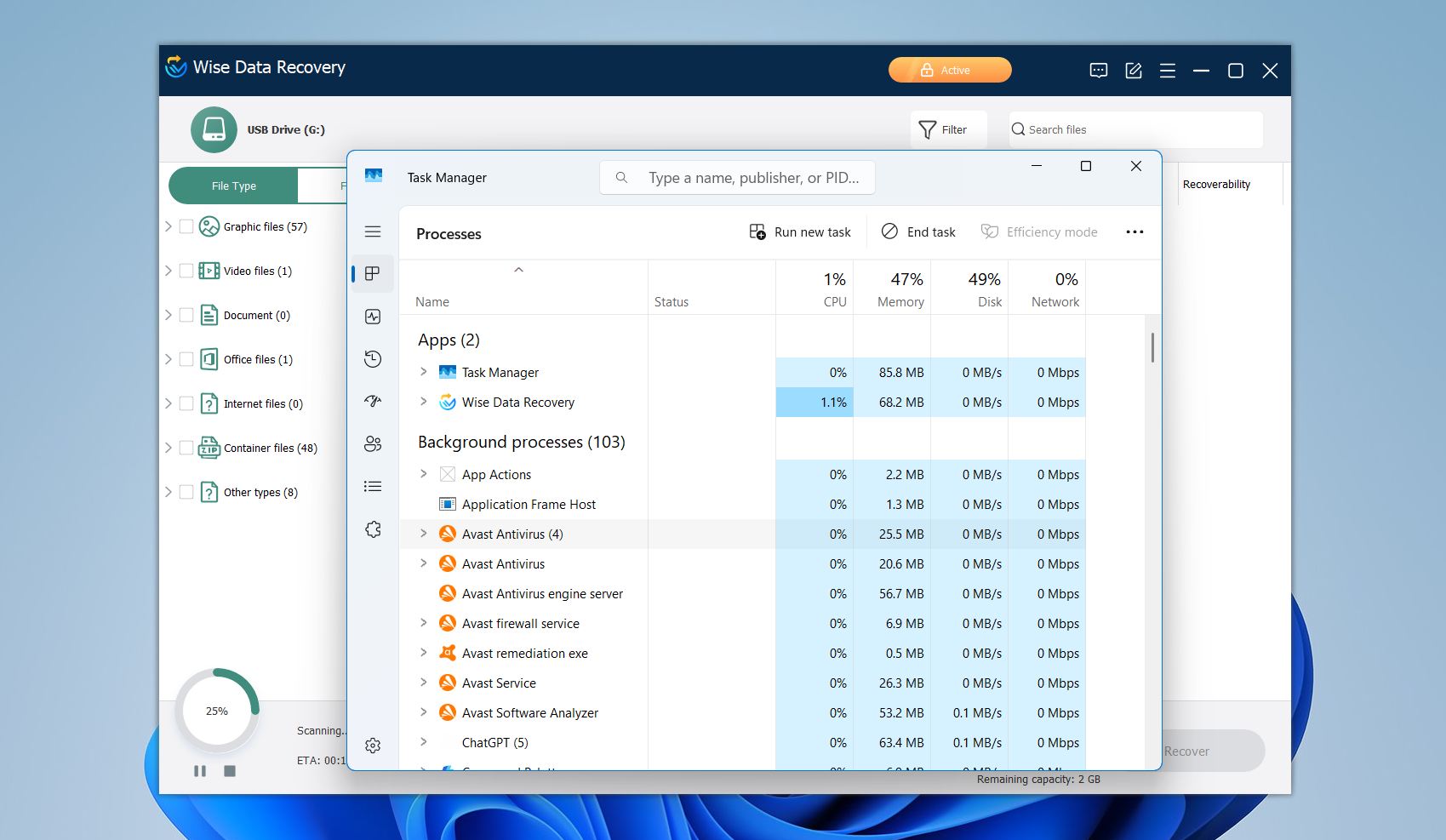
Wise Data Recovery is also light on resources. During testing, memory usage remained around 68 MB, and CPU usage rarely exceeded 10%, even during longer scans. This makes it suitable for older or unstable systems.
What’s Missing
Compared to advanced recovery tools, Wise Data Recovery lacks:
- The ability to choose between Quick and Deep Scan
- Byte-to-byte disk imaging
- RAID and NAS recovery
- Custom file signature creation
- Advanced preview validation
- Partition reconstruction
- SMART disk health monitoring
How We Tested Wise Data Recovery
For testing, we used two USB flash drives. Both contained the same mixed set of everyday files before any data loss scenarios were applied. The USB drives (16 GB, FAT32) were loaded with 124 different files: images (JPG, PNG, TIFF, and a few RAW files), several short video clips (MP4 and MOV), and a small number of documents and audio files. The system we used:
- Operating System: Windows 11 Home (64-bit)
- Processor: Intel Core i5-10400 (6 cores / 12 threads)
- Memory: 16 GB DDR4 RAM
-
Storage for testing:
- SanDisk Cruzer Blade USB Flash Drive 16GB
- USB Flash 16GB Wibrand Cougar Red
We ran two recovery scenarios that tend to reveal what a tool can and cannot do:
- Deleted files on a USB drive. We deleted the test batch and scanned the same flash drive.
- Quick-formatted USB drive. Next, we quick-formatted another USB drive and ran a scan.
Here is a quick look at the results:
Test Case |
Scanning Speed |
Total Data Recovered |
🗑️ USB drive — deleted files |
~21 min |
Most small files; mixed results on larger media |
💾 USB drive — quick format |
~21 min |
Noticeably lower vs deletion test |
How to Use Wise Data Recovery
Now, let’s look at how the recovery process with Wise Data Recovery works and see whether or not the process is any different from previous versions of this tool we tested in the past.
Here are the steps we followed:
Step 1: Download and Install Wise Data Recovery
We downloaded Wise Data Recovery directly from the developer’s official website. The installer is lightweight and downloads quickly. After the setup file was launched, we followed the standard installation wizard. Clicked Install and confirmed the required permissions. The process took less than a minute and did not require a system restart.
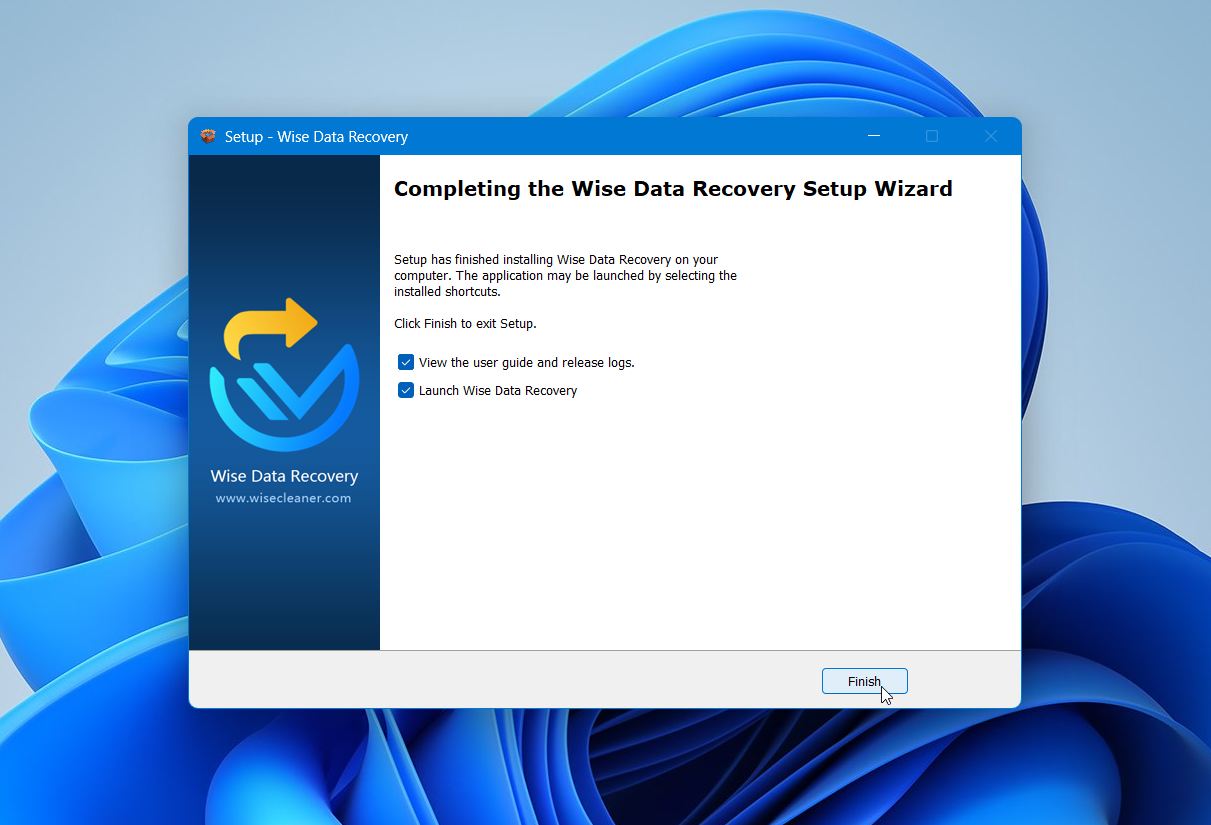 After the installation completed, we launched the application directly from the final setup screen.
Step 2: Select the Recovery Source
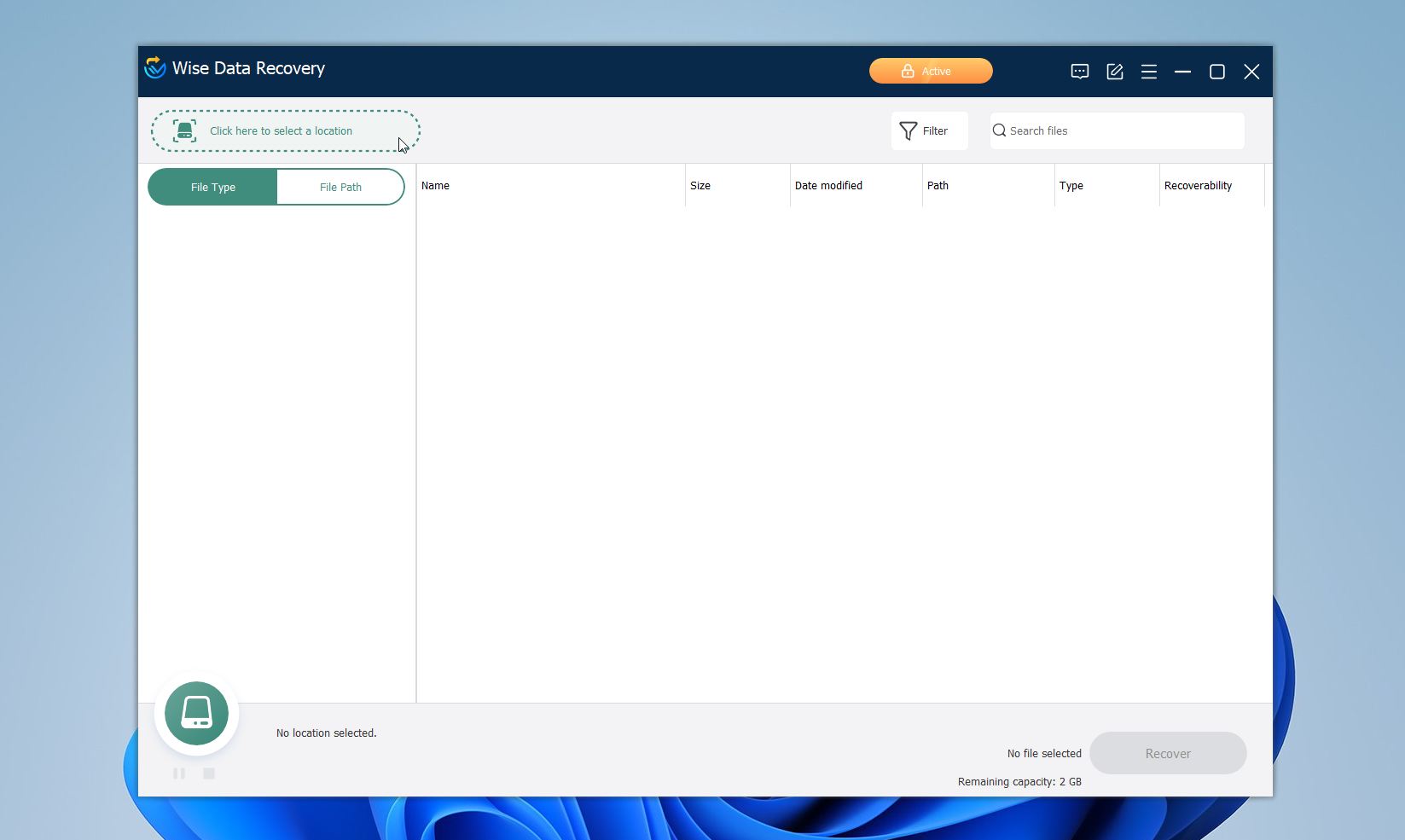
After the app was opened, we clicked Click here to select a location.
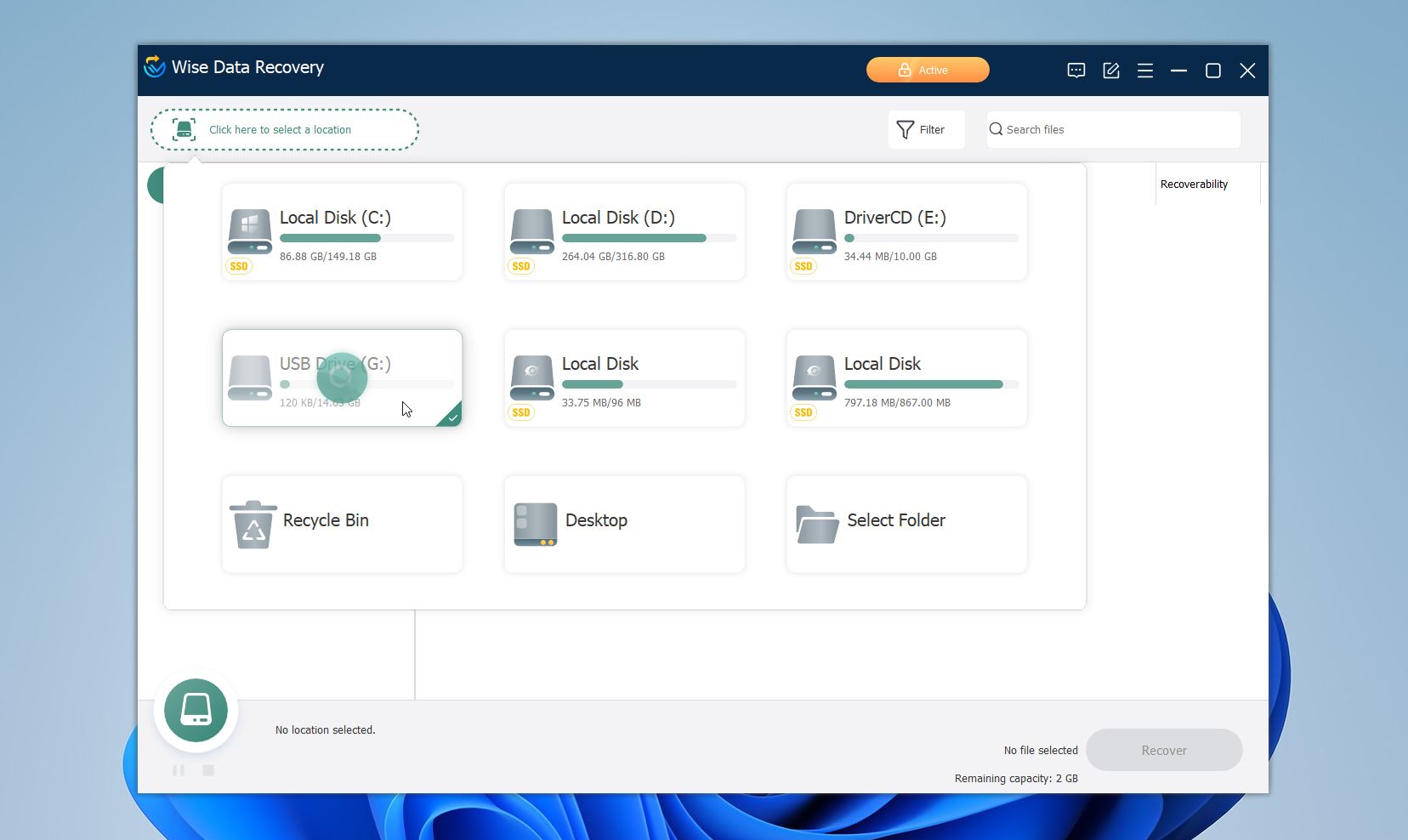
The program automatically displayed a list of detected storage devices. This list included our system drive, additional internal partitions, and connected external media. We selected the drive that previously contained the deleted files.
Step 3: Choose a Scan Type
With the target drive selected, Wise Data Recovery started the scan automatically.
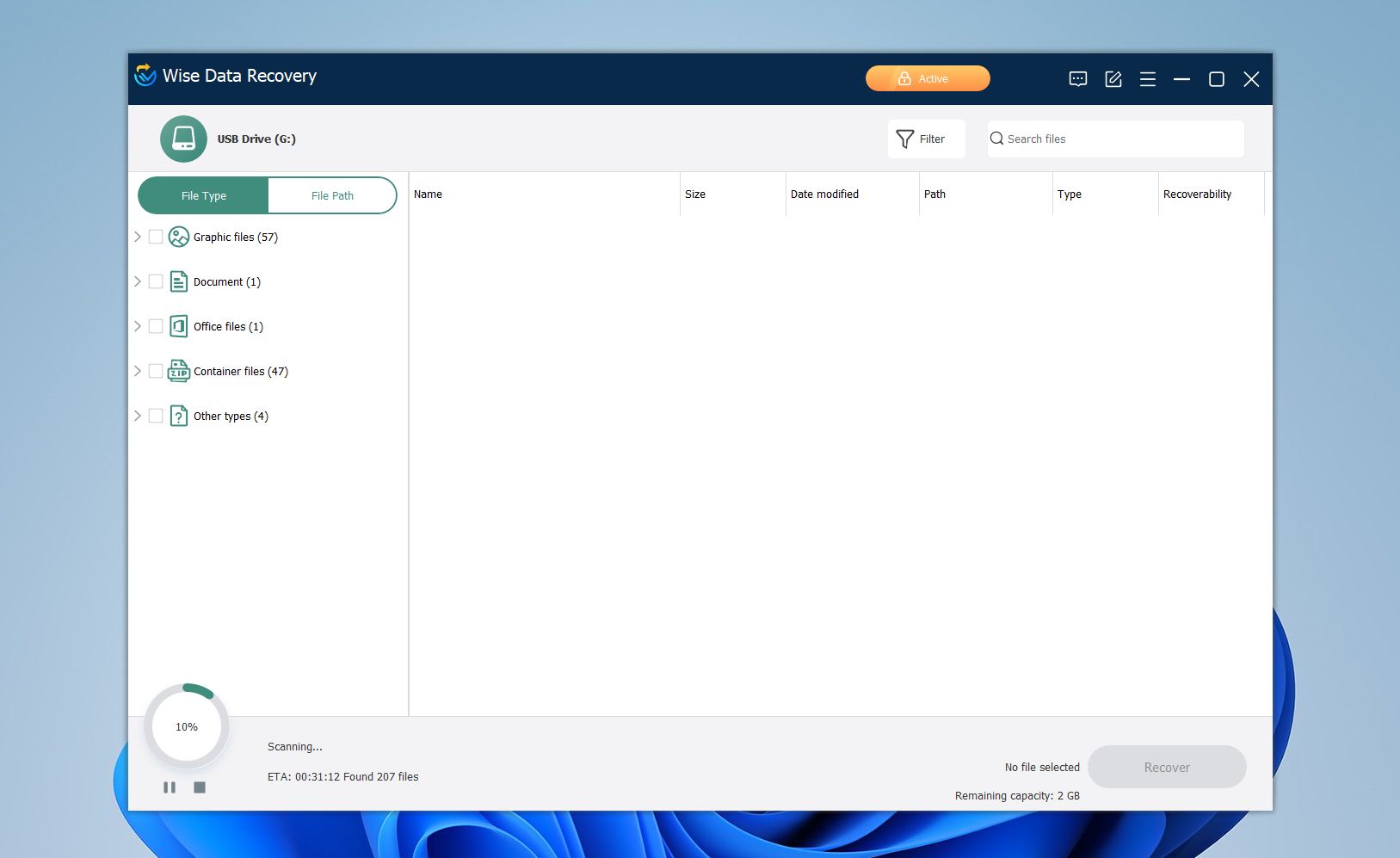
During the scan, the application displayed scan progress and populated the results list in real time. The scan of the 16 GB USB drive finished after around 22 minutes.
Step 4: Review Scan Results
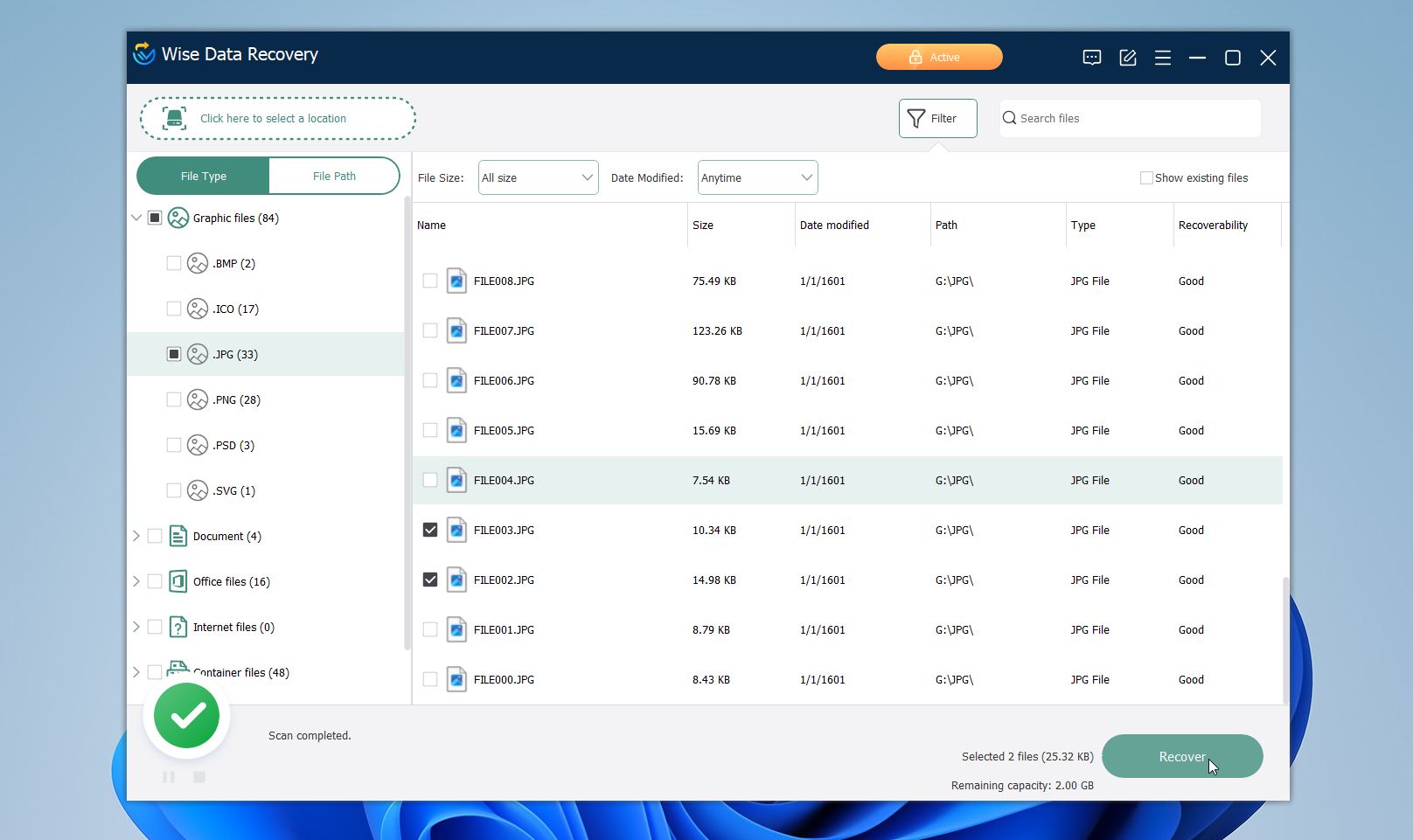
After the scan completed, Wise Data Recovery presented the found files. The program grouped files by type. We used the built-in sorting and search tools to locate specific file types and filenames more quickly.
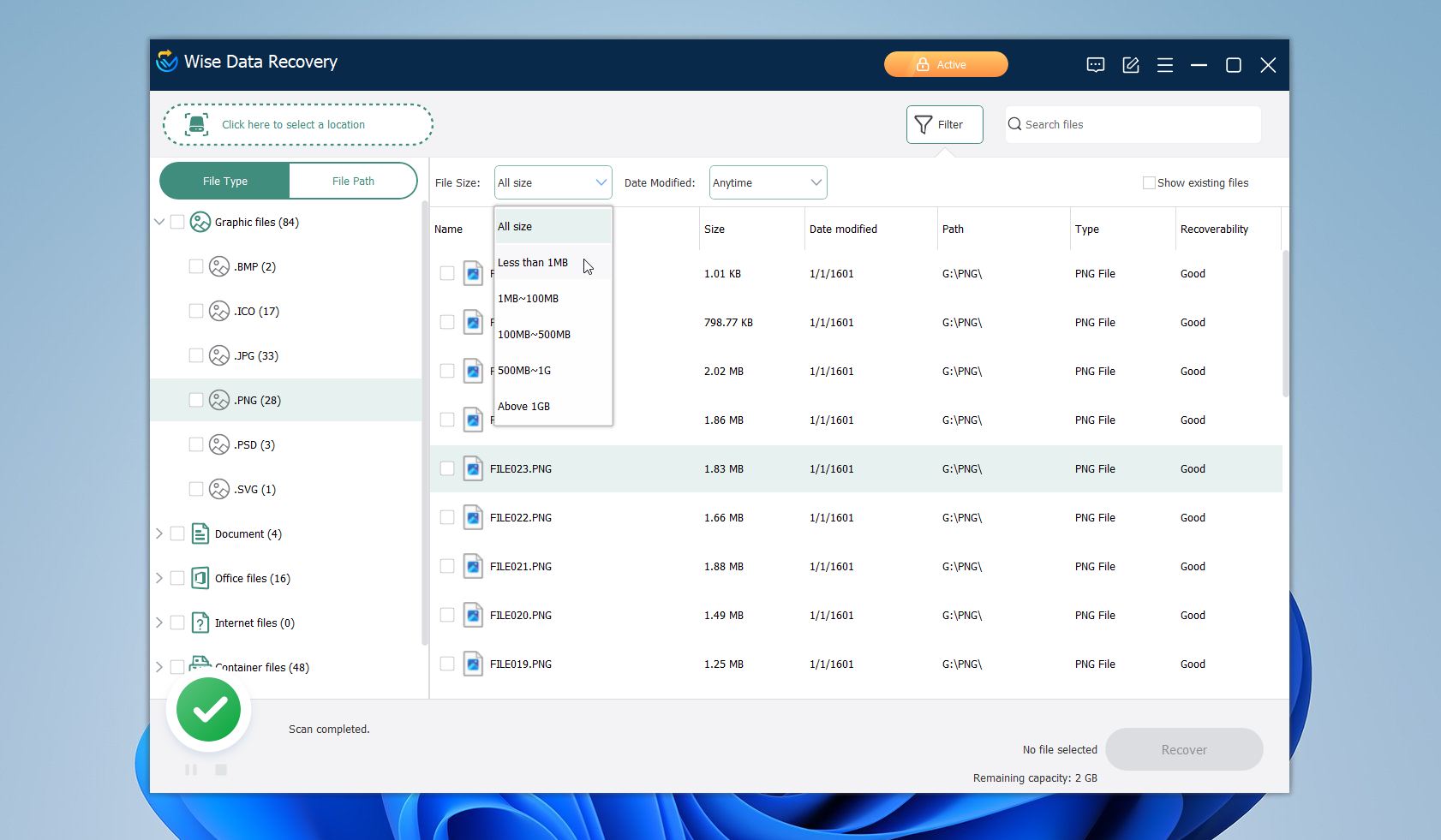
Step 5: Preview and Recover Files
Wise Data Recovery offers a preview option. Right-click on the file and select Preview.
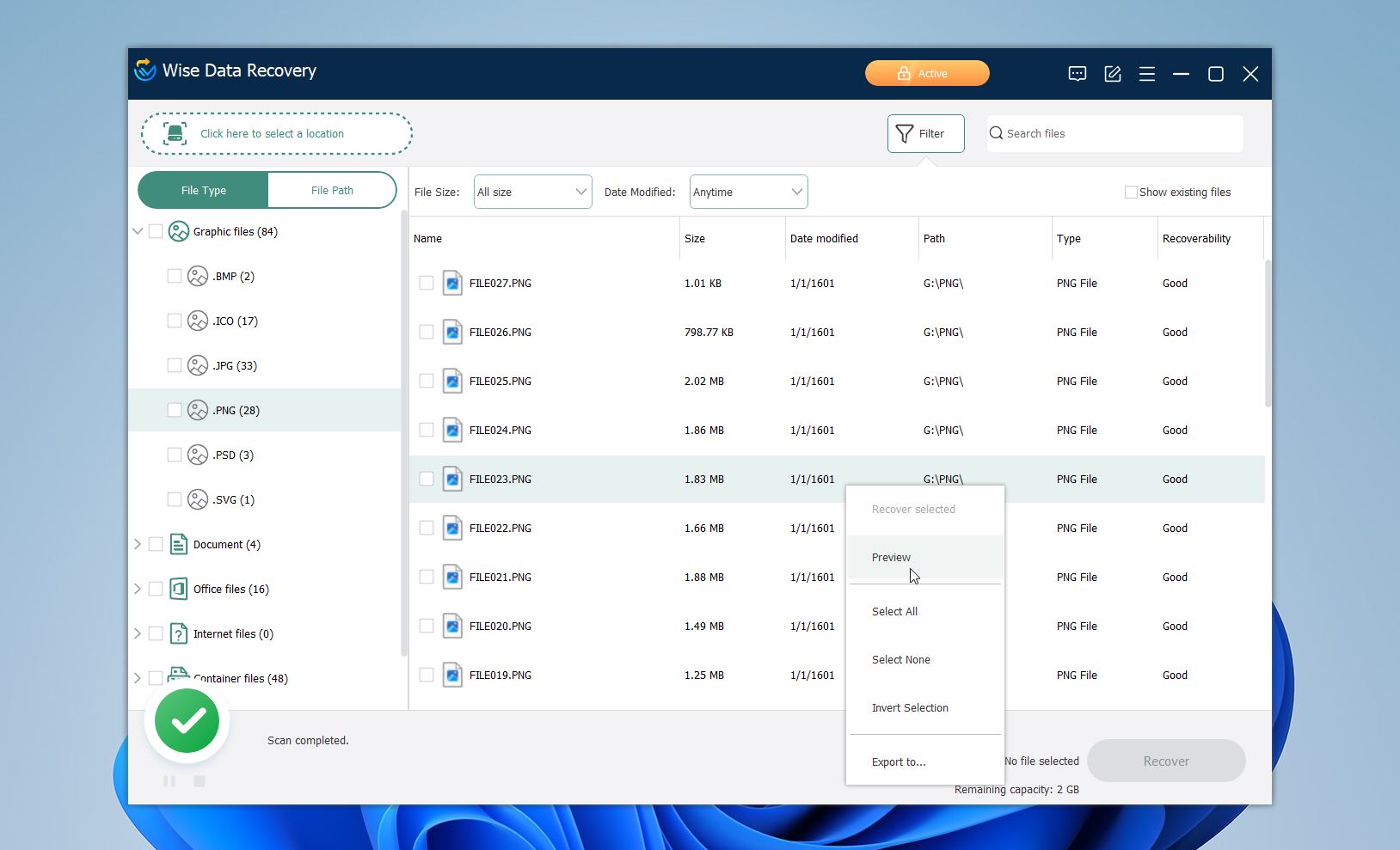
We tried to preview several images, but the tool failed to display any of them correctly. So, keep in mind, it’s not very reliable.
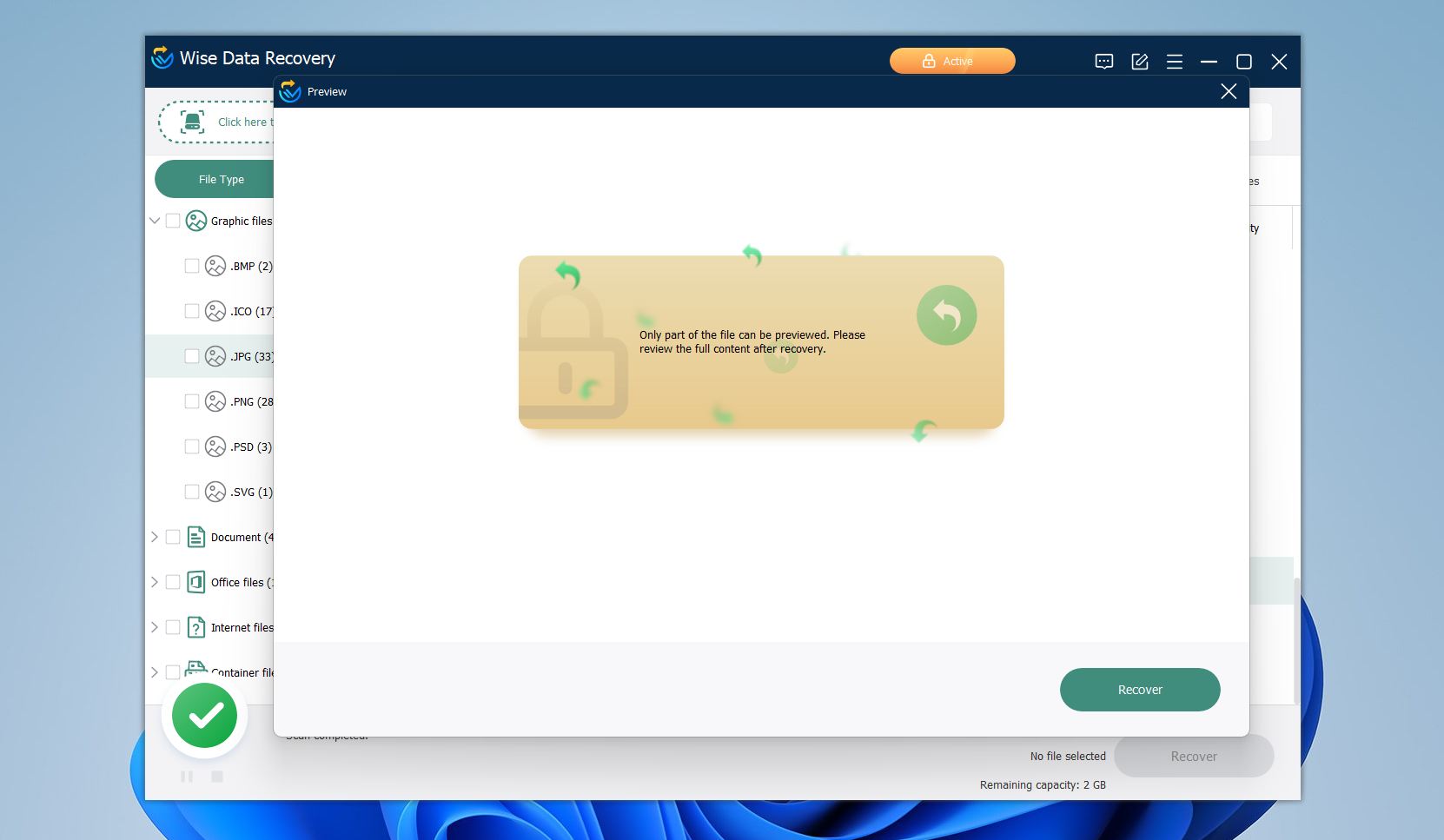
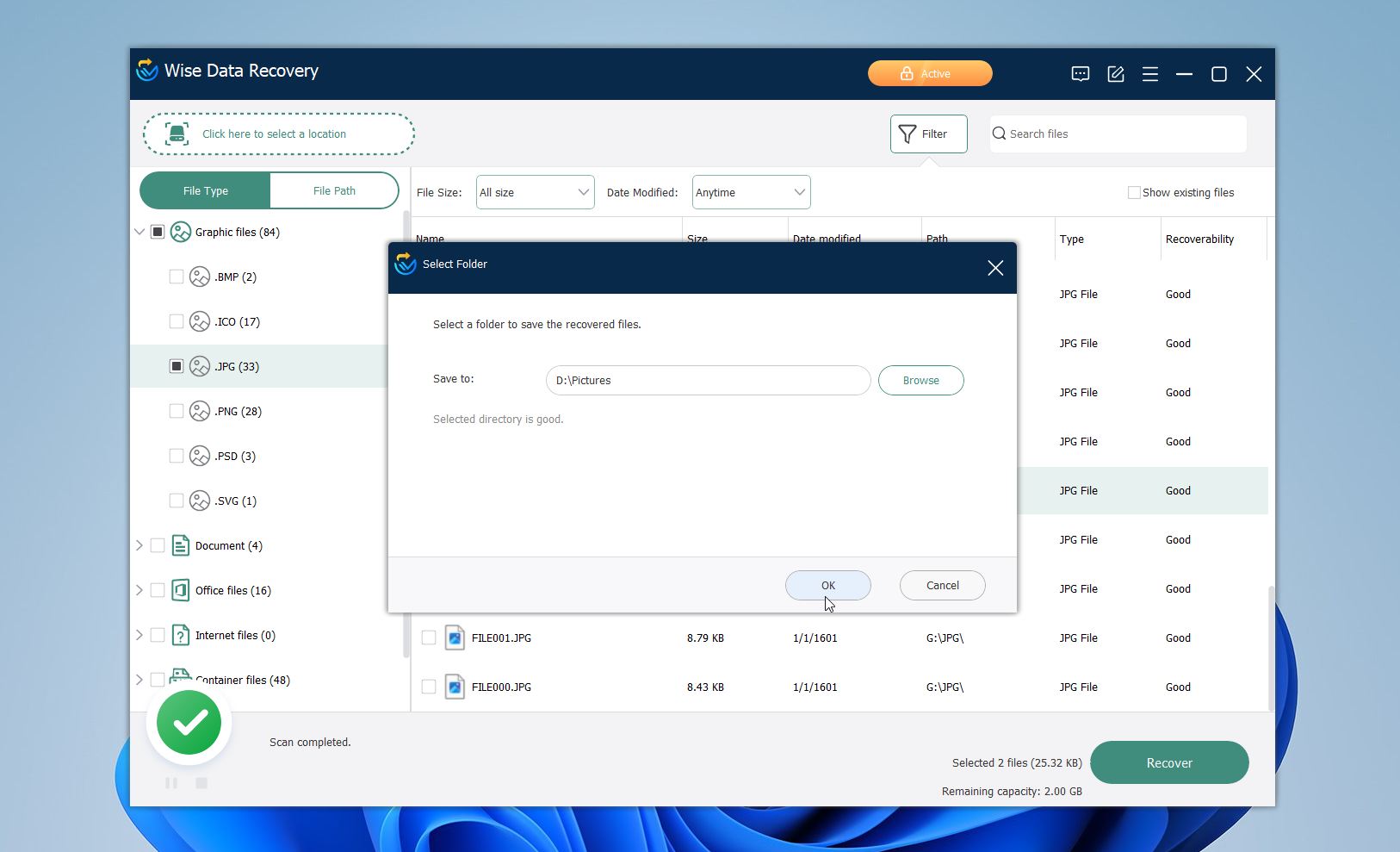
After the files were selected, we clicked the Recover button. Wise Data Recovery then prompted us to choose a destination folder for the recovered data.
As recommended, we selected a different drive to avoid overwriting existing data.
What We Saw During Testing
This brings us to actual recovery results. Once we moved from setup to real recovery work, a clear pattern emerged. Wise Data Recovery’s results varied noticeably depending on how the data was lost.
- For simple deletion on a healthy USB drive, results were mostly positive. Out of around 120 deleted files, the scan detected just over 90. We successfully restored about 80 files, with most documents and standard JPG/PNG photos coming back intact and often with original filenames. Larger media files showed mixed results, and previews did not help much because many photo and video previews displayed a blank screen. The scan itself still took around 21 minutes, which felt slow for a 16 GB drive.
- After quick-formatting the second USB drive, recovery became far less reliable. From the same initial file set, Wise Data Recovery detected roughly 50 files, but only around 40 restored successfully. Folder structure was almost entirely lost, and several files marked as recoverable failed during restoration. Larger photos and videos were the most affected in this scenario.
Overall, Wise Data Recovery handled basic deletion cases reasonably well but struggled as soon as formatting or larger drives entered the picture. The results we saw after formatting suggest broader limitations. If the tool fails to rebuild usable results once the original file system is removed, it is unlikely to perform well on drives that turn RAW, prompt users to format, or show other signs of file system damage. Based on the file counts and recovery rates we observed, Wise Data Recovery works only for light recovery tasks.
How Much Does Wise Data Recovery Cost
Wise Data Recovery stands out for its size limit in the free version, which allows recovery of up to 2 GB of data at no cost. This gives users enough room to test real recovery scenarios and evaluate whether the software works for their specific needs before any purchase.
The paid plans mainly remove the recovery limit and add premium support rather than unlock new recovery capabilities.
Edition |
Cost |
Included Capabilities |
Recommended Use |
Free Version |
Free |
Up to 2 GB recovery, Quick Scan, Deep Scan, basic file preview, recovery from Recycle Bin |
Great if you want to test the software and for small recovery tasks |
Pro Version (1 PC) |
$79.95 / year (often discounted to $39.97) |
Unlimited data recovery, Quick and Deep Scan, priority updates, premium technical support |
Individual users who confirmed successful recovery during free testing and need to remove the data limit |
Pro Version (3 PCs) |
$99.98 / year (often discounted to $49.99) |
Unlimited data recovery, Quick and Deep Scan, priority updates, premium technical support |
Small teams that manage multiple systems and need occasional recovery across several PCs |
What the Internet Thinks About Wise Data Recovery
To get a fuller picture of Wise Data Recovery beyond our own testing, we looked for real user experiences across the web. Overall, the footprint is fairly small. The tool does not come up very often in long-form discussions, and when it does appear on forums like Reddit, it’s usually mentioned in passing rather than as a go-to recommendation.
For example, Lisandro G., a senior tech technician, notes on G2 that scan execution has very low system impact, with background tasks continuing to run smoothly during scans. At the same time, he points out that scan results can be misleading, as some files marked as recoverable could not actually be restored.
In summary, Wise Data Recovery does show up in user and editor reviews online, but it is not a heavily discussed or widely recommended tool in data recovery communities. Most feedback highlights ease of use and the free recovery allowance, with frequent notes about limited recovery power and basic feature sets.
Should I Consider a Different Recovery Tool
Wise Data Recovery is a simple tool by design. It relies on quick scans and very limited user control. This works only in the easiest situations, such as recently deleted files on a healthy drive. Once the scenario becomes even slightly more complicated, Wise often reaches its limits.
Over the years, our team reviewed and tested many data recovery tools across different platforms and recovery scenarios. Here’s a comparison table that shows how Wise Data Recovery stacks up against its main competitors:
Tool |
File System Support |
OS Support |
Price Model |
Free Version |
Previews |
Extra Features |
Wise Data Recovery |
NTFS, FAT, exFAT |
Windows |
1 year subscription plans (from $39.97) |
Yes (2GB) |
Basic |
None |
Disk Drill |
NTFS, FAT, exFAT, ReFS, APFS, HFS+, ext4 |
Windows, macOS |
Perpetual license (starts from $89) |
Yes (up to 100 MB) |
Strong |
Disk imaging, Advanced Camera Recovery |
R-Studio |
NTFS, FAT, exFAT, ReFS, APFS, HFS+, ext2/3/4, |
Windows, macOS, Linux |
Perpetual (from $49.99) |
Yes (up to 1024 KB per file) |
Good |
RAID support, deep technical tools |
DiskGenius |
NTFS, FAT, exFAT, EXT2/3/4, ReFS |
Windows |
Perpetual (varies by edition) |
Yes (limits on recovery size) |
Good |
Partition recovery, cloning |
PhotoRec |
File-system independent |
Windows, macOS, Linux |
Free (open source) |
Yes (no limits) |
No |
Raw file extraction |
As you can see there are several alternatives that can work better for your situation than Wise, especially when basic scans no longer deliver usable results. Let’s take a closer look:
- Disk Drill offers a broader recovery toolkit than Wise, along with more reliable file previews, especially for large photos and videos that Wise often fails to open. It handles large scan results better through stronger filtering and organization. Disk Drill uses a Universal Scan with an Advanced Camera Recovery mode, supports NTFS, FAT, exFAT, ReFS, APFS, HFS+, and ext4, and allows unlimited scans and previews with a 100 MB free recovery limit on Windows. It also includes byte-to-byte backups and image-based recovery, which Wise does not offer.
- R-Studio targets complex recovery cases that Wise cannot handle. It works with RAW drives, missing partitions, and damaged file systems, and gives detailed control over how data is scanned and restored. The demo version allows recovery of files up to 1024 KB, while paid versions unlock full recovery and advanced features.
- DiskGenius focuses on disk and partition structure, which helps after formatting or partition loss where Wise struggles. The free version limits recovery to 64 KB per file, while paid versions remove limits. It supports NTFS, FAT, exFAT, EXT2/3/4, and ReFS and includes partition recovery, disk cloning, and disk image backups that Wise lacks.
- PhotoRec does not rely on the file system, which allows it to recover data from RAW or severely damaged drives where Wise often finds nothing. It is fully free, works on Windows, macOS, and Linux, and supports hundreds of file types. The trade-off is the lack of previews, filenames, and folder structure.
Wise Data Recovery fits simple recovery needs. When reliability, depth, or disk-level access becomes important, these alternatives provide different recovery strategies that often suit more demanding situations.
Final Verdict
In our opinion, Wise Data Recovery is a great entry-level recovery tool. The free version gives users enough room to verify whether the software can recover the specific files they need. The paid Pro plans mainly remove this limitation and add premium support, so they are worth considering only after successful testing with the free version.
Based on our testing and user feedback, Wise Data Recovery shows its strongest results in simple recovery scenarios, such as recently deleted files on healthy drives. The interface now looks more polished than it was a couple of years ago, but still, like in previous versions, scans are rather slow and the recovery performance becomes noticeably less consistent in more complex cases.
When the free test does not deliver reliable results, you can check other data recovery tools that offer stronger recovery performance.
Our verdict: 4.0 out of 5.
Pros
- User-friendly interface with a minimal learning curve
- Generous free recovery limit (up to 2 GB)
- Lightweight application with low system resource usage
- Supports a wide range of common file types
Cons
- Inconsistent recovery results on formatted drives
- Limited preservation of original folder structure
- Recoverability indicators do not always reflect actual file integrity
- Subscription-based paid plans
- Lacks advanced recovery and data protection features
FAQ
Is Wise Data Recovery free?
Wise Data Recovery offers both a free version and paid Pro plans. The free edition lets you recover up to 2 GB of data, which is a fairly generous allowance compared to many competing tools. This limit makes it possible to test real recovery scenarios and verify whether the software can actually restore the files you need before committing to a purchase.
Functionally, the free version includes the same core recovery interface and scanning process as the paid plans, but it is best suited for simple recovery cases, such as recently deleted files from healthy drives.
Is Wise Data Recovery safe to use?
Yes, Wise Data Recovery is safe to use when downloaded from the official WiseCleaner website. The software operates in read-only mode during scanning and recovery, which means it does not write data to the source drive or alter existing files.
In our tests, the application showed no signs of malicious behavior and did not trigger security warnings.
Does upgrading to Pro improve recovery quality or only remove limits?
The Pro version mainly removes the 2 GB recovery limit that exists in the free edition. The core scanning and recovery engine stays the same, so Pro does not unlock deeper algorithms or advanced reconstruction logic.
In practice, Pro gives you more room to recover data and adds priority support, but it does not inherently make the software better at finding files.
Is Wise Data Recovery good for photo and video recovery?
Wise Data Recovery can recover some photo and video files in simple scenarios, especially when they were recently deleted and the drive is otherwise healthy. In our tests, it restored many standard JPG and PNG images successfully.
Larger media files, such as high-resolution photos and videos, were often only partially recovered or failed previews, and the built-in preview feature proved unreliable in these cases.
This article was written by Joshua Solomon, a Contributing Writer at Handy Recovery Advisor. It was also verified for technical accuracy by Andrey Vasilyev, our editorial advisor.
Curious about our content creation process? Take a look at our Editor Guidelines.