
Lost your files on a Western Digital hard drive? Even the most reliable drives are not immune to unexpected data loss. Thankfully, with powerful data recovery software, you can recover your data – and our list of the best Western Digital recovery tools is going to help you with that.
What to Look for in Western Digital Recovery Software
Let’s talk about how we evaluated WD data recovery software for this list. First, we focused on factors that have the biggest impact on real recovery results rather than on extra features. Our approach centered on practical performance in common WD data loss scenarios, such as accidental deletion, formatting, partition loss, and file system damage.
- Recovery success rate on healthy and failed drives was the first factor we considered, because the primary purpose of any WD recovery tool is to return lost files. Software with a consistently high success rate offers better chances to restore data intact.
- Ease of use was another important issue, since not many WD drive owners have a technical background. We looked for tools that provide a clear interface and simple recovery steps that allow users to complete recovery without advanced knowledge.
- File system compatibility played a major role in our evaluation, because WD drives appear across different operating systems and use various file systems. We prioritized tools that support NTFS, FAT32, exFAT, HFS/APFS, and EXT, and also preserve original file names and folder structure when possible.
- Partition recovery support was included as a separate issue because many WD data loss cases involve lost partitions or uninitialized disks.
- Disk safety and repair options completed our criteria, since logical problems often appear on WD drives. In case you need to fix a corrupted HDD drive or recover data from the drive with bad sectors, we favored software that allows creation of a byte-level disk image. It helps protect the drive and reduces risk during recovery.
These criteria helped us compare WD recovery tools in a clear and consistent way. Each tool meets them to a different extent, which makes it easier to choose software that fits both your experience level and the type of data loss you face.
Top 6 WD Recovery Software Tools
We’ve selected six of the most reliable tools for recovering data from Western Digital hard drives. Each one offers unique strengths – some are beginner-friendly, while others provide advanced features for more complex recovery needs.
Here’s a closer look at the top WD recovery software options available today:
1. Disk Drill
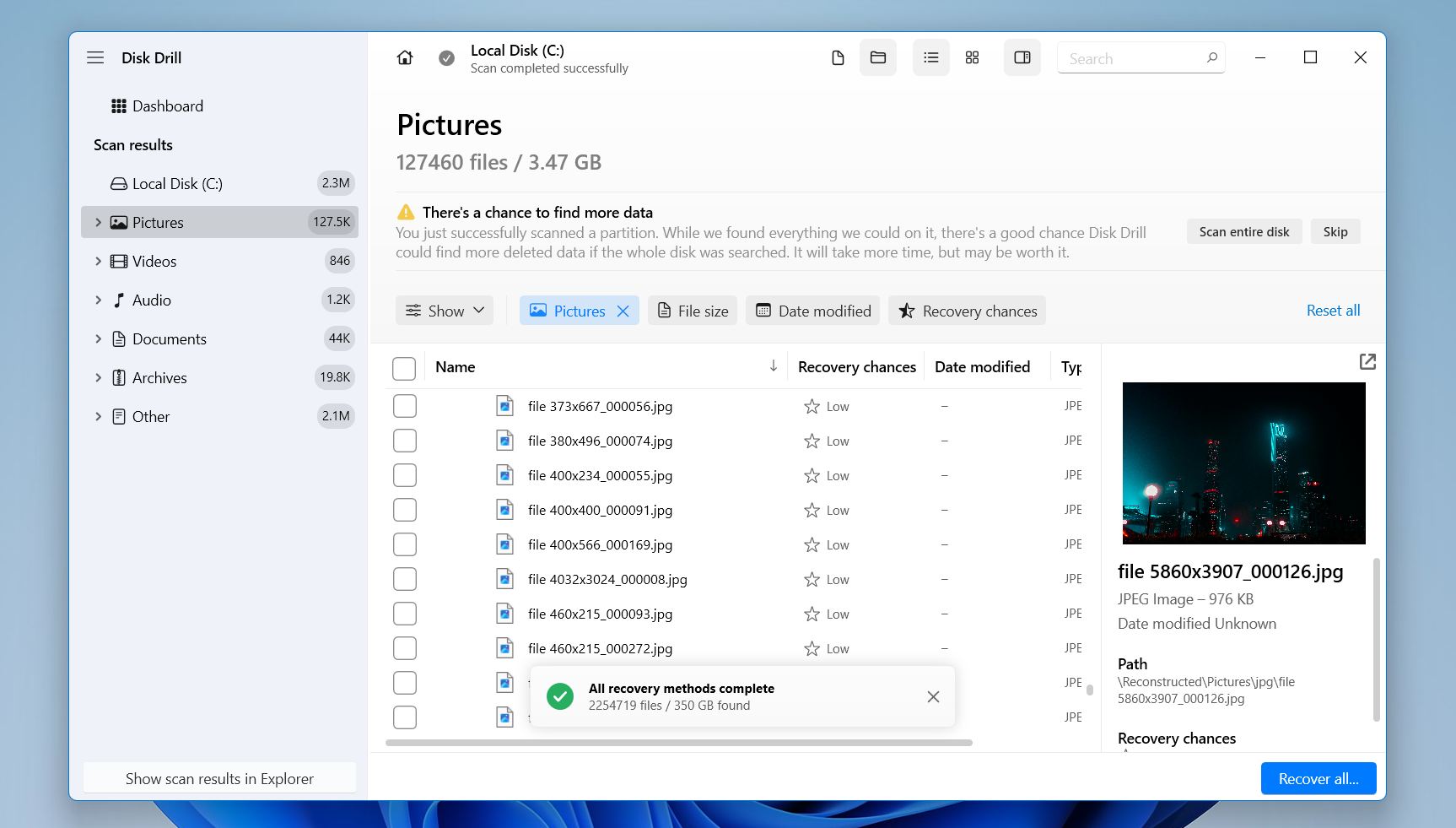
Developer: CleverFiles | OS Support: Windows, macOS | Pricing: Starts at $89.00 | Free Version: Yes, up to 100 MB of data recovery on Windows; unlimited previews on macOS
Disk Drill is our first choice when we need a reliable tool for Western Digital data recovery on Windows or macOS. In our tests, it handled most common WD data loss cases without any trouble, including accidental deletion, formatted drives, and RAW volumes. Disk Drill recognized hundreds of file types and worked well with all major file systems such as NTFS, FAT32, exFAT, HFS+, APFS, and Ext4. We used it to recover data from both internal WD hard drives and external devices like WD My Passport.
We also recommend Disk Drill because it is easy to use. The interface is clean, and the recovery process follows clear steps. Scan results appear during the scan, which lets you start reviewing files right away. Built-in filters make it easier to sort large result lists by file type, size, or recovery chance. Another feature we rely on is byte-to-byte disk imaging, which allows recovery from a copy of the drive instead of the original device. This reduces risk when a WD drive shows signs of issues.
Pros:
- Supports a lot of file types and all major file systems
- NAS recovery via SSH
- Simple interface with clear recovery steps
- Works with formatted, RAW, and damaged partitions
- Allows disk imaging before recovery
- Includes disk health monitoring tools
- Free recovery up to 100 MB on Windows
Cons:
- No Linux version
Here’s a full review of Disk Drill, you can also check out this detailed analysis on how safe it is.
2. R-Studio
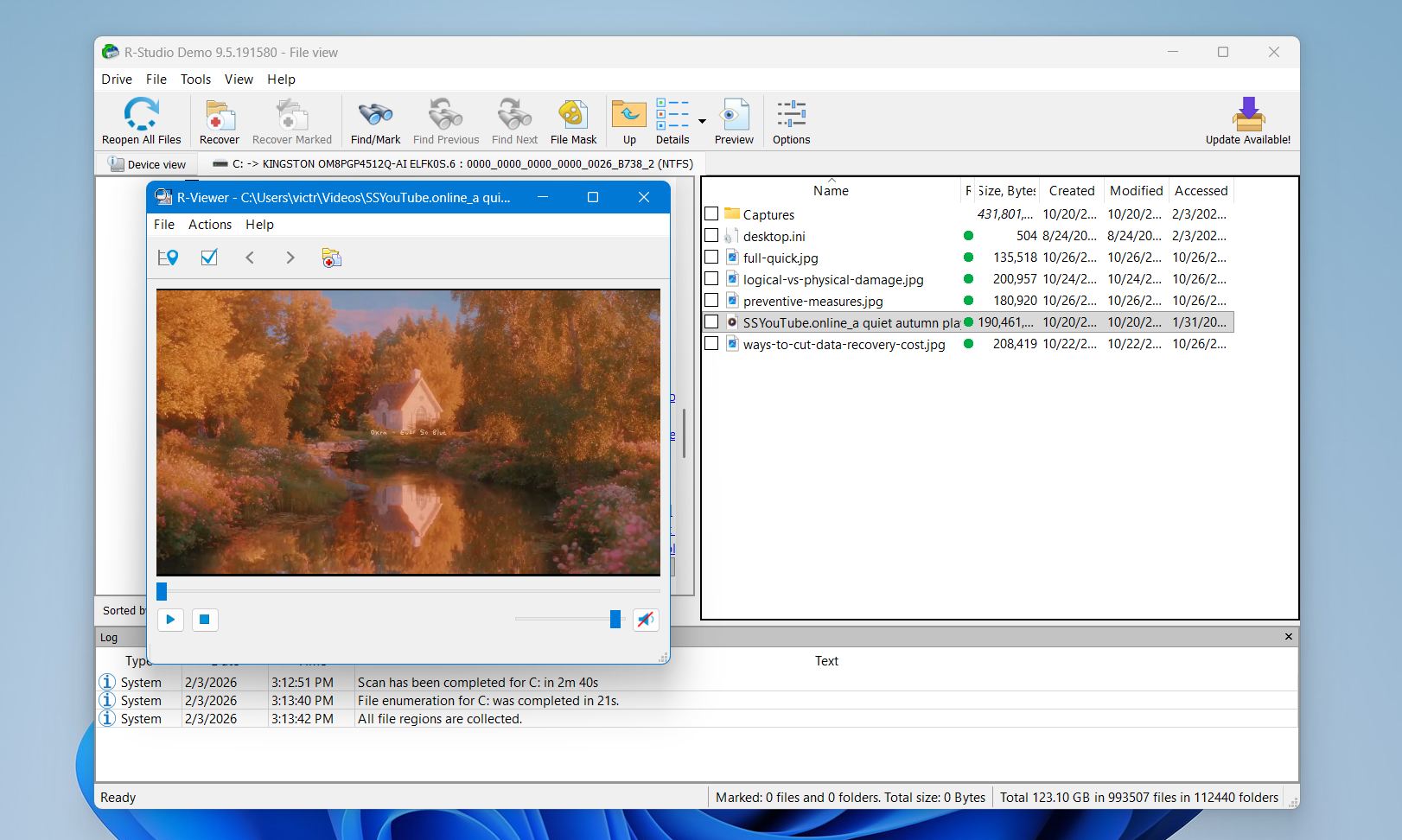
Developer: R-Tools Technology Inc. | OS Support: Windows, macOS, Linux | Pricing: Starts at $59.99 | Free Version: Yes, limited to recovering files smaller than 1024 KB
R-Studio is a great tool when recovery involves complex Western Digital cases and more advanced setups. In our tests, it handled situations that simpler tools struggle with, such as lost or damaged partitions, RAW drives, and RAID-based WD storage. It supports a very wide range of file systems, including NTFS, FAT variants, exFAT, ReFS, HFS/HFS+, APFS, and Ext2/3/4, which makes it suitable for WD drives used on Windows, macOS, or Linux.
We recommend R-Studio mainly for experienced users. It provides deep control over recovery settings, supports disk images, and can rebuild volume structures when partition information is damaged. Network recovery is another strong point, as it allows recovery from remote machines over a local network. These features make R-Studio a strong option for IT specialists and professional recovery work.
The downside is complexity. The interface shows a lot of technical data and offers little guidance. Users without experience in file systems or disk structures may find it difficult to use. The demo version allows scanning and previewing but limits actual recovery to very small files, so a paid license is required for real use. Licenses are also OS-specific unless you choose the more expensive Technician version.
Pros:
- Strong support for complex recovery cases, including RAID and lost partitions
- Works across Windows, macOS, and Linux
- High recovery reliability in severe WD data loss scenarios
- Supports disk imaging and network recovery
Cons:
- Steep learning curve for non-technical users
- Interface feels technical and less intuitive
- No meaningful free recovery option (recovers files <1024 KB)
Here is our detailed review of R-Studio and its features.
3. DiskGenius
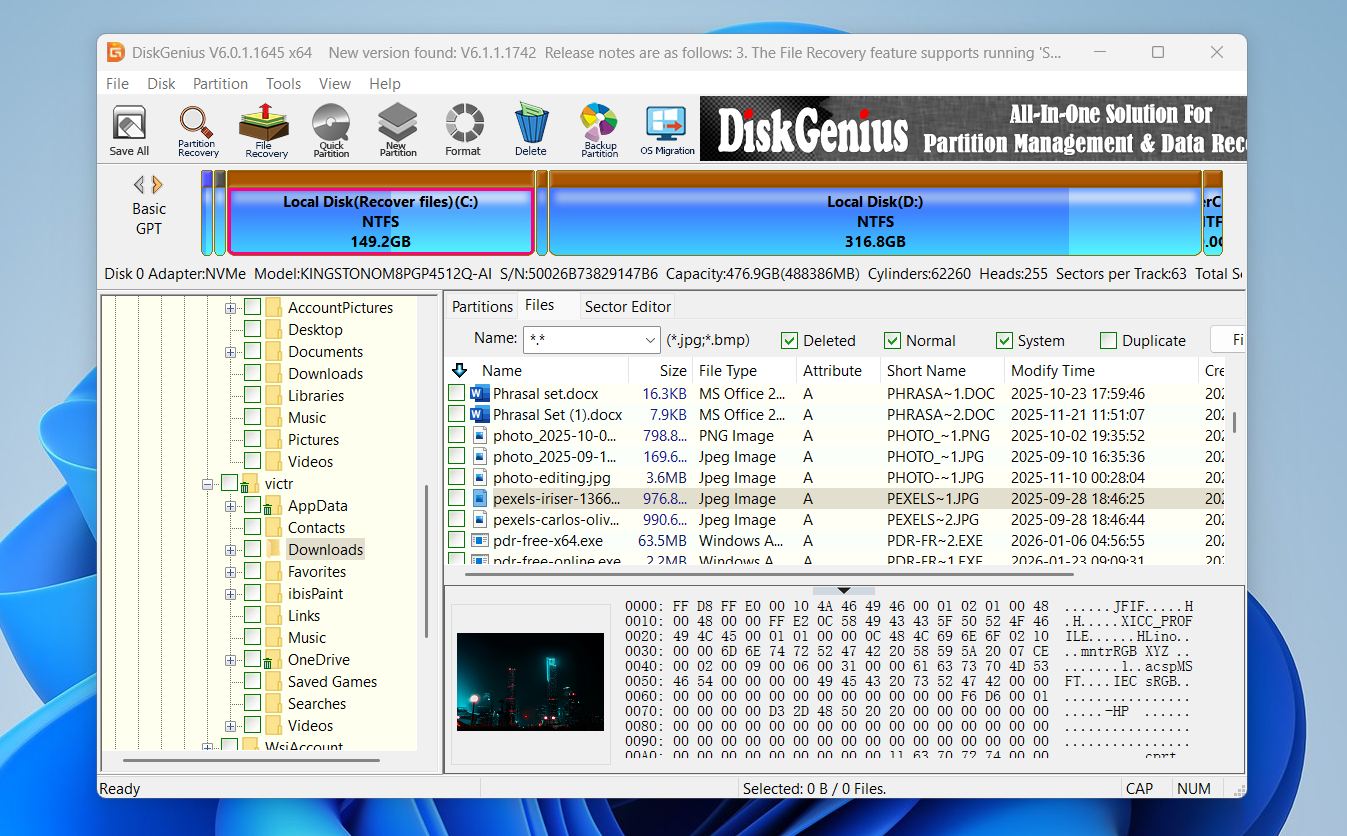
Developer: Eassos | OS Support: Windows | Pricing: Starts at $69.90 per month | Free Version: Yes, limited to recovering files up to 64 KB each
DiskGenius is a good option when Western Digital data loss involves partition issues rather than simple file deletion. In our tests, it performed well when partitions went missing, became corrupted, or failed to mount correctly. It can search for lost partitions, rebuild partition tables, and restore access to WD drives that appear unallocated or unreadable.
We also tested DiskGenius for file recovery. It can restore deleted files and data from formatted partitions and supports common file systems such as NTFS, FAT32, exFAT, and EXT. Beyond recovery, DiskGenius includes tools for disk cloning, partition backup, and even system migration, which makes it more of a disk management suite than a pure recovery tool.
That said, DiskGenius is not beginner-friendly. The interface shows a lot of low-level information, and the workflow includes many options that may confuse casual users. File preview is limited, especially for video files, and the software is only available for Windows. The free version also has recovery limits, so a paid license is required for unrestricted use.
Pros:
- Extensive partition management capabilities, including partition repair, cloning, and OS migration tools
- Can resolve partition table errors and recover lost partitions intuitively via the GUI
- Strong data recovery performance across various file systems
- Helpful documentation and guides
Cons:
- Complex and outdated interface
- Limited preview for recovered files
- Windows-only software
- Free version has recovery restrictions
You can read more about the tool in our full DiskGenius review.
4. TestDisk (with PhotoRec)
Developer: CGSecurity | OS Support: Windows, macOS, Linux | Pricing: Free (open-source) | Free Version: Yes, no recovery limits
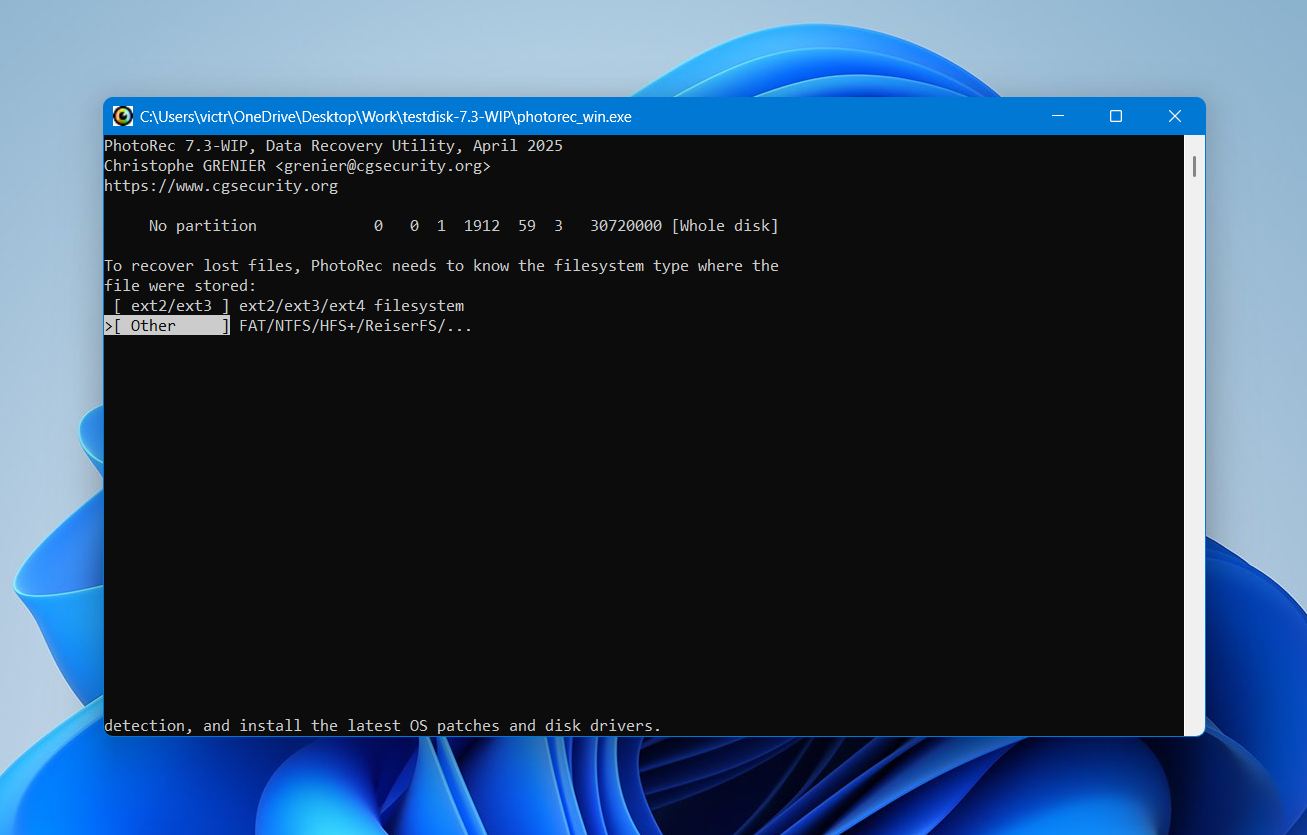
TestDisk is our recommendation when the main issue is logical damage rather than simple file loss. It focuses on repairing disk structures. In our experience, it works well when a WD drive loses its partition table, fails to boot, or shows file system corruption. TestDisk can rebuild partition tables, restore boot sectors, and fix key file system records.
TestDisk runs on Windows, macOS, and Linux and supports a wide range of file systems, including NTFS, FAT, exFAT, ext2/3/4, HFS+, APFS, and others. When file recovery is needed, PhotoRec, which comes bundled with TestDisk, scans drives by file signatures and can recover hundreds of file types even from heavily damaged WD drives.
The main drawback is usability. Both TestDisk and PhotoRec rely on a text-based interface with no graphical controls. (PhotoRec does have an official GUI, qPhotoRec, but it only works for Windows and looks quite dated.) This makes them difficult for beginners.
PhotoRec also recovers files without original names or folder structure, which means manual sorting afterward. We see this tool as a last-resort option when other software cannot access the drive.
Pros:
- Completely free and open source
- Excellent for repairing partition and boot issues
- Works on all major operating systems
- PhotoRec recovers files from heavily damaged drives
Cons:
- No graphical interface
- Recovered files lose original names and folders
- Not convenient for simple deletion cases
Read our detailed PhotoRec review for a closer look at its recovery capabilities. You can also find our full TestDisk review for a deeper overview of its features and limitations.
5. DMDE
Developer: DM Disk Editor and Data Recovery Software | OS Support: Windows, macOS, Linux, DOS | Pricing: Starts at $20.00 (Express license, 1 year subscription) | Free Version: Yes, limited to recovering up to 4,000 files per operation
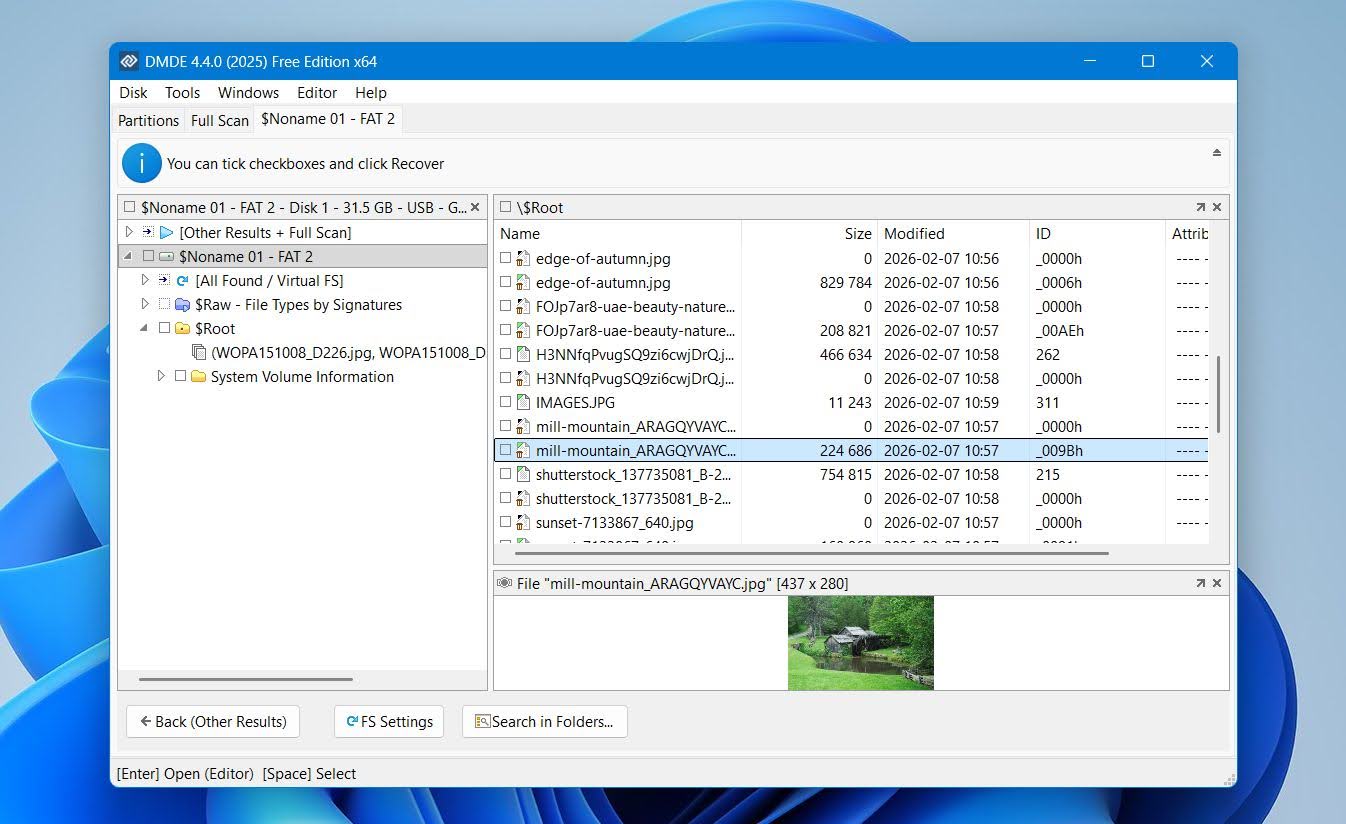
DMDE is the tool we turn to when Western Digital data loss involves complex file system damage or low-level disk issues. It can handle cases where directory structures were partially destroyed and where other recovery tools failed to rebuild file trees correctly. DMDE works directly with file system structures and supports a wide range of formats, including NTFS, FAT12/16/32, exFAT, ReFS, Ext2/3/4, HFS+/HFSX, and APFS. It also runs on Windows, macOS, Linux, and even DOS, which makes it one of the most flexible tools in this category.
The main drawback is usability. DMDE’s interface is technical and dated, and scan results require manual navigation through directory trees and file system entries. There are no guided recovery steps, which can slow down the process for less experienced users. The free version allows recovery of up to 4,000 files per operation, which is often enough for smaller cases, but larger recoveries usually require a paid license. The Standard license is relatively affordable and unlocks full functionality.
Pros:
- Very broad file system and operating system support
- Strong performance in complex recovery scenarios
- Includes disk editor, partition recovery, RAID tools, and disk imaging
- Portable version available with a small footprint
Cons:
- Interface is technical and not beginner-friendly
- Recovery workflow requires manual navigation
If you want to know more, check our DMDE review.
6. MiniTool Power Data Recovery

Developer: MiniTool Software Ltd. | OS Support: Windows | Pricing: Starts at $69.00 | Free Version: Yes, up to 1 GB of data recovery
MiniTool Power Data Recovery is an option for basic Western Digital data loss scenarios. In our tests, it worked best for simple cases such as accidentally deleted files, emptied Recycle Bin data, and lightly formatted WD drives. It supports common file systems including NTFS, FAT32, exFAT, and HFS+, which makes it suitable for most consumer WD hard drives and external devices.
The main strength of MiniTool is ease of use. Its interface is clean and wizard-based, with clear prompts that guide users through scanning and recovery without exposing too many technical details. Scan results are presented in a familiar folder-style view, and basic filters help narrow results by file type. File preview is available for images and documents, which helps verify recoverability before restoring files.
However, MiniTool has clear limitations. It does not offer disk imaging, advanced reconstruction tools, or strong handling of RAW file systems and heavily damaged WD drives. Recovery performance drops noticeably once file system structures are badly corrupted.
Pros:
- Simple, beginner-friendly interface
- Works well for basic deletion and formatting cases
- Supports common WD file systems
- File preview available before recovery
- Free version allows recovery up to 1 GB
Cons:
- No disk imaging or advanced recovery tools
- Weak performance with RAW or severely damaged drives
- Windows-only
- Not suitable for complex WD recovery scenarios
You can find a full breakdown of features and limitations in our detailed MiniTool Power Data Recovery review.
Are There Any Native Windows or macOS Features That Can Be Used as a WD HDD Repair Tool?
Yes. In fact, both Windows and macOS include built-in tools that can help you repair a WD hard drive (at least for logical issues) without third-party software. These tools won’t recover deleted files, but they can fix disk errors, repair file system corruption, and mark bad sectors so they won’t be used:
- On Windows, you can check and repair a WD hard drive using the built-in error-checking tool or the command-line CHKDSK utility. Running CHKDSK X: /f /r (replace X: with your drive letter) fixes file system errors and scans for bad sectors, marking them so they won’t be used again. We often see this help in cases of logical damage like improper ejection or power loss. However, CHKDSK can’t fix physical damage, it only detects and isolates it. If many bad sectors are reported, we recommend backing up your data immediately, as the drive may be close to failure.li>
- On a Mac, you can repair a Mac storage device with Disk Utility (found in Applications > Utilities). Disk Utility’s First Aid will verify and repair errors related to the disk’s formatting and directory structure. From our experience, this can fix issues like invalid file permissions, catalog file corruptions, or partition map problems on HFS+ or APFS formatted WD drives. If your Mac external WD drive isn’t mounting or showing errors, run First Aid on each volume and the drive itself. For Macs that won’t boot due to disk errors, you can access Disk Utility from macOS Recovery (by holding Command+R at startup).
- There is also a data recovery solution for Windows. Windows File Recovery can be downloaded directly from the Microsoft Store. It is a basic recovery tool that can work in some situations, however it is not a replacement for third-party software that is generally better and more reliable. For more detailed explanations, you can check our Windows File Recovery review.
CHKDSK can modify the file system structure, which may lead to data loss in some cases. Before running it, consider recovering important files first, especially when the data matters. We explain this risk in more detail and show recovery options in our guide on how to recover files deleted by CHKDSK.
Conclusion
With data loss on Western Digital devices being an ever-present threat, it is important to back up your data and take preventive actions. However, you should also keep good data recovery software in your arsenal for potential data loss scenarios.
While no one software can solve all the problems your HDD might face, each one is best suited for a particular need. That being said, some shine over others thanks to higher recovery rates and a more user-friendly interface, among other things.
After thorough testing and research on the topic, Disk Drill seems to be the best option from a wide range of Western Digital data recovery applications. Thanks to its high recovery rates, user-friendly interface, and abundance of recovery tools, it gives you the best chance of recovering your lost information.
Our other recommendations would be DMDE as well as R-Studio, although these require a little more technical expertise to use.
FAQ
Can a WD hard disk be repaired?
In most cases, yes, but it depends on the type of issue. If the damage is logical, such as file system corruption, bad sectors, or lost partitions, the repair is possible with built-in repair utilities like CHKDSK on Windows or Disk Utility on macOS. In more serious situations you can also use third-party tools like TestDisk or DiskGenius.
However, if the drive has physical damage, your only hope is professional recovery services, since most people don’t have necessary technical knowledge and instruments. If your drive fails to spin or you hear clicking noises, we advise you to stop using the drive immediately and consider what you want to do next.
Does Western Digital have hard drive diagnostic software?
Yes, Western Digital provides hard drive diagnostic software. WD Drive Utilities allows users to run quick and extended tests, monitor S.M.A.R.T. data, and check the health of their WD hard drives and SSDs. WD Drive Utilities is available for both Windows and macOS and works with supported WD external drives. Recently, Western Digital introduced WD Kitfox, a new unified diagnostic tool designed to replace WD Dashboard and support a wider range of drives.
Does Western Digital offer recovery?
Yes, Western Digital offers a data recovery plan on eligible products. This recovery plan, in collaboration with Ontrack, offers protection against data loss scenarios such as drive failure, viruses, and software issues. It also includes one in-lab data recovery attempt, shipping costs to and from Ontrack, and a warranty replacement device if necessary.
What is the best Western Digital HDD repair tool?
For basic Western Digital HDD repair, these tools are commonly used:
- CHKDSK (Windows) is a built-in Windows utility that checks and fixes file system errors and marks bad sectors.
- Disk Utility (macOS) is Apple’s built-in tool for repairing WD drives connected to a Mac.
- DiskGenius provides partition repair, file system checks, and can also detect and fix bad blocks on WD drives on Windows.
- Victoria SSD/HDD is a free diagnostic and surface-testing tool for Windows that can scan for bad sectors, remap unstable blocks, and perform advanced drive health checks.
- TestDisk helps repair partition tables and boot records on WD drives across Windows, macOS, and Linux.
These tools focus on logical repair. They cannot fix physical damage, and in some cases repair operations may affect existing data, so recovering important files first is recommended.
Is Western Digital Data Lifeguard Diagnostic still relevant?
Western Digital’s Data LifeGuard Diagnostic (DLGDIAG) has been discontinued since October 2021. Users can instead use the newer Western Digital Dashboard software for firmware updates and diagnostics.
Does Western Digital offer any cloning software?
No, Western Digital does not offer any proprietary cloning software. WD Disk cloning can be done by third-party cloning software such as DiskGenius, DMDE, or open-source solutions like Clonezilla.
Why aren't WD Drive Utilities detecting the drive?
If the WD Drive Utilities software doesn’t detect your drive, first make sure the wire connection is secure. If that doesn’t work, try reinstalling the software or using another Utility program. It is also important to note that the WD Drive Utilities software can only detect WD hard drives, so hard drives of other brands will not get detected.
This article was written by Vihaan Jain, a Staff Writer at Handy Recovery Advisor. It was recently updated by Victoria Rybtsova. It was also verified for technical accuracy by Andrey Vasilyev, our editorial advisor.
Curious about our content creation process? Take a look at our Editor Guidelines.