

Lost important files and thinking about using iBeesoft Data Recovery, but unsure what it can actually recover? Before deciding, it helps to see how the software performs outside of marketing claims. We will share hands-on testing results that show how the tool behaves in real data loss situations and what kind of outcomes you can expect, which should make it easier to judge its real-world performance.
TL;DR: iBeesoft is a potent data recovery tool that works on all kinds of file formats and can be used across storage devices. The interface is intuitive and it is easy even for beginners to wrap their head around the data recovery process. The software can be a tad slow scanning through drives and the free version only allows you to scan your device for lost files. You’ll have to pay to actually recover any files.
iBeesoft Data Recovery Main Features
iBeesoft Data Recovery is the company’s main product and represents its long-term focus on consumer data recovery software. It has been around for years and keeps getting updates. The overall direction is obvious: this is software built for everyday recovery jobs, not for lab-grade experiments. iBeesoft leans heavily on automation, wide compatibility, and predictable behavior across different drives and file systems. It keeps things simple for regular users.
Let’s take a closer look at iBeesoft Data Recovery’s main features to see what it offers.
Device and System Compatibility
iBeesoft claims support for 2,000+ storage media types on its website. However, this number should be treated as a marketing statement rather than a technical benchmark. As with many data recovery tools, the figure mostly reflects variations of common devices and file systems rather than fundamentally different recovery capabilities. Real-world results depend far more on the storage type, file system condition, and data loss scenario
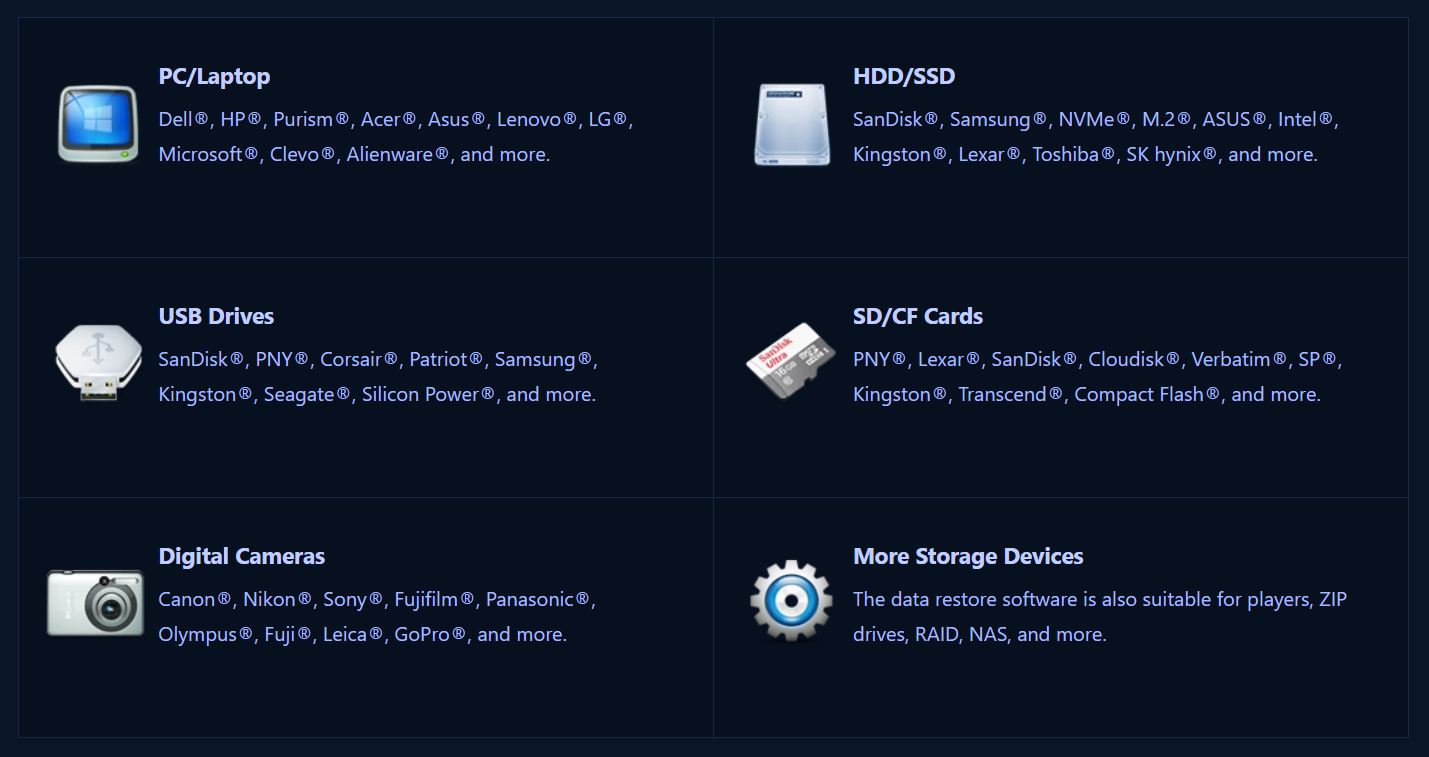
iBeesoft works with a wide range of storage media:
- Internal and external HDDs/SSDs
- USB flash drives
- Memory cards (SD, CF, etc.)
- Digital cameras and other media devices
- RAID arrays, ZIP drives, and more
It supports common file systems such as FAT, exFAT, NTFS, HFS+, ext variants, ReFS, and even RAW drives, across Windows (including Windows 11/10/8/7) and macOS environments.
Core Recovery and Scan Capabilities
iBeesoft relies on sector-level scanning to locate recoverable data beyond standard file tables. This allows the software to work after deletion, formatting, partition loss, or file system damage. When file system records remain readable, it restores original names and folder structures.
When those records are missing, it switches to signature-based detection to surface recoverable content anyway.
The scan engine uses multi-threaded processing, which helps keep performance stable on modern CPUs. Large drives and system volumes still require time, but scans progress consistently rather than stalling or slowing unexpectedly.
File Support
File format support represents one of the broader parts of the toolset.
iBeesoft claims to support recovery of over 1,500 file types across documents, media, and system data. However, this figure appears to be largely a marketing statement, or it may include file system–level recovery where the specific file type does not play a decisive role. Document support includes Word, Excel, PowerPoint, PDF, text, and HTML files. Image recovery covers common formats such as JPG and PNG, along with RAW photo formats like CR2, NEF, DNG, and similar camera-specific files, as well as design formats such as PSD, AI, CDR, and DWG.
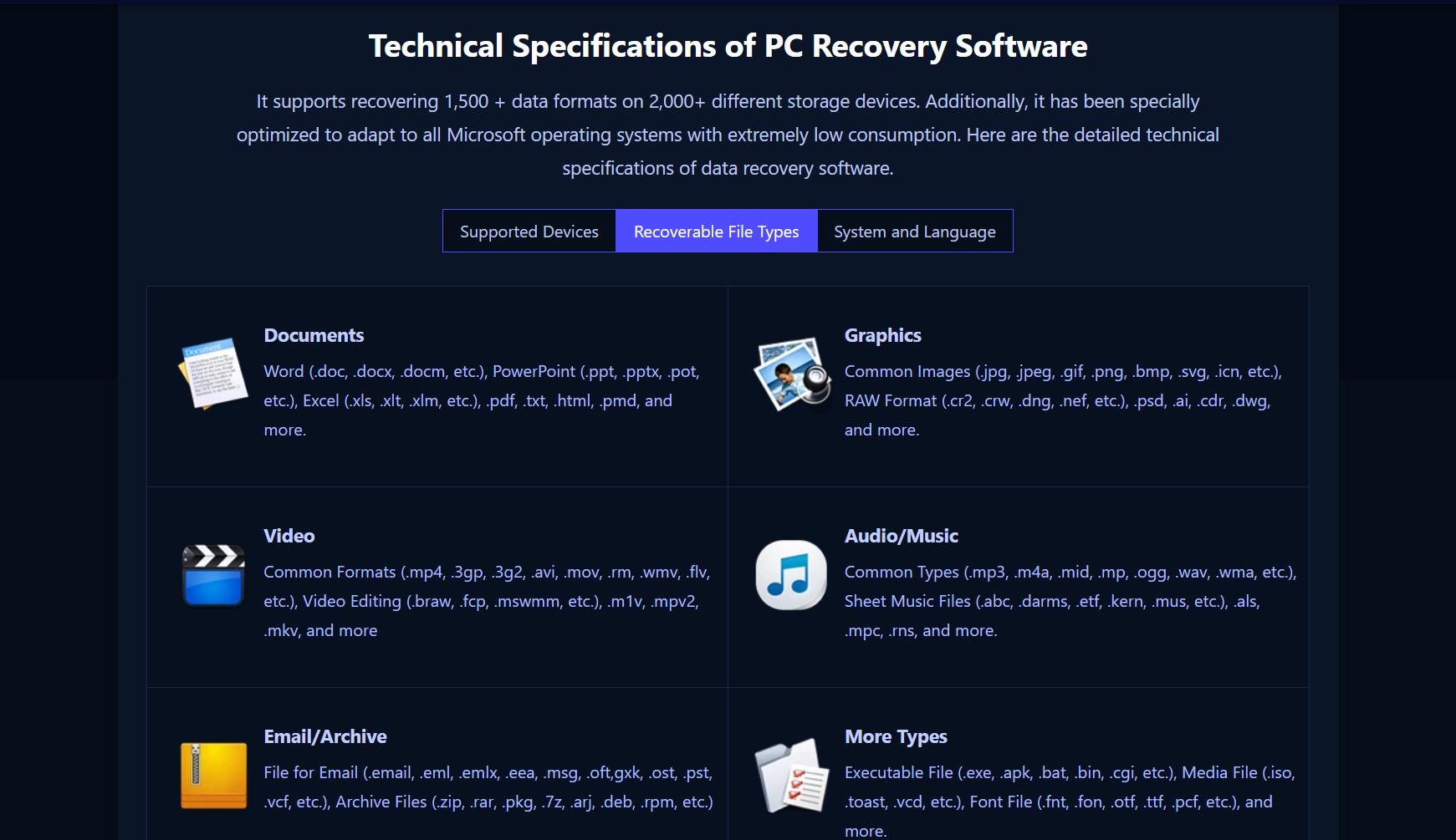 Video support includes standard containers like MP4, MOV, AVI, MKV, WMV, and FLV, along with editing and project-related formats. Audio recovery spans common music formats, production files, and sheet music types. Email and archive support covers PST, OST, EML, MSG, ZIP, RAR, 7Z, and related containers. The software also detects executable files, disk images, fonts, and other less common data types when present on the storage medium.
How this broad format support translates into actual recovery results, especially for media files, becomes clearer later when we look at our hands-on test outcomes.
Advanced Features and Add-Ons
When it comes to advanced features, iBeesoft keeps things very minimalist. The app just scans and pulls files back, and that’s about it. There’s no disk imaging or cloning, so every scan runs directly on the original drive. That’s fine for healthy devices, but not for riskier cases.
There’s also no option to save or reload scan results, which means closing the program equals starting over. No SMART monitoring, no disk health checks, and no early warning signs that your drive is about to retire itself either. Partition tools are missing too, so you won’t find manual partition recovery, editing, or anything low-level under the hood.
On the brighter side, availability of a portable version functions as a safety-oriented add-on. When users run the software from an external drive, it reduces write activity on the affected disk. This aligns with standard recovery practices and lowers the risk of overwriting recoverable data during analysis.
Suspicious Similarity Between iBeesoft and EaseUS
When we previously tested iBeesoft Data Recovery for our review, one detail stood out immediately: its interface and overall behavior were nearly identical to EaseUS Data Recovery Wizard (earlier versions).


The layout, scan flow, file tree structure, preview window, and even certain quirks closely mirrored EaseUS at that time. This raised reasonable questions about whether iBeesoft was built independently or based on a white-label or licensed version of the EaseUS engine.
Since then, EaseUS has redesigned its UI and moved forward visually and functionally. iBeesoft, however, still resembles the older EaseUS build. This creates a few possible explanations:
- iBeesoft licenses the recovery engine but keeps its own interface.
- iBeesoft continues development independently from an older code base.
- iBeesoft relies on a specific legacy build without major internal evolution.
There is no official confirmation of the exact relationship. However, based on UI behavior, scan logic, and recovery structure, the similarity is difficult to ignore.
How We Tested iBeesoft Data Recovery
To evaluate how iBeesoft Data Recovery performs in realistic conditions, we tested it using two common data loss scenarios on different types of storage media. The goal was to reflect situations users actually face.
Test Scenario 1: Deleted Files on a 500 GB HDD
For the first test, we used a 500 GB Transcend SATA hard drive installed as a secondary drive on a Windows 11 system. This setup represents a very common recovery case: files deleted from a hard drive and then removed from the Recycle Bin.
We copied the same test dataset used across all scenarios to the drive. It included roughly 3 GB of data spread across 100–500 files in several folders. The dataset combined Word and PDF documents, a small photo set (mostly JPG with a few RAW files), several short MP4 videos, and a couple of ZIP archives. Folder nesting remained shallow to make it easier to assess whether original file names and directory structure survived recovery.
After deletion, we waited briefly to mimic normal user behavior, then ran iBeesoft Data Recovery.
Test Scenario 2: Quick Formatted SD Card (Camera Media)
The second test used a 16 GB SD card. We formatted the card using the camera itself, which mirrors a typical real-world mistake. The same dataset as in the HDD test was written to the card beforehand, consisting of documents, archives, photos and short video clips.
We then connected the SD card via a card reader and scanned it with iBeesoft Data Recovery. This scenario represents a more challenging case, where file system records no longer exist and recovery depends on signature-based scanning.
How to Use iBeesoft Data Recovery
Now, let’s see how easy it is to recover lost files with iBeesoft Data Recovery in typical real-world scenarios. It reflects the exact steps we used to evaluate how iBeesoft handles lost file recovery.
- Download and install iBeesoft Data Recovery on a healthy drive. We always advise against installing recovery software on the same drive where data loss occurred, since that can overwrite recoverable data. Once you complete the installation steps, you can open iBeesoft and will be met with the following screen.
- iBeesoft gives users the ability to filter the files that it scans based on filetype. This is a good way to speed up the scanning process. To make that selection, click on the Go to setting link at the bottom right of the page and choose your preferred file types on the next screen.
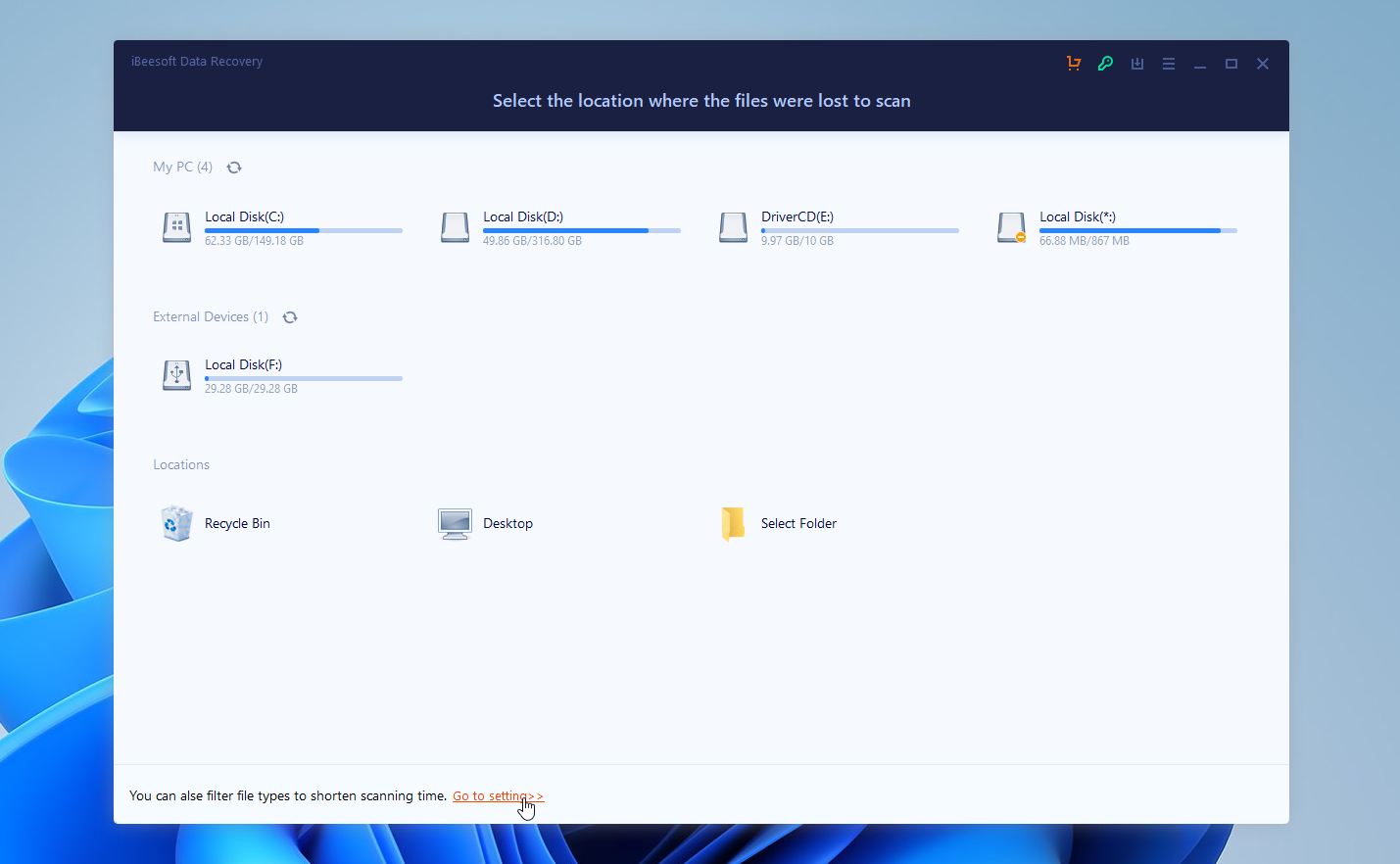
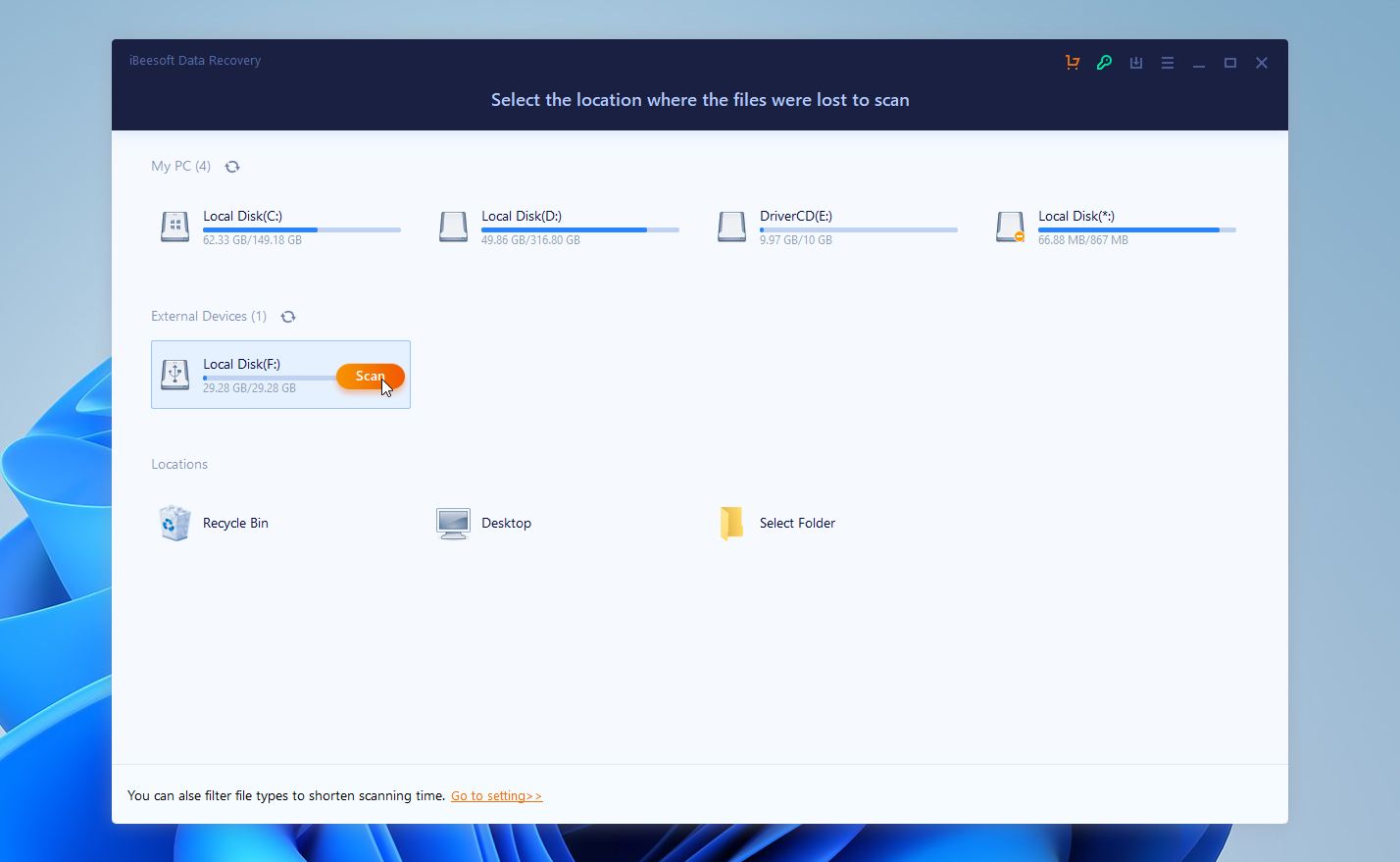
- When you hover your cursor over any particular drive, the Scan option appears next to it.
- As the scan progresses, the software starts reorganizing the data in some folders and tagging them based on the information extracted from them. This data is available under the Tags section in the vertical menu on the left of the screen. This is a useful feature in case you want to find files of a particular filetype or that came from a particular source (like a camera, for example).
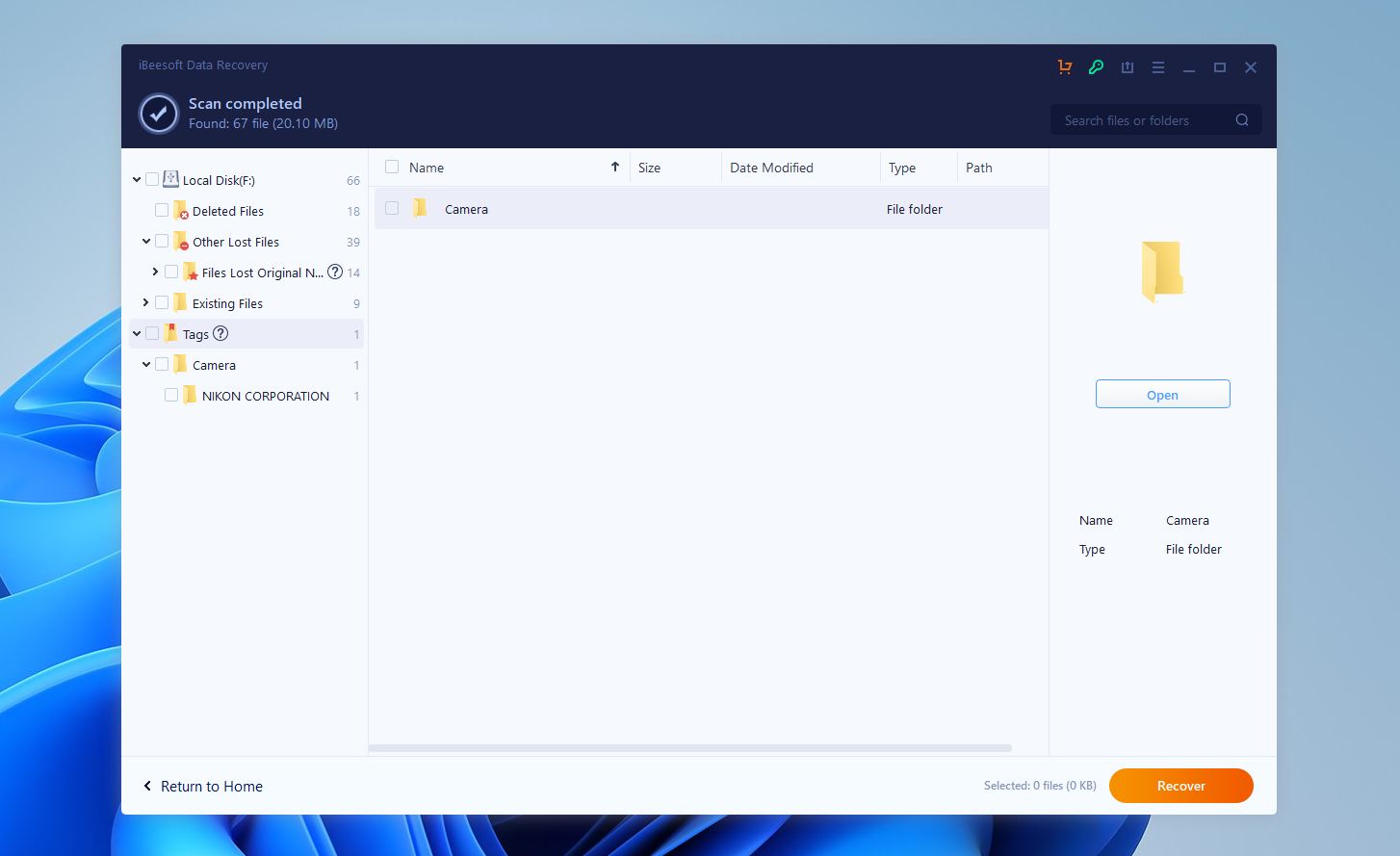
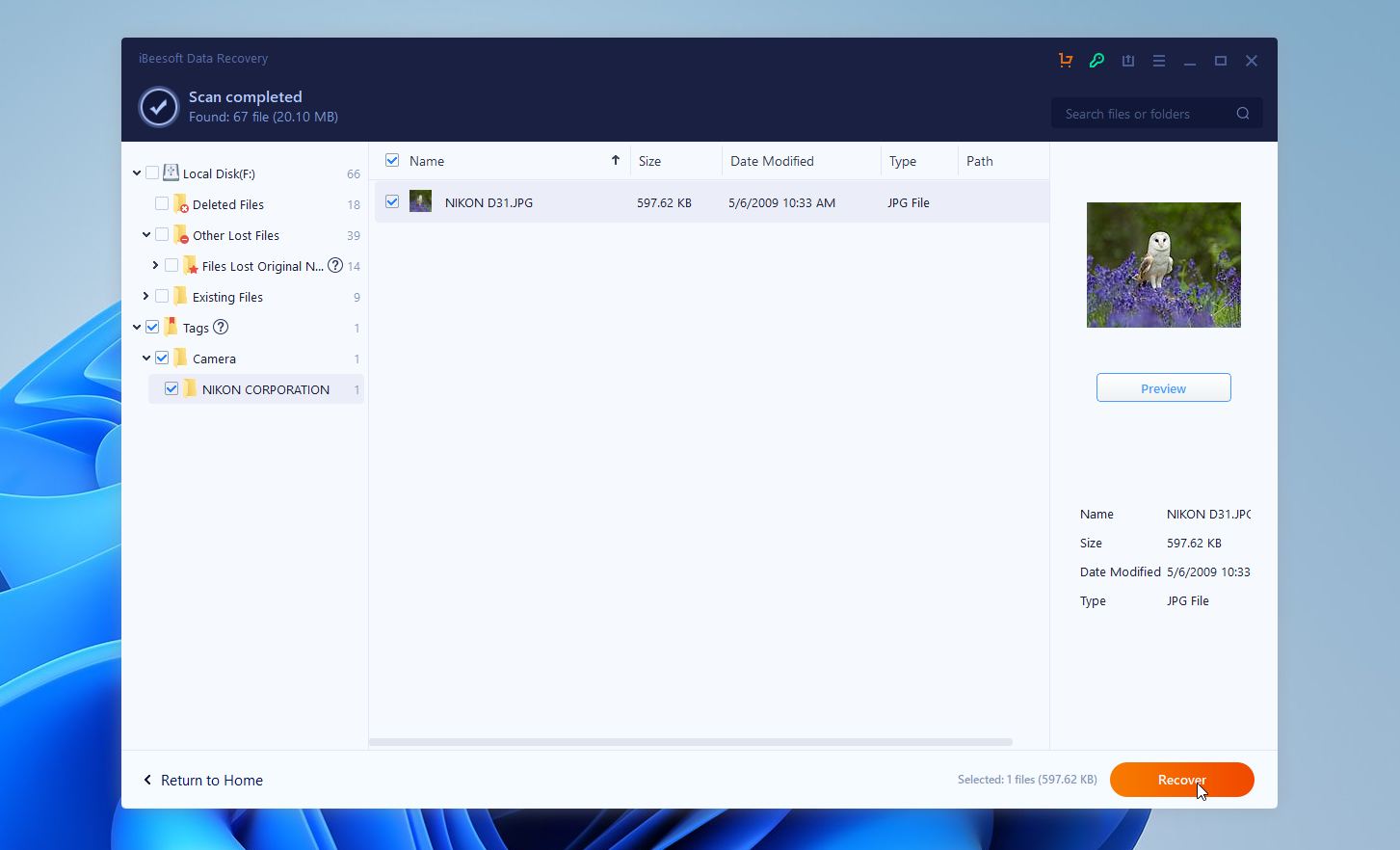
- You can select the folder or files you want to recover. iBeesoft lets you preview each file so you can check out its contents and decide whether you want to recover it. If you’ve decided which files you want to recover, you can hit the Recover button at the bottom right of the screen.
iBeesoft is comfortable to use and easy to understand, even for first-time users. Navigation feels logical and file-type filtering genuinely helps speed things up.
At the same time, the software offers limited control over scan depth and fewer advanced options, which may feel restrictive in more complex recovery cases. Previews don’t work perfectly either; we only managed to view several files.
Test Results and Observations
Across both test scenarios, scan time stood out immediately.
In Test Scenario 1 (deleted files on a 500 GB HDD), iBeesoft completed a full scan in about 2 hours 23 minutes while targeting a dataset of roughly 300 files (≈3 GB).
The scan detected around 270 out of 300 files. Documents and ZIP archives recovered cleanly, with correct names and usable content. Photos showed mixed results: most JPG files opened correctly, while some RAW files failed to open. Video recovery was less reliable, with several MP4 files either corrupted or unreadable. Folder structure was only partially preserved.
In Test Scenario 2 (quick-formatted SD card), scan time was 15 minutes, a little shorter. iBeesoft identified roughly 183 files from the same dataset. All recovered media lost original names and folder structure. Most JPG photos opened successfully, but video files again showed the highest failure rate, with several clips truncated or failing playback.
Overall, iBeesoft located most deleted data, but usable recovery averaged 50–70%, depending on file type. Documents recovered best, while video and RAW media were the least reliable. Scan times were long, and recovered files required careful verification before use.
How Much Does iBeesoft Data Recovery Cost
iBeesoft Data Recovery mostly follows a subscription-based pricing model with a lifetime license for macOS. All paid plans unlock the same core recovery features, with differences focused on how many computers you can activate and how the license fits different usage scenarios. From our assessment, pricing stays relatively simple, but the recurring nature of the license is something users should factor in early.
License Type |
Platform |
Price |
Device Coverage |
What’s Included |
Best Use Case |
Personal License |
Windows / macOS |
$49.95 / year |
1 PC or 1 Mac |
Unlimited file recovery and repair (Mac version also includes backup), no file size limits, free remote assistance, one year of updates |
Single-device users with occasional recovery needs |
Family License |
Windows / macOS |
$69.95 / year |
Up to 3 PCs or 3 Macs |
Same feature set as Personal license, extended to multiple devices, remote assistance, one-year upgrades |
Households or small teams managing several computers |
Company License |
Windows only |
$199.95 / year |
Unlimited PCs |
Unlimited recovery and repair across all systems, remote assistance, one-year upgrades |
Offices, schools, and service environments |
Lifetime License |
macOS only |
$99.95 (one-time) |
Up to 2 Macs |
Unlimited file recovery, repair, and backup, lifetime updates, free remote assistance |
Long-term Mac users who want to avoid subscriptions |
The free version allows the recovery of 2 GB for free. In addition, iBeesoft offers discounts, sometimes up to 70%, for students, people with disabilities, and non-profit organizations.
iBeesoft’s position is a relatively budget-friendly option at the entry level, especially for users who need recovery once or twice. That said, the subscription-only model on Windows deserves a bit of caution. Over time, annual renewals can approach or exceed the cost of lifetime licenses offered by some competitors. For users who expect to rely on data recovery more than occasionally, this can reduce long-term value.
iBeesoft vs Other Popular Data Recovery Tools
To put iBeesoft into context, it helps to see how it compares with a few well-known alternatives: Disk Drill, DiskGenius, and PhotoRec. These tools cover a wide range of users, from beginners to advanced recovery specialists, and highlight where iBeesoft fits in the bigger picture.
Feature / Tool |
iBeesoft Data Recovery |
Disk Drill |
DiskGenius |
PhotoRec |
Basic File Recovery |
Good for deleted files and common formats (docs, photos) |
Excellent, broad format support |
Strong, broad format support |
Very strong, file-signature based |
Formatted Media Recovery |
Detects files but mixed usable results (~50–70% in our tests) |
Often recovers more usable media |
Typically strong media recovery |
Very thorough signature scan |
Advanced Features (disk imaging / cloning) |
None |
Yes |
Yes |
No |
Save/Resume Scan |
No |
Yes |
Yes |
No |
Partition Tools / Repair |
No |
Limited |
Yes (built-in partition editor) |
No |
User Interface |
Very simple, beginner-friendly |
Friendly with extra visuals |
Technical but powerful |
No GUI, text-based |
Scan Speed |
Moderate / slow compared to peers |
Fast, optimized |
Fast to moderate |
Slow but thorough |
- Disk Drill sits a step above in terms of features. It keeps a beginner-friendly interface but adds extras like disk imaging, scan recovery sessions, and stronger results with formatted or damaged media. This makes it more flexible for users who want better odds without diving into highly technical tools.
- DiskGenius leans much more toward advanced users. In addition to file recovery, it includes full partition management and repair tools. That makes it especially useful when file systems are damaged or partitions are missing, though it can feel more technical and less forgiving for casual users.
- PhotoRec is completely free and very powerful at signature-based recovery. The tradeoff is usability: there is no graphical interface, unless we count QPhotoRec. It offers no previews and does not preserve original file names or folder structure after recovery.
User Feedback
To understand how iBeesoft Data Recovery performs outside our controlled tests, we reviewed feedback from multiple public sources. Our main reference point was Trustpilot, where the tool currently holds an average rating of 3.7 out of 5 based on 33 reviews. In addition to that, we analyzed discussions on Reddit, mainly within communities such as r/datarecovery and r/DataRecoveryHelp, where users tend to speak more openly about real outcomes and concerns.
Even though there are positive comments, a large portion of user opinions points to problems. Many people report that the tool did not recover the actual files they needed, or recovered only file names without usable content:
Rory Marin on Trustpilot, ⭐☆☆☆☆
“They recovered only the name of the files, nothing was working.”
Another recurring theme among negative reviews is frustration with support or refunds:
Kramer on Trustpilot, ⭐☆☆☆☆ “After 1 year they charged me again for a renewal… very bad practice.”
Reddit feedback is generally more skeptical.
u/Internal-Wave4595 on r/datarecovery “It worked by recovering some photos, but everything was behind a paywall.”
u/magnificent_starfish on r/datarecovery “That’s how commercial recovery software works… but use something more reputable.”
As for the company’s responses, iBeesoft almost always replies. The tone is usually apologetic, often blaming delays on third-party payment platforms, regional issues, or the nature of data loss itself. Refunds do seem to happen eventually in many cases, but often only after repeated follow-ups or public complaints.
Overall, users see iBeesoft as a tool that can work, but one that requires patience, low expectations, and a careful eye on subscriptions and billing.
Our Verdict
From our assessment, iBeesoft Data Recovery falls into the lower-middle segment of consumer recovery tools once real-world performance is factored in. While it detected a large portion of deleted files in our HDD test (around 270 out of 300), actual usable recovery was notably lower. RAW photos frequently failed to open, several MP4 videos were corrupted or truncated, and folder structure recovery was inconsistent. On the formatted SD card test, original file names were completely lost, and media reliability dropped further. Scan times were also long, exceeding two hours on a 500 GB drive, which places it behind several direct competitors.
iBeesoft feels like a simplified version of EaseUS with fewer advanced features and weaker file system handling in some scenarios. Because of its similarity to other products and limited development, we recommend considering Disk Drill instead. Disk Drill offers broader feature support, more frequent updates, and a stronger track record in recovering a wide range of file types and storage situations. While iBeesoft might work for simple cases, Disk Drill provides a more capable and reliable recovery experience overall. You can also consider other software options from our ‘best’ list.
Overall Rating:⭐ 3.5 / 5
FAQ
Is iBeesoft a legitimate company?
Yes, iBeesoft is a legitimate company that publishes software products, including iBeesoft Data Recovery. The domain is registered and appears in standard safety and reputation checks. In that sense, it is a real business operation rather than a scam or fake site.
Legitimacy, however, only means the company and its products exist and operate as real software offerings. It does not guarantee that every user will have a positive experience, recover all needed files, or receive fast customer support. Feedback on those aspects varies across review platforms.
Does iBeesoft's data recovery tool have a free version?
Yes, iBeesoft’s data recovery tool does include a free version. The free edition allows users to download the program, scan storage devices, and preview recoverable files without payment.
However, the free version only allows recovery of up to 2 GB of data. If you need to restore more files beyond that limit, you must upgrade to one of the paid licenses.
Does iBeesoft really work?
Results vary depending on the recovery scenario. Many users report successful recovery of deleted or lost files, and several review sites describe the tool as capable in common file loss situations. Other users say it fails to restore specific files or produces incomplete results.
In our testing with a dataset of about 300 files, the scan detected around 270 items. Usable recovery landed in the 50–70% range depending on file type. Documents and archives recovered well, while videos and RAW photos showed the highest failure rate. The software performs best in simple deletion scenarios, while more complex cases reduce success rates.
This article was written by Prateek Jose, a Author at Handy Recovery Advisor. It was recently updated by Victoria Rybtsova. It was also verified for technical accuracy by Andrey Vasilyev, our editorial advisor.
Curious about our content creation process? Take a look at our Editor Guidelines.