
Do you want to use Lazesoft Data Recovery to restore lost files, but aren’t sure what it can actually do or how reliable it is? It’s free, so the appeal is obvious, but that doesn’t always tell the full story. We created this Lazesoft review to take a closer look at how the tool behaves in real recovery scenarios.
TL;DR: If you just want the short answer, Lazesoft Data Recovery is fine for a quick, free attempt at recovering recently deleted files, but it struggles in deeper or formatted recovery scenarios.
In our tests (100 files, NTFS HDD + FAT32 USB, deletion and formatting cases), results were inconsistent. Scan speeds were slow, recovery rates were low on formatted media, and several recovered files were corrupted. The interface works, but it feels outdated and offers little technical transparency.
Features of Lazesoft Data Recovery
Features are usually the first thing people look for when choosing data recovery software. They help set expectations and show how capable a tool really is. Lazesoft Data Recovery presents itself with a fairly limited and dated feature list, and the website does not make it easy to understand what the software truly supports.
With that in mind, it’s worth looking at the actual features one by one:
Scan Modes and File Preview
The recovery process is built around several scan modes, such as quick scans for recently deleted files, unformat scans for formatted volumes, and deeper scans for more complex logical damage. Users select a mode based on how the data was lost rather than manually tuning scan parameters.
During scanning, Lazesoft allows file preview. This helps confirm whether files are detected before recovery begins, which is useful when evaluating recovery chances. In practice, preview tends to work best with common file types and intact files.
UI and Usability
Lazesoft Data Recovery follows a classic wizard-style layout. The interface relies on simple step-by-step screens: select a drive, choose a scan type, review results, and recover files. First-time users can start a scan without much setup.
The overall design feels dated compared to modern recovery tools. The layout uses older-style menus and basic icons, with limited guidance during scanning. Scan progress indicators and filtering options work, but they are not particularly intuitive when handling large result sets.
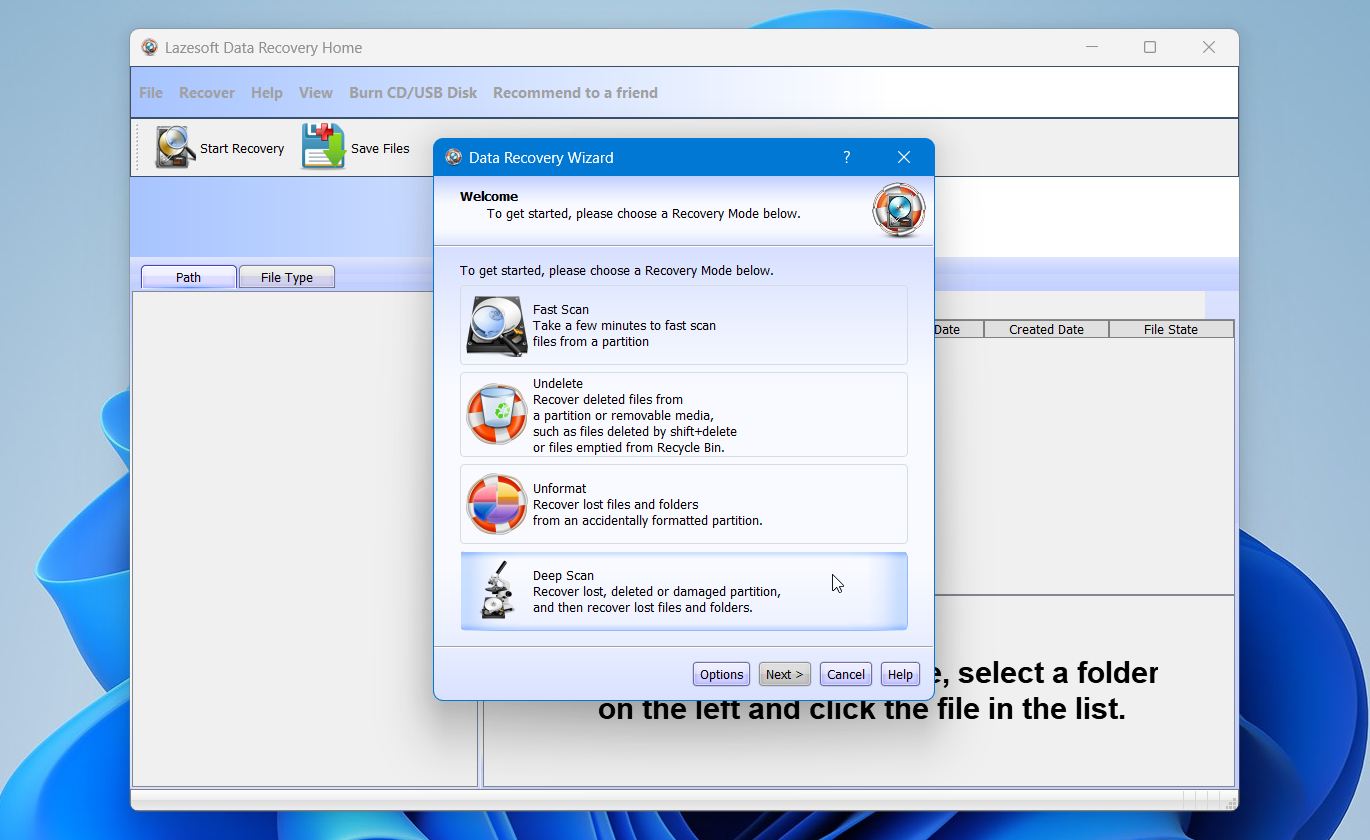 File preview is available, yet browsing can feel less organized, especially after scanning bigger drives with thousands of recoverable files. Sorting and filtering tools exist, but they lack the polish and responsiveness found in newer recovery platforms.
Recovery When Windows Cannot Boot
For systems that fail to boot into Windows, Lazesoft includes a bootable recovery option. The software can create a bootable CD or USB recovery disk that allows users to start the computer independently of the installed operating system and access recovery tools.
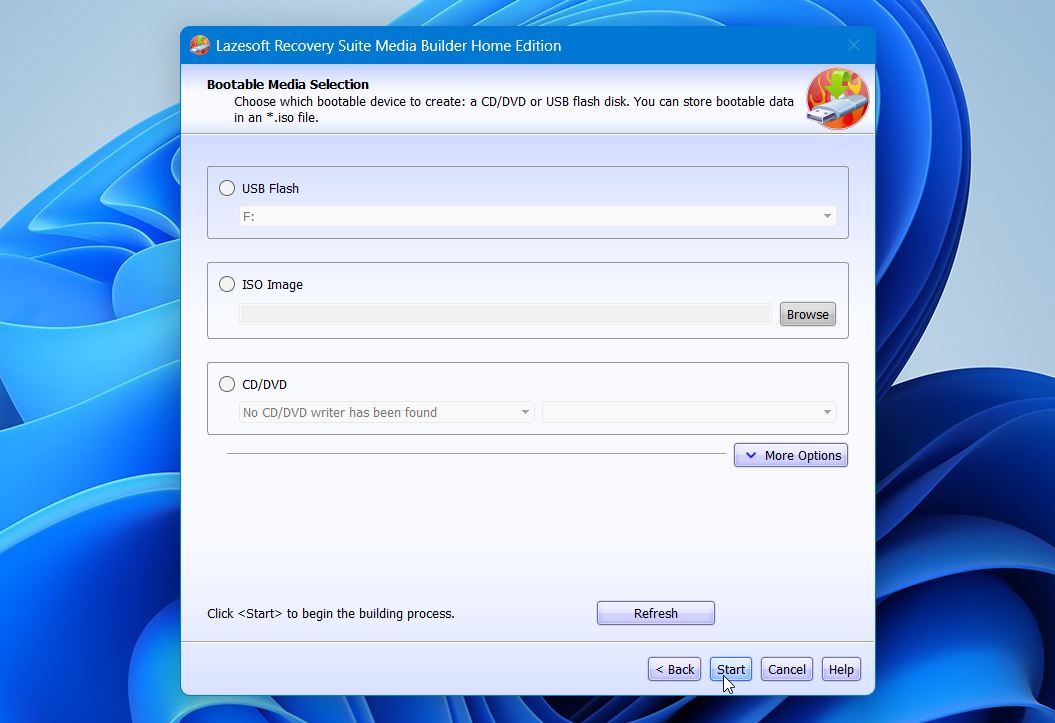
The boot disk can be built using either a WinPE-based or Linux-based environment. This dual option improves hardware compatibility across a wide range of desktop and laptop brands, including systems from Dell, ThinkPad (Lenovo), HP, Sony, Toshiba, Acer, and Samsung.
The boot disk builder includes a user-friendly interface, supports both CD and USB media, and provides a simple Start Menu inside the recovery environment for easier navigation.
Extra Tools and Product Structure
There’s not much in terms of extras here, probably because Lazesoft splits its functionality across separate tools – Lazesoft Data Recovery is part of the broader Lazesoft Recovery Suite, which combines several separate utilities under one bundle.
The full suite includes:
- Lazesoft Data Recovery is a file and partition recovery tool
- Lazesoft Disk Image & Clone includes disk cloning and backup software
- Lazesoft Windows Recovery is Windows boot repair and system recovery
- Lazesoft Recover My Password is Windows password reset tool
- Lazesoft Windows Key Finder is product key retrieval utility
These tools are sold both individually and as part of Lazesoft Recovery Suite, with separate Professional, Server, Unlimited, and Technician editions.
The important distinction is that disk imaging, cloning, and system repair are not integrated directly into the Data Recovery interface. Users who want imaging or boot repair capabilities must install and manage separate Lazesoft products or purchase the full suite.
In contrast, many modern recovery tools integrate disk imaging and basic protection features directly inside the main recovery application, which can feel more streamlined for users who expect an all-in-one workflow.
How We Tested Lazesoft Data Recovery
To evaluate Lazesoft Data Recovery under controlled and technically clean conditions, we created two clean test scenarios to avoid background data interfering with the results. We selected two commonly used consumer USB flash drives with different interfaces and capacities:
- 32 GB SanDisk Ultra USB 3.0 (formatted in exFAT)
- 16 GB Kingston DataTraveler USB 2.0 (formatted in FAT32)
These file systems reflect real-world usage. FAT32 remains common on smaller flash drives due to legacy compatibility, while exFAT is the typical default for modern USB drives above 32 GB and is widely used for cross-platform file transfer. Before testing, both flash drives were low-level formatted, and a new clean file system was created on each device. This step removed any residual data or file system artifacts and guaranteed clean, measurable recovery results without background noise.
- For the primary test, we used a 32 GB SanDisk Ultra USB 3.0. We copied a structured set of test files onto the drive and then permanently deleted them using Shift + Delete. No additional data was written afterward. This simulates accidental permanent deletion on a modern USB drive used for everyday file transfers.
- For the second test, on the 16 GB Kingston DataTraveler (FAT32), we copied the same dataset and then performed a quick format. In this scenario, the file system becomes heavily damaged and cannot be reliably used for metadata-based scanning, forcing the recovery tool to rely more on raw signature analysis rather than file system records.
We ran scans using Lazesoft’s default recovery settings and recommended options, without advanced tuning or custom signature adjustments. This reflects how most users are likely to approach recovery and shows how the tool performs out of the box.
The dataset used in both scenarios included exactly 100 files in total:
- 40 image files (mostly JPG and PNG)
- 15 video files (MP4, AVI, MKV)
- 20 document files (DOCX, PDF, TXT)
- 15 audio files (MP3, WAV)
- 10 miscellaneous files (archives and small executables)
How to Use Lazesoft Data Recovery
For the purposes of this Lazesoft recovery review, we installed the Lazesoft Recovery Home Edition, which is absolutely free and can be downloaded from Lazesoft’s official website. Unlike most trial versions, the free version of Lazesoft Data Recovery allows you to recover as much information as you want. That’s a huge plus.
Here is how data recovery process looks like:
- Install Lazesoft Data Recovery on your computer.
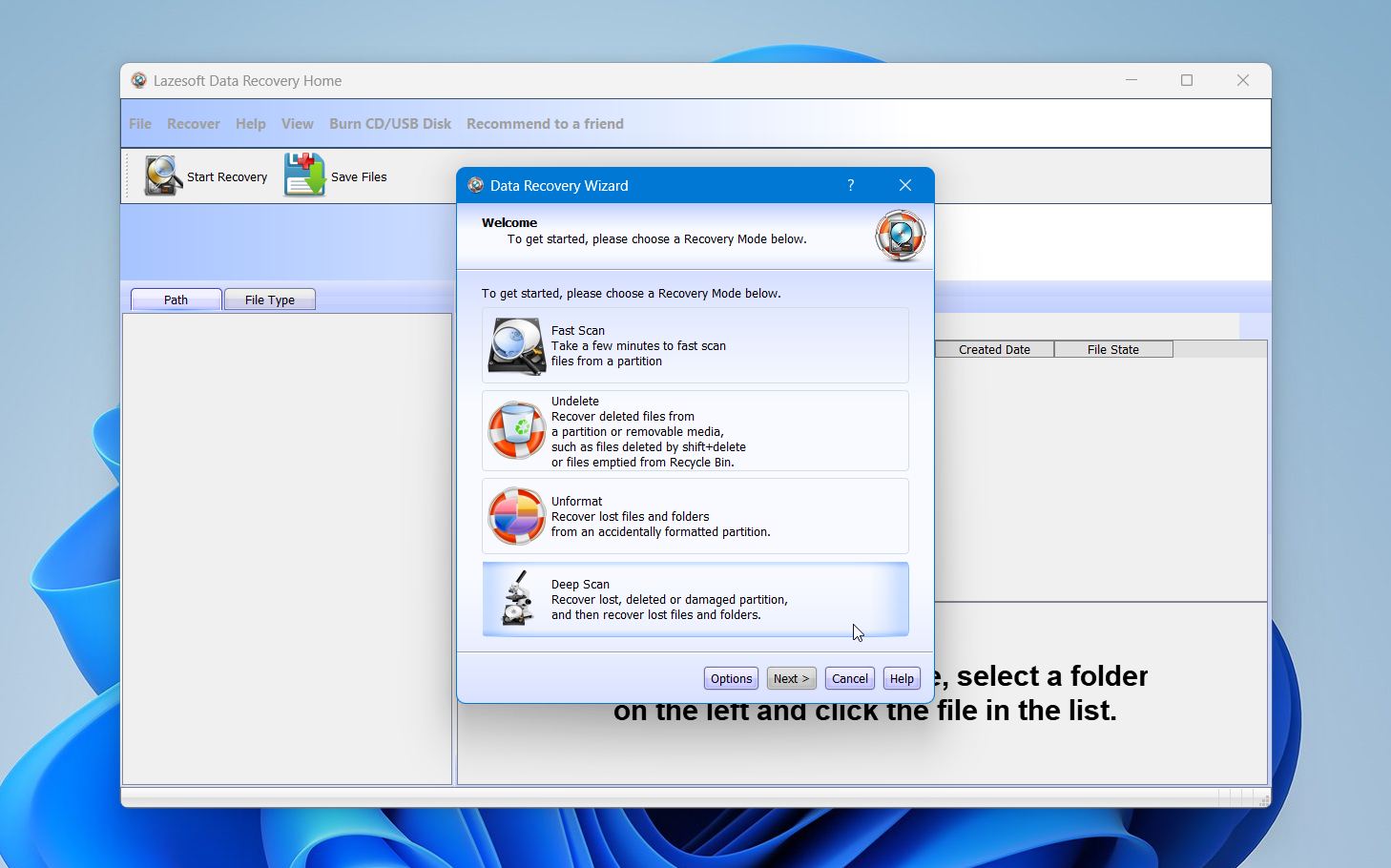
- When you launch the application, you are prompted to select one of four options. Fast Scan checks a partition for recently deleted files. Undelete focuses on files removed from a partition or removable media, including Shift+Delete and emptied Recycle Bin cases. Unformat targets files lost after accidental formatting. Deep Scan scans the entire partition for lost files and folders, including after formatting or logical damage. For this guide, we selected Deep Scan.
- Lazesoft will show a tree view of detected storage devices and partitions. Physical disks, system partitions, and removable media appear in the same list. Select the storage files disappeared from.
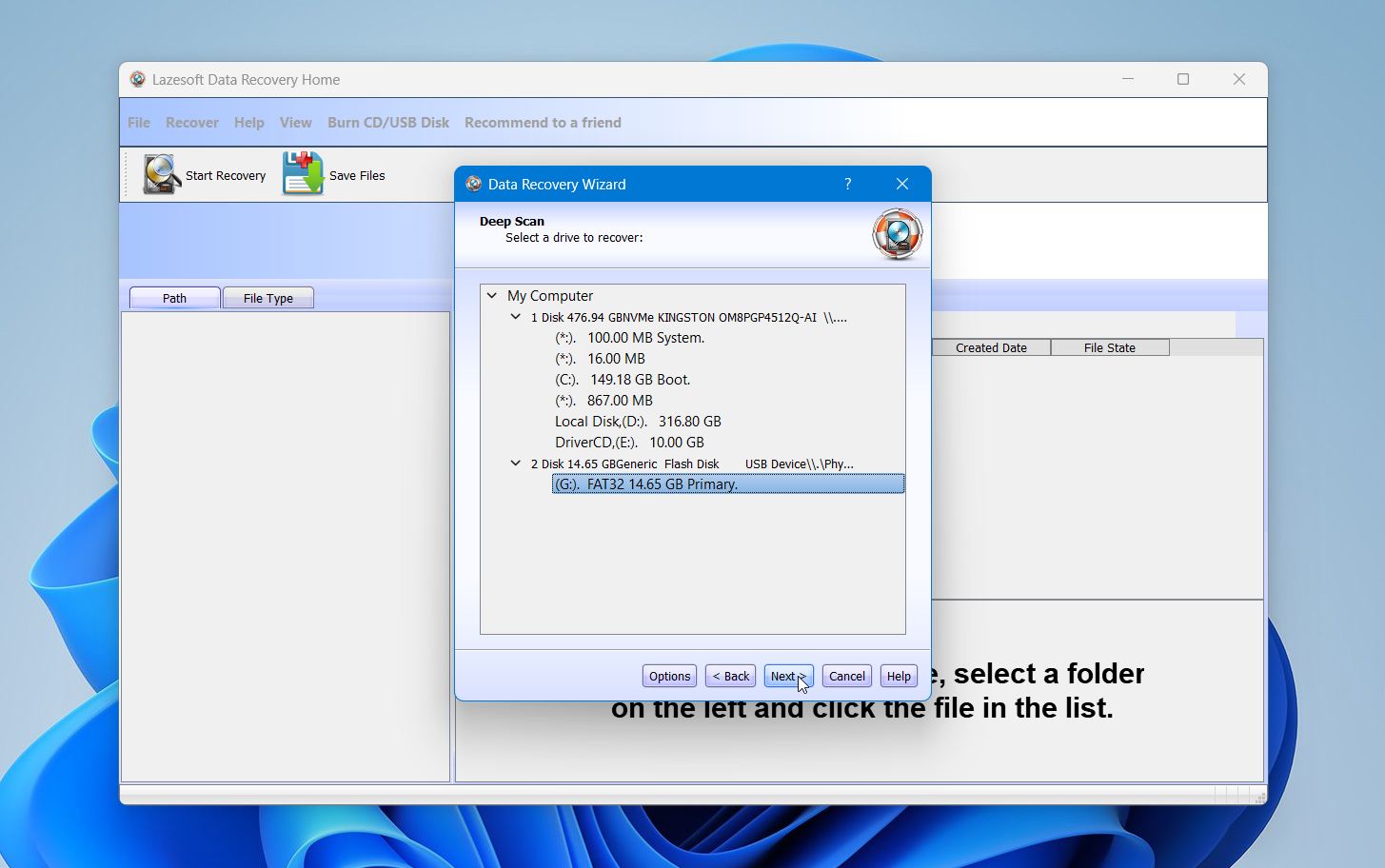
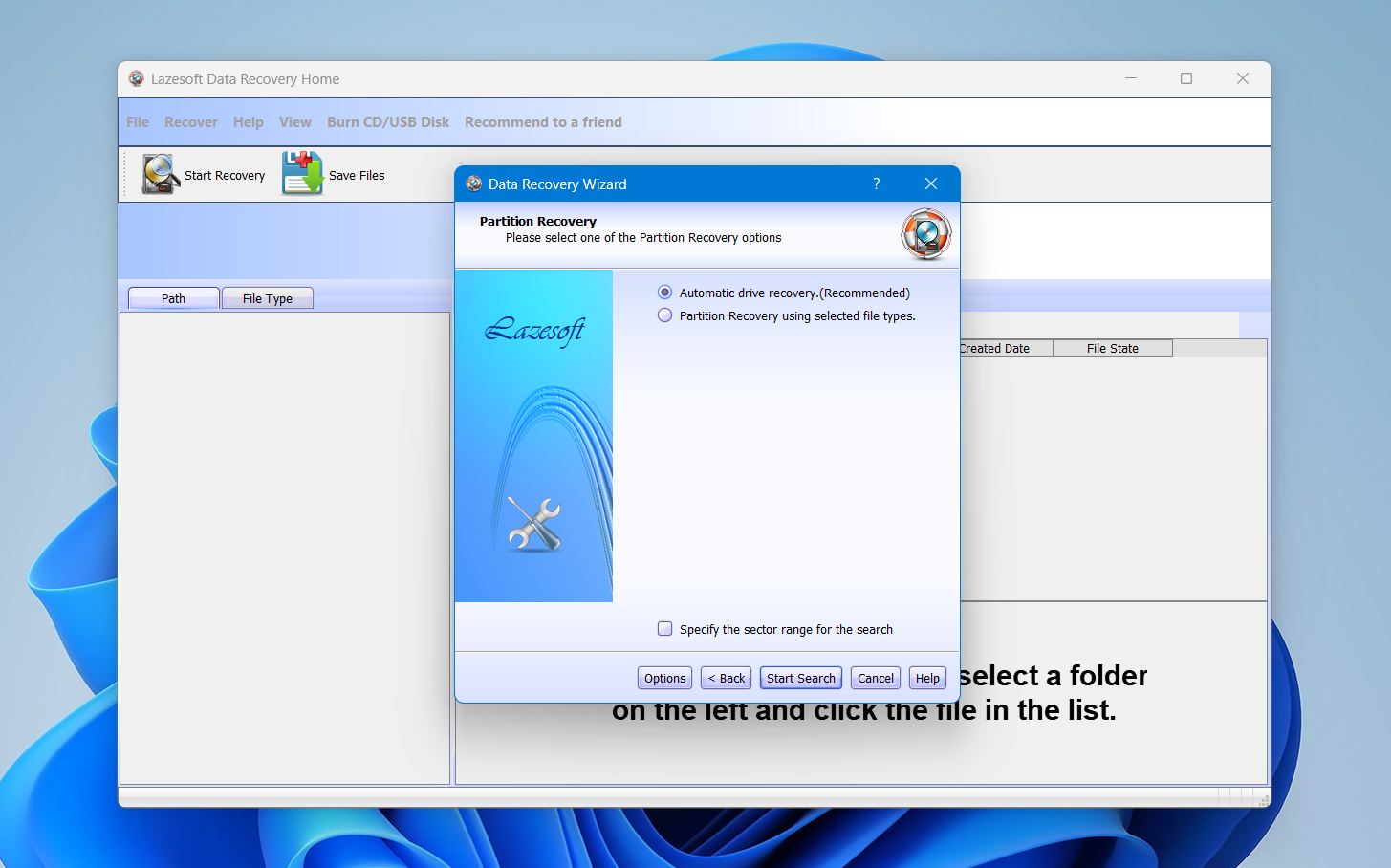
- Before the scan begins, Lazesoft asks how the partition should be recovered, offering either an automatic full-partition scan or a filtered scan by selected file types. To keep things simple, we went with the recommended automatic option.
- Once the scan starts, results appear in a folder-style tree structure. You can browse through to find the necessary files. You can also use a preview option to check whether the image is intact.
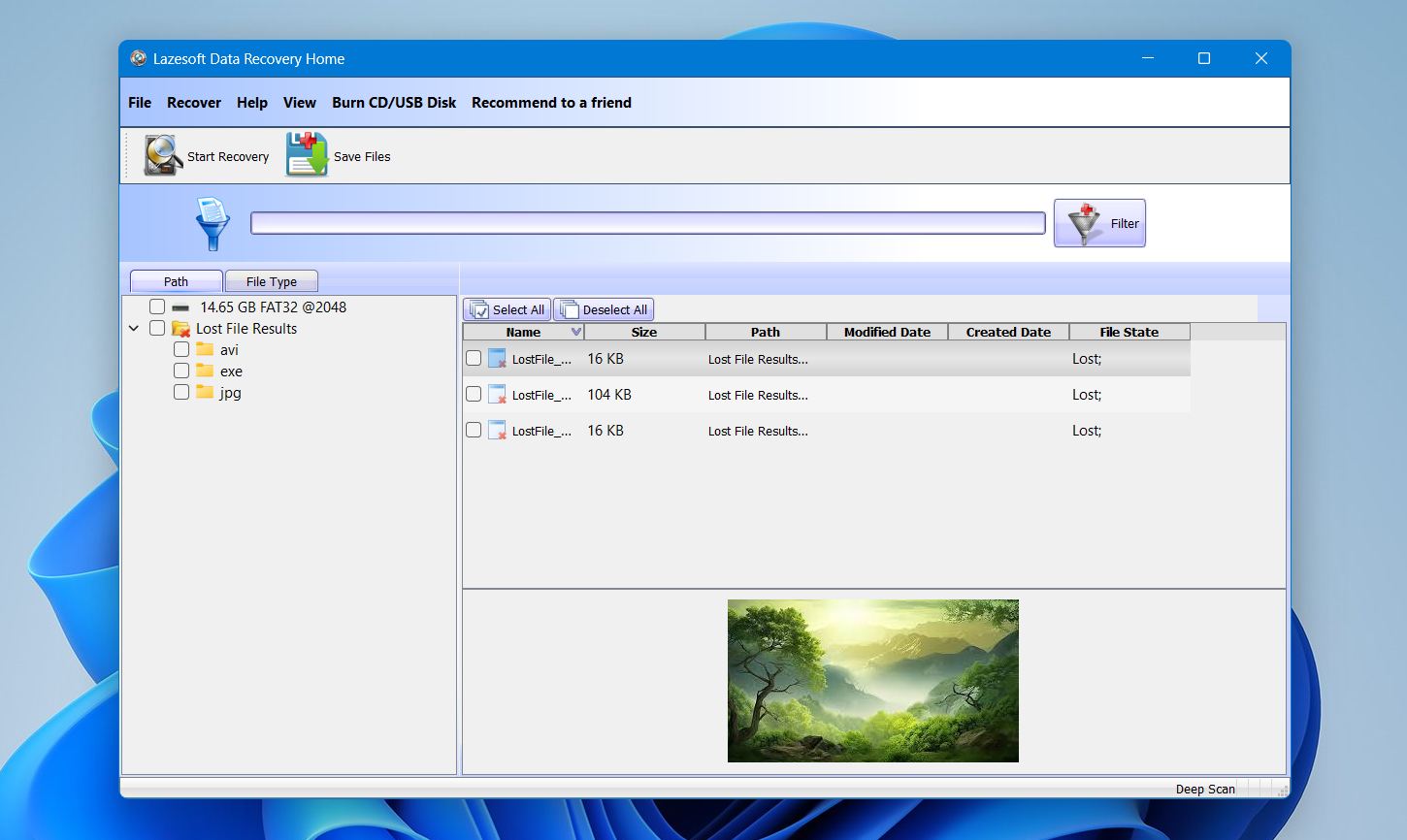
- From there, users manually select files and save them to another location.
The recovery process is easy to follow, even for first-time users. However, it is also dated and inflexible. Lazesoft offers very little transparency about scan behavior, file system handling, or recovery logic. You choose a mode, select a disk, and wait for results.
Test Results & General Impression
Lazesoft Data Recovery was noticeably slow on both flash drives. A scan of the 16 GB Kingston DataTraveler (FAT32, quick-formatted) took just over 15 minutes, which is still relatively long for a small, freshly prepared device with only 100 test files. The 32 GB SanDisk Ultra (exFAT, permanent deletion scenario) required around 35 minutes under default settings without manual tuning, which feels excessive for a 32 GB USB drive.
Recovery results in the quick format scenario were limited. Since the FAT32 file system was heavily damaged after formatting and no longer usable for metadata-based reconstruction, the software relied mostly on signature scanning. Out of 100 test files, Lazesoft detected around 60 files but successfully recovered 38 in a usable state. Images and audio files had the highest success rate. Several videos were either partially corrupted or unplayable after recovery, and some documents lost original file names and folder structure.
Results in the permanent deletion scenario were better but still not ideal. On the exFAT drive, Lazesoft detected nearly all 100 deleted files and successfully recovered 82 files. However, 7 of those showed minor corruption issues, mostly among larger video files. File names and folder hierarchy were restored correctly in most cases, which is expected when file system metadata remains intact.
Overall, Lazesoft handled simple deletion reasonably well but struggled in the formatted drive scenario where recovery depended heavily on raw signature analysis. Scan speed and preview reliability also remain weaker compared to stronger competitors in the same category.
Is Lazesoft Worth the Price?
Lazesoft uses a one-time payment model across all paid editions. There are no subscriptions, which already puts it ahead of many modern recovery tools for users who only need software occasionally.
Lazesoft sells two different products that look very similar on the website: Lazesoft Recovery Suite and Lazesoft Data Recovery. The Suite is listed first and promoted as the “recommended” option, which often leads users to download it by default. In many cases, people only need data recovery and end up installing a larger bundle than necessary.
Lazesoft Data Recovery focuses only on file recovery. It does not include system repair, password reset, or cloning tools.
Edition |
License |
Typical Use Case |
Price |
Home Edition |
Home |
Recovery with bootable CD/USB support |
Free |
Professional Edition |
Business (1 PC) |
Single business workstation |
$39.99 ( $17.95 with discount) |
Server Edition |
Business |
Windows Server systems |
$79.49 |
Unlimited Edition |
Unlimited Business |
Multiple PCs in one organization |
$199.69 ($159.69 with discount) |
Recovery Suite packages several utilities together: Data Recovery, Windows Recovery, Disk Image & Clone, and password recovery. This is your option if you need any additional tools that it includes.
Edition |
License |
Included Tools |
Price |
Recovery Suite 5.0 Professional |
Business |
Full bundle |
$49.99 ($27.95 with discount) |
Recovery Suite 5.0 Server |
Business |
Full bundle, server license |
$99.49 |
Recovery Suite 5.0 Unlimited |
Unlimited |
Organization-wide use |
$499.29 ($199.29 with discount) |
Recovery Suite 5.0 Technician |
Technician |
Client repair & recovery work |
$599.39 ($299.39 with discount) |
Lazesoft’s pricing looks attractive at first glance, but that impression holds only at the very bottom of the range. The free Home edition is the main reason Lazesoft still gets recommended for personal use, it costs nothing, includes a surprising number of tools, and handles simple recovery cases well enough. That is the strongest part of Lazesoft’s pricing story.
The problem starts once you move past “free.” Lazesoft’s paid tiers do not scale with recovery capability. They scale only with licensing terms. The recovery engine, scan depth, and overall results remain the same across editions. Paying more does not improve what the software can actually recover. It only changes where and how often you are allowed to use it.
If you are specifically looking for truly free unlimited recovery tools without licensing caps or artificial limits, we recently had an interesting community discussion on this topic.
How Lazesoft Compares to Other Recovery Tools
It does not make sense to evaluate Lazesoft Data Recovery in isolation. To understand its real strengths and limitations, we need to compare it with several well-known free and commercial recovery tools. Compared with Lazesoft Data Recovery, both free alternatives and paid recovery solutions generally deliver stronger performance across the board.
Feature / Tool |
Lazesoft Data Recovery |
Recuva (Free) |
PhotoRec (Free) |
Disk Drill |
R-Studio |
Cost |
Free / Paid tiers |
Free |
Free |
Free / Paid tiers |
Paid (demo version available) |
Basic deleted file recovery |
✔️ |
✔️ |
✔️ |
✔️ |
✔️ |
Deep scan |
⚠️ Limited |
⚠️ Moderate |
✔️ Strong |
✔️Very strong |
✔️ Very strong |
Preview recoverable files |
✔️ |
✔️ |
❌ (text-only output) |
✔️ |
✔️ |
Bootable recovery media |
✔️ |
❌ |
❌ |
✔️ |
✔️ |
Supported file systems (Windows) |
NTFS/FAT (unspecified) |
NTFS/FAT |
It does not rely on the file system and instead uses file signature carving. |
Extensive (NTFS/FAT/exFAT/HFS+/APFS/ext) |
Very broad (NTFS/ReFS, FAT/exFAT, HFS+/APFS, Ext2–4, and UFS) |
Supported file formats |
Unclear |
Common types |
Very broad raw |
Very broad |
Broad |
Free recovery tools like Recuva and PhotoRec usually deliver better results than Lazesoft when used properly. In serious or complex recovery cases, commercial tools like Disk Drill and R-Studio outperform Lazesoft by a wide margin. Lazesoft can still be useful as a first quick attempt, especially since it’s free to try. But it should not be the default or go-to choice when more powerful alternatives are available.
Customer reviews of Lazesoft Data Recovery
Lazesoft Data Recovery does not generate much conversation among users. When people search for real-world experiences, they quickly run into a lack of detailed, first-hand feedback.
On Trustpilot, Lazesoft currently has only one public review, which is not representative of data recovery performance as a whole and should not be treated as a statistical score. Outside of Trustpilot, user feedback is fragmented. In community discussions and informal reviews, Lazesoft is often described as “good enough for basic cases”, especially when the free edition is involved.
Lazesoft is never mentioned as a first-choice solution. In discussions, it tends to appear as a secondary tool, not as something you can rely on consistently. Several users point out that recovered files do not always open correctly, and deeper recovery scenarios often require switching to more advanced software.
Overall, Lazesoft is not the most popular tool in the recovery space, and the amount of customer feedback reflects that. You’ll find fewer testimonials and fewer independent reviews compared with more established brands, which makes it harder to build a clear picture of real-world performance. That in itself is useful for readers to understand when deciding whether to trust and rely on the software.
Our Verdict
Lazesoft Data Recovery can be useful when the goal is a quick, no-cost attempt at recovering recently deleted files. It can assist in a simple hard drive recovery or similar cases. For anything beyond that, especially when data matters or the loss scenario is complex, its slow scans, sparse documentation, and inconsistent recovery results make it hard to trust as a primary solution.
Need an alternative? For virtually any recovery scenario, we recommend Disk Drill as the superior choice. It delivers stronger detection rates, more stable scan performance, and a broader set of professional-grade tools that handle deletion, formatting, RAW partitions, and complex corruption cases with far greater consistency. We also can recommend any software option from our ‘best’ listicles.
Rating: 3.0 out of 5.
Pros
- Free to use, with no time limits for scanning
- Simple, wizard-based interface that is easy to follow
- Supports bootable recovery media for non-bootable system
- Allows file preview during scanning=
Cons
- Scan speeds are slow, especially on larger drives
- Recovers only a portion of detected files in practice
- Lacks reliable, up-to-date documentation or detailed user guides
- Does not clearly list supported file systems or file formats
- Recovery results are inconsistent in deeper or more complex cases
- Updates are infrequent, often spaced a year or more apart
- Outdated interface and limited user control during scans
FAQ
Is Lazesoft Data Recovery good?
From our experience, Lazesoft Data Recovery is inconsistent. Some files come back intact, others do not. Results vary enough that the only way to know what you’ll get is to test it on your own data. The free editions remove the risk of paying upfront, but they do not remove the uncertainty around recovery quality.
Is Lazesoft Data Recovery safe?
During our testing, standard antivirus and malware tools did not flag Lazesoft Data Recovery Home Edition. We also did not find credible reports that point to malicious behavior. That said, the software’s dated interface and sparse documentation make it harder to evaluate what happens under the hood, so we still treat it as a tool to use with caution.
Can Lazesoft Data Recovery recover deleted files from a flash drive?
Lazesoft Data Recovery can recover deleted files from a flash drive in simple scenarios, such as recent deletions or basic formatting. In our tests, results were inconsistent, and only a small portion of files returned intact. For flash drive recovery, outcomes depend heavily on how much new data was written after deletion
Is there a Mac version of Lazesoft Data Recovery, and is it worth using?
There is a macOS version of Lazesoft Data Recovery, but it is severely outdated and not suitable for modern Mac systems. The last update dates back to around 2015, and official compatibility stops at macOS Mojave 10.14, with no support for newer macOS versions or Apple Silicon Macs. Recovery performance on Mac is limited, file system and format support is poor, and many core features expected from modern recovery tools are missing. While it is technically free, the Mac version is best viewed as obsolete software.
This article was written by Princess Lescan, a Staff Writer at Handy Recovery Advisor. It was recently updated by Victoria Rybtsova. It was also verified for technical accuracy by Andrey Vasilyev, our editorial advisor.
Curious about our content creation process? Take a look at our Editor Guidelines.