

Do you consider AnyRecover for a recovery job, or have you already tried it and ended up with weak or incomplete results? We often see people start with AnyRecover, get some files back, but run into issues once things don’t go perfectly. Just as often, people take one look at the pricing terms or feature list on the AnyRecover website, find them lacking, and immediately start searching for similar software. This AnyRecover alternative list is for those cases. Below, we look at the best software people usually move to when it feels too pricey, limited, or just doesn’t deliver usable results.
Why You Might Need an Alternative to AnyRecover
AnyRecover keeps things simple, and that’s clearly the point. The interface is easy to get around, the workflow stays short, and you can start a scan without thinking too much about settings. For beginners, that’s a plus. For users with any prior recovery experience, it often feels limiting. Once you move past basic file loss, the gaps start to show.
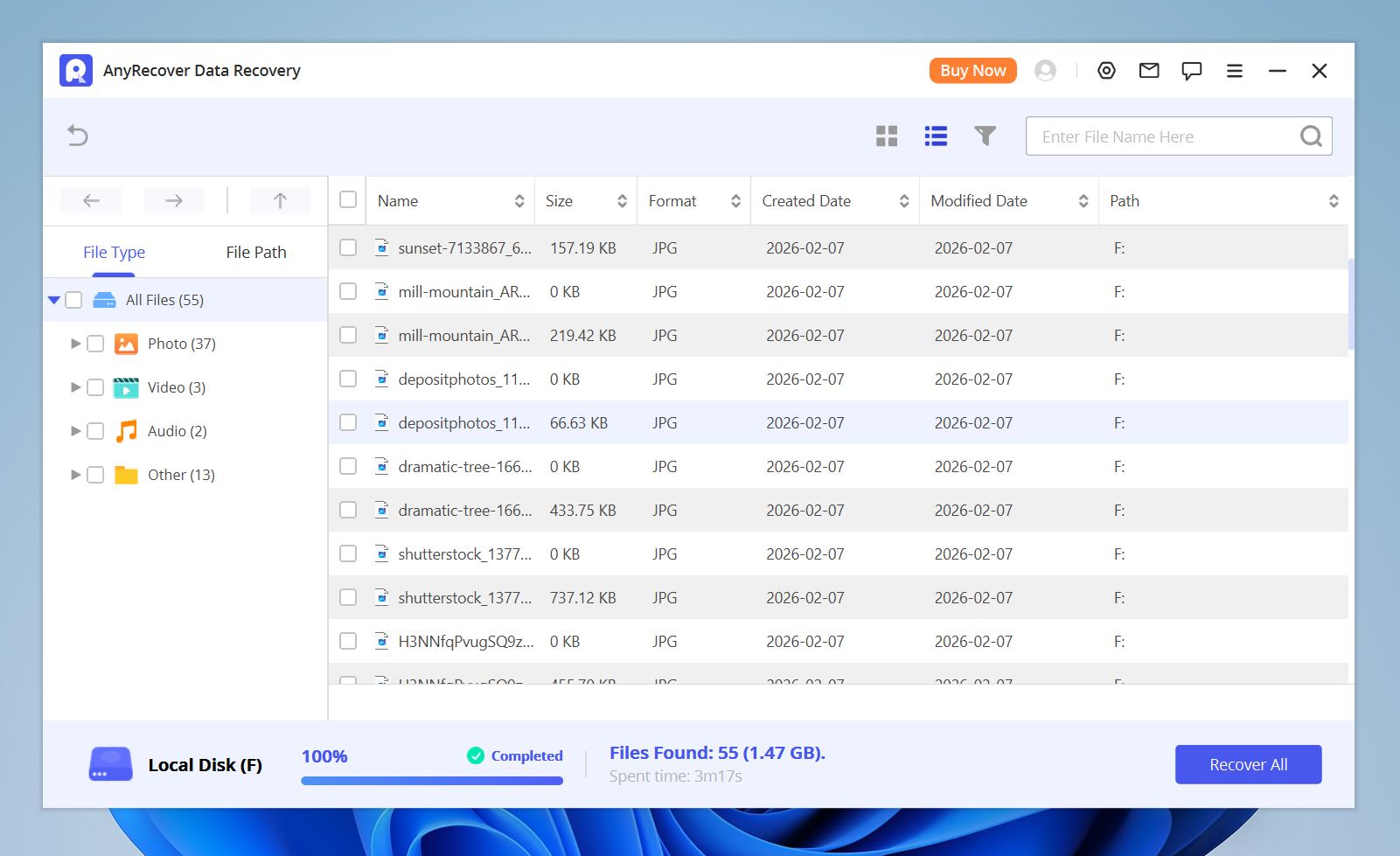
The main downsides we see include:
- Scan quality and usable results matter far more than the total number of files detected. It was evident from our tests and when we scrolled through the Trustpilot page. Often, AnyRecover finds a long list of files, but a noticeable portion of them fail to open after recovery. This happens especially with photos and videos from cameras, phones, or external drives. The scan completes, but the output quality does not always match expectations.
- Another common reason involves performance on large drives. AnyRecover can slow down on multi-terabyte disks or external storage with many files. Long scans without clear progress feedback make it harder to judge whether the process still makes sense to continue. On Reddit, some users describe very poor experiences, saying the software didn’t recover anything useful, took forever to scan, produced corrupted files, or seemed hard to fully cancel.
- Feature depth also plays a role. AnyRecover focuses on simplicity, which helps first-time users, but it lacks advanced capabilities many scenarios require. Disk imaging, deeper file-system reconstruction, RAID handling, and detailed scan controls are either limited or missing.
- Finally, there is the issue of long-term value. For users who recover data more than once or work with different storage types, AnyRecover does not scale well. Most alternatives on the market offer broader file-system support, better previews, and more predictable recovery results across different devices.
AnyRecover is basically a simple recovery tool. It works fine for cases like recently deleted files on a healthy drive, and that’s where it’s most comfortable. Once things get even a little more complicated, it starts to feel limited. That’s usually when people look elsewhere, not because it’s broken, but because they need something more capable to get the job done.
We didn’t include this in the main list below since we can’t really call it an obvious downside, but for understandable reasons some users also look for alternatives because of the price. As of the last update of this article, AnyRecover charges $59.99 for a 1-month plan, $79.99 for a 1-year plan, and $99.99 for a lifetime license. That’s fairly standard-priced compared to other tools on the market today, but some people still want to find software with a more affordable lifetime plan, a lower subscription cost, or a completely free alternative.
Best 5 AnyRecover Data Recovery Alternatives
Over the years, we’ve reviewed and worked with a wide range of data recovery tools, from simple entry-level programs to advanced software used in professional recovery workflows. Based on our tests and our personal experience, we’ve put together a list of best AnyRecover Alternatives below:
1. Disk Drill
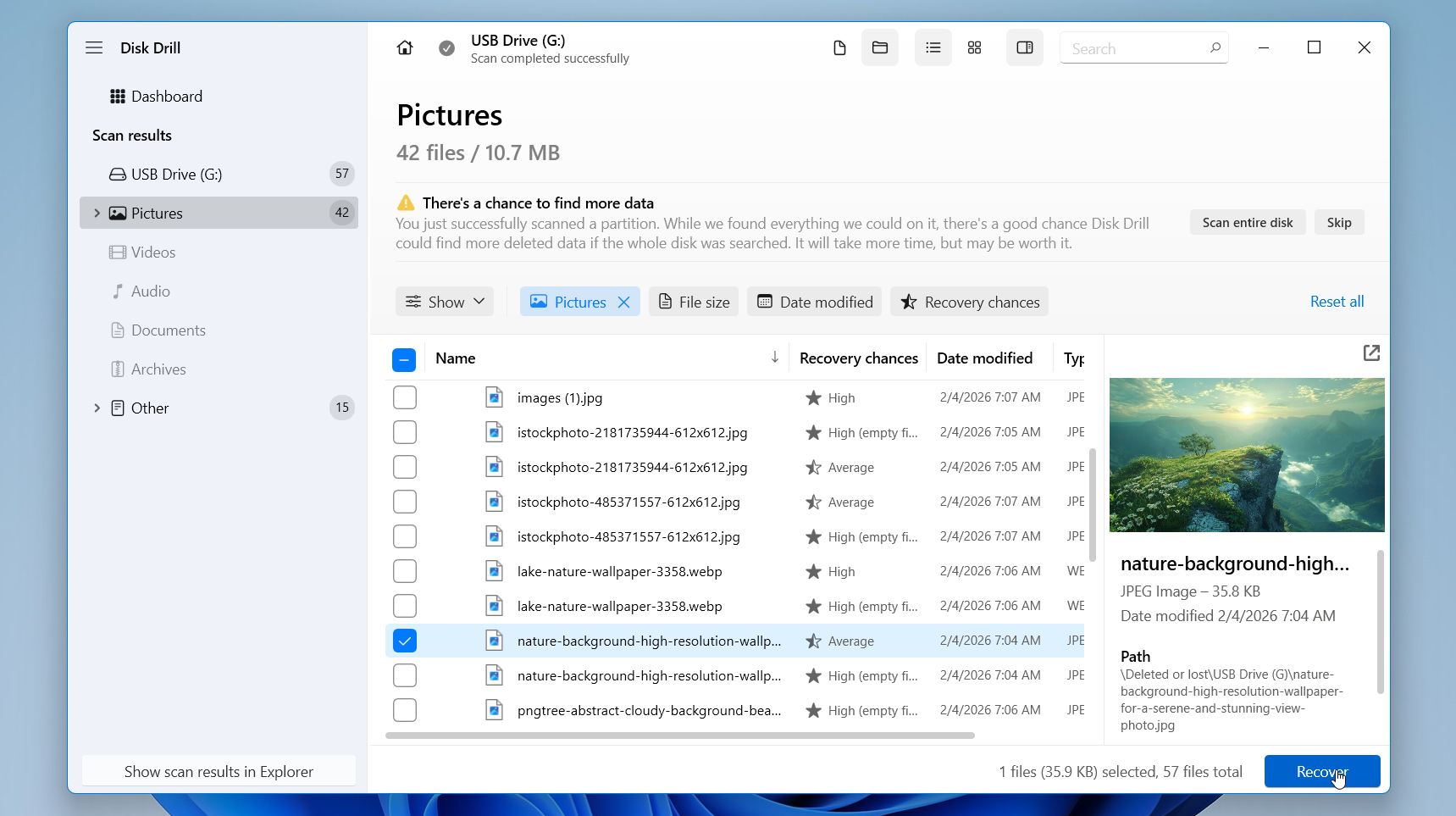
With over a decade of experience in the data retrieval field, Disk Drill sits squarely at the top of our list as one of the best AnyRecover alternatives. It supports just about any storage device (internal disks, external drives, memory cards, cameras, etc.) and nearly every file format you might need to recover.
People usually choose Disk Drill over AnyRecover because it delivers more consistent recovery results once things stop being trivial. When AnyRecover finds files but fails to restore them intact, Disk Drill often actually brings usable data back.
Another big factor is depth without complexity. Disk Drill scans deeper, supports more file systems and devices, and handles cases like formatted drives, RAW partitions, and fragmented media better, while still keeping the process easy to follow. Users don’t feel locked into a black-box scan with limited feedback, which is a common frustration with simpler tools.
The extra tools also matter in practice. Disk imaging lets users work on a copy instead of risking further damage to the original drive. Recovery Vault adds a layer of protection for future mistakes, and Advanced Camera Recovery improves results when dealing with fragmented video files. These are features people start to value after one bad recovery experience.
Pros:
- Very high recovery success rates in real-world cases
- Strong scanning algorithms that handle common and complex losses
- Clean, modern interface that stays easy to follow
- Extra safety tools like Recovery Vault and disk imaging
- Wide support for storage devices and file types
- Free Windows version allows recovery up to 100 MB
- Available for both Windows and macOS on single license
Cons:
- No Linux version
- No phone support (chat and email only)
We cover Disk Drill in much more detail in our full review, where we test its recovery results and how it performs in real-world recovery cases.
2. R-Studio
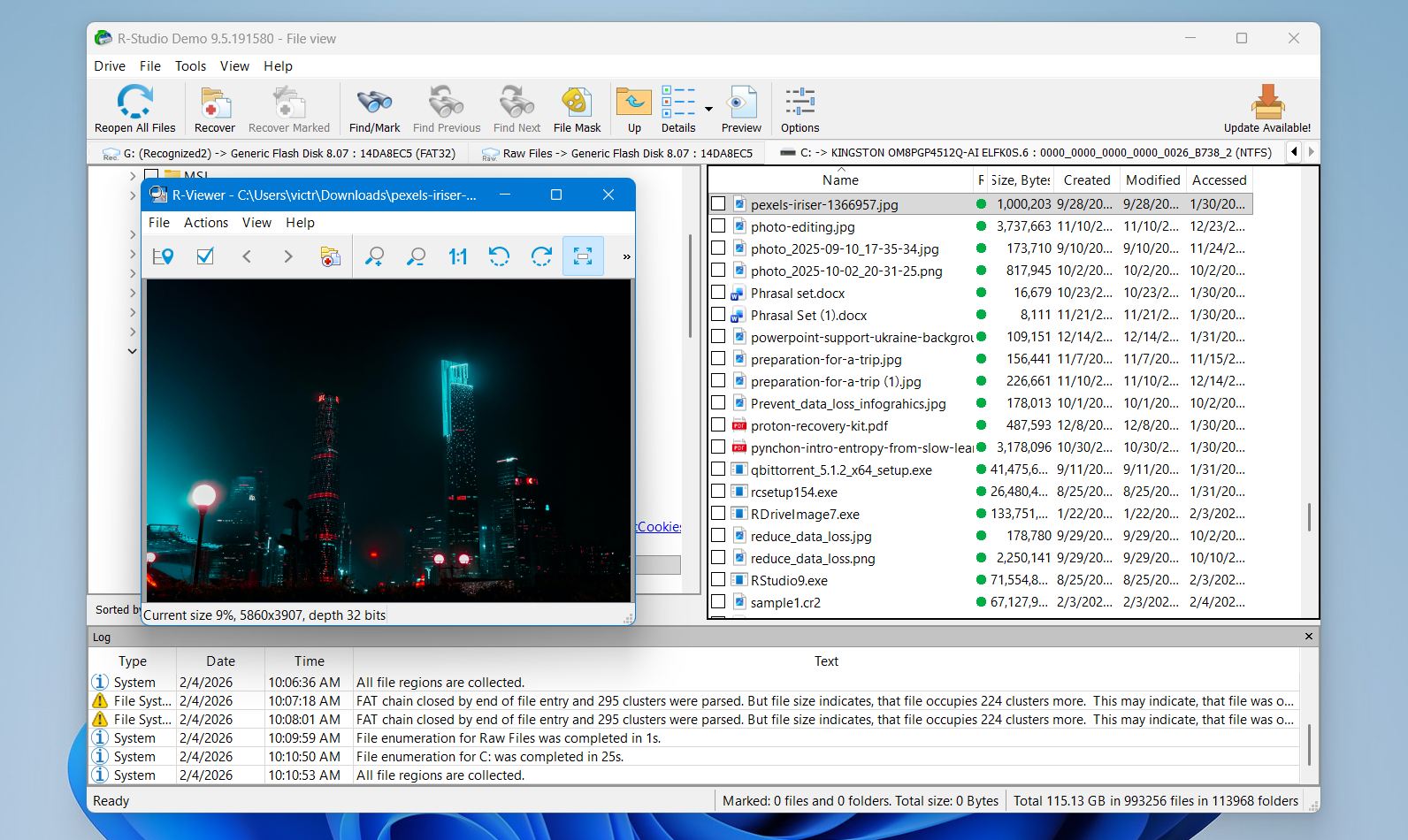
R-Studio targets users who want full control over the recovery process. It does not try to simplify or hide technical details. Instead, it exposes everything: file systems, partitions, disk structures, scan parameters, and recovery logic. For advanced users, that level of access is the reason to use it. R-Studio handles scenarios that overwhelm simpler tools. It supports a wide range of file systems, including NTFS, FAT, exFAT, ReFS, APFS, HFS+, and Ext variants, all in one package.
A key reason users switch to R-Studio over simpler tools like AnyRecover is trust in its recovery engine and depth. Many people find that Data Recovery results improve dramatically, files appear with original structures and metadata in places where less advanced scanners just give up.
There are downsides, of course. R-Studio does not hold your hand, the interface lays out a lot of technical detail upfront, and beginners can feel overwhelmed. The free trial only lets you test small recoveries, so you often have to buy a license to see full results. Some users also note that R-Studio’s licensing policy ties keys to specific hardware, which makes transfers to new machines awkward.
Pros:
- Supports a huge range of file systems (Windows, macOS, Linux, UNIX) all in one package
- RAID reconstruction and raw file recovery
- Runs on Windows, macOS, and Linux natively
- Network and remote recovery lets you pull data over LAN/Internet
- Disk imaging built in for safer recovery operations
- Emergency bootable version helps when the OS won’t start
Cons:
- Interface feels technical and dense for casual users
- Trial version only restores very small files
- Licensing tied to specific machines can cause issues for some users (no free transfers)
- Many features may feel overkill if you only want basic recovery
- Lackluster trial version (recovers only very small files <1024 KB)
If you want a deeper breakdown, check our R-Studio review.
3. DiskGenius
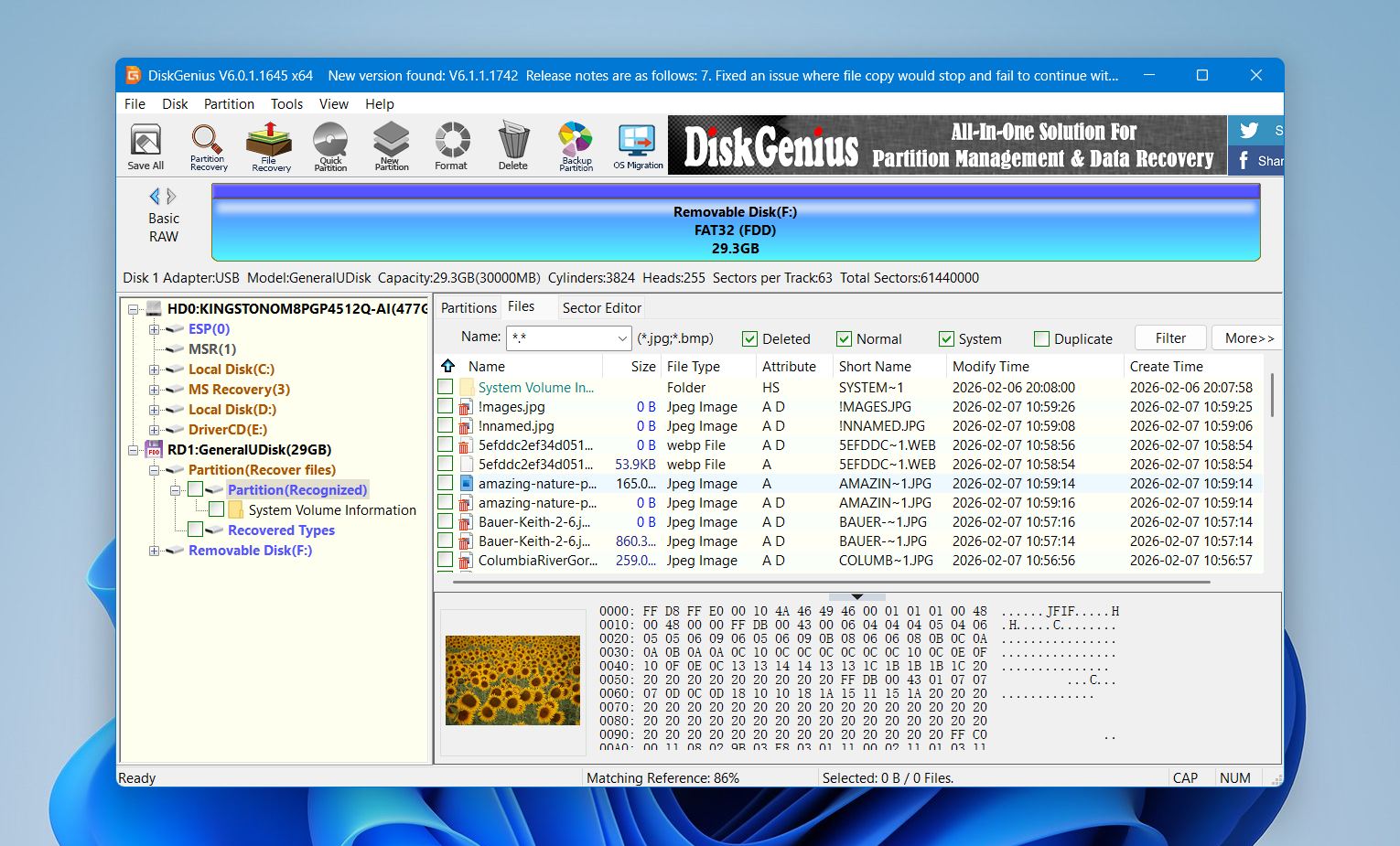
DiskGenius appeals to users who want more than basic file recovery. It packs recovery, partition work, disk cloning, and low-level utilities into a single program. That makes it useful when file loss happens alongside partition issues or disk structure problems. DiskGenius works well in situations where deleted partitions, damaged partition tables, or RAW drives come into play.
That’s the main reason why some users prefer Disk Genius over AnyRecover. On the recovery side, DiskGenius supports file signature scanning and partition reconstruction. That helps when folder structures are gone but file data remains. It also allows users to image a drive first and recover from the image, which reduces risk when dealing with unstable disks.
The downsides show up quickly as well. The interface packs a lot of tools into a small space, which can feel overwhelming. New users often need time to understand what each option does. File previews do not feel smooth, which makes it harder to quickly verify recovered files. Scan times can also stretch out.
Pros:
- Large set of built-in disk and recovery tools in one app
- Handles both file recovery and partition recovery
- Works with virtual disk images (VMware, VirtualBox, VHD)
- Includes disk cloning and disk imaging utilities
- Can scan for and attempt repairs on bad sectors
- Useful for fixing partition tables and restoring lost volumes
- One-time license instead of subscription
Cons:
- Interface looks outdated and feels cluttered
- Learning curve is higher for new users
- File preview feels awkward and slow to navigate
- Scan speed drops on very large drives
- Windows-only, no macOS or Linux version
We go deeper into DiskGenius in our dedicated review.
4. EaseUS Data Recovery Wizard
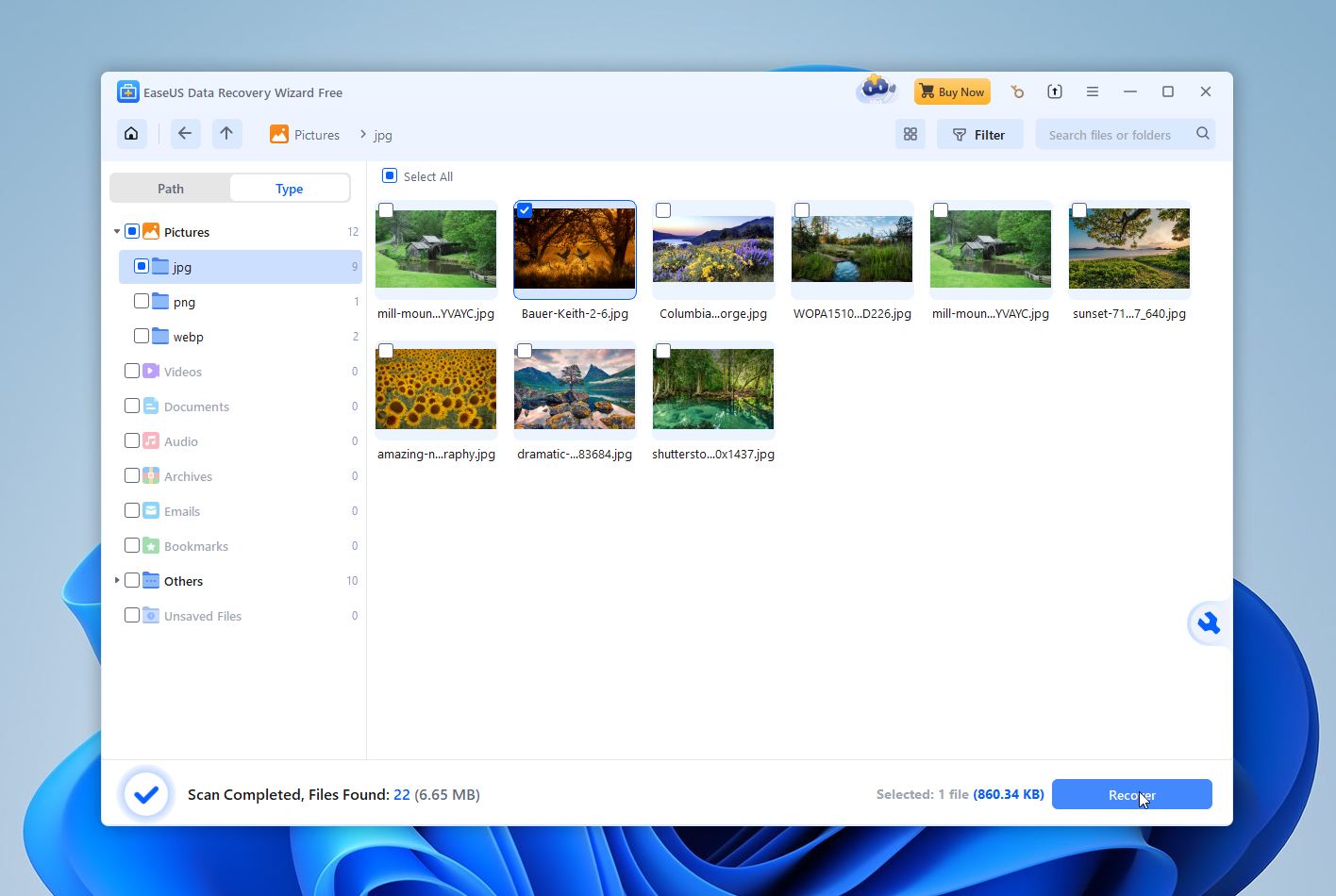
EaseUS Data Recovery Wizard targets users who want a smooth and predictable recovery experience. The software feels polished from the first launch. Menus stay clean, steps stay clear, and the process moves forward without forcing technical decisions. That alone makes it attractive to users who feel uneasy about data recovery.
So why do people choose EaseUS over AnyRecover? The main reason is reliability. EaseUS usually delivers more consistent results and feels better prepared for cases beyond basic deletion. The interface stays friendly, but the recovery engine underneath handles more situations. Users who tried AnyRecover and felt unsure about the results often switch to EaseUS because it feels more predictable and better supported.
The downside is cost. EaseUS charges more than most AnyRecover alternatives, especially on monthly plans. Even yearly and lifetime licenses sit on the higher end of the market. Another issue worth noting is that scan results can look optimistic. Files marked as recoverable do not always open correctly after restoration. That is not unique to EaseUS, but the labeling can raise expectations.
Pros:
- Modern, clean interface that stays easy to understand
- Guided, wizard-style workflow reduces mistakes during recovery
- Consistent results for common data loss cases such as deletion and formatting
- Broad support for file systems and storage devices
- Large library of guides, tutorials, and troubleshooting articles
- Free Windows tier allows real recovery (up to 2 GB) for small emergencies
- Clear file previews help verify results before recovery
Cons:
- Pricing is high compared to most competitors
- Short-term plans cost disproportionately more than long-term licenses
- File “recoverable” status can feel overly optimistic in some cases
- Limited advanced controls for experienced users
If you want to see how EaseUS performs across different data loss scenarios and how its pricing compares long-term, we break that down in our full EaseUS Data Recovery Wizard review.
5. Recuva
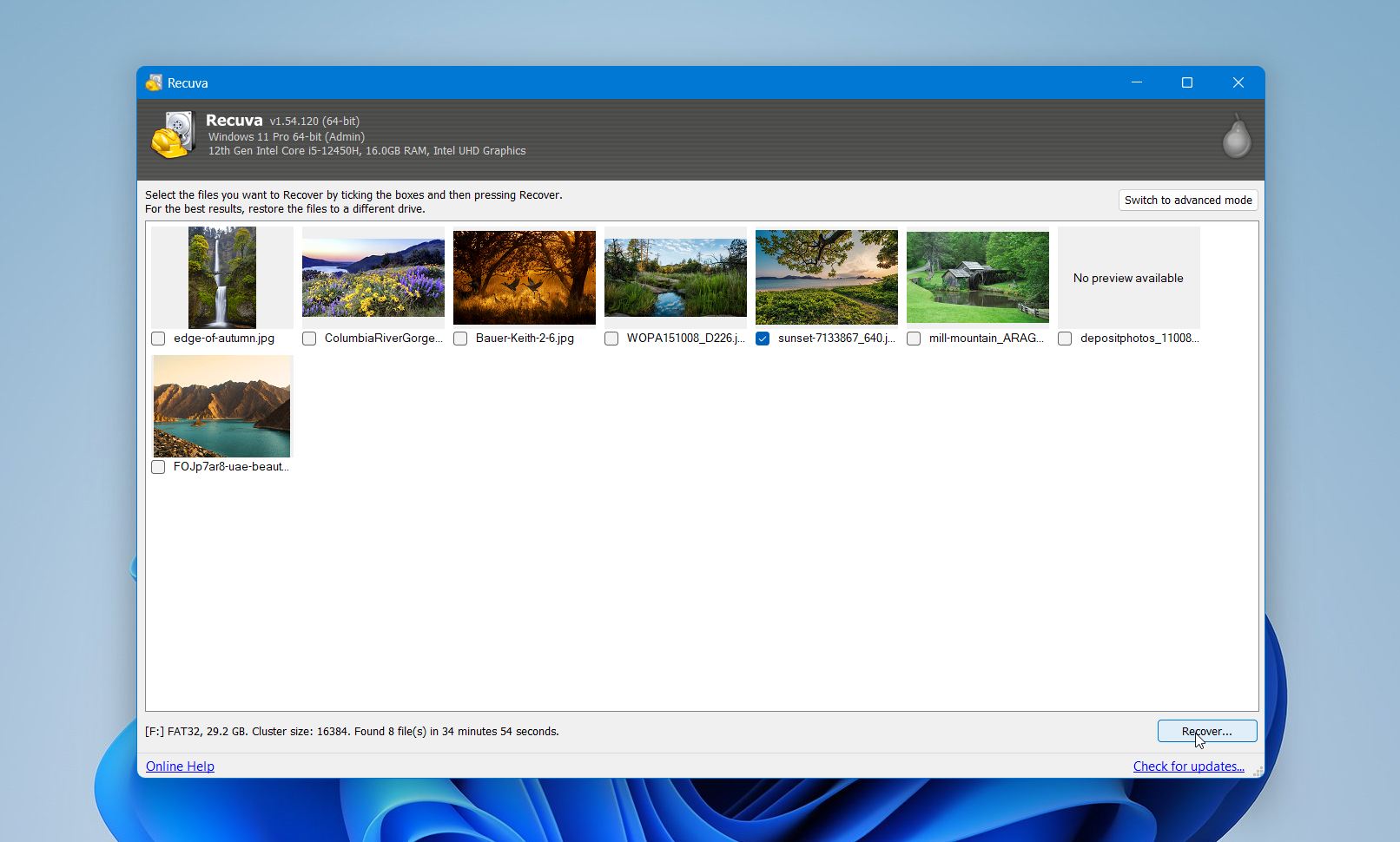
Rounding out the list is Recuva, a free alternative to AnyRecover and long-standing recovery tool from Piriform, best known for CCleaner. Recuva focuses on one thing: simple file recovery without friction. You install it, launch the wizard, choose what you lost, and start the scan. For recently deleted files on healthy drives, that approach still works well.
People usually choose Recuva over AnyRecover for one simple reason: it’s free. Recuva does not put a cap on how much data you can recover for free. No size limits. No upgrade wall in the middle of the process. For users who only need to recover files once in a while, that matters a lot. It lets them finish the job without pulling out a credit card.
Another factor is transparency. Recuva makes it clear what it can and cannot do. You run a scan, you see results, and you recover files. There is no strong push toward payment unless you want support or updates. With AnyRecover, many users hit a paywall after the scan, which often feels frustrating when the files are already visible.
That said, choosing Recuva often comes with realistic expectations. People who pick it usually know they deal with basic file loss, not complex recovery cases. For those scenarios, the combination of unlimited free recovery, low system impact, and a familiar interface is enough.
Pros:
- Truly unlimited free recovery on Windows, no size cap
- Very small footprint and fast startup
- Simple wizard works well for basic undelete cases
- Deep Scan mode available for formatted or damaged drives
- Secure overwrite tool included for permanent file deletion
- Pro version stays inexpensive compared to most competitors
Cons:
- Windows-only, no macOS or Linux support
- Updates arrive slowly, with few feature changes over time
- Interface feels dated
- Limited file system and complex-case support
- Weak results on fragmented video and modern camera media
For a closer look, see our Recuva review, where we explain its free recovery limits and real-world recovery results.
AnyRecover Alternatives Side-by-Side Comparison
We’ve already looked at each tool individually. Now let’s put them next to each other for easier comparison of the practical differences:
Software |
Platforms |
Free Version / Trial |
Starting Price |
UI |
Preview Quality |
Disk Imaging |
Disk Health Tools |
NAS / RAID Recovery |
AnyRecover |
Windows, macOS (+ iOS/Android modules) |
Windows: up to 200 MB free; macOS: scan & preview only |
$79.99/year or $99.99 lifetime |
Good (simple) |
Basic |
No |
No |
No |
Disk Drill |
Windows, macOS |
Windows: up to 100 MB free; macOS: full preview |
From $89 |
Great (modern, clean) |
Great |
Yes (byte-to-byte) |
Yes |
Yes |
R-Studio |
Windows, macOS, Linux |
Demo: files up to 1024 KB |
$79.99 one-time (Standard) |
Technical |
Good |
Yes |
Limited |
Yes |
DiskGenius |
Windows |
Full scan; files < 64 KB |
$69.90 one-time |
Average (dated) |
Good |
Yes |
Yes |
Basic RAID |
EaseUS Data Recovery Wizard |
Windows, macOS |
Windows: up to 2 GB free; macOS: preview only |
$99.95/year or $149.95 lifetime |
Very good |
Good |
No |
No |
No |
Recuva |
Windows |
Unlimited free recovery |
Free; Pro $24.95/year |
Basic |
Limited |
No |
No |
No |
Some of these tools also offer monthly subscription plans at a lower upfront cost. We did not include those in the table because the price-to-access ratio is usually less favorable compared to annual or lifetime licenses. For many users, data recovery is a one-time situation, so short-term plans may seem attractive, but they often provide limited value relative to their cost.
Verdict
When you compare the alternatives side by side, the differences become more obvious. In our opinion, Disk Drill is the best AnyRecover alternative overall because it combines strong recovery performance, broad device and file system support, and useful extra tools like byte-to-byte backups in one polished interface.
That said, each tool still has its own strengths. R-Studio makes more sense for advanced users who want deeper control and don’t mind a more technical workflow. Recuva remains a solid pick when free, unlimited recovery on Windows is the main goal.
At the end of the day, there’s no single “best” choice for everyone. The right option depends on the situation, the data, and how much control you want.
FAQ
Is AnyRecover any good?
AnyRecover does what it sets out to do. It’s simple, quick to set up, and easy to understand. For basic cases, like recently deleted files on a healthy drive, it usually works fine. From our experience, that simplicity is also its main limitation. Once recovery gets even slightly more demanding, it starts to feel thin on features.
Is AnyRecover completely free?
No. On Windows, there’s a free tier, but recovery is capped at about 200 MB. On macOS, you can scan and preview files, but actual recovery requires a paid license. Linux isn’t supported at all.
Is there a free unlimited data recovery alternative to AnyRecover?
Yes. Recuva still offers unlimited free recovery on Windows. That makes it appealing for users who don’t want to pay upfront. The trade-off is that its recovery engine and file system support are more basic, especially compared to newer tools. In our community discussion, you can see users compare free unlimited recovery tools and share how they actually perform in real scenarios.
Is Recuva better than AnyRecover?
It depends on what you value more. AnyRecover feels more modern and guided, which helps beginners get started quickly. Recuva gives you unlimited free recovery, but it can struggle with newer file systems or file types. For a very simple recovery, either can work. For anything more involved, both have limits.
Which AnyRecover alternative recovers media files best?
For photos and videos, Disk Drill is usually the strongest choice. In addition to its recovery capabilities, it also includes Advanced Camera Recovery that improves results on fragmented videos from various cameras and drones. R-Studio also performs well with its deep control over scan settings. Free tools like Recuva can handle simple deletions, but for serious media recovery, Disk Drill and R-Studio typically deliver more reliable outcomes.
This article was written by Princess Lescan, a Staff Writer at Handy Recovery Advisor. It was recently updated by Victoria Rybtsova. It was also verified for technical accuracy by Andrey Vasilyev, our editorial advisor.
Curious about our content creation process? Take a look at our Editor Guidelines.