
In today’s ranking, we’ll look at the best SD card recovery software for Mac. So if you were looking for a tool that can help you recover photos & videos (or any other files) from your memory card, you’ll find it here. These were all tested by our team on the latest macOS and they work great for SD card-specific jobs.
While there are a ton of data recovery tools for macOS out there, we picked out the top 8 that actually stand out (we explain what guided us to choose these here). We didn’t want to pad this list with XX tools just to hit a number. Each one here earned its spot. Whether you’re hunting for 100% free SD card recovery software for Mac or need a pro-grade multitool that does everything from deep scans to byte-for-byte backups, there's something here that’ll fit.
Before we get into the full ranking, here’s a quick look at what we consider the top 3. Feel free to cast your vote if you’ve tried any of these:


Top 8 SD Card Recovery Software for Mac
Alright, now let’s get into the details. We’ve worked with all of these tools over the years and know their strengths and limitations pretty intimately by this point. For each one, we’ll walk you through what it does well, where it might fall short and drop a link to our full review in case something catches your attention and you want a closer look.
Let’s start with the top pick.
1. Disk Drill for Mac
Best for: all-around SD card recovery on Mac (strong results + great previews + byte-to-byte backup + Advanced Camera Recovery for cameras/drones).
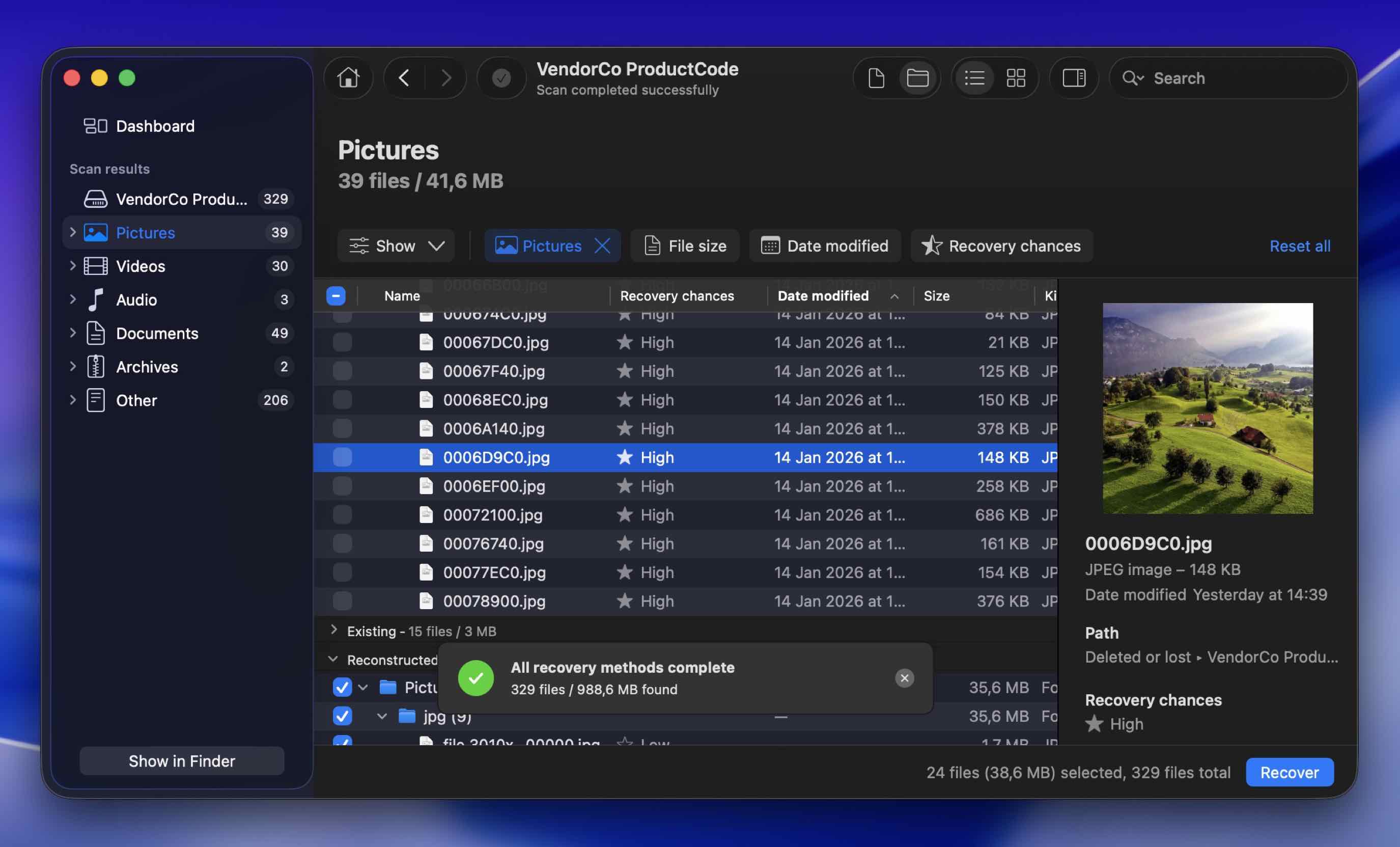
Disk Drill for Mac has often topped our rankings, and for plenty of good reasons. It’s one of the most well-rounded SD recovery software Mac users can get their hands on.
Pros:
- Shows great results (from simple deleted files to RAW SD cards).
- A clean UI, Mac-native UI.
- Fast scans.
- Recognizes and recovers around 400 file formats.
- Supports file preview.
- Clearly mentions recovery chances.
- Supports functional and corrupt SD cards.
- Advanced Camera Recovery module for fragmented videos
- Loads of additional features like Byte-to-byte backup, Recovery Vault.
Cons:
- No phone support.
- The free trial only lets you preview recoverable files.
User Experience
Disk Drill’s data recovery process is very simple, which makes it easy for anyone to recover lost and deleted data from an SD card on a Mac. Just connect the card to your computer, and with just a few clicks, you can select that disk for recovery and start scanning for files. When the scan is complete, you can preview the files that you want to recover.
It also earns bonus points for its extra tools - especially the Advanced Camera Recovery module. Right now, only a handful of data recovery apps on the market can properly reconstruct fragmented files from cameras. This is a major advantage. If you’re pulling footage from a GoPro, DJI drone, or photos from Canon or Nikon cameras using SD/microSD cards, this feature can make the difference between getting broken clips and getting usable files.
Pound for pound, it’s probably the best value you’ll get out of a single Mac SD recovery app.
Price: It has a free trial version. $89 for the Pro version, and $499 for an Enterprise license.
OS Version: Supports all macOS versions starting from 10.5 (Yosemite)
Our team put together a full hands-on review of the latest version of Disk Drill right here. There's a lot more to cover than we could fit into this ranking.
Criteria |
Disk Drill for Mac |
Supports latest macOS |
Yes. Works reliably on macOS Tahoe. |
FAT32/exFAT support |
Yes. Handles the file systems most SD cards use and many more. |
Formatted/RAW recovery |
Strong. Deep scan performs well after formats and when the card shows up as RAW. |
Preview before recovery |
Yes. Lets you preview results in real time. |
SD-friendly features |
Yes. Includes byte-to-byte backup for scanning a clone, plus Advanced Camera Recovery for fragmented camera/drone video. |
2. R-Studio
Best for: advanced users who need control and wide file system support (plus disk images and RAID tools).
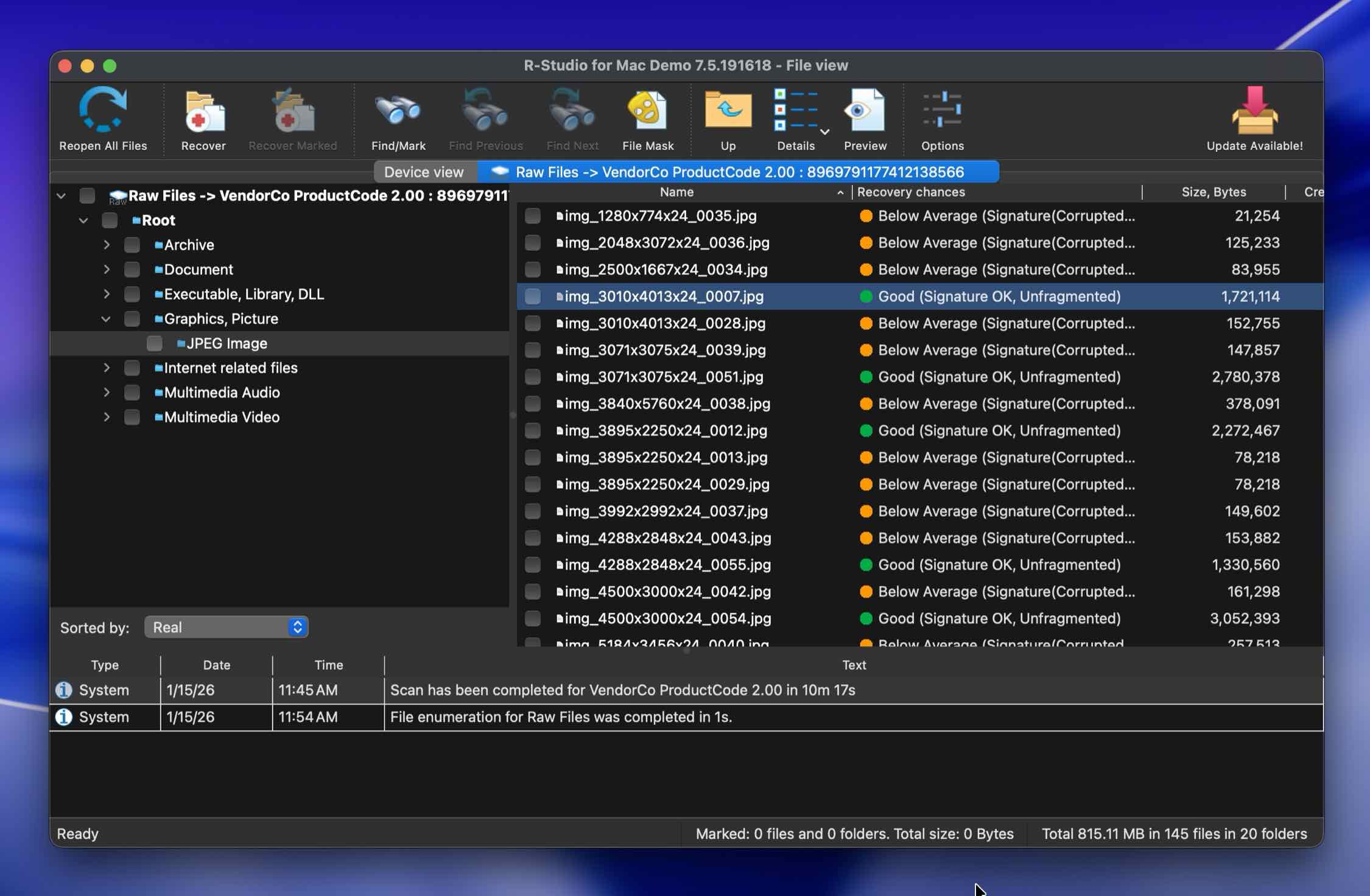
R-Studio for Mac isn’t the most accessible app out there (the UI is quite intimidating). Yet, it’s still considered one of the best SD card file recovery software options for Mac by a lot of users and professionals. And we agree.
Pros:
- Effective in a diverse range of SD card data loss scenarios.
- Supports numerous file systems in addition to Mac-specific ones.
- Supports disk image creation, and scanning.
- In-built Hex viewer to analyze RAW data.
Cons:
- Complex UI, and feature-set, aimed at technical users.
- The preview window opens up separately which can be tedious.
- No real-time scan results. You need to wait for the scan to complete before previewing files.
User Experience
Professionals love R-Studio because of its advanced data recovery features. R-Studio includes network recovery and advanced capabilities that repair damaged RAID implementations. It also supports NTFS, NTFS5, ReFS, FAT12/16/32, exFAT, HFS/HFS+ and APFS (Macintosh), Little and Big Endian variants of UFS1/UFS2 (FreeBSD/OpenBSD/NetBSD/Solaris) and Ext2/Ext3/Ext4 FS (Linux) partitions and all storage devices.
So yeah, you probably won’t find an SD card this thing can’t scan. Whether the card came from a DJI drone, DSLR, or some Linux-based media recorder, R-Studio usually reads it without fuss. The catch is the interface - it’s definitely built for people who know what they’re doing. But the tradeoff is capability.
R-Studio also lets you preview your files before recovering them if you are not yet ready to fully commit to this software. And if you find the interface a bit confusing, R-Studio has a detailed online manual and help.
Price: Free version recovers files up to 265 KB in size. The standard Mac license costs $79.99.
OS Version: Supports everything from macOS 10.14 Mojave and up.
If you decide to give R-Studio a try but aren’t sure how to approach it, we’ve got a full R-Studio review that includes a step-by-step workflow with screenshots.
Criteria |
R-Studio for Mac |
Supports latest macOS |
Yes. Runs reliably on macOS Tahoe in our tests. |
FAT32/exFAT support |
Yes. Handles FAT32/exFAT and a wide range of other file systems. |
Formatted/RAW recovery |
Strong. Deep scan is effective for formatted cards and tougher corruption cases. |
Preview before recovery |
No. Preview works, but you need to wait for the scan to finish first. |
SD-friendly features |
Yes. Supports creating disk images and scanning the image instead of the SD card. |
3. Stellar Data Recovery
Best for: beginners who want a simple, guided recovery flow (and photo/video repair in higher tiers).
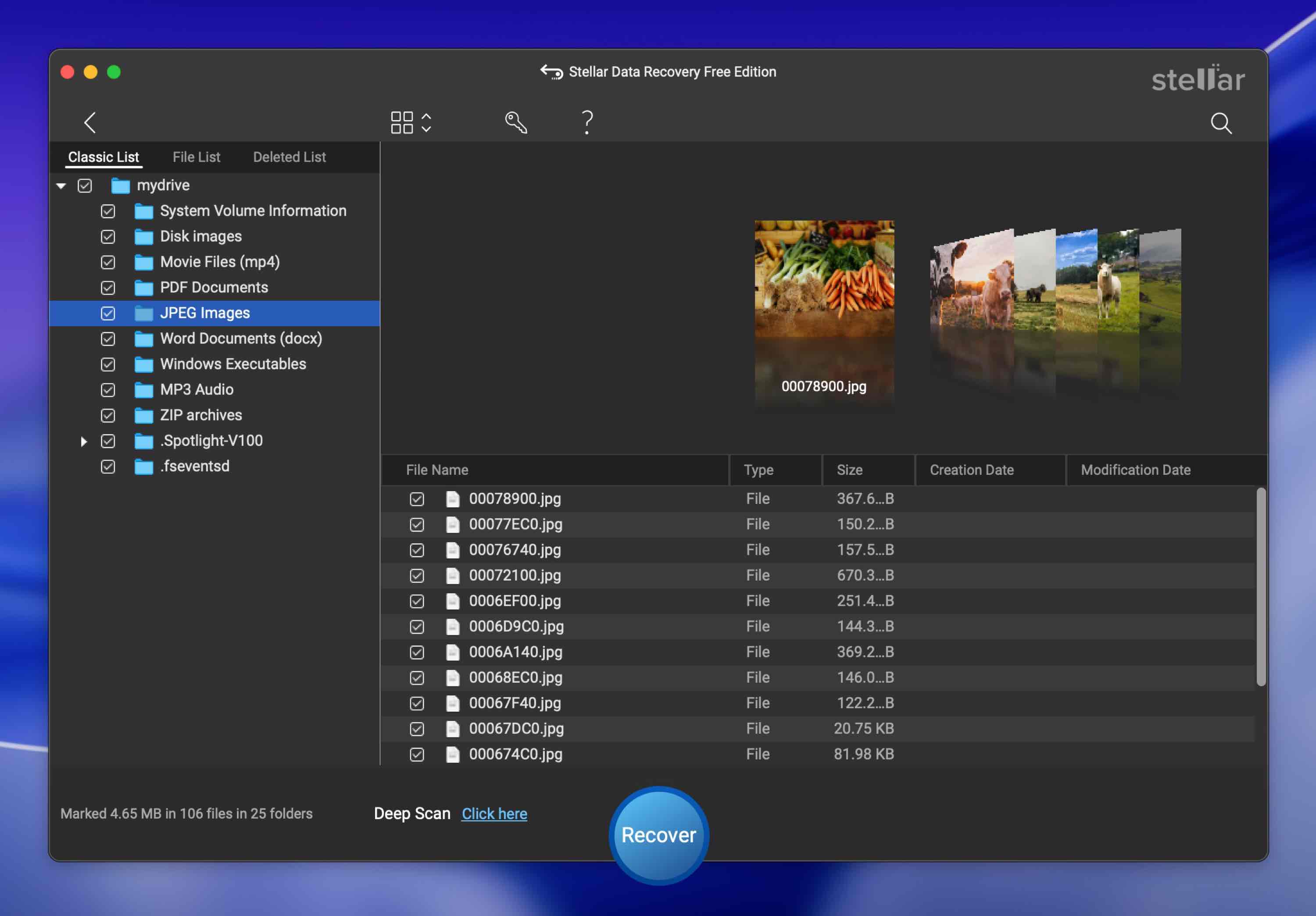
One of the top-rated tools for SD card recovery is Stellar Data Recovery. It’s especially popular among users who want something that works out of the box without digging through settings like you would with R-Studio.
Pros:
- Straightforward data recovery process accompanied by a simple UI.
- Lets you preview files before recovery.
- Photo and video repair features in the program’s premium version.
- 30-day moneyback guarantee.
Cons:
- Annual and lifetime plans are steep for what’s offered
- Scans can feel slower than other top-tier tools.
- Limited file type support compared to other SD card recovery programs.
Download Stellar Data Recovery
User Experience
Stellar Data Recovery has a no-frill, 3-step data recovery and its users love it. With this software, all you have to do is filter what type of data you’re looking for, pick the SD card you want to scan, and select the files you want to recover.
It might not be the most powerful SD card recovery tool for Mac, but for most standard cases it gets the job done with no problems. Plus, the built-in photo and video repair features are especially useful, since SD cards are mostly used in cameras and phones. Though repair tools are only included in higher-tier plans, and those plans aren’t exactly cheap.
Price: Free recovery up to 1 GB. The paid plans start at $69.99/year, and go up to $199/year. There are also lifetime license options.
OS Version: Supports macOS High Sierra (10.13) through macOS Tahoe (26).
If you want to see what other users have to say about Stellar, or you're curious how it performed in different recovery scenarios, you’ll find that (and a lot more) in our full Stellar Data Recovery review.
Criteria |
Stellar Data Recovery for Mac |
Supports latest macOS |
Yes. Supports macOS Tahoe. |
FAT32/exFAT support |
Yes. Works well with the common SD card file systems. |
Formatted/RAW recovery |
Good for typical cases. Handles quick formats well; tougher RAW/corruption cases can take longer and results vary more than top-tier tools. |
Preview before recovery |
Yes. Simple preview flow, beginner-friendly. |
SD-friendly features |
Yes. Strong guided recovery and optional media repair in higher tiers. |
4. Recoverit by Wondershare
Best for: a clean, beginner-friendly SD recovery app with built-in file repair, especially for common photo/video formats.
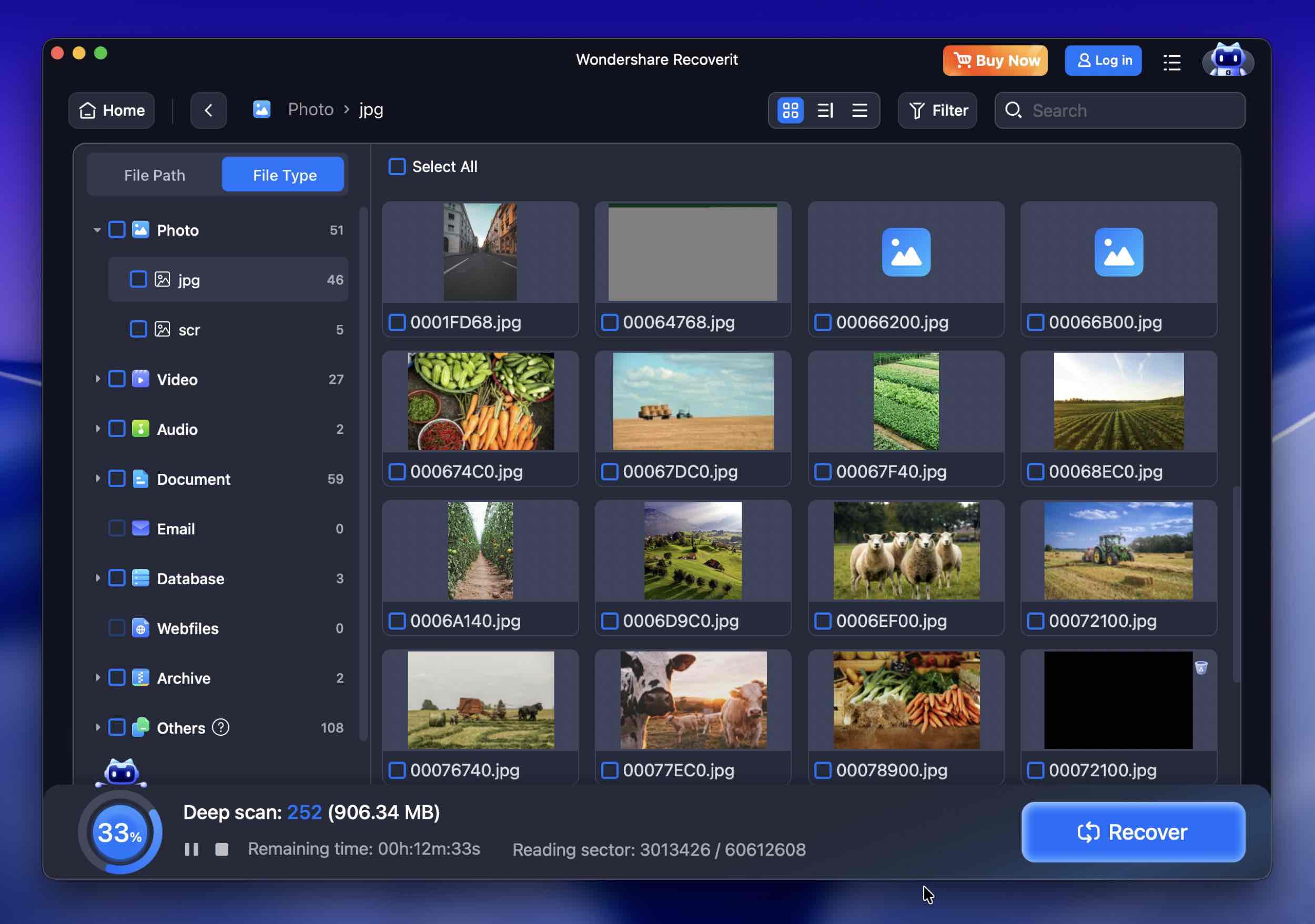
Another popular SD card recovery app for Mac, for the same reasons as Stellar, is Recoverit. It’s well-known, widely recommended, and checks most of the same boxes: simple interface, solid recovery performance with SD cards from cameras, phones, drones, and more.
Pros:
- Clean UI.
- Good basic recovery results.
- Recognizes most common formats.
- File repair.
- Preview files before recovery.
Cons:
- Complicated license tiers.
- The lower license tiers miss out on critical features, nudging users to always buy the more costly license.
User Experience
Recoverit shares a lot with the Stellar SD data recovery tool in how it approaches the job. It also sports a simple, modern UI that feels familiar if you’ve used other mainstream recovery apps. That means big buttons, clear steps, and little jargon to wade through. For many people who just want their photos or videos back quickly, that kind of ease is appealing.
And it also includes file repair as an extra feature, which can come in handy with media files that won’t open. Depending on the license you choose, you’ll unlock different sets of tools.
That said, the app does make a noticeable effort to nudge you toward the more expensive plans. It’s not aggressive, but you’ll definitely feel it.
Price: The free version lets you scan your SD card and preview files, but to actually restore files, you’ll need one of the paid plans, priced at $54.99/month and above.
OS version: Supports macOS 10.15 and later.
Just like with all the other software in this list, we tested Recoverit quite extensively and have a full Recoverit review here.
Criteria |
Recoverit by Wondershare |
Supports latest macOS |
Yes. Works on Tahoe. |
FAT32/exFAT support |
Yes. Handles the common SD card file systems. |
Formatted/RAW recovery |
Good for common scenarios. Deep scans work well after deletion or quick format; heavy corruption can be hit or miss. |
Preview before recovery |
Yes. Lets you preview files before you commit to recovery. |
SD-friendly features |
Yes. Includes built-in file repair for photos/videos (license-tier dependent), which helps when recovered media won’t open. |
5. EaseUS Data Recovery Wizard
Best for: the “click-through” recovery experience on Mac with strong everyday results and broad file-type support.
EaseUS Data Recovery Wizard has been one of the best SD card recovery software for years. You’ll see it mentioned all over Reddit and tech forums, and there’s a good reason for that.
Pros:
- Extremely easy to use.
- Supports lots of file types.
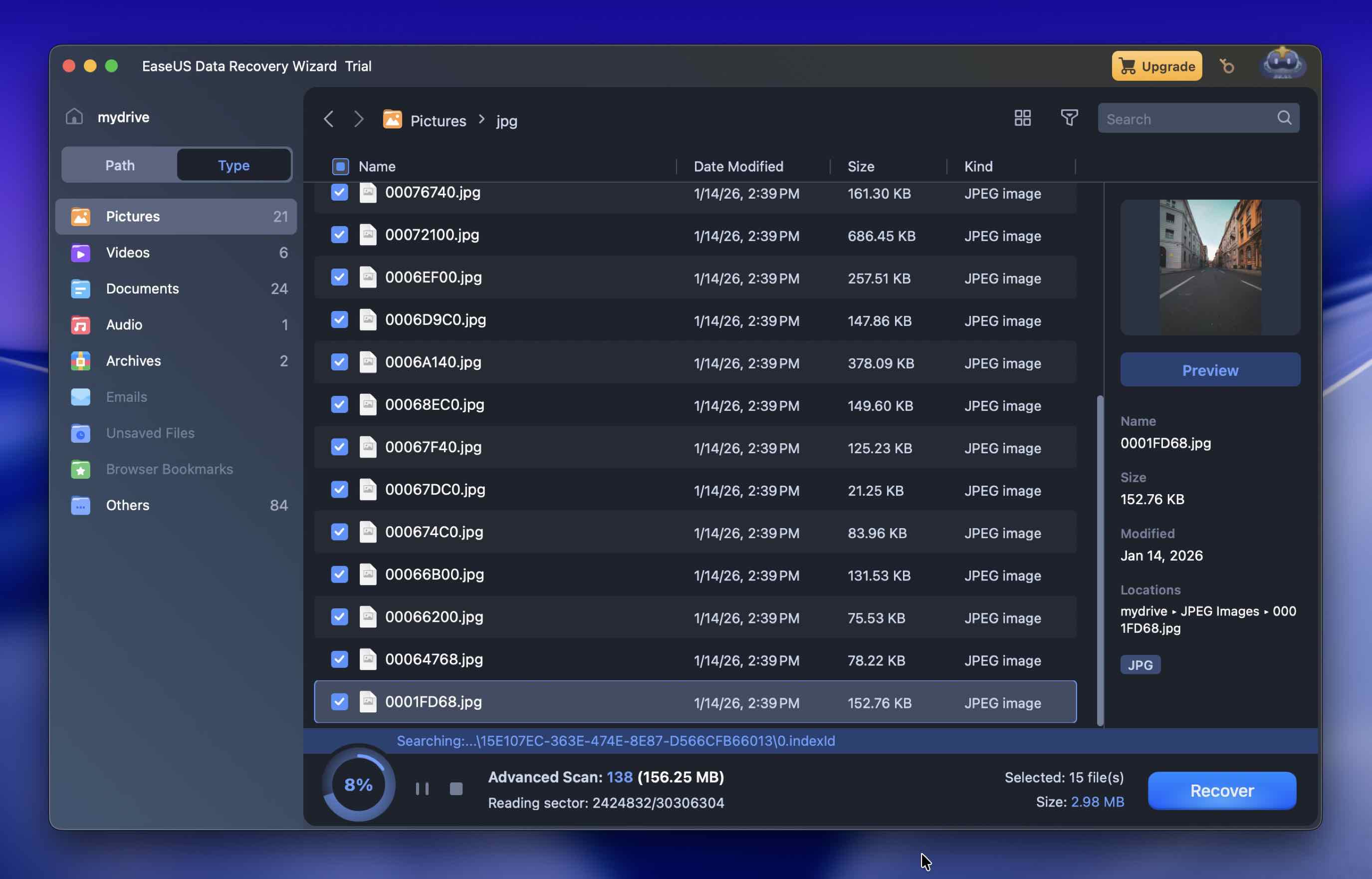
- Search functionality that lets you find files by filename and extension.
- 24*5 customer support.
Cons:
- Limited preview feature.
- Slow performance when scanning FAT32 and exFAT drives.
- Expensive.
Download EaseUS Data Recovery Wizard
User Experience
EaseUS offers one of the smoothest SD card recovery experiences on Mac. The UI is intuitive, with every step clearly labeled and easy to follow. Even if you’ve never touched recovery software before, you won’t feel lost. It also runs natively on both Intel and Apple Silicon Macs.
Performance-wise, it’s solid for everyday jobs. In our tests, it handled deleted files, formatted cards without trouble. It recovered standard photo and document formats easily, and it did okay with video files too, though it struggled a bit with previewing large or obscure file types. Deep corruption or edge cases sometimes gave mixed results, but for normal SD card mishaps, it holds up well.
Price: The free version lets you scan and preview files. The lifetime license costs $149.95. The monthly and yearly subscriptions are priced at $69.95, and $99.95 respectively.
OS Version: Supports everything from OS X 10.9 to macOS 26.0.
Want to learn a bit more about it? Our full review of EaseUS Data Recovery Wizard covers everything.
Criteria |
EaseUS Data Recovery Wizard for Mac |
Supports latest macOS |
Yes. Works on Tahoe. |
FAT32/exFAT support |
Yes. Handles the common SD card file systems. |
Formatted/RAW recovery |
Good for everyday cases. Performs well after deletion and quick format; tougher corruption/edge cases produce mixed results. |
Preview before recovery |
Yes. Preview works, yet it can struggle with larger videos or less common formats. |
SD-friendly features |
Yes. Includes disk imaging for safer scanning, plus video repair features (availability depends on plan/version). |
6. Remo Recover
Best for: straightforward SD card recoveries when you want a simple UI plus the ability to save scans and resume later.
Remo Recover may be the least popular among the batch, but it does not mean it is inferior to other Mac SD card recovery software.
Pros:
- Supports close to 500 file types.
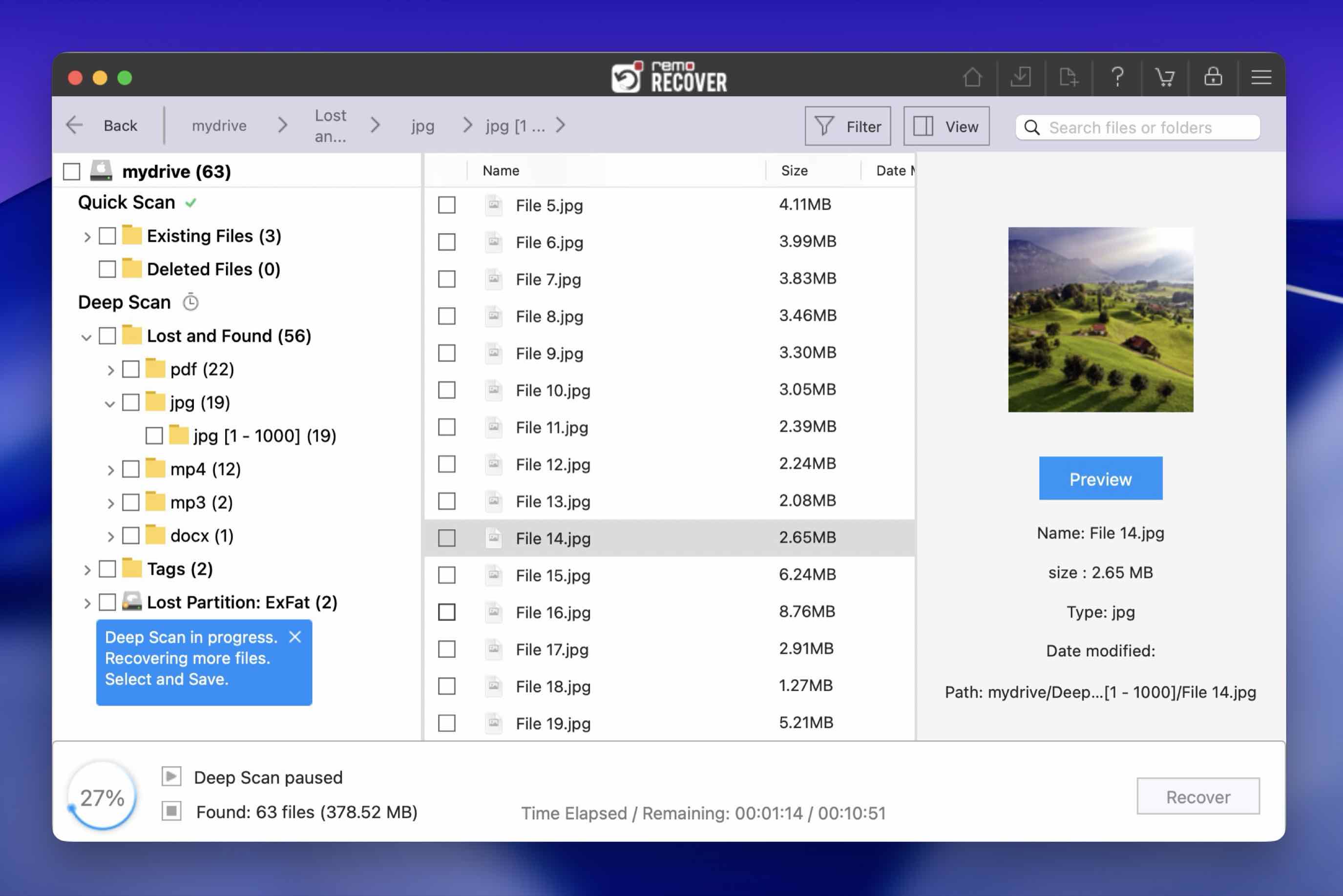
- Lets you save scans and resume them later.
- Lets you scan for particular file types, saving time.
- Approachable and user-friendly interface.
Cons:
- Slow scanning speeds.
- Less powerful in edge cases.
- Pricing feels steep for feature set.
User Experience
This isn’t the most sophisticated SD recovery engine we’ve tested, and it doesn’t offer much in terms of extra tools like disk imaging or file repair - features that often come in handy with damaged or unstable SD cards. But here’s the thing: in around 95% of the real-world cases people run into, Remo Recover gets the job done. It’s simple, runs fine on modern macOS versions, and doesn’t confuse you with unnecessary options.
It’s probably not the first tool we’d recommend, especially when you look at its features-to-price ratio. But if you’re dealing with a straightforward SD card issue, like accidentally deleted photos or a quick format, it’s a capable option. Just don’t expect deeper recovery options or advanced control over the process.
Price: Free version lets you preview files, not recover them. Licenses start at $69.97/month, with a 6-month license at $79.97 and a lifetime license available for $199.97.
OS Version: Support for macOS X 10.6 (Snow Leopard) through macOS 26.
If you want to know what score Remo Recover got in our hands-on tests check out the full Remo Recover review.
Criteria |
Remo Recover for Mac |
Supports latest macOS |
Yes. Works on modern macOS versions (including Tahoe). |
FAT32/exFAT support |
Yes. Handles the common SD card file systems. |
Formatted/RAW recovery |
Decent for typical cases. Handles deleted files and quick formats; tougher RAW/corruption cases are less reliable than top-tier tools. |
Preview before recovery |
Yes. |
SD-friendly features |
Basic. Lets you save scan sessions and resume later, but it’s lighter on advanced tooling like disk imaging. |
7. PhotoRec
Best for: truly free recovery from damaged/corrupt SD cards when you don’t mind Terminal and can live without filenames/folders.
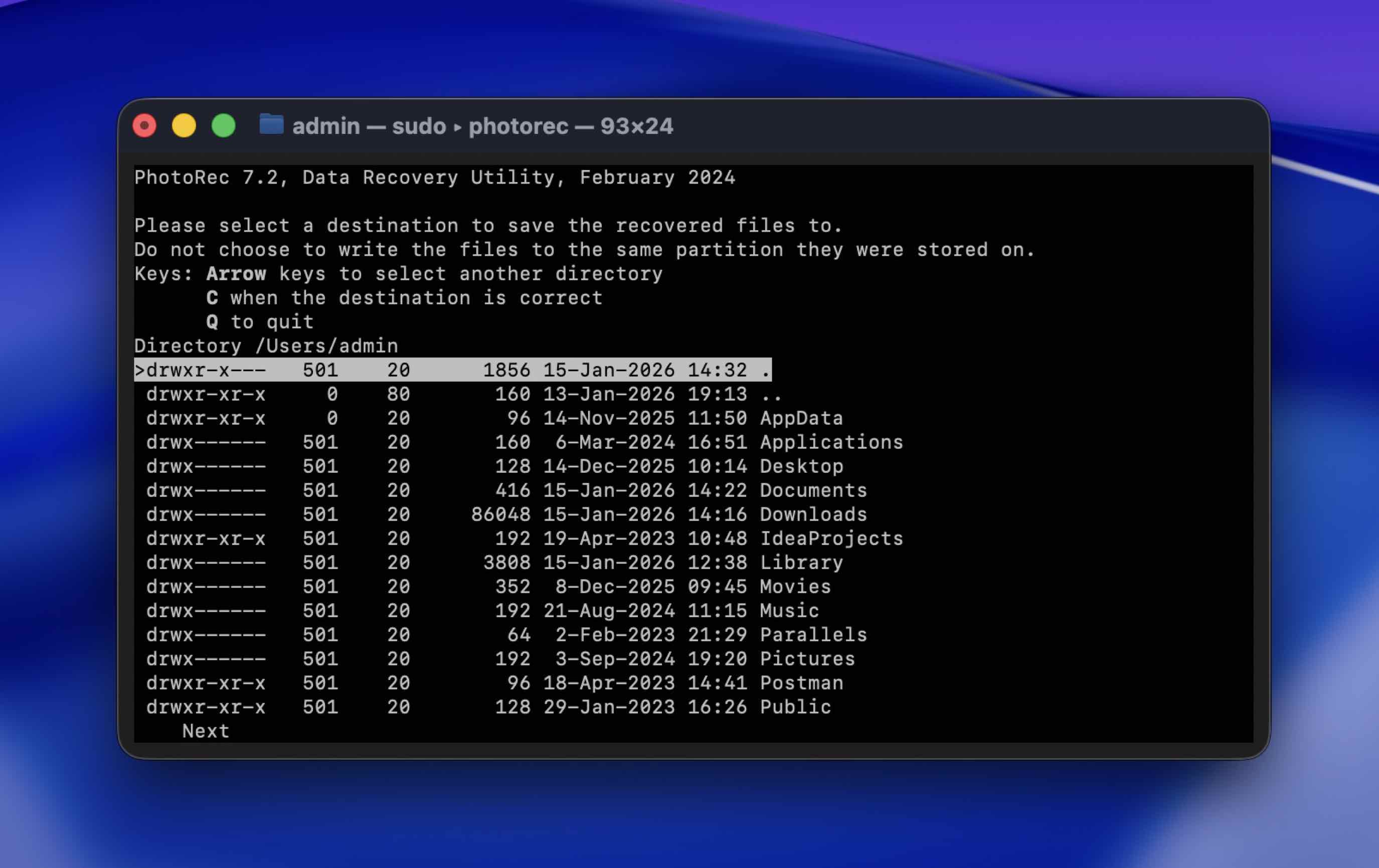
PhotoRec is a rare example of completely free SD card recovery software for Mac. It’s an open-source project, maintained by the same folks behind TestDisk, and despite the name, it recovers way more than just photos.
Pros:
- Free and open-source.
- Bypasses the file system (effective at recovering data from damaged, or corrupt SD cards).
- Non-destructive data recovery process.
- Supports more than 480 file types.
Cons:
- Difficult to use because of its command-line UI.
- No file preview.
- Doesn’t recover original filenames and paths.
User Experience
We’ll warn you right from the start - PhotoRec is a command-line tool, which means you can only run it in Terminal on Mac. There’s no drag-and-drop interface, no sleek dashboard. If you’ve never used Terminal before, it might feel intimidating at first.
It’s surprisingly capable with media files (photos and videos) which is exactly why we included it in our SD card recovery tool ranking.
One important thing to know: PhotoRec is a file carver, which means it works by identifying file signatures, not by reading file system metadata. Because of that, it can’t recover original filenames or folder structure. Everything comes back in a flat list, with generic names. So it’s powerful, but you’ll need to do some sorting after recovery.
Price: Free.
OS Version: PhotoRec supports everything from macOS X 10.6 (Snow Leopard) to macOS 26.
Our full PhotoRec review goes into much more detail about what’s possible with this tool.
Criteria |
PhotoRec for Mac |
Supports latest macOS |
Yes. Works on macOS Tahoe. |
FAT32/exFAT support |
It can recover from FAT32/exFAT cards because it reads the raw device. |
Formatted/RAW recovery |
Strong. Signature-based carving works well when the file system is damaged or the card shows up as RAW. |
Preview before recovery |
No. No preview in the tool. |
SD-friendly features |
Limited. No imaging, no media-aware modes, and no filename/folder recovery. |
8. Data Rescue
Best for: solid SD card recovery with a simple workflow plus extra power tools (and FileIQ for uncommon file signatures).
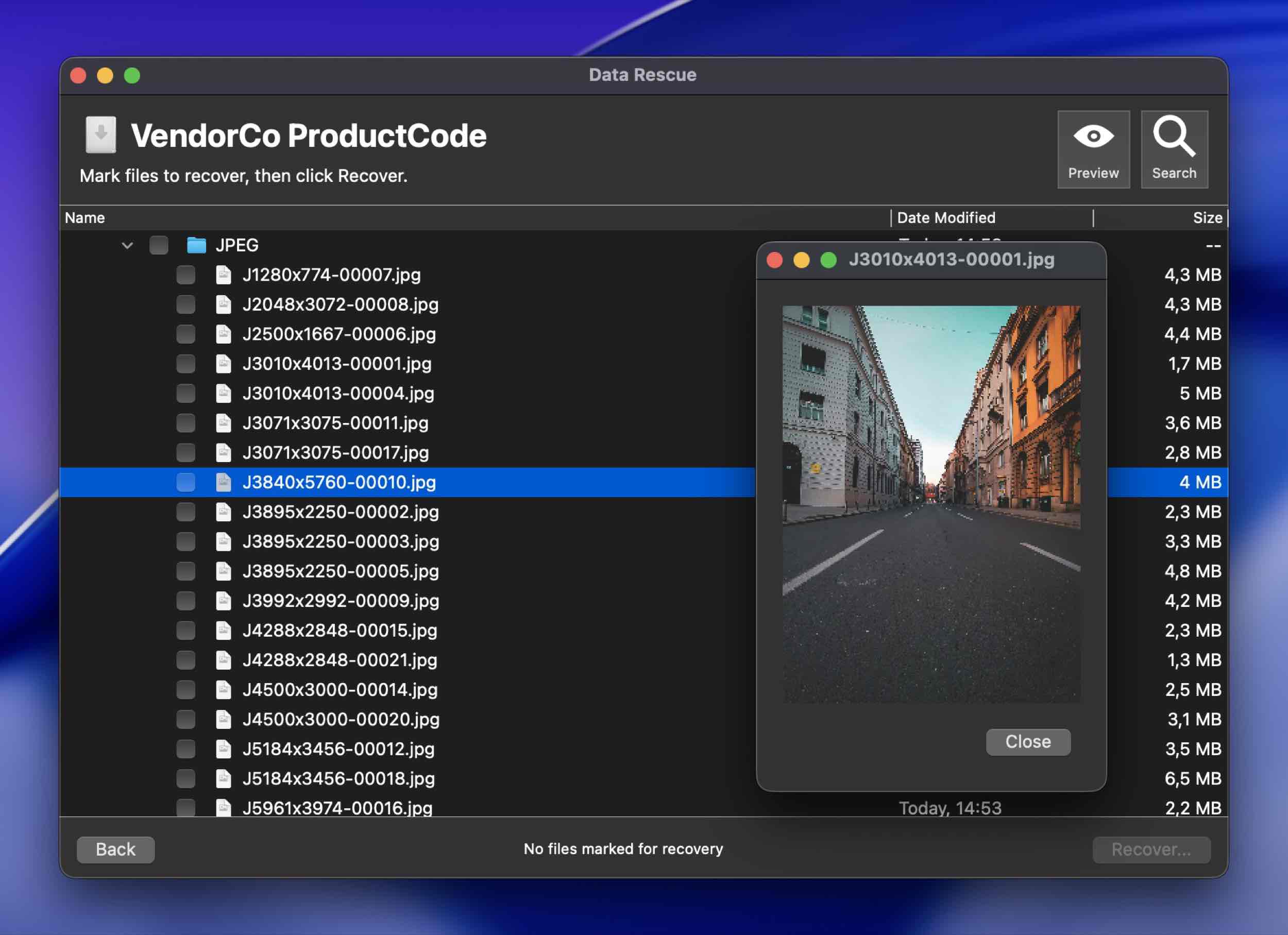
Data Rescue is nowhere near as popular as the other tools on this list. And honestly, one look at the interface will tell you why. It feels dated, especially compared to slicker options like Disk Drill or EaseUS. But don’t let that throw you off. Behind that older look is a surprisingly capable SD card recovery tool for Mac.
Pros:
- Contains features for technical and non-technical users alike.
- Simple UI.
- Lets you search and filter files using various parameters.
- Can find files with unfamiliar signatures using a learning algorithm.
Cons:
- Deep scans are quite slow.
- No thumbnail previews (you must click to view each file).
- No estimated time for scans.
- Can’t pause or resume scans.
User Experience
Data Rescue takes a bit of an old-school “wizard” approach: you choose the location (your SD card), then manually pick between Quick Scan or Deep Scan. Most apps these days do that automatically, but here, you need to decide up front.
By the way, if you’re not sure about the difference between Quick Scan and Deep Scan, there’s a clear explanation on that over in our community.
Scans can’t be paused or resumed, but the app does save the last completed scan, so you can return to it later without starting over.
Despite the dated layout, scanning an SD card is still pretty easy once you're in. The app also includes some more technical features like a HEX viewer, virtual RAID reconstruction, and an allocation block layout, but they stay tucked away unless you need them. For regular SD card recovery, it stays out of your way—and in our tests, the results were solid.
Price: Free trial letting you recover up to 1 GB of files (new users only). The paid license plans start at $79.
OS Version: Data Rescue supports macOS 10.12 and later (including compatibility with macOS 26 "Tahoe" in our latest tests).
Data Rescue also includes a feature called FileIQ, which lets the app learn new file types based on custom user-provided samples. You can read more about how it works in our full Data Rescue review.
Criteria |
Data Rescue 6 for Mac |
Supports latest macOS |
Yes. Works on macOS Tahoe in our tests. |
FAT32/exFAT support |
Yes. Handles the common SD card file systems. |
Formatted/RAW recovery |
Yes. Deep scans can take a while, but results are solid in many SD card cases. |
Preview before recovery |
No. No thumbnail-style preview; you usually need to click files one by one after the scan. |
SD-friendly features |
Moderate. Includes more advanced options (like Hex tools and FileIQ for learning uncommon file types), but it lacks the smoother imaging/media-focused extras you get in the top picks. |
What Makes SD Card Recovery Software Good Enough To Be On This List?
As we said earlier, there are way more data recovery apps for Mac than we could ever list here, so why these eight?
We picked tools that make sense specifically for SD cards. For this ranking, we focused on these things:
- The app needs to run reliably on modern macOS (everything on this list runs on macOS Tahoe without issues).
- Handle the file systems SD cards use most (FAT32/exFAT).
- Do a strong deep scan when the card gets formatted or shows up as RAW.
- And let you preview results so you don’t waste time recovering junk.
- Bonus points if it includes SD-friendly safety features like disk imaging (scan the clone, not the fragile card) or media-aware recovery modes.
Of course, not every app here checks every box. Some don’t have great previews, or any previews at all (hello, PhotoRec). Others lack extras like imaging or repair tools. But each one earned its place because, in the context of real SD card recovery, it does something well enough to matter.
We also filtered for tools that feel “honest” in real use: clear limits in the trial, stable scans, decent sorting, and pricing that matches what you get. SD card recovery often turns into a time-and-patience game, so we favored software that helps you move fast.
And yes, some tools that might have made this list a couple years ago don’t belong here now. Lazesoft Mac Data Recovery is a good example of this. It’s haven been updated in a while, and it doesn’t run past older macOS versions (we tried to run it, no-go). Unless you’re running an older version of macOS, it’s simply not a practical option today.
Bottom line is, these eight earned their place because they make the most sense.
Verdict
Each SD card recovery tool mentioned in our list has its own pros and cons. Some are better for beginners, others offer more for techy users. And while recovery software plays a huge role, it’s never a 100% guaranteed fix - factors like how the data was lost, whether the card’s been reused, or how damaged the filesystem is can all impact results.
That said, if we had to pick one standout, we’d go with #1 on this list. In our opinion, Disk Drill is the best SD card recovery software Mac users can get right now. It balances power and usability, handles nearly every SD card case we’ve thrown at it, and still keeps the experience clean and approachable. If you’re stuck choosing, that’s the one we’d start with.
But all the other 7 tools on this list have their own strong points too. If you end up going with Stellar or EaseUS, you’re still making a solid choice - both are easy to use, reliable for everyday SD card issues, and backed by strong user feedback. Even PhotoRec, while rough around the edges, has serious capabilities and is fully free on macOS, something you rarely find these days.
FAQ
Does macOS have any native SD card recovery apps?
No, macOS doesn’t include a true SD card recovery app that can restore deleted/lost files.
What if I already tried one SD card recovery tool on my Mac and it didn’t find anything, does it make sense to try another?
It often does. A failed scan with one recovery app doesn’t automatically mean your data is truly gone. Different SD card recovery tools use different scanning engines and recovery logic.
Fragmented media is a great example. Video footage from cameras and drones often gets split across non-contiguous blocks on the SD card. Many simpler recovery tools struggle with that and either miss those files entirely or restore broken clips. In cases like this, it makes sense to try a more capable solution, for example, Disk Drill, which includes an Advanced Camera Recovery mode designed specifically for fragmented files.
What SD card recovery software is free to use on macOS Tahoe?
Most SD card recovery apps for macOS can be downloaded for free and will let you scan your SD card at no cost to see what files are recoverable. This “freemium” model is pretty common: you scan and preview for free, then upgrade if you want to actually recover the files.
If we’re talking about completely free tools, as in, no payment needed to recover files, there are very few. One standout is PhotoRec, an open-source recovery app that works well with media files like photos and videos. It doesn’t restore filenames or folder structure, and the interface is minimal (or command-line based), but it’s and fully free on macOS.
This article was written by Mako Young, a Contributing Writer at Handy Recovery Advisor. It was recently updated by Manuviraj Godara. It was also verified for technical accuracy by Andrey Vasilyev, our editorial advisor.
Curious about our content creation process? Take a look at our Editor Guidelines.