

At one time, DiskWarrior was an excellent choice for users faced with a difficult data loss and recovery situation. While the tool can still be used to repair and rebuild directory structures, which can help in recovering lost or corrupted files, the tool is no longer considered to be at the pinnacle of data recovery tools. Below, we’ll walk through a set of programs like DiskWarrior that don’t stop at file system fixes and can actually bring back permanently lost files.
TL:DR; For those of you not wanting to read this entire article, we end up recommending Disk Drill as the best DiskWarrior alternative. You can jump to the Conclusion to see exactly why it came out on top.
But this ranking isn’t set in stone – scroll down and cast your vote. We use reader input when refining future updates.



What is DiskWarrior?
DiskWarrior is a data recovery software tool that has been on the market since the 1990s. Its original developers were former Apple employees who founded the software company Alsoft to produce applications for Mac systems in 1984.
The tool scans your Mac’s disks to repair damaged directories in HFS and HFS+ filesystems. This functionality can be extremely important when faced with lost files or formatted partitions. In the early days of Apple computers, users were challenged to find appropriate software solutions to address problems encountered with their Macs.
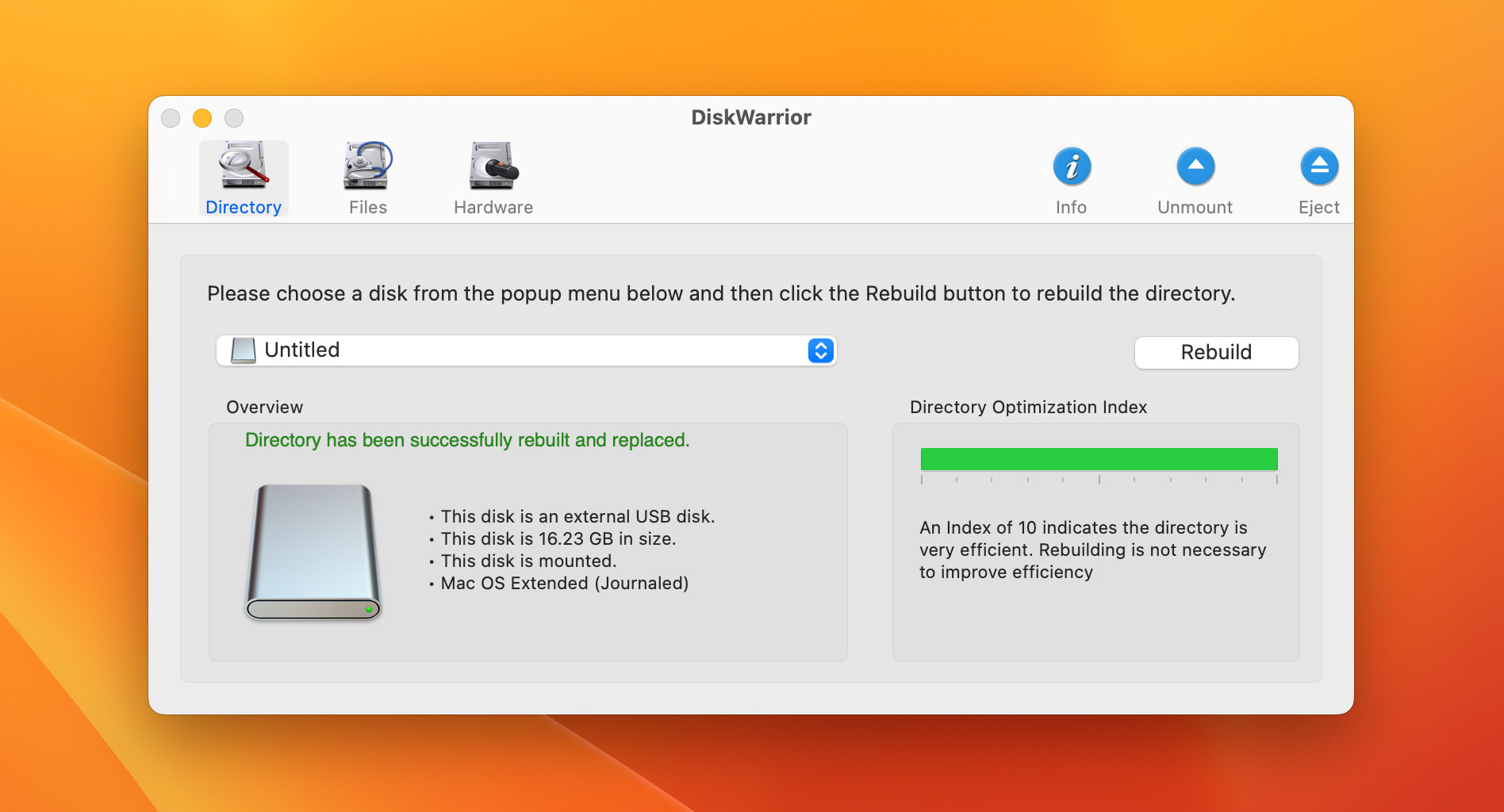
DiskWarrior was an obvious choice for new Mac users dealing with a data loss scenario. Unfortunately, this is no longer the case.
Why You Might Need an Alternative to DiskWarrior
As we already said, when it first came out, DiskWarrior was one of the best commercial tools for Mac users who needed to recover access to lost files by repairing damaged directories. But that was a long time ago. In today’s macOS environment, it’s fallen far behind. If we had to list the main reasons you might want to look elsewhere, they’d be these:
- ❌ DiskWarrior still doesn’t support Apple’s current default file system, APFS, which has been standard on Macs since 2017. That alone disqualifies it for most modern recovery or repair tasks.👀
To be fair, Alsoft has announced plans for a future DiskWarrior 6 release with APFS support, but as of now, no functional version has been released and the official status page contains only a placeholder.
- 🕰️ While the developer occasionally releases minor compatibility updates, there’s been no major feature evolution in a long time. 🗨️
While macOS Tahoe is listed among the supported systems, there are two important caveats: (1) DiskWarrior only supports rebuilding external drives under macOS Tahoe, not internal ones; (2) It only works if the disk is formatted with a supported file system (like HFS/HFS+).
- ⚠️ Doesn’t truly recover the data. If your data loss issue pertains to file system problems that can be resolved by repairing HFS and HFS+ storage devices, you are in luck. But if you’re looking to get back deleted data, you’ll need to look at the alternatives we’ve listed below.
- 🚫 Missing features such as no ability to preview recoverable files or filter search results, make DiskWarrior a less attractive option than similar software solutions that better address the needs of modern users.
- 💰 DiskWarrior does not provide any type of free trial version with which users can test the tool. You need to pay for a full license to see if the software will help resolve your data loss situation. Most commercial data recovery tools allow you to test the product by scanning your storage device and identifying recoverable items. Also, paying full price for a tool with limited scope and aging technology isn’t the best move when you’re dealing with lost data.
Now that we’ve talked through why DiskWarrior doesn’t cut it for most modern Macs, let’s take a look at which DiskWarrior alternatives are still relevant today.
6 Best DiskWarrior Alternatives
While there are many options out there, these 6 tools are the ones we feel stand out right now. We’ll list each DiskWarrior alternative and point out exactly what makes it a better choice right out of the gate.
1. Disk Drill
Disk Drill is one of the most widely used data recovery tools for macOS. It offers strong support for the latest macOS versions, including Tahoe, and consistently ranks among the top options. The tool supports recovering data from partitions and drives formatted with a variety of filesystems (HFS, HFS+, APFS, and many more). All types of disk-based storage devices are supported, including USB drives, external hard drives, and memory cards.
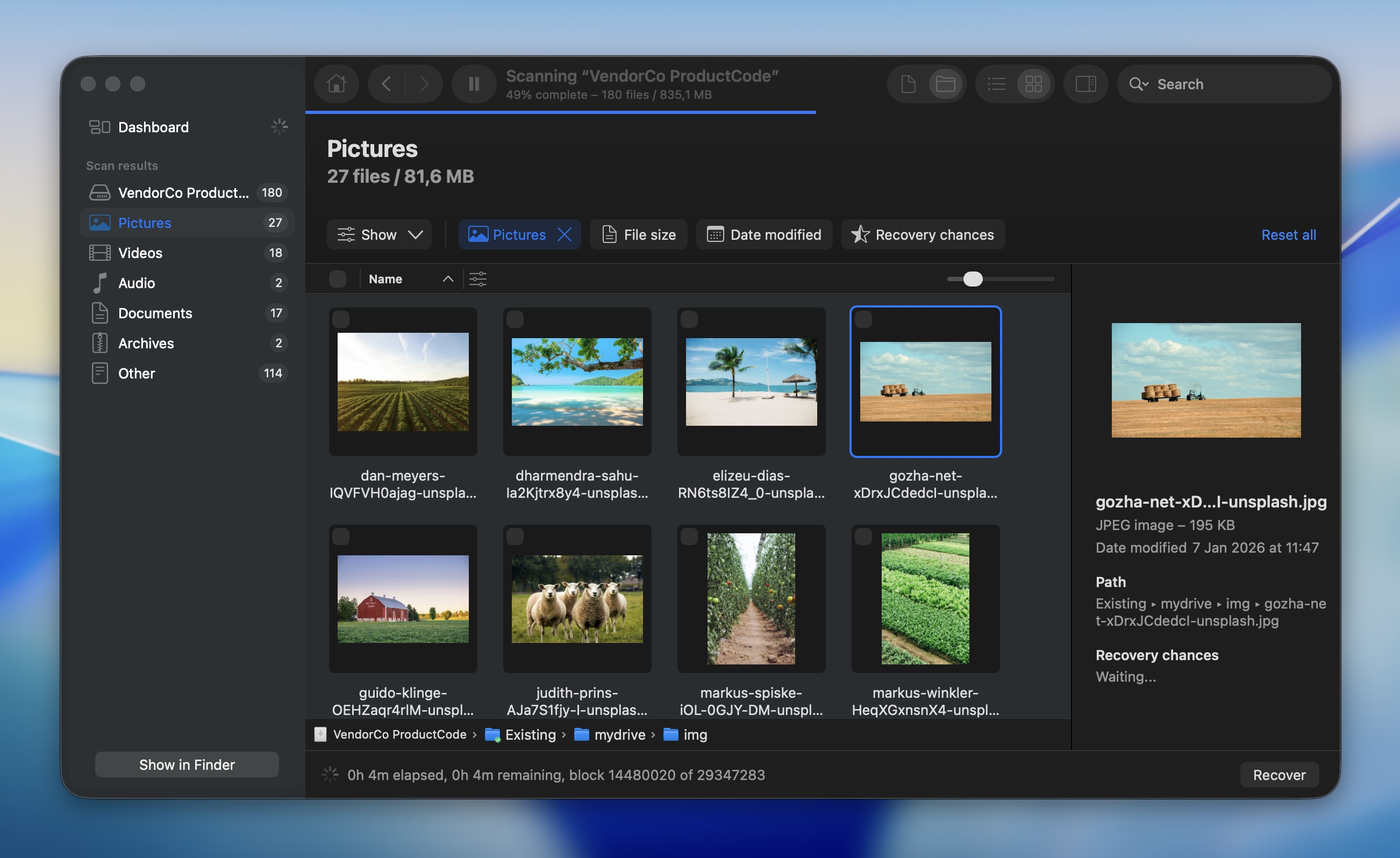
Why Disk Drill is a better alternative to DiskWarrior:
Feature/Capability |
DiskWarrior |
Disk Drill |
🔄 File Recovery Support |
No (focused only on directory repair) |
✅ Full-featured file recovery for deleted/lost data |
🧠 APFS Compatibility |
❌ No support for APFS |
✅ Native APFS support (read and recovery) |
💽 External Drive Recovery (exFAT/APFS/HFS+) |
⚠️ Limited (supports HFS/HFS+ directory rebuilding only) |
✅ Full support for external and internal drives |
📷 Camera & Fragmented Video Recovery |
❌ Not supported |
✅ Advanced Camera Recovery for split videos |
📊 Byte-to-byte Disk Backup |
❌ Not available |
✅ Built-in disk imaging for safe recovery |
🔍 Preview Before Recovery |
❌ Not available |
✅ Preview recoverable files before restoring |
🎯 Scanning Accuracy |
N/A |
✅ File signature + metadata-based scanning |
🧰 Partition Recovery |
❌ Not supported |
✅ Partition search and file recovery |
⚙️ Modern macOS Support |
⚠️ Limited (even Ventura and Monterey are caveated) |
✅ Actively updated for macOS and Windows |
💬 User Interface |
Classic, outdated |
✅ Modern, user-friendly |
💵 Free Version |
❌ No free version |
✅ Free tier with file preview and extras |
Disk Drill provides users with an intuitive interface and a streamlined recovery process. With just a few clicks, you can launch a scan and start previewing recoverable files right away. It handles hundreds of formats (390+) – everything from photos and videos to app project files and documents. It has one of the strongest recovery engines we’ve tested.
But what sets it apart is the bundle of extra tools that make it more than just a recovery app:
- Byte-to-byte disk imaging (ideal for failing drives)
- S.M.A.R.T. monitoring for early warning signs of disk trouble
- Data protection and Recovery Vault (optional background protection)
- Advanced Camera Recovery mode (perfect for GoPro/Sony/Nikon video recovery)
- Cleanup utilities to remove junk and free up space
It’s one of the most well-rounded tools for any Mac user dealing with lost files, corrupt volumes, or drive issues. That’s why we confidently recommend it as a modern DiskWarrior alternative.
It’s also safe to use. Our team has a dedicated article on Disk Drill, where we walk through its safety profile in detail.
2. PhotoRec
PhotoRec is a freeware open-source tool that may be suitable for handling the data recovery needs of some Mac users. Yes, it only runs in Terminal on macOS, but that’s part of its power.
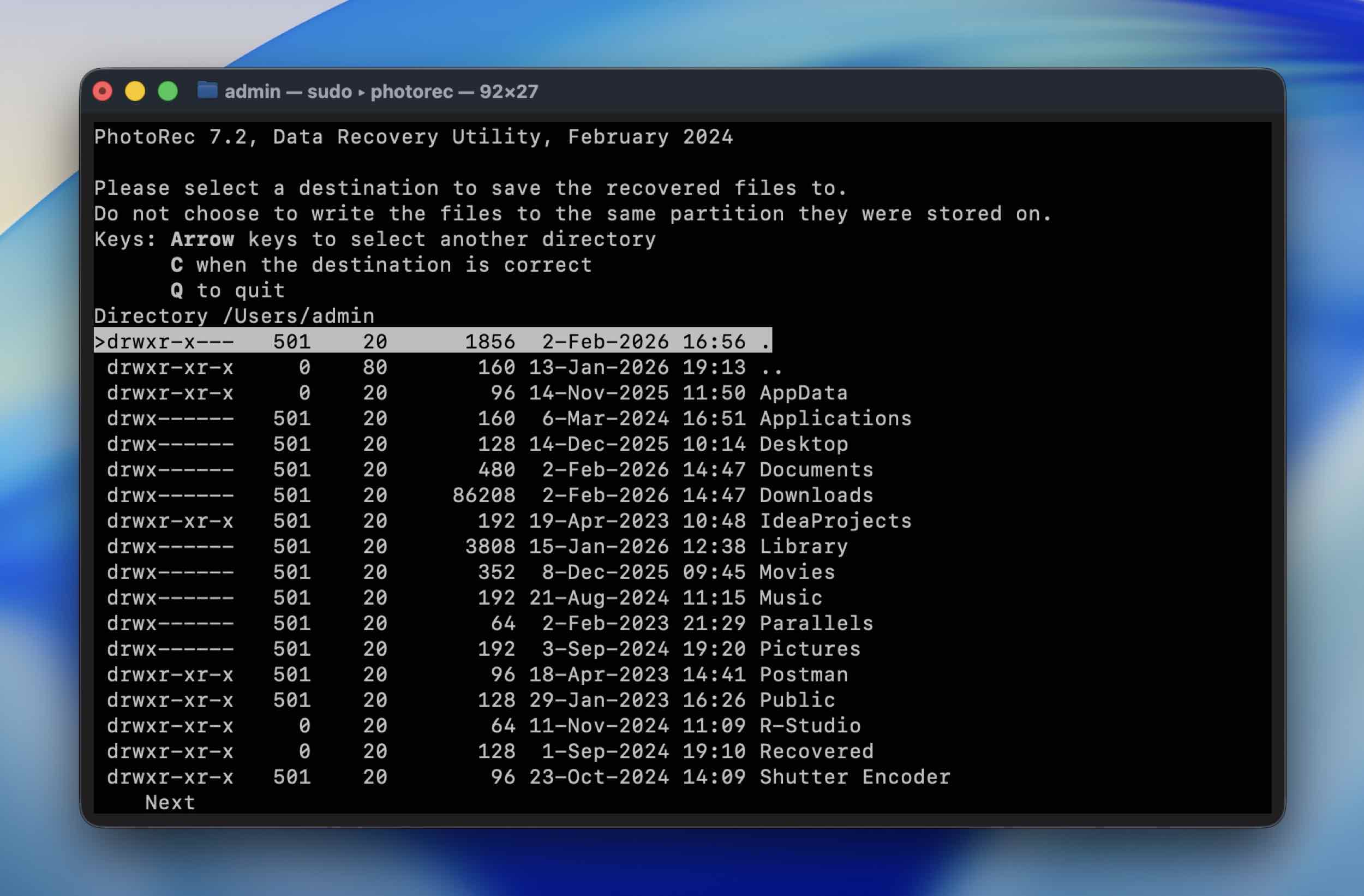
Why PhotoRec is a better alternative to DiskWarrior:
Feature/Capability |
DiskWarrior |
PhotoRec (Open Source) |
🔄 File Recovery Support |
❌ No (directory repair only) |
✅ Yes |
🧠 APFS Compatibility |
❌ No native APFS support |
⚠️ Recovers files without relying on file system |
💽 External Drive Recovery (exFAT/APFS/HFS+) |
⚠️ Limited (supports HFS/HFS+ directory rebuilding only) |
✅ Yes |
📷 Camera & Fragmented Video Recovery |
❌ Not supported |
✅ Strong photo/video carving |
📊 Byte‑to‑byte Disk Backup |
❌ Not available |
❌ Not built-in |
🔍 Preview Before Recovery |
❌ Not available |
❌ None |
🎯 Scanning Accuracy |
N/A |
✅ Signature-based deep scan with no file system reliance |
🧰 Partition Recovery |
❌ Not supported |
⚠️ Finds files even if partitions are missing |
⚙️ Modern macOS Support |
⚠️ Limited on new macOS |
✅ Works via Terminal on modern macOS |
💬 User Interface |
Outdated GUI |
❌ CLI only (Terminal interface) |
💵 Free Version |
❌ No free version |
✅ Completely free and open source |
The main drawback to PhotoRec is its command-line interface and lack of user-friendly features. Files are recovered using generic filenames, which makes it a more difficult and time-consuming process to get back lost data. However, if you are willing to spend the time, you will get good recovery results with this alternative to DiskWarrior.
Unlike DiskWarrior and many others, PhotoRec doesn’t rely on the file system at all. That’s both its strength and its limitation. On one hand, it can recover data from drives that are severely corrupted or unrecognized by the OS, where file system repair tools would fail. On the other hand, because it works purely on file signatures, it can’t reconstruct folder structures or original filenames. Plus it’s limited to recovering only the file types predefined by its signature database. Still, the tool is strong enough to earn its place in our ranking of the best data recovery software for Mac.
We evaluate PhotoRec in detail in our dedicated review, where we break down its strengths, limitations, and the types of recovery scenarios where it shines. It’s worth a look if you’re comfortable with tools that prioritize results over convenience.
3. TestDisk
TestDisk is a slightly different kind of alternative to DiskWarrior compared to two previous tools. It’s bundled with PhotoRec, but while PhotoRec focuses purely on raw file recovery, TestDisk targets the repair and recovery of lost partitions and broken file systems.
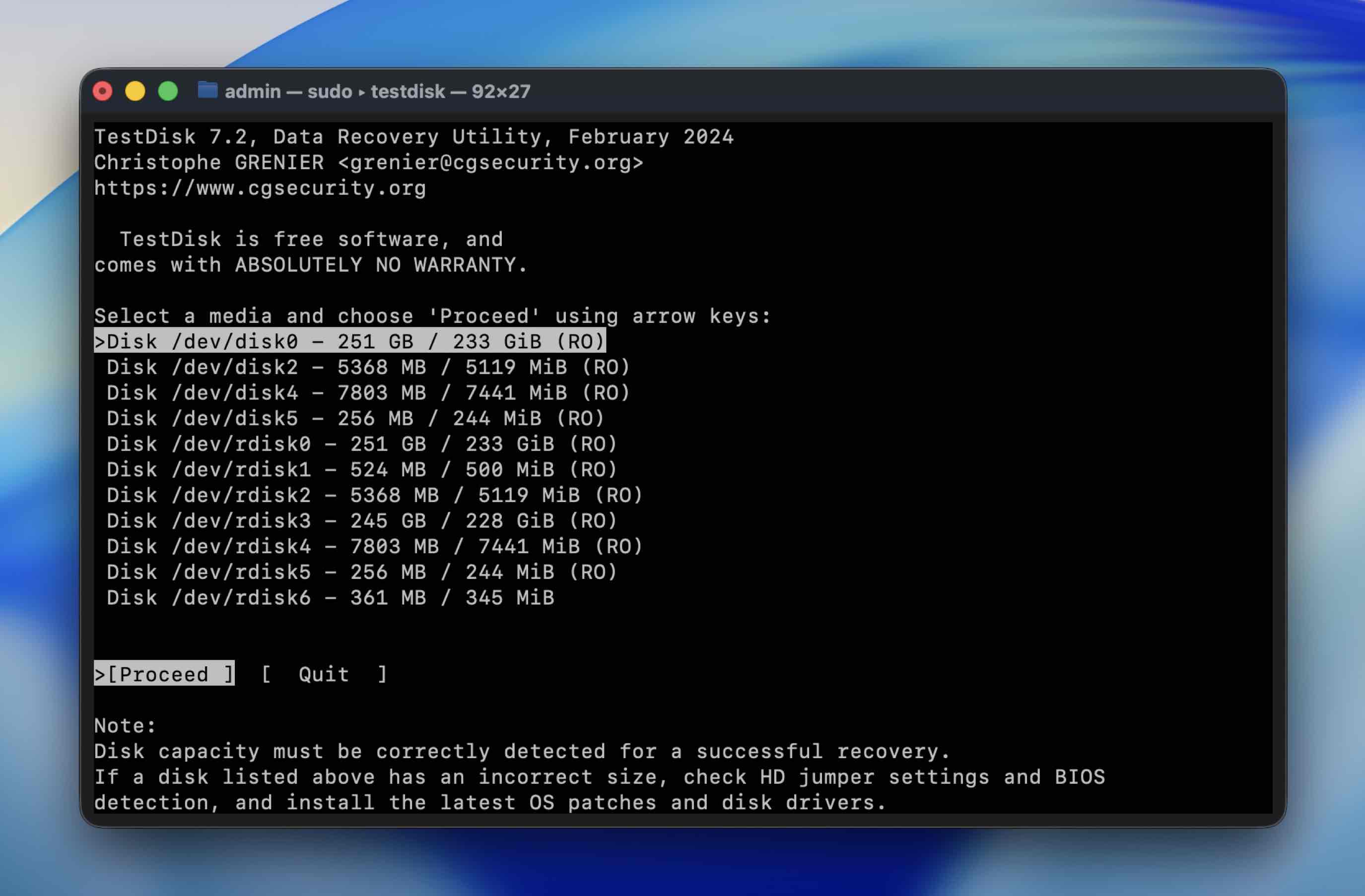
Why TestDisk is a better alternative to DiskWarrior:
Feature/Capability |
DiskWarrior |
TestDisk (Open Source) |
🔄 File Recovery Support |
❌ No (directory repair only) |
⚠️ Limited (recovers lost files via partition reconstruction) |
🧠 APFS Compatibility |
❌ No native APFS support |
❌ No support for APFS |
💽 External Drive Repair (exFAT/APFS/HFS+) |
⚠️ Limited (supports HFS/HFS+ directory rebuilding only) |
✅ Yes – strong HFS+, FAT32, exFAT repair (no APFS) |
🧩 Partition Table Repair |
❌ No |
✅ Rebuilds damaged partition tables |
🧰 Partition Recovery |
❌ Not supported |
✅ Yes – finds and restores lost or deleted partitions |
📦 File System Repair |
✅ Directory structure repair |
⚠️ Low-level file system fix (FAT32, NTFS, HFS+) |
📊 Byte‑to‑byte Disk Backup |
❌ Not available |
❌ Not built-in |
🔍 Preview Before Recovery |
❌ Not available |
❌ Not available |
🎯 Scanning Accuracy |
N/A |
✅ Recognizes partitions even when OS can’t |
⚙️ Modern macOS Support |
⚠️ Limited on new macOS |
✅ Terminal-only, works under macOS with M1/M2 |
💬 User Interface |
Outdated GUI |
❌ Command-line based |
💵 Free Version |
❌ No free version |
✅ Completely free and open source |
Unlike DiskWarrior, which is Mac-exclusive and HFS/HFS+ focused, TestDisk is fully cross-platform and supports a broad range of file systems (FAT, exFAT, NTFS, ext2/3/4, and more). It’s been a go-to tool in DIY data recovery circles for years, especially when partition tables are damaged or a disk becomes “RAW” and unreadable. And just like PhotoRec, TestDisk runs in the terminal, which might turn off some users at first, but under that old-school interface is a powerful engine.
Its ability to rebuild boot sectors, recover deleted partitions, and even fix certain corrupted file systems makes it a strong (and 100% free) DiskWarrior alternative, especially in Windows and Linux environments. However, it doesn’t attempt the same level of file directory rebuilding or visual repair as DiskWarrior – it’s more of a surgical tool than a “one-click fix” app.
Check out our full review of TestDisk to learn exactly how to use it and what you can realistically expect from it, especially if you’re new to command-line tools.
4. iBoysoft
iBoysoft is a commercial data recovery tool that can serve as a DiskWarrior alternative solution. The software runs on all modern versions of macOS. It supports recovering files stored in APFS filesystems as well as HFS, HFS+, and other formats. It can recover data from all kinds of disk-based storage devices like hard drives and SD cards.
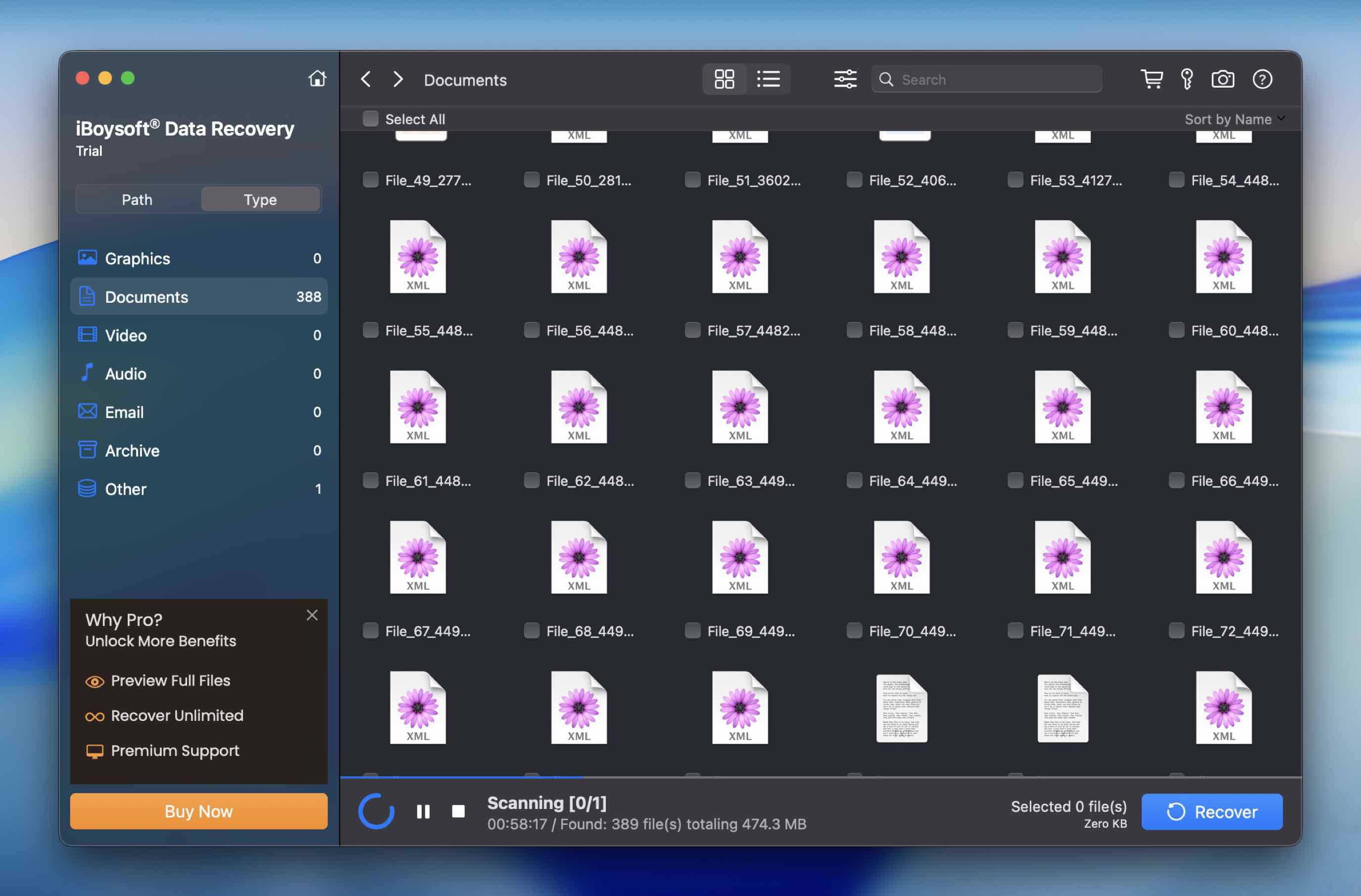
Why iBoysoft is a better alternative to DiskWarrior:
Feature/Capability |
DiskWarrior |
iBoysoft Data Recovery |
🔄 File Recovery Support |
❌ No (directory repair only) |
✅ Yes – recovers deleted/lost files from HFS+, APFS, exFAT, FAT32 |
🧠 APFS Compatibility |
❌ No native APFS support |
✅ Full support |
💽 External Drive Recovery(exFAT/APFS/HFS+) |
⚠️ Limited (supports HFS/HFS+ directory rebuilding only) |
✅ Full support |
📷 Camera & Fragmented Video Recovery |
❌ Not supported |
⚠️ Partial – good for standard video/photo recovery, no specialized fragmented video handling |
📊 Byte‑to‑byte Disk Backup |
❌ Not available |
❌ Not included |
🔍 Preview Before Recovery |
❌ Not available |
✅ Yes – preview photos, documents, and videos before recovery |
🎯 Scanning Accuracy |
N/A |
✅ Very good for standard recovery, less effective on deep fragmented data |
🧰 Partition Recovery |
❌ Not supported |
✅ Can recover files from lost, deleted, or formatted partitions |
⚙️ Modern macOS Support |
⚠️ Limited on new macOS |
✅ Fully compatible with macOS Tahoe |
💬 User Interface |
Outdated GUI |
✅ Clean, modern GUI |
💵 Free Version |
❌ No free version |
✅ Free scan and preview |
The app keeps things lean: no extra system utilities, no confusing settings. You pick a drive, run a scan, preview files, and recover what you need. In our tests, it handled typical data loss scenarios well, like accidental deletions, quick formats, and even RAW volume recovery. It brought back photos, documents, and short videos with decent accuracy. The UI feels slightly dated, but it’s still intuitive enough for first-time users.
Where it falls short as a DiskWarrior replacement is in depth and flexibility. iBoysoft doesn’t offer disk repair tools and doesn’t include advanced features like disk imaging or S.M.A.R.T. monitoring. Its scan speeds are noticeably slower than Disk Drill or EaseUS, and the lack of a lifetime license makes it harder to justify if you’re planning to use recovery tools long-term.
That said, if your goal is simply to recover lost files iBoysoft gets the job done. It’s a safer and more compatible option than DiskWarrior on modern systems.
You can get more details about this tool on our iBoysoft review page.
5. UFS Explorer
UFS Explorer offers users another commercial DiskWarrior alternative that can recover lost and deleted files on macOS systems. The tool fully supports APFS, HPS, and HFS+ file systems and is easy to install on a Mac. It can be used to recover data from a wide range of storage devices, including RAID arrays.
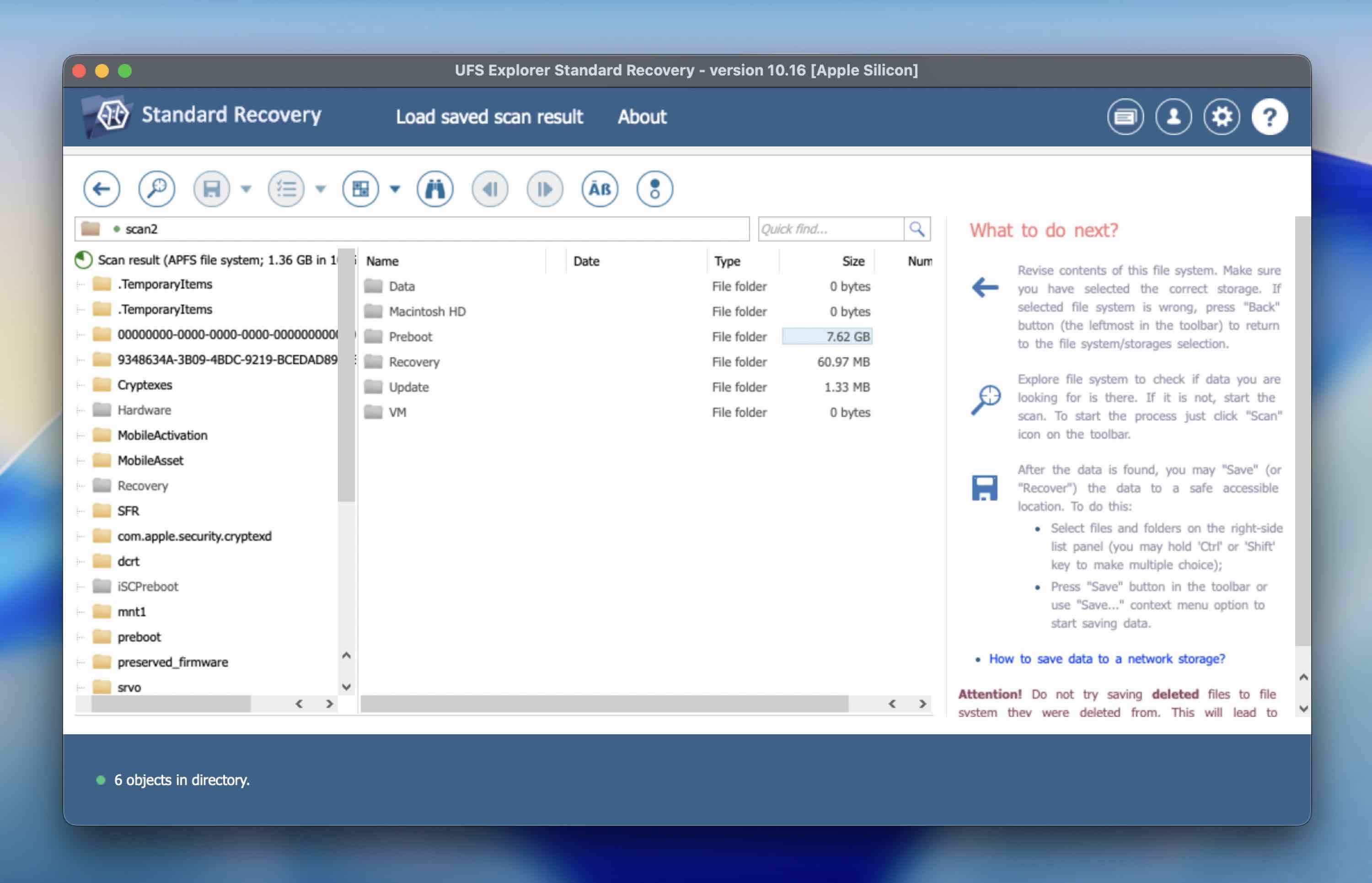
Why UFS Explorer is a better alternative to DiskWarrior:
Feature/Capability |
DiskWarrior |
UFS Explorer Data Recovery |
🔄 File Recovery Support |
❌ No (directory repair only) |
✅ Yes – file recovery from many systems |
🧠 APFS Compatibility |
❌ No native APFS support |
✅ APFS read + recovery support depending on edition |
💽 External Drive Recovery (exFAT/APFS/HFS+) |
⚠️ Limited (supports HFS/HFS+ directory rebuilding only) |
✅ Yes |
📷 Camera & Fragmented Video Recovery |
❌ Not supported |
⚠️ Good support for common media formats |
📊 Byte‑to‑byte Disk Backup |
❌ Not available |
✅ Yes – disk imaging for safe recovery |
🔍 Preview Before Recovery |
❌ Not available |
✅ Yes – preview recoverable files |
🎯 Scanning Accuracy |
N/A |
✅ Deep scan + metadata reconstruction |
🧰 Partition Recovery |
❌ Not supported |
✅ Can locate partitions + recover files |
⚙️ Modern macOS Support |
⚠️ Limited on new macOS |
✅ Works on modern macOS |
💬 User Interface |
Outdated GUI |
⚠️ Clean GUI (not as polished as consumer tools, but effective) |
💵 Free Version |
❌ No free version |
⚠️ Free demo |
Additional features such as the ability to decrypt encrypted storage devices and recover data from damaged storage devices are included in the professional versions of UFS Explorer.
The scanning process can be slow and files cannot be previewed during the scan. Users with no data recovery experience may find the interface hard to navigate when looking for the tool’s features. Some versions of the recovery solution are expensive in comparison to other recovery tools and are more suitable for enterprise use.
But overall, it’s still a solid alternative to DiskWarrior for anyone who’s technically inclined.
Don’t let the UI intimidate you. It takes a minute or two to get the hang of it – and if you want a full walkthrough, we’ve broken it all down in our full review of UFS Explorer.
6. Tenorshare 4DDiG Data Recovery
Tenorshare 4DDiG is a practical DiskWarrior alternative for Mac users who need a simple recovery tool and nothing more. It runs on both Intel and Apple Silicon Macs, supports APFS and HFS+ volumes, and has a clean interface that guides you step-by-step through recovery.
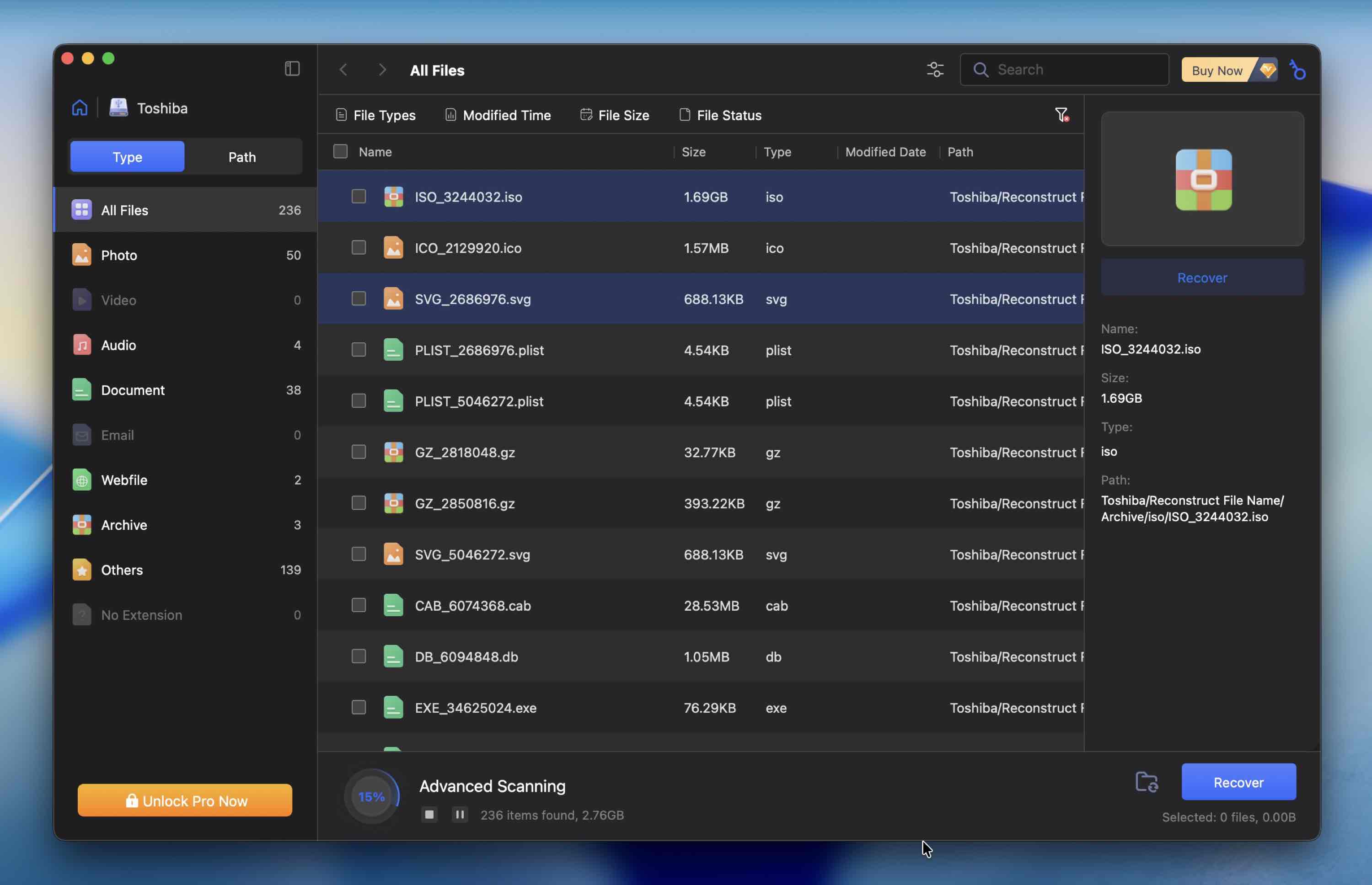
Why 4DDiG Data Recovery is a better alternative to DiskWarrior:
Feature/Capability |
DiskWarrior |
Tenorshare 4DDiG Data Recovery |
🔄 File Recovery Support |
❌ No (directory repair only) |
✅ Yes – recovers deleted, lost, formatted files |
🧠 APFS Compatibility |
❌ No native APFS support |
✅ Full support for APFS volumes |
💽 External Drive Repair (exFAT/APFS/HFS+) |
⚠️ Limited (supports HFS/HFS+ directory rebuilding only) |
✅ Yes |
📷 Camera & Fragmented Video Recovery |
❌ Not supported |
⚠️ Good support for standard media formats |
📊 Byte‑to‑byte Disk Backup |
❌ Not available |
❌ Not built‑in (can be paired with disk imaging tools) |
🔍 Preview Before Recovery |
❌ Not available |
✅ Yes – preview files before restoring |
🎯 Scanning Accuracy |
N/A |
✅ Deep scan + quick scan options |
🧰 Partition Recovery |
❌ Not supported |
✅ Recover from deleted/hidden partitions |
⚙️ Modern macOS Support |
⚠️ Limited on new macOS |
✅ Fully supports current macOS versions |
💬 User Interface |
Outdated GUI |
✅ Modern, simple, beginner‑friendly |
💵 Free Version |
❌ No free version |
✅ Free scan & preview |
Where 4DDiG shines is its accessibility. From launch to recovery, the app feels like it was designed for non-technical users. Scan results are neatly organized, the filters make it easier to zero in on lost data, and the interface doesn’t get in your way.
Beyond core recovery features, it also includes disk image scanning (but not image creation), supports recovery from Apple Fusion Drives, and can help pull data off an unbootable Mac. But that’s about the extent of it – there’s not much else in terms of advanced features, customization, or recovery modes.
Want to see how powerful this tool really is? Check out our full Tenorshare 4DDiG review where we test its recovery capabilities, performance, and usability across real-world scenarios.
Other Notable DiskWarrior Alternatives (Honorable Mentions)
In addition to the tools above, there are a few more DiskWarrior alternatives we want to mention. They didn’t make the main list because their scope is narrower or they focus on very specific tasks. But, in the right situation, they can still be useful replacements for DiskWarrior.
TechTool Pro
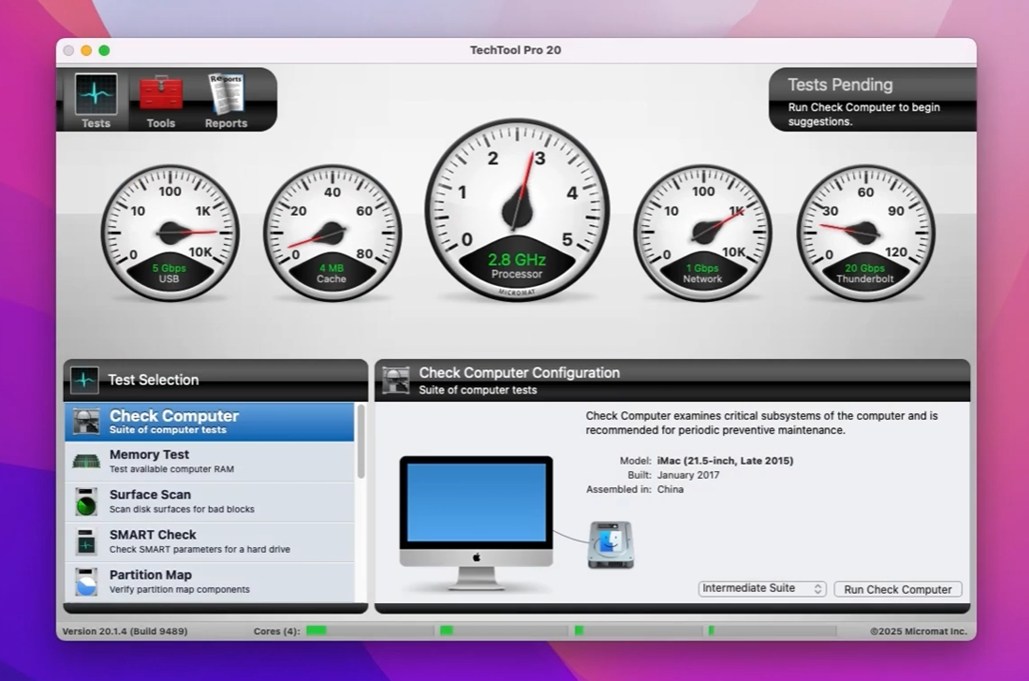
TechTool Pro is a long-running Mac utility suite that focuses on hardware diagnostics, disk health checks, and basic repair tasks rather than true data recovery.
Like DiskWarrior, it comes from an earlier era of macOS maintenance tools and was once commonly used to identify failing drives, bad blocks, memory issues, and directory-level problems on HFS/HFS+ volumes. For users dealing with performance issues or early warning signs of disk trouble, its testing and monitoring tools can still be useful.
That said, TechTool Pro isn’t a direct replacement for modern data recovery software. It doesn’t support APFS file recovery, offers no undelete capabilities, and won’t help if files were actually deleted or a drive was formatted. Where it can make sense as a DiskWarrior-style alternative is in preventive or diagnostic scenarios, especially on older Macs and legacy file systems.
DriveDX
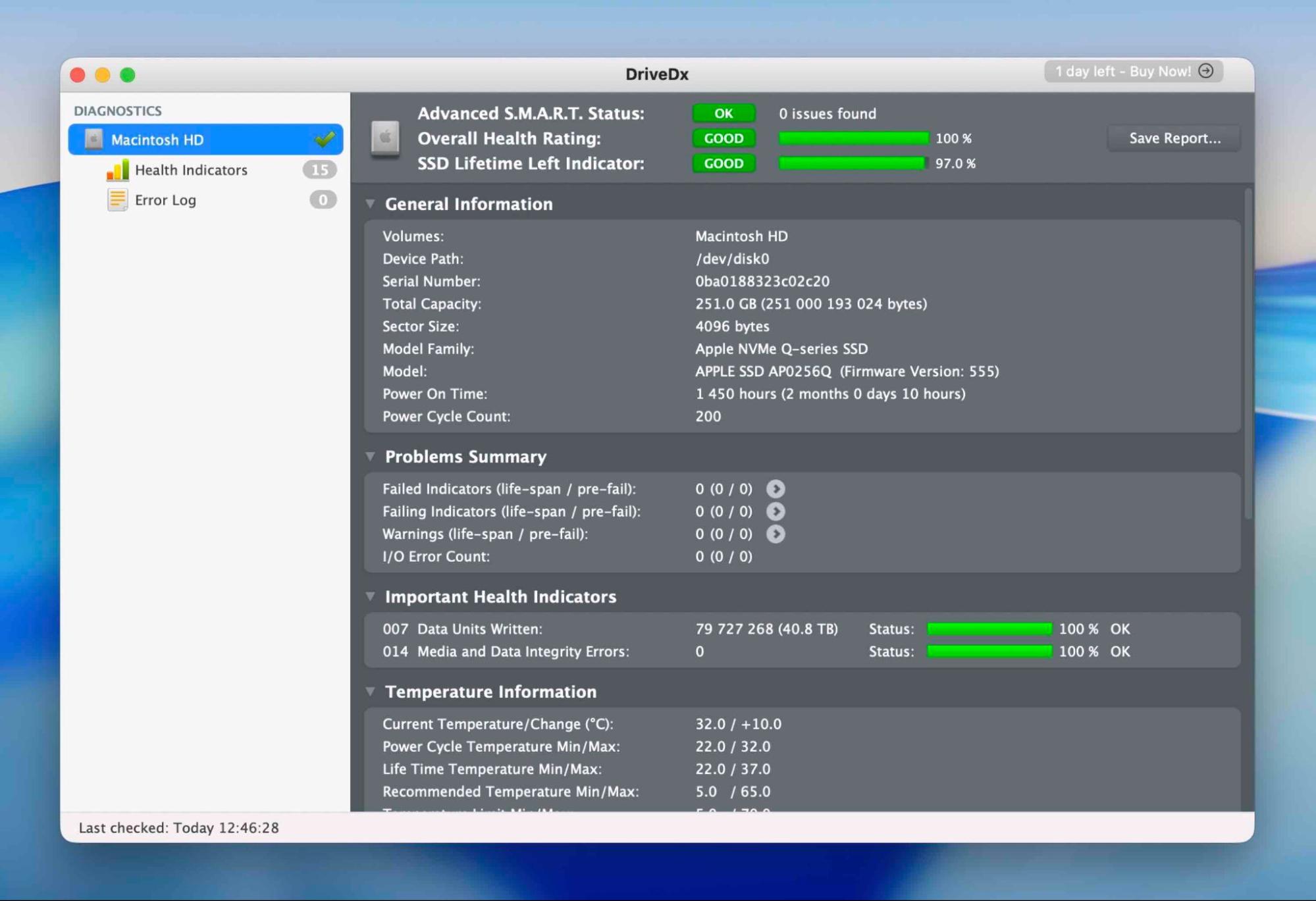
DriveDX is a macOS utility for drive health monitoring and solid-state/hard drive diagnostics. It uses S.M.A.R.T. (Self-Monitoring, Analysis, and Reporting Technology) data to give you a detailed picture of your drive’s condition – indicators like reallocated sectors, temperature trends, and early failure warnings. For anyone trying to prevent data loss before it happens, DriveDX can be a valuable part of your toolkit because it can alert you to underlying hardware issues that other tools might miss.
However, DriveDX isn’t designed to function as a DiskWarrior alternative in the traditional sense. It doesn’t include directory repair, file undelete, or recovery capabilities – its role is strictly anticipatory and diagnostic.
Conclusion
If we had to pick just one alternative to DiskWarrior, it’d be Disk Drill. No contest. It’s the only tool in this lineup that consistently handles the kinds of data loss scenarios Mac users actually deal with today, whether it’s recovering from APFS corruption or dealing with external SSDs.
What puts it ahead isn’t just recovery success rate (though it scores high there too), but the full package: byte-to-byte backups, support for raw and fragmented video recovery, a smart UI, and active development that’s clearly keeping pace with macOS updates. You can throw a lot at it and it still delivers.
However, that doesn’t make the other six tools irrelevant. Each one has its strengths depending on your scenario and skill level. Take TestDisk or PhotoRec, for instance. They’re open-source and powerful under the hood, especially when you’re dealing with lost partitions or file carving. Yes, the interface is text-based and can feel intimidating, but the recovery engine is trusted by many for a reason. It shows results.
Then there’s UFS Explorer, which really shines in complex data loss situations. It’s got strong support for RAID recovery, and one of the widest file system compatibility ranges across platforms. While it’s not the most user-friendly, if you’re dealing with complex setups, UFS gives you control that few others match.
FAQ
How much does Diskwarrior cost?
There are multiple price points for DiskWarrior. If you are upgrading from a previous version of the tool, you will pay $59.95. A new license costs $119.95.
Does DiskWarrior work with the latest macOS?
While DiskWarrior technically can run on newer macOS versions, it doesn’t work as a true repair or recovery tool on the latest systems. It doesn’t support APFS (Apple’s default file system on modern Macs) and can’t fully repair or rebuild APFS volumes. That means on macOS versions like Tahoe, its usefulness is very limited.
Why does DiskWarrior take so long to scan?
DiskWarrior may take a long time to scan your disk because of the basic functionality of the tool and the method the program uses to repair directories. During the scanning process, the software attempts to repair each directory individually which can take a substantial amount of time.
How do I uninstall DiskWarrior?
Follow these steps to uninstall DiskWarrior:
- Stop all DiskWarrior processes running on your Mac. You can verify the tool is stopped by looking at Activity Monitor and quitting any DiskWarrior processes you identify.
- Open a Finder window and navigate to the Applications folder.
- Locate the DiskWarrior icon, right-click on it, and select Move to Trash.
- Go to ~/Library/Application Support and delete the DiskWarrior and Alsoft folders.
- Do the same with ~/Library/Caches, ~/Library/Preferences, and ~/Library/Logs, removing all files named DiskWarrior from these folders.
- Empty the Trash and restart your Mac to remove all traces of DiskWarrior from your machine.
What’s the best DiskWarrior alternative for Mac on Apple Silicon?
For an Apple Silicon Mac (M1/M2/M3/M4/M5), the best DiskWarrior alternative is Disk Drill for most people. It’s actively updated for current macOS releases and supports the file systems you actually run into on modern Macs (APFS, HFS+, exFAT), plus it includes disk imaging and preview-first recovery workflows.
If you want the best pick when the case gets complex (RAID, weird file systems), go with UFS Explorer – it explicitly supports Apple Silicon on macOS 11+ and tends to shine when you need deeper options.
What’s the best 100% free DiskWarrior alternative?
If you need a truly free alternative (no trial limits), TestDisk and PhotoRec are the best options.
- TestDisk is the closest match to DiskWarrior’s “repair-style” role. It can rebuild partition tables, fix certain boot/volume structures, and sometimes restore access to data when a drive turns RAW or a partition disappears.
- PhotoRec focuses on raw recovery (“file carving”). It ignores the file system and pulls files back based on signatures.
The trade-off is convenience. Both tools run in a text-based interface, don’t offer previews, and PhotoRec recovers files without original folder structure or filenames. But if you want 100% free, these are the safest bets.
This article was written by Robert Agar, a Staff Writer at Handy Recovery Advisor. It was also verified for technical accuracy by Andrey Vasilyev, our editorial advisor.
Curious about our content creation process? Take a look at our Editor Guidelines.