
Stellar Data Recovery is often the first tool people try after data loss, largely due to their strong marketing presence (at least historically) and frequent appearance in Google/LLM search results. It is well known and easy to use, but it does not always meet expectations. If you are here, you likely tested Stellar and realized it is not the right fit for your case. That is perfectly normal. There are several strong Stellar Data Recovery alternatives on the market, and some of them handle certain recovery scenarios better.
For this ranking we will focus on Windows, but the majority of tools we listed have macOS versions too.
Why You Might Need Alternatives for Stellar Data Recovery
Stellar Data Recovery is easy to use, and the free tier lets you try basic recovery without paying upfront. But after we spent time with it in real recovery scenarios for our review, we noticed the same limitations that many users point out.
Below are the most common reasons why users decide to look for an alternative:
- First, recovery results don’t always match the price. While Stellar handles basic recovery well, it struggles with more complex cases. Fragmented video recovery (for example, drone footage), damaged file systems, or RAW drives often produce incomplete or unusable results, as this user on Reddit reported. At the same time, paid plans start around $69.99–$89.99 per year, which puts Stellar in direct competition with tools that deliver higher recovery success at a similar or lower cost.
- Another issue is that advanced features feel fragmented and locked behind tiers. Core tools such as photo and video repair, partition recovery, RAID features, or monitoring utilities are split across separate editions or even separate apps. This increases the total cost and complicates the workflow, especially compared to competitors that integrate these features into a single interface.
- Performance issues show up on larger or system drives. Deep scans slow down noticeably on large disks, processing scan results can lag, and stopping a scan may freeze the app. Scanning an entire device defaults to a RAW signature scan only.
- Finally, stronger all-round alternatives are available. Some tools offer faster scans, broader file system and file type support, better video recovery results, and lifetime licenses at comparable prices. More technical users may also prefer professional-grade tools that handle complex scenarios more reliably.
In short, Stellar works well for simple, one-off recovery jobs, but higher success rates, better video recovery, integrated advanced features, or stronger long-term value often require a different solution.
Whatever your reason for looking for an alternative to Stellar Data Recovery, plenty of similar applications are available to choose from.
5 Best Alternatives to Stellar Data Recovery
We test data recovery tools on a regular basis and work with dozens of programs across different data loss scenarios. Based on our experience and real recovery results, we selected five alternatives that repeatedly proved to be reliable and worth considering instead of Stellar Data Recovery.
1. Disk Drill
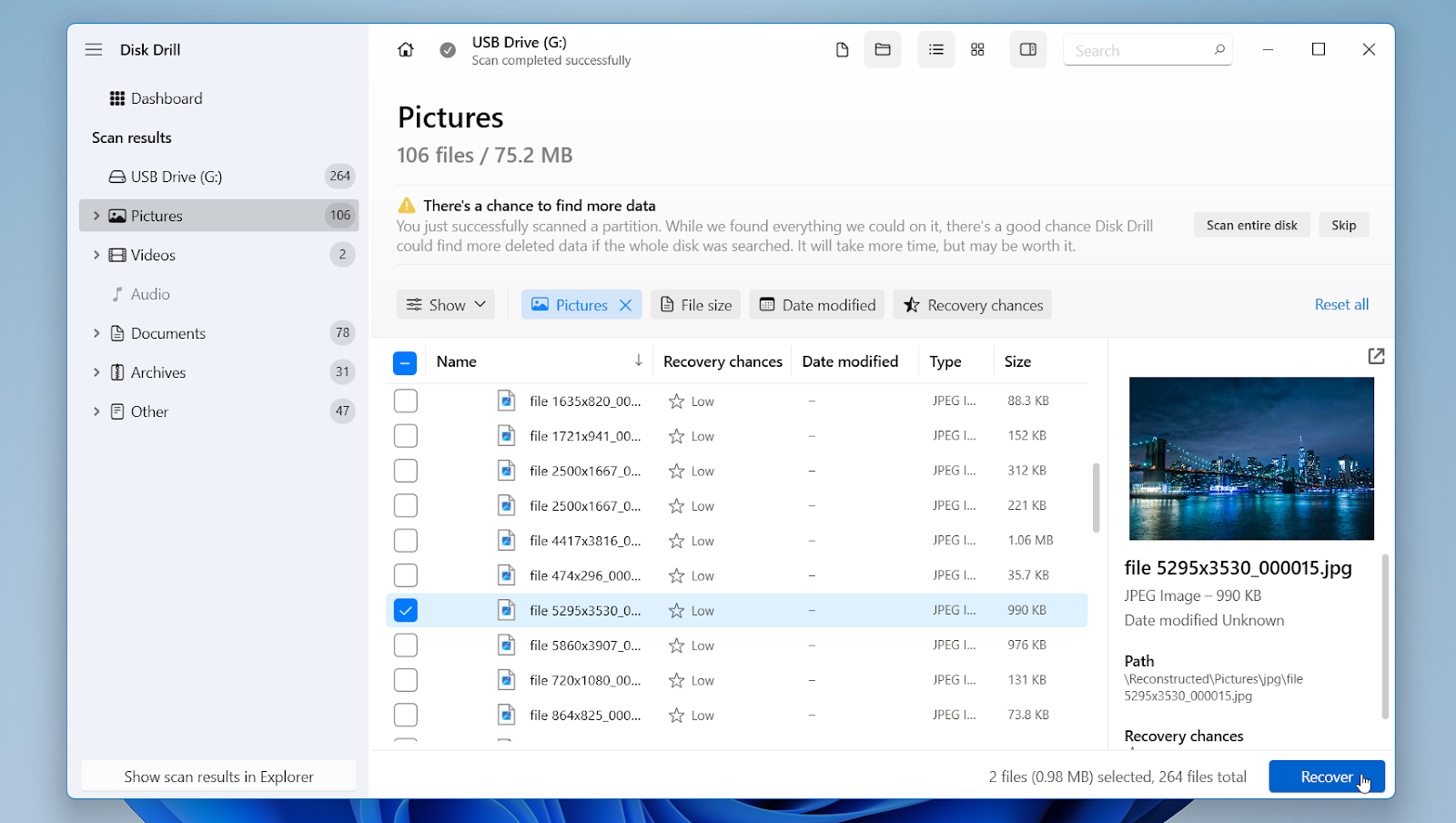
Disk Drill is often the first alternative users look at after Stellar Data Recovery. It combines file recovery with tools that help users handle real recovery obstacles, such as unstable drives or interrupted scans. Features like disk imaging and saved scan sessions allow recovery work to continue without repeatedly stressing the original device, which is especially useful when storage shows signs of failure.
Disk Drill also includes Advanced Camera Recovery, designed to deal with fragmented video files from cameras, drones, and memory cards. Together with broad file system support and reliable file previews, these features make Disk Drill easier to use for everyday recovery while still providing more depth than many entry-level tools.
We’ve tested Disk Drill extensively across different recovery scenarios, including SD cards, USB drives, external drives, and system disks. For a deeper breakdown of its recovery results, features, and limitations, you can check our full Disk Drill review.
Pros:
- Strong recovery performance across common and complex scenarios
- Advanced Camera Recovery for fragmented video files
- Byte-to-byte disk backup with fault tolerance and pause/resume support
- Saves scan sessions and allows recovery from disk images instead of the original device
- Broad file system support (NTFS, exFAT, FAT, APFS, HFS+, EXT, ReFS, and more)
- Lifetime license available, covering both Windows and macOS
- Clean, modern interface with reliable previews
Cons:
- No native Linux version
- Phone support is not available
Why users choose Disk Drill over Stellar Data Recovery: Many users turn to Disk Drill after testing Stellar for a simple reason: results and value. In side-by-side comparisons, Disk Drill tends to recover a higher percentage of usable files, particularly in situations where Stellar struggles, such as fragmented video recovery or scans on damaged media. Disk Drill also integrates key tools like saved scans, health monitoring, and more, directly into one application. Disk Drill is a strong alternative for users who want better recovery consistency, faster scans, advanced video support, and long-term value .
2. R-Studio
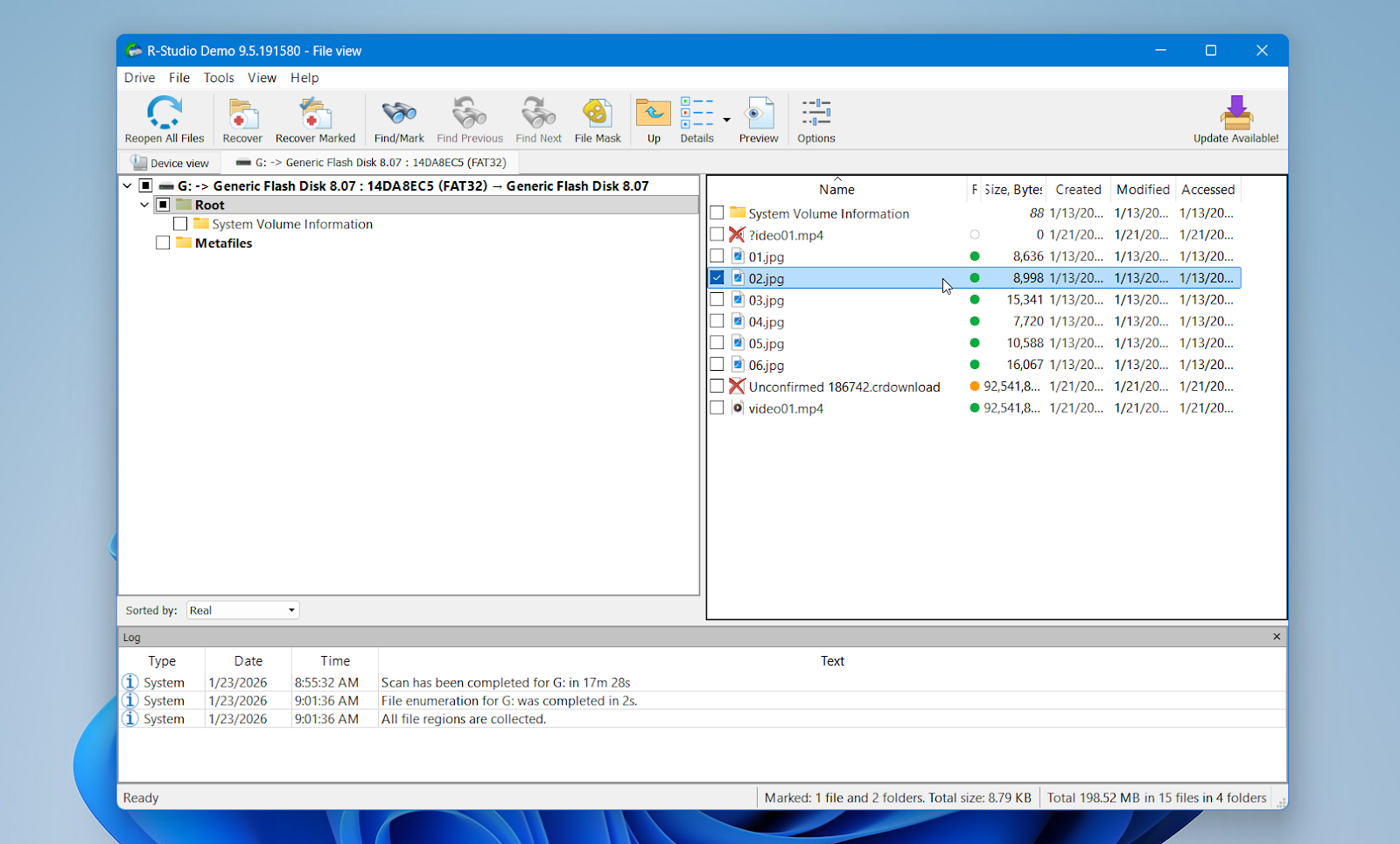
R-Studio is a very different kind of alternative to Stellar Data Recovery. It is not designed to feel friendly or simplified. Instead, R-Studio targets users who need deep control over the recovery process and work with complex storage setups, damaged file systems, or RAID arrays.
If you want a detailed technical analysis and real test results, we recommend reading our in-depth R-Studio review.
Pros:
- Exceptional file system support across Windows, macOS, and Linux
- Strong results when recovering files with original names and folder structure
- Advanced RAID support (RAID 0/1/5/6 and nested layouts, virtual RAID reconstruction)
- Powerful disk imaging tools, including multi-pass and runtime imaging
- Custom file signature creation for uncommon or proprietary formats
- Hex editor and low-level tools useful for forensic or technical recovery work
Cons:
- Dense, technical interface that can overwhelm non-technical users
- Free version is extremely limited (1024 KB per file)
- Separate licenses per operating system
- No extras like photo/video repair or guided recovery feature
Why users choose R-Studio over Stellar Data Recovery: Users usually switch from Stellar to R-Studio when basic recovery is not enough. Stellar works well for simple cases, but it relies heavily on signature scans and simplified workflows. When recovery involves damaged partitions, partially intact file systems, or RAID configurations, R-Studio tends to deliver more reliable and predictable results.
Another key difference is control. R-Studio allows users to adjust scan parameters, manually reconstruct RAID arrays, and work directly with disk images and sectors.
As for the price, R-studio is a better deal. A lifetime license for the Stellar Standard edition is typically around $99 and goes up to about $149 or more for higher tiers, instead of renewing yearly. In contrast, R-Studio’s Standard lifetime license for full file system support is about $79.99.
In short, R-Studio is the better choice for technically demanding recoveries, while Stellar remains more suitable for users who value simplicity over depth.
3. MiniTool Power Data Recovery
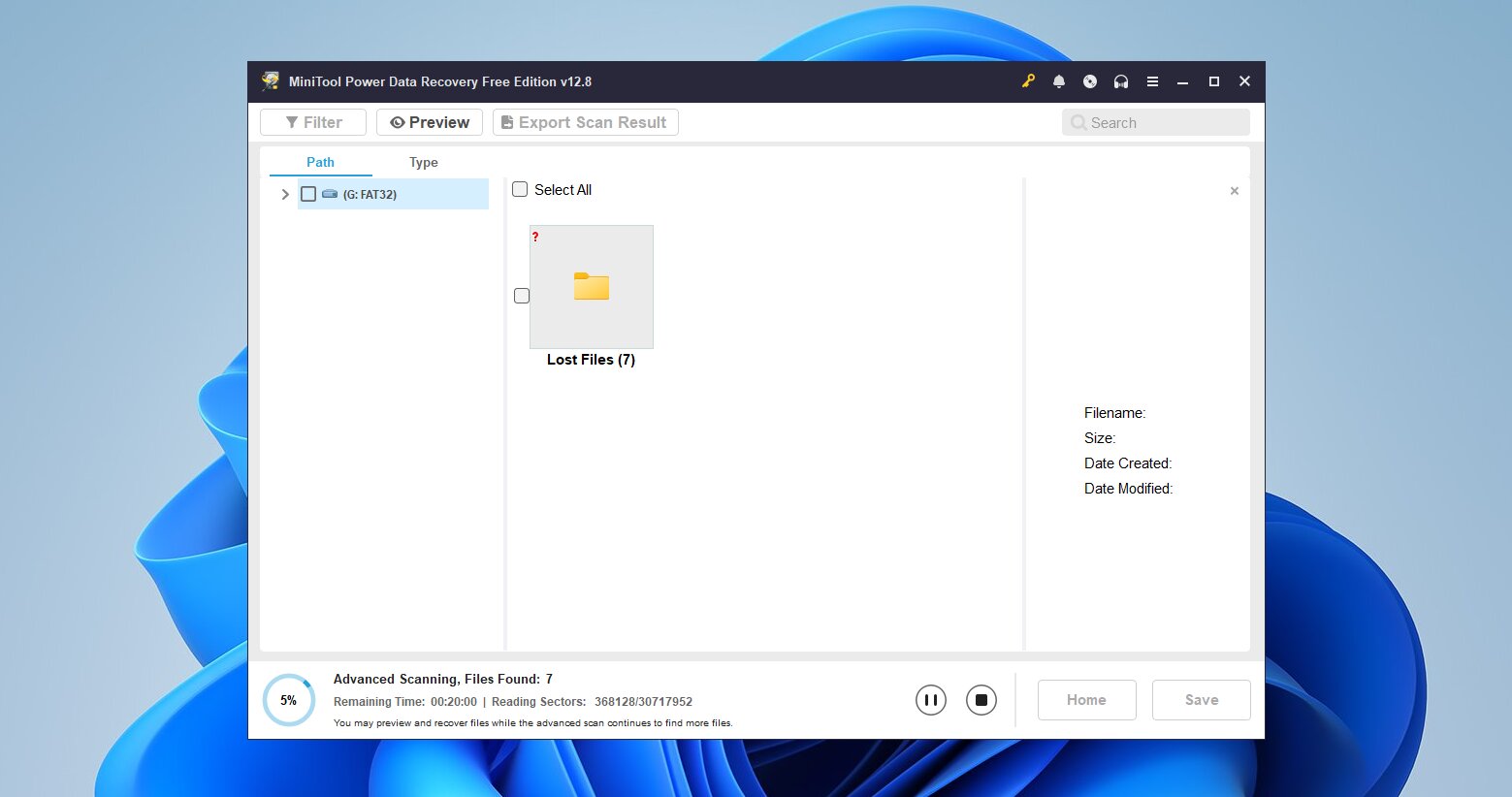
MiniTool Power Data Recovery is a popular option among Windows users who want something simple and familiar. It often comes up as an alternative to Stellar Data Recovery, especially for people who tried Stellar and felt it was too expensive for basic recovery tasks. MiniTool does not try to compete on advanced recovery depth. Instead, it positions itself as a lightweight, beginner-friendly tool focused on everyday data loss scenarios.
You can find a full overview of its strengths, limitations, and free-version restrictions in our complete MiniTool Power Data Recovery review.
Pros:
- Very beginner-friendly interface with clear scan flow
- Free version allows up to 1 GB of recovery
- Targeted scans for folders like Desktop or Recycle Bin
- Works well with common document formats and photos
- Lightweight installer and low system load
- Paid version includes bootable recovery media for non-booting PCs
Cons:
- Windows-only; no native macOS version
- No disk imaging or image-based recovery
- Limited preview reliability, especially for larger files
- Scan sessions are not reusable in the free version
Why users choose MiniTool over Stellar: Users usually consider MiniTool after Stellar when simplicity matters more than depth. MiniTool avoids subscriptions that scale quickly and offers a lifetime license option that feels easier to justify for casual use. The higher free recovery limit also makes it attractive for one-time recovery jobs where the data size stays under 1 GB.
That said, MiniTool does not aim to replace Stellar in advanced scenarios. It lacks disk imaging, broader file system support, RAID tools, and reliable recovery for damaged or complex storage. There is also an ironic detail worth mentioning. MiniTool no longer offers its own native macOS data recovery solution and instead directs macOS users to download Stellar Data Recovery directly from its website.
For users who need only basic Windows recovery and want a clean, no-friction experience, MiniTool can be a reasonable step sideways rather than an upgrade. In our opinion, MiniTool Power Data Recovery works well for simple file loss, but users who need stronger recovery engines, cross-platform support, or advanced tools usually end up looking further, often toward more capable alternatives we discussed previously.
4. PhotoRec
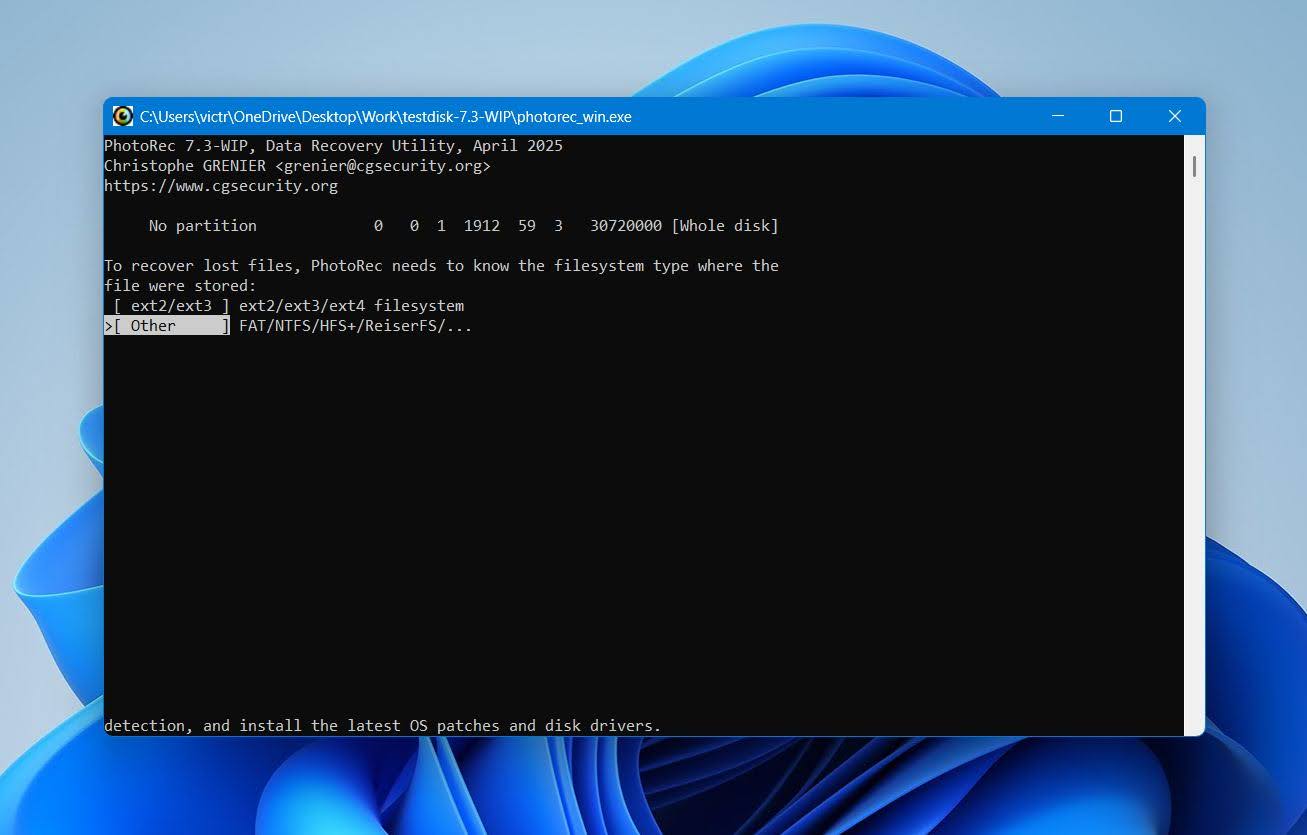
PhotoRec is a very different kind of Stellar Data Recovery alternative. It is not polished, it is not visual. PhotoRec is part of the TestDisk project and is completely free and open source. PhotoRec ignores the file system entirely and scans storage at a raw, block level. This approach allows it to recover files even when partitions are destroyed, drives appear as RAW, or metadata is gone. That makes it especially useful for memory cards, USB drives, and severely damaged volumes.
We’ve relied on PhotoRec many times as a fallback option in severe data loss cases. Its behavior, strengths, and drawbacks are covered in detail in our dedicated PhotoRec review.
Pros:
- Completely free and open-source
- Works even when the file system is missing or severely damaged
- Very broad file format support (480+ file extensions)
- Available on Windows, macOS, Linux
- Portable, no installation required
- Excellent for photo, video, and document recovery from damaged media
Cons:
- No original filenames or folder structure preserved
- No file preview before or during recovery
- Interface is command-line based (QPhotoRec GUI is Windows-only and very basic)
- No disk imaging, RAID, or advanced workflow tools
- Recovers everything it finds, which can create large, messy result folders
Why users choose PhotoRec over Stellar Data Recovery: Users typically turn to PhotoRec when Stellar fails to find files or produces incomplete results. Since PhotoRec does not rely on file system metadata, in some situations PhotoRec an also have better results than Stellar’s signature-based scans.
Another major factor is cost. PhotoRec is entirely free unlimited data recovery software, which makes it appealing for one-time recovery attempts or situations where paying for a subscription does not feel justified. That said, PhotoRec is not a replacement for Stellar in everyday use. It lacks previews, organization, and user-friendly workflows. The trade-off is simple: more raw recovery power, far less comfort.
PhotoRec is best used as a fallback option. It is invaluable when the file system is gone, but for routine recovery tasks or large datasets, most users prefer more modern alternatives.
5. DiskGenius
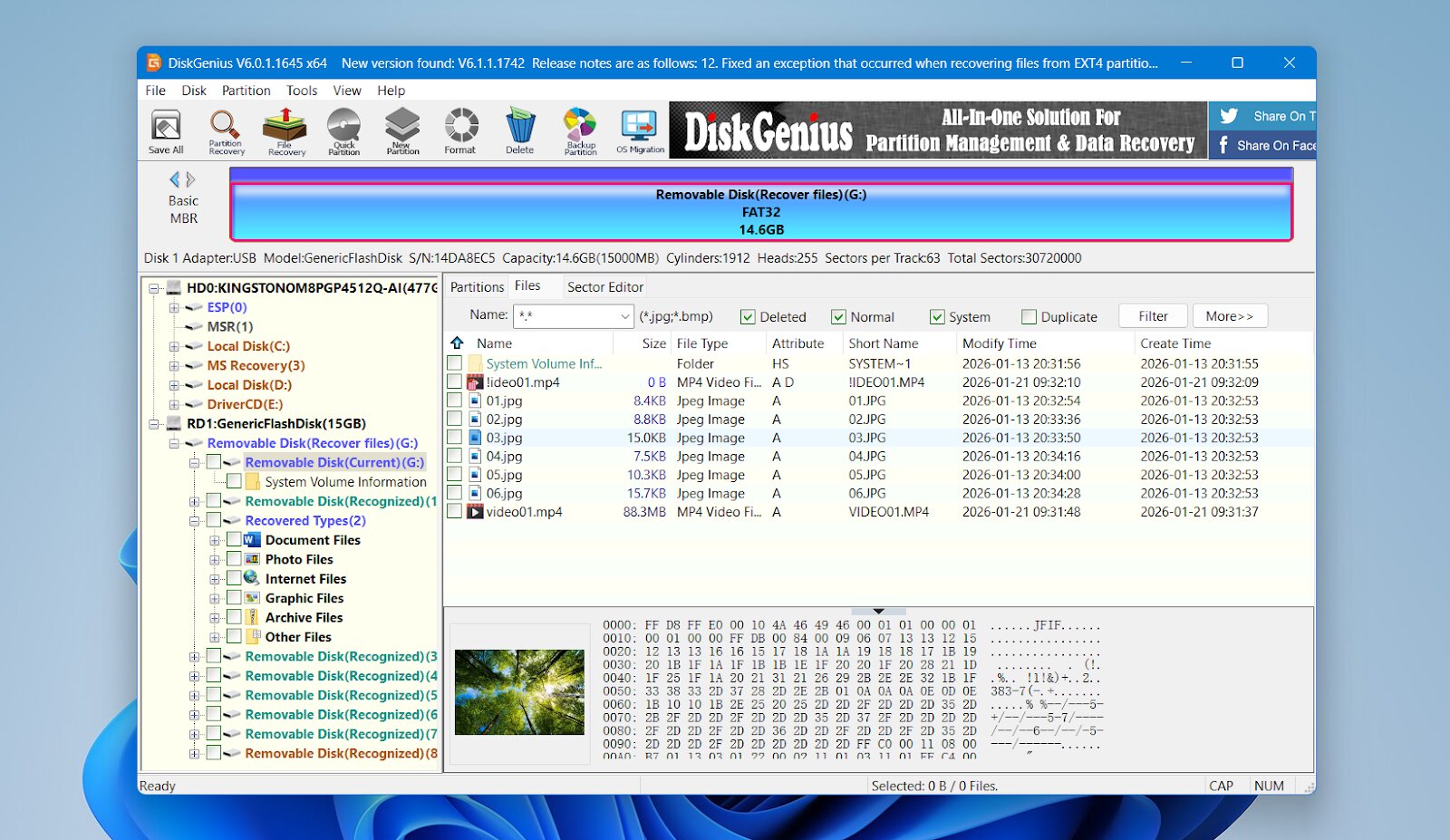
DiskGenius is a more technical alternative to Stellar Data Recovery, aimed at users who need deeper control over disks, partitions, and recovery workflows. While Stellar focuses on guided recovery and simplicity, DiskGenius combines file recovery with partition management, disk utilities, and low-level tools in a single application.
For a full evaluation of its recovery performance, interface, and pricing, you can refer to our DiskGenius review.
Pros:
- Strong recovery results on formatted, RAW, and lost partitions
- Excellent file system support, including NTFS, FAT32, exFAT, and EXT4
- Built-in partition recovery and partition management tools
- Disk cloning, partition backup, and system migration included
- RAID recovery support (multiple RAID levels and virtual RAID reconstruction)
- One-time license option instead of mandatory yearly subscription
Cons:
- Outdated, cluttered interface with a steep learning curve
- Free version limited to recovering files smaller than 64 KB
- File preview system is clumsy and not user-friendly
- Video recovery support is inconsistent for modern formats
- Many advanced features locked behind paid editions
Why users choose DiskGenius over Stellar Data Recovery: Stellar works well for basic scenarios, but it relies heavily on simplified scans and hides low-level control. DiskGenius gives users direct access to partitions, file systems, and disk structures, which often leads to better results when dealing with formatted drives, lost partitions, or file system damage.
Another major reason is scope. DiskGenius includes tools that Stellar splits across higher tiers: partition recovery, disk cloning, system migration, RAID recovery, and disk diagnostics. For technically inclined users, having all of this in one application is great.
DiskGenius is not a cleaner or easier alternative to Stellar. It is a deeper one. Users who value control, partition-level recovery, and broad file system support often prefer DiskGenius, while those who prioritize ease of use and guided workflows usually stay with Stellar or choose a more beginner-friendly alternative.
How to Choose an Alternative to Stellar Data Recovery
When users ask us which Stellar alternative to choose, our answer is always the same: it depends on the recovery situation. We see very different results depending on the type of data loss, the condition of the drive, and how much control the user needs. Instead of looking for a single “best” tool, we recommend matching the software to the problem you are dealing with.
We usually start by narrowing things down with a few questions:
- Is this a simple deletion, or did the drive get formatted or corrupted?
- Are you mainly recovering photos and videos, or general files and folders?
- Do you want a guided interface, or are you comfortable with technical tools?
- Do you prefer a one-time purchase, or is a yearly license acceptable?
Based on our ongoing testing, the table below shows how the main alternatives compare:
Tool |
When We Recommend It |
Ease of Use |
Recovery Depth |
Media Recovery |
Preview |
Disk Imaging |
License Model |
Disk Drill |
Our first choice for most users and mixed recovery scenarios |
Easy |
High |
Strong |
Yes |
Yes |
One-time license for Windows and macOS (free version available with limited recovery up to 100 MB) |
R-Studio |
Complex recoveries, RAID arrays, and damaged file systems |
Difficult |
Very High |
Moderate |
Yes |
Yes |
One-time licenses starting from $49.99 (free version recovers files smaller than 1024 KB) |
MiniTool Power Data Recovery |
Simple, one-time recovery on Windows |
Very Easy |
Low to Medium |
Basic |
Yes |
No |
Licenses from $69 per month; free version allows recovery of up to 1 GB |
PhotoRec |
Severe damage or heavily corrupted cases |
Difficult |
Raw-level |
Strong but unstructured |
No |
No |
Completely free |
DiskGenius |
Partition recovery and technical workflows |
Difficult |
High |
Inconsistent |
Yes |
Yes |
Licenses starting from $69.90 (one-month); free version recovers files smaller than 64 KB |
Verdict
In the end, the right choice depends on what kind of recovery you need. We recommend using the table as a quick guide to pick the tool that matches your situation. Based on our testing, Disk Drill is the best all-round Stellar Data Recovery alternative for most users, because it combines strong recovery results with an interface that does not get in the way.
R-Studio stands out when recovery becomes complex and requires deeper control, while MiniTool Power Data Recovery works best for simple, one-time Windows recoveries. When a completely free option is required and Recuva is not suitable, PhotoRec remains the most reliable alternative.
FAQ
Is Stellar Data Recovery really free?
Stellar Data Recovery offers a free version, but it is best viewed as a trial rather than a fully free solution. Actual recovery is limited to 1 GB of data. For many users, especially those recovering photos, videos, or entire folders, this limit is reached very quickly. Once the cap is exceeded, upgrading to a paid plan becomes unavoidable.
Is Stellar Data Recovery safe and legit?
Some people claim that Stellar Data Recovery is shady, however it is a legitimate and widely used program developed by a long-established company. The software itself is safe to download, install, and run, and it does not damage your data during scanning. That said, some users feel misled by how the free version works, since scanning is unrestricted but recovery requires payment. This can create confusion if users expect a fully free recovery experience.
Does Stellar Data Recovery work well for photo and video recovery?
Stellar supports many common photo and video formats and includes photo and video repair tools in higher-tier plans. For simple deletions, recovery results are usually acceptable. However, fragmented or partially written videos, such as drone footage or action camera recordings, are often problematic. In these cases, recovered files may be incomplete or unplayable.
When the main issue is damaged or corrupted video files rather than deleted data, dedicated repair tools usually deliver better results. We maintain a separate ranking of the best video repair software that focuses specifically on fixing broken video files and playback issues.
Why does Stellar Data Recovery sometimes take a long time to scan?
Scan time mostly depends on the size of the drive, how much data it holds, and the overall condition of the file system. Large disks, system drives, or storage with file system issues require more time to process, and the application may feel slow while it analyzes and organizes results.
In practice, it is not the fastest recovery tool we have used, but it is also far from the slowest, with performance varying based on drive load and damage level.
This article was written by Logan Tooker, a Contributing Writer at Handy Recovery Advisor. It was recently updated by Victoria Rybtsova. It was also verified for technical accuracy by Andrey Vasilyev, our editorial advisor.
Curious about our content creation process? Take a look at our Editor Guidelines.