
If you need a to-the-point camcorder video recovery walkthrough, you just found it. Here we show a clear way to recover deleted camcorder videos and explain what to know before you start. The recovery often works, particularly when the footage sits on an SD card and you follow the right steps. We walk you through the process from start to finish so you can recover your videos safely and avoid common mistakes.
The first thing we recommend is to stop using the camera immediately. Power it off, remove the storage exactly as described in the camera manual, and do not record new footage. Avoid any further actions until you read the rest of this guide.
Camcorder Video Loss Scenarios and Recovery Chances
In most cases, you can use data recovery software to restore deleted camcorder videos. When a video is deleted from storage, the device’s operating system typically marks the file’s space as free without immediately erasing the actual data. This means that as long as nothing has overwritten that space, data recovery tools can scan the storage and retrieve the video file. That is exactly why we emphasize this point right after the introduction.
In practice, recovery success depends on how the files were lost in the first place. Different loss scenarios affect the outcome in different ways, so let’s take a closer look at the most common situations and how they influence your chances:
Loss Scenario |
What Happens |
Recovery Chances |
🗑️ Accidental deletion |
Files disappear from view, but data usually remains on the card until overwritten. |
High, especially when no new recordings took place after deletion. |
🔄 Quick formatting |
The file system resets, but video data often stays intact. |
Good in most cases. Recovery software can usually restore files. |
🚫 Full or secure formatting |
Data blocks get erased or overwritten. |
None, the files no longer exist. |
⚠️ File system corruption |
Videos appear missing, card shows errors, prompts formatting, or works very slowly. |
Good. Logical corruption does not erase data. Imaging the card first may help. |
❓ RAW or unrecognized file system |
The system cannot read the card, but data still exists. |
Good. Recovery tools can scan the storage directly. |
🔁 Continued recording after loss |
New videos overwrite deleted data blocks. |
Good to low. It depends on how much new footage was recorded afterward. In some cases, new files overwrite the exact space where the deleted videos were stored; in others, they do not. Because this is difficult to predict, chances vary. But the less the camera was used after deletion, the higher the recovery potential. |
🔨 Physical damage |
Card shows cracks, water damage, or no detection at all. |
Low for DIY recovery. Professional services required. |
As you can see, in most situations, there is still a real chance to get the footage back, especially when recovery starts early and the card saw little use afterward. With that in mind, let’s move from theory to practice and walk through how to recover deleted camcorder videos with software.
Regardless of what happened to the data, the recovery steps we show you in the next section are universal for most data loss cases on camcorder storage, except for physical damage.
How to Recover Deleted Video Files from a Camcorder
There are a lot of camcorder video recovery tools available. We’ll use Disk Drill Data Recovery as an example here, because it’s one of the most reliable tools to recover deleted video files. It works well with camcorders and other types of cameras, like a Sony Handycam or a GoPro.
It supports a lot of different video formats, from common ones like MP4, M4V, and MOV, to professional and camera-specific formats like WEBM, MTS/M2TS, and even RAW video formats (e.g., RED’s R3D).
It’s also compatible with all major file systems used on camcorder storage, including FAT16, FAT32, exFAT (common for SDXC cards), and many others.
But enough theory. In practice, it’s pretty simple. Install the software, connect your camcorder’s memory card or other storage to the computer, run a scan, and check the results. You’ll quickly see which video files are still recoverable and can decide what’s worth restoring.
Here is how to recover lost videos for a camcorder using Disk Drill:
- Download and install Disk Drill.
- Insert the camcorder’s SD card into a card reader connected to the PC.
- Launch Disk Drill on your computer and select the appropriate storage device. Then, click on Search for lost data.
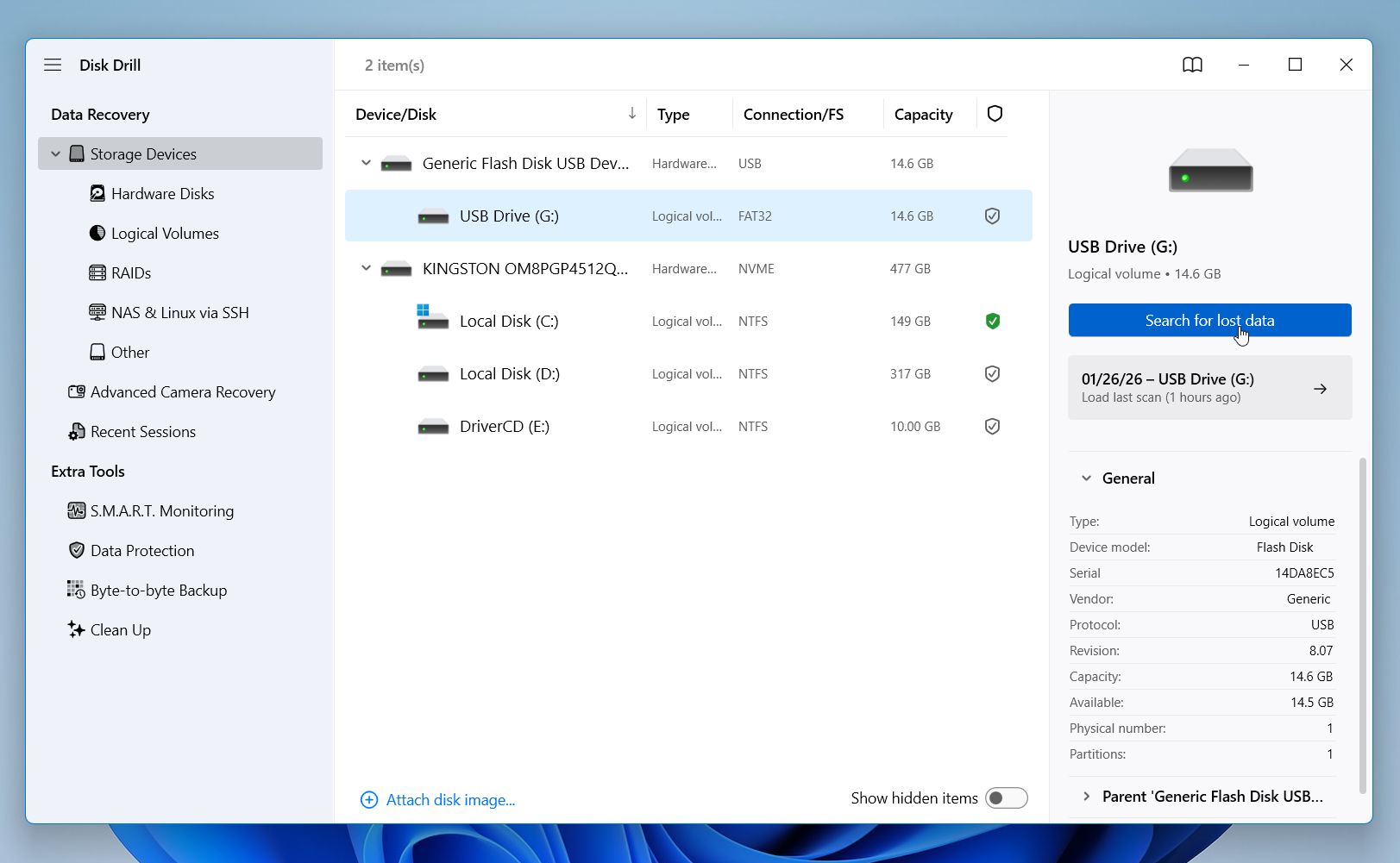
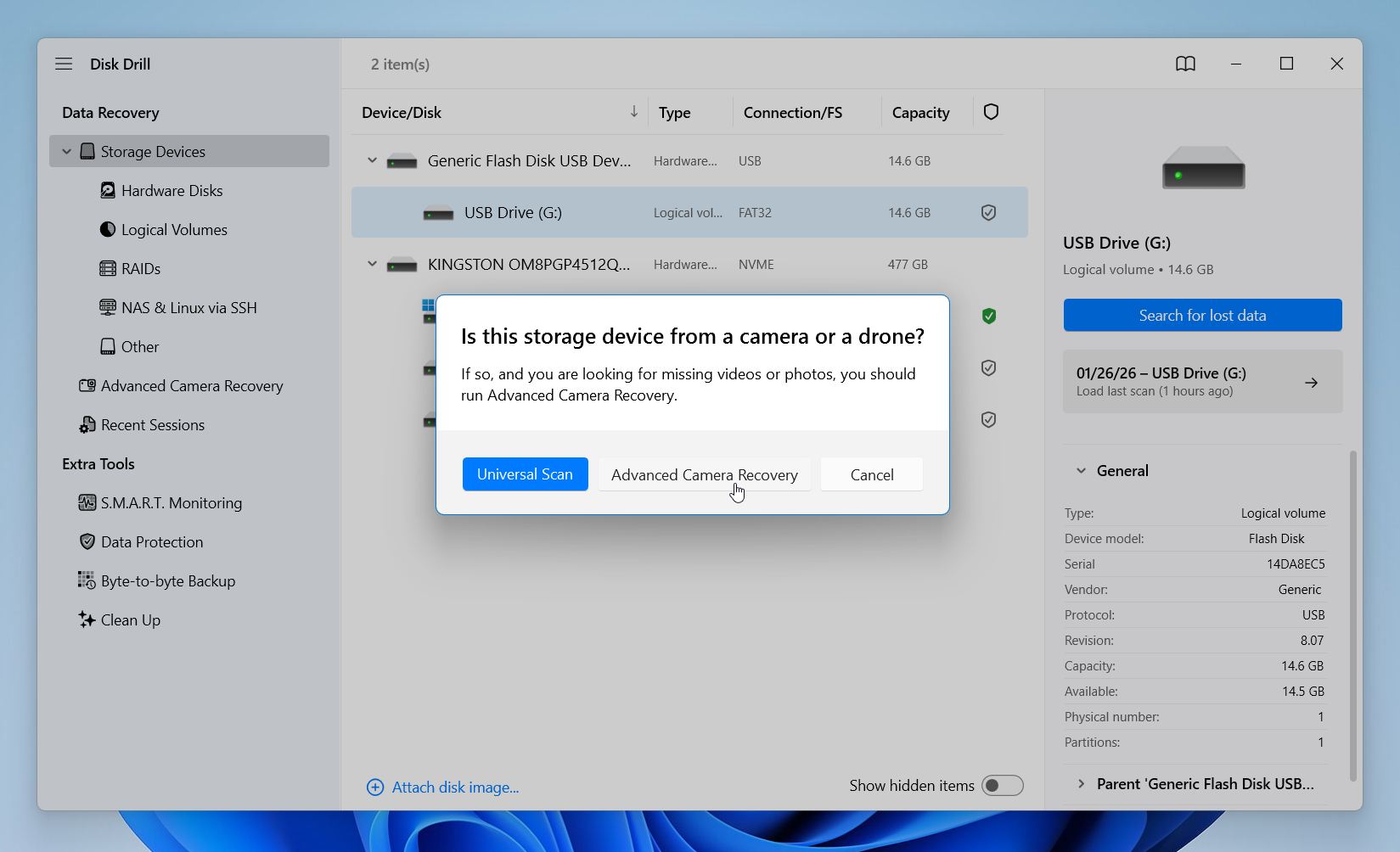
- Choose between the Universal Scan and Advanced Camera Recovery. For standard deletion, corrupted file systems, or drives that appear as RAW, start with Universal Scan and review the results. If the device was formatted or Universal Scan finds video files that appear damaged or fail to play, run Advanced Camera Recovery. If you started with Advanced Camera Recovery and it didn’t find the files you need, choose Run all recovery methods. This option triggers an additional scan and may uncover more recoverable data.
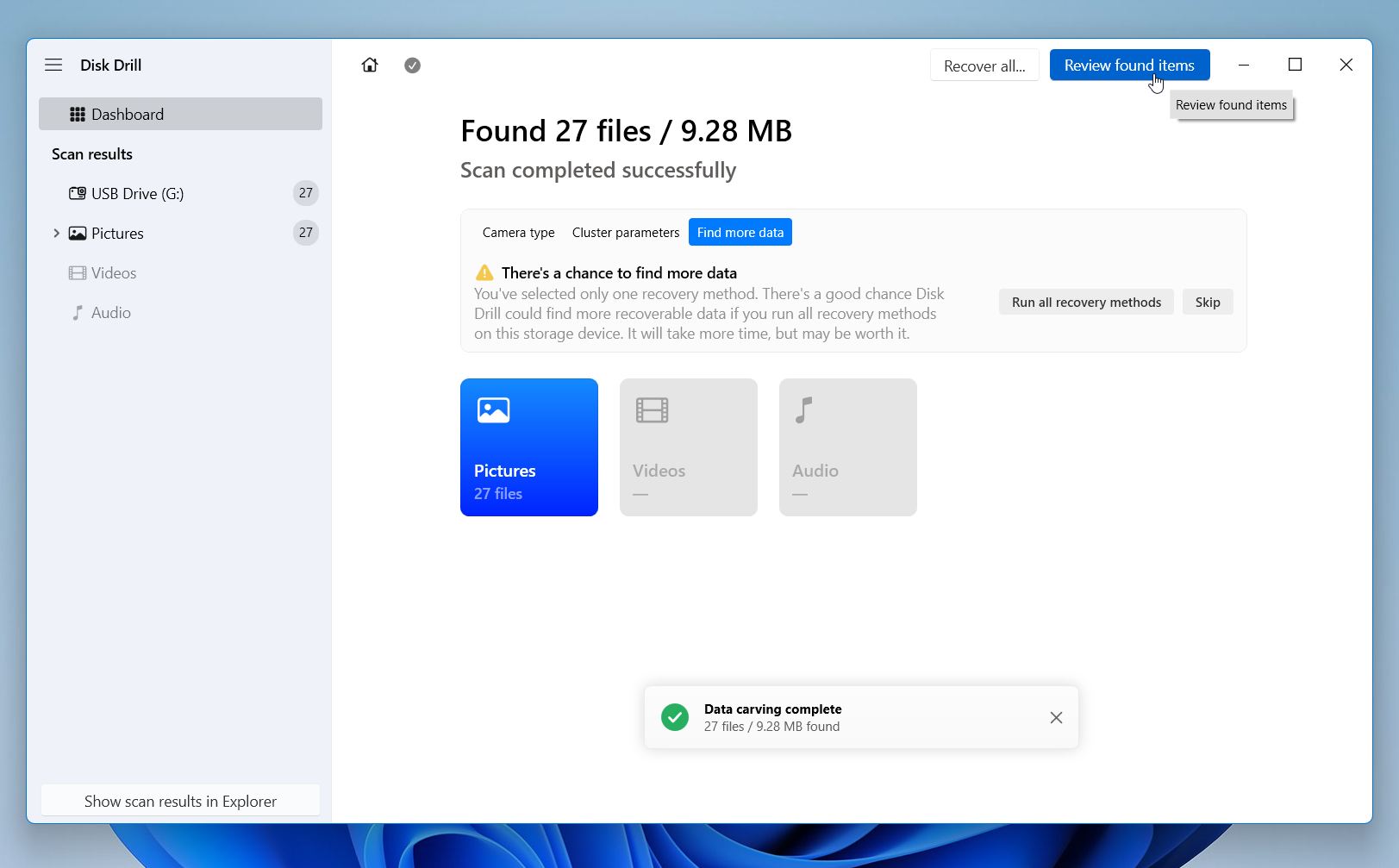
- Once the scan completes, click on Review Found Items to scroll through your recovered videos.
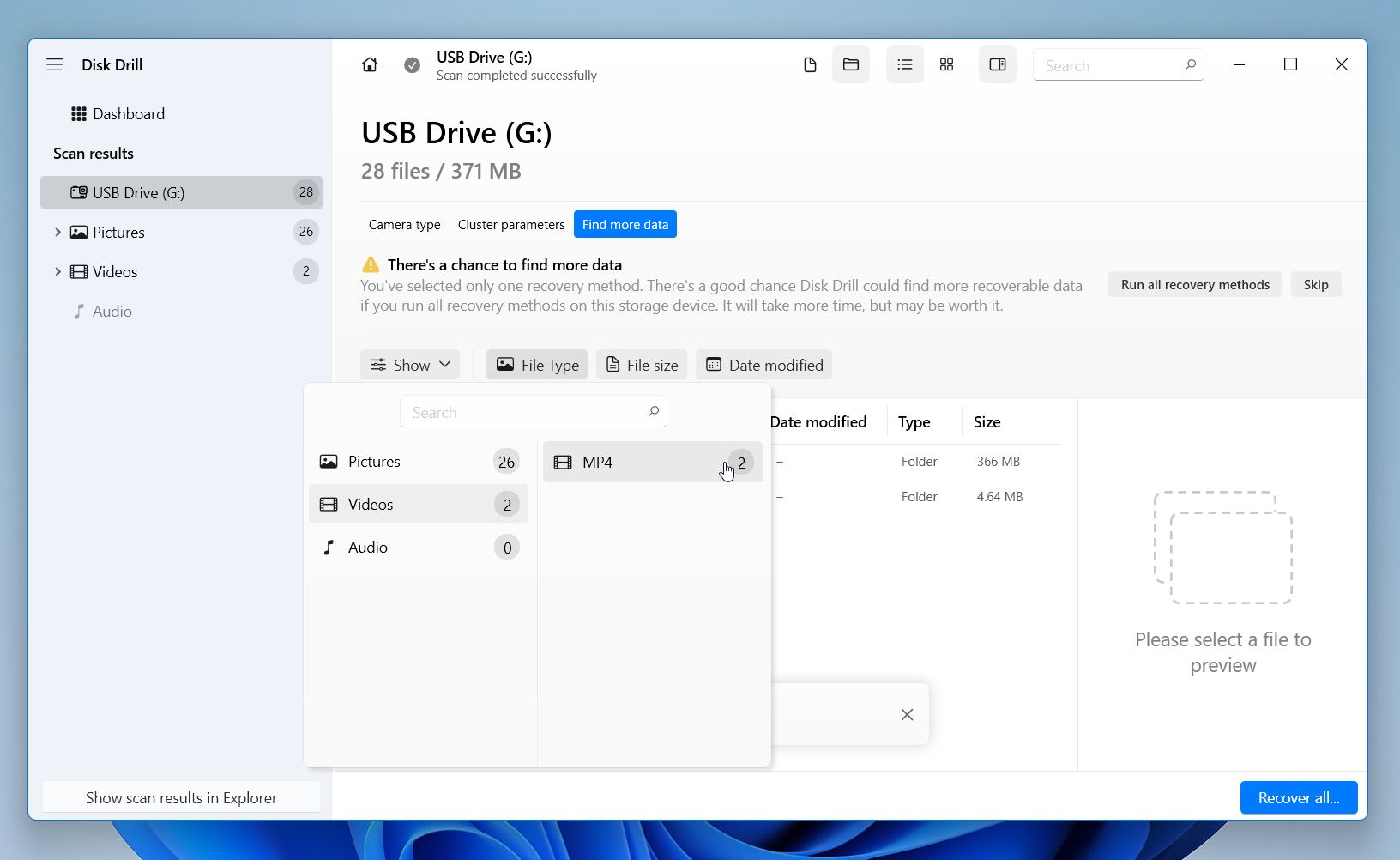
- Use filters to find your files more quickly. Click File Type, select Video, then choose your format from the list.
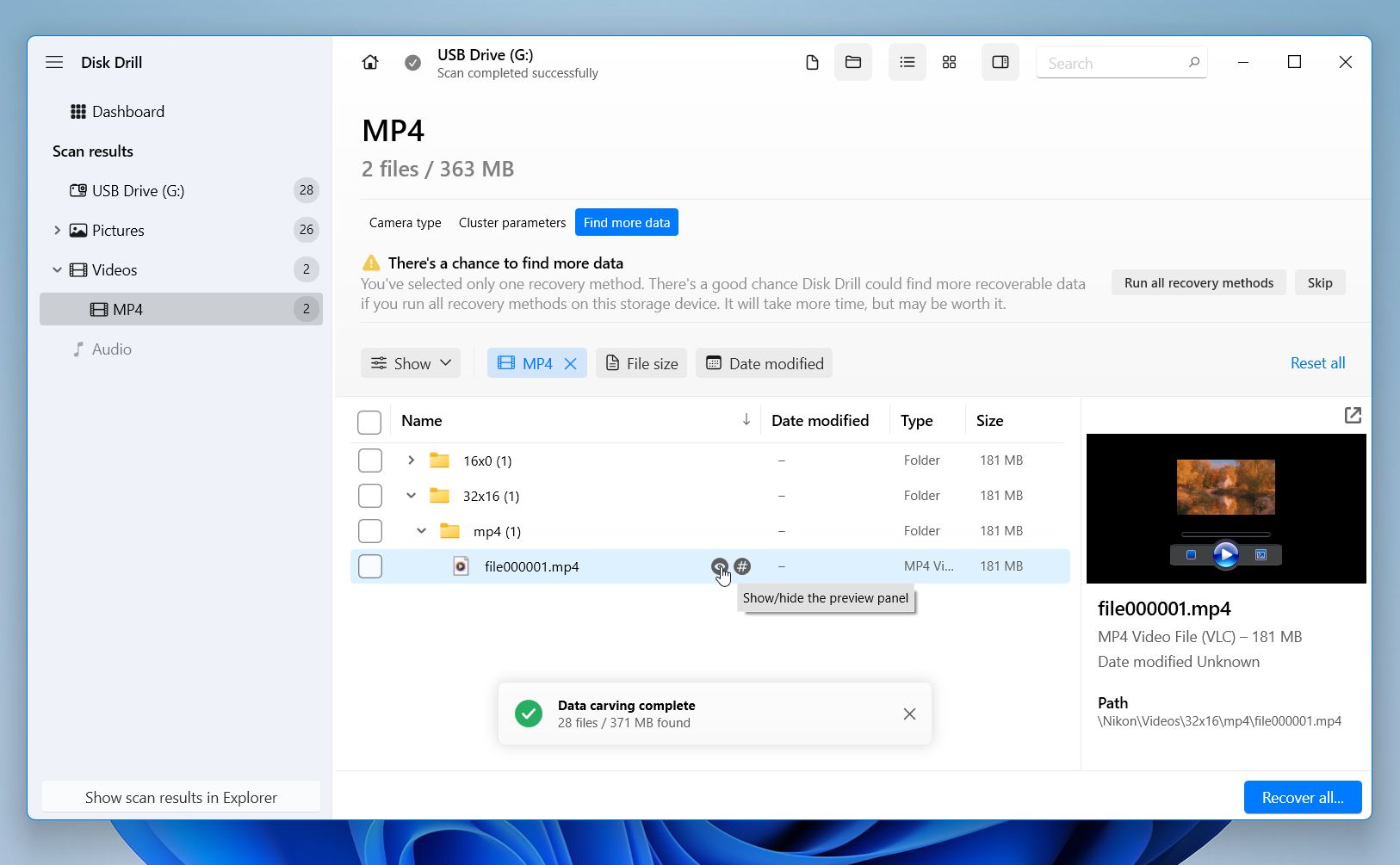
- To preview a file, hover over it and click the eye icon, or select the file and choose Preview from the menu. Preview confirms that the file contains actual video data and not just a filename or fragment. This feature works only for video formats supported natively by Windows. For example, MOV files usually show a single still frame, while MP4 files can be played directly in the preview window. You can also check clip length, resolution, and file size to identify complete recordings. If the clip plays in preview, it is a strong sign that the video is intact and recoverable.
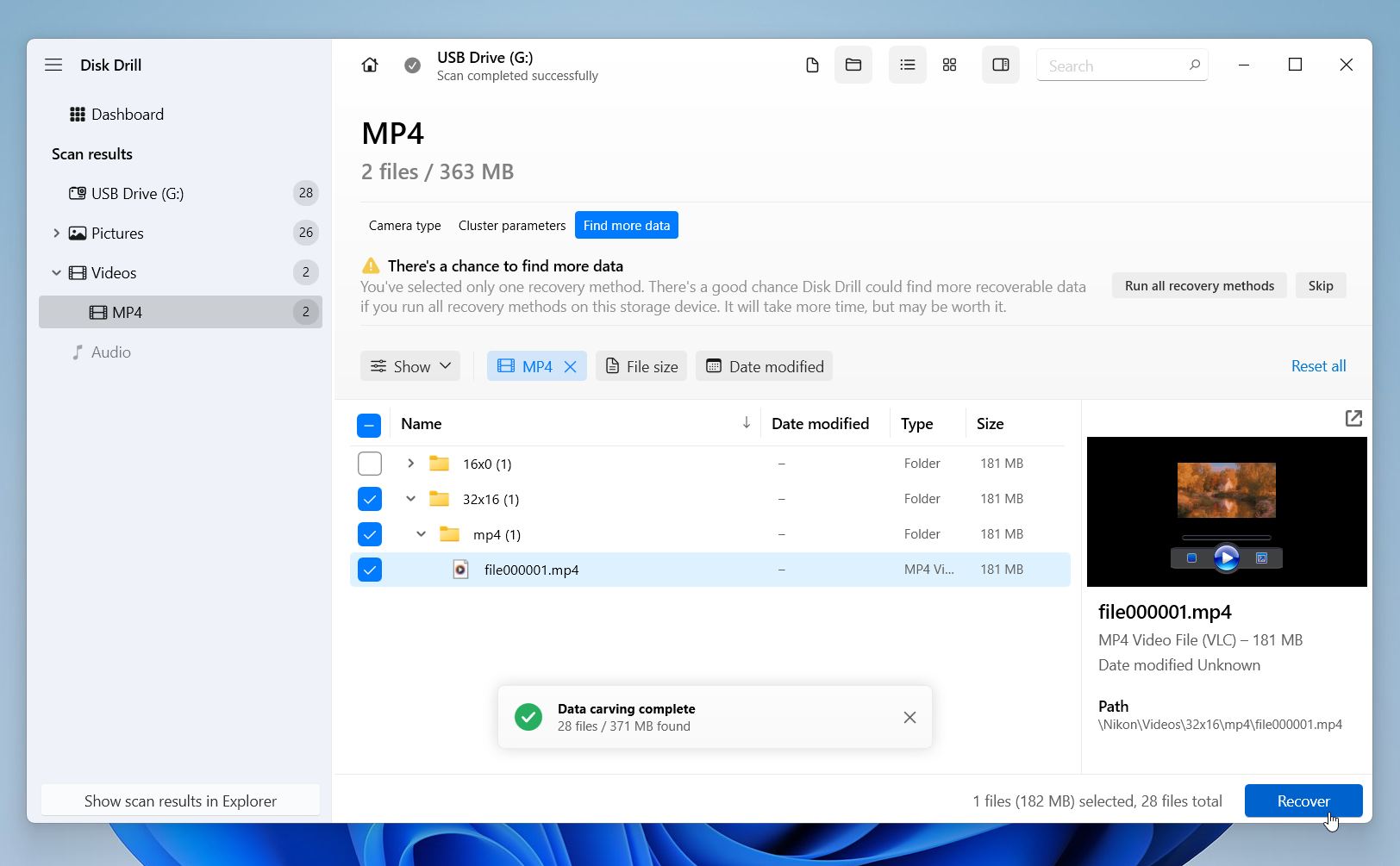
- Select your files and click Recover.
- Choose the destination where you want to store the recovered videos and click Next. Save the files to a different drive or folder, not to the same card or storage device you scanned. Writing data back to the source can overwrite remaining footage and reduce recovery results.
Are there alternatives? Yes, absolutely. Disk Drill is our top pick for its user-friendly interface and high recovery rate, but other data recovery software can similarly retrieve deleted camcorder videos:
- PhotoRec is a free, open-source tool known for its powerful deep scanning. The downside is that it has a fairly rudimentary interface (command-line or basic GUI), and it will recover everything it finds with generic file names. PhotoRec relies on signature-based scanning even when the file system is still intact. It will also recover only file types it “knows,” while software that can read file systems isn’t limited to known file types if the file system is intact. We regularly see this discussed on our forum, so we’ve covered it in detail in our article on signature-based data recovery.
- R-Studio targets advanced users and professional workflows. It supports low-level scanning, file carving, and disk imaging, which helps in complex cases. However, the free trial has strict recovery limits. The 1024 KB limit is the maximum size of the file you can recover. This means you can only extract very small files for testing purposes.
- Recuva remains easy to use but shows its age. It works for simple deletions on healthy cards but often fails with modern video formats, large files, or fragmented footage.
Brand-Specific Camcorder Recovery Notes
Camcorder recovery does not follow one universal rule. Each manufacturer handles storage, formatting, and file structure in its own way, which directly affects what recovery can and cannot restore.
- Some Sony camcorders handle in-camera formatting a little differently. A format command clears the card more thoroughly than users expect, which can leave little or no recoverable data. Because of that, recovery attempts work best after simple deletion, not after formatting inside the camera. Sony also offers Memory Card File Rescue, a free utility intended for basic recovery for Sony SD cards. It can help in simple cases, but it has clear limits and does not handle complex corruption well.
- Canon camcorders give users more manual control, which also increases the risk of irreversible data loss. Many Canon models include a Low Level Format option, which is designed to wipe storage completely and usually removes any realistic recovery potential. In very rare cases, recovery after a low-level format can be possible, but these scenarios almost always involve an interrupted or failed formatting process.
- GoPro footage behaves differently from traditional camcorder video. GoPro cameras split long recordings into multiple files, often called chapters. Recovery works only when all related segments return successfully. If even one fragment is missing, playback issues appear.
Camcorders from Panasonic, Canon, JVC, and Samsung usually follow standard SD card behavior, which gives recovery software a fair chance after deletion or corruption.
Can You Recover Video Directly from a Camcorder
We are often asked whether it is possible to simply connect a camcorder to a computer and recover deleted videos that way. The short answer is no. In almost all cases, a direct camcorder-to-computer connection does not allow proper video recovery. Exceptions exist, but they are rare and limited to specific older models:
- A small number of older DV-format camcorders (such as Sony DCR and certain Panasonic models) had FireWire (IEEE 1394) ports for digital video transfer, which could deliver raw DV data to a computer or capture device. This did not expose the storage as a drive in the traditional sense, but allowed direct capture of video data without compression, useful for transfer, not recovery of deleted files.
- A handful of earlier consumer models (e.g., some Canon VIXIA and older Sony models) could present internal flash storage as a USB mass-storage device in specific modes, though this behavior varies with firmware and model year.
Even when a camcorder has a USB port, it is most often designed for file transfer and playback rather than full block-level storage access. Many current models record video in formats like AVCHD, with folder structures that USB transfer supports, but that structure alone does not allow recovery tools to scan hidden or deleted data if the underlying file system is not exposed.
Conclusion
TL;DR: If you want a quick takeaway from the article, here is what we would highlight.
Deleted camcorder videos often remain recoverable, especially when they come from an SD card, and recovery starts early. Tools like Disk Drill handle most common scenarios across popular camcorder and action camera brands, as long as the storage has not suffered overwrites or a full formatting.
The key advice is simple. Stop all use of the card at once and start recovery before any action takes place. After recovery, move files to a separate drive and create regular backups. This step matters more than any tool and helps avoid the same problem in the future.
FAQ
How do I recover permanently deleted videos from my camcorder?
You can retrieve permanently deleted videos from a camcorder or its SD card using data recovery software:
- Download, install, and launch the recovery software.
- Connect the camcorder or remove the SD card and insert it into a card reader.
- Select the storage device and start the scan.
- Preview the found video files and choose the ones you want to restore.
- Select a different drive as the recovery destination and complete the process.
Can I recover camcorder footage from an SD card not showing up?
Yes, but the outcome depends on how the card appears in the system.
If the SD card does not show in File Explorer but appears in Disk Management with the correct capacity, recovery software can usually detect it and scan it. In this case, recovery often remains possible even without a drive letter.
If the card does not appear in Disk Management at all, this may indicate physical issues with the card or reader. Try another card reader or USB port first. If the card still does not appear, avoid repeated attempts and consider professional recovery services.
The video files were recovered, but they do not play. What should I do?
If recovered files do not play, try rescanning the card using a different scan method if your software supports it. Some tools offer advanced camera-specific scanning that may return more complete files.
You can also test playback in another media player such as VLC, as some players handle partially damaged files better. If the video still fails to open, specialized video repair software may rebuild the file structure using a healthy reference clip recorded on the same camera.
This article was written by Joshua Solomon, a Contributing Writer at Handy Recovery Advisor. It was recently updated by Victoria Rybtsova. It was also verified for technical accuracy by Andrey Vasilyev, our editorial advisor.
Curious about our content creation process? Take a look at our Editor Guidelines.