

Disk Drill and DMDE are among the most commonly recommended data recovery tools, trusted by both everyday users and professionals. Both are capable, and each has its own audience. In this 2026 comparison, we break down how they stack up in features, performance, usability, and price, so you can pick the right one for your recovery job.
Disk Drill is the better choice for most users, thanks to its beginner-friendly interface, extensive file previews, and advanced recovery features. In our tests, it recovered all 68 files after both deletion and formatting, while DMDE recovered 67 and 65 files, respectively. Disk Drill was also faster, completing scans in around 5–6 minutes compared with DMDE’s 10 minutes. DMDE is a good alternative for experienced users, especially those who need low-level disk tools or want a more affordable option.
Disk Drill vs DMDE Data Recovery Quick Comparison
Disk Drill and DMDE are both powerful data recovery tools, but they differ in usability, pricing, and the tools included. The table below provides a quick overview of their main differences before we examine each category in more detail.
Feature |
Disk Drill |
DMDE |
Free Version Limit |
100 MB free recovery on Windows; unlimited scanning and previews on macOS |
Up to 4,000 files per folder per request; unlimited requests |
Pricing |
From $89/year; $149 lifetime |
From $20/year; $48 perpetual |
Supported OS |
Windows, macOS |
Windows, macOS, Linux, DOS |
iPhone / Android Recovery |
✅ Supported on macOS, with device-specific limitations |
⚠️ Android only through accessible block storage; no dedicated iPhone recovery |
Ease of Use |
Beginner-friendly, modern interface |
Technical interface, steeper learning curve |
Best For |
Everyday users, photographers, and users who want straightforward recovery |
Advanced users, technicians, and budget-conscious users |
Technical Support |
Email and online support resources |
Email support and online documentation |
Supported File Systems |
NTFS, ReFS, FAT, exFAT, APFS, HFS+, EXT, Btrfs |
NTFS, ReFS, FAT, exFAT, APFS, HFS+, EXT, Btrfs |
Supported File Types / Signatures |
Around 400 built-in signatures |
Built-in signatures with custom signature support |
Scan Modes |
Universal Scan, Advanced Camera Recovery |
Quick Scan, Full Scan, RAW signature search |
Scan Speed |
Fast |
Fast, varies by scan settings |
File Preview Before Recovery |
✅ Extensive preview support |
⚠️ Limited, mainly common image formats |
Recovery from Formatted / Lost Partitions |
✅ |
✅ |
Byte-to-Byte Backup / Disk Imaging |
✅ Bad-sector handling and resume support |
✅ Disk cloning and imaging; advanced resume features in Professional |
RAID / NAS Support |
✅ RAID reconstruction, NAS recovery, SSH access |
✅ RAID reconstruction; NAS recovery through accessible disks or images |
Video Repair / Corrupted File Repair |
✅ Dedicated video repair tool |
❌ No dedicated multimedia repair tool |
Extra Tools |
S.M.A.R.T. monitoring, Recovery Vault, hex viewer, virtual disk mounting |
Hex editor, partition manager, cluster map, disk editing |
Website |
||
Download |
Disk Drill: What You Get and How Well It Works
Disk Drill is a data recovery tool developed by CleverFiles, available for Windows and macOS since 2010. Over the years, it has become one of the more feature-rich recovery programs on the market. It covers a wide range of data loss situations, from accidentally deleted files to formatted drives, corrupted file systems, and lost partitions.
What we like most about Disk Drill is how approachable it feels. You select a drive, start a scan, and browse the results without having to configure complicated settings. The interface is clean, and even when the program finds thousands of files, it’s easy to narrow down the results using filters, check recovery chances, and preview files before restoring them.
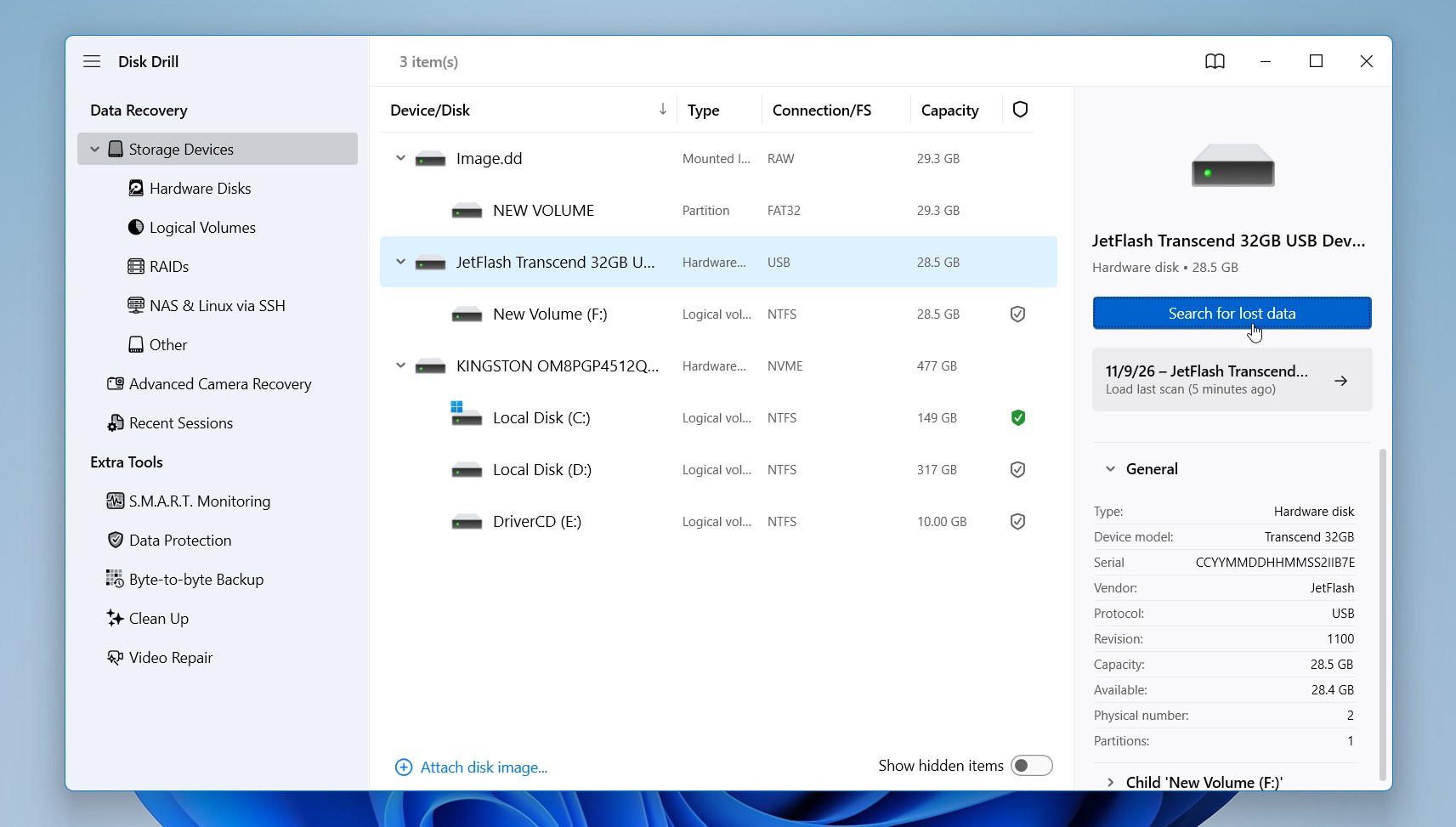
There’s also plenty beyond basic recovery. Advanced Camera Recovery can reconstruct fragmented videos from cameras and drones, which is particularly useful for damaged or formatted memory cards. We also appreciate the built-in byte-to-byte backup feature, which lets you create a disk image and scan that copy instead of repeatedly accessing the original drive. Other features include RAID and NAS recovery, S.M.A.R.T. monitoring, and support for hundreds of file signatures.
Here’s what we’d highlight.
Pros:
- Clean, beginner-friendly interface
- Broad file system and storage device support
- Strong RAW photo and fragmented video recovery capabilities
- File previews and recovery chance indicators
- Free byte-to-byte disk imaging
- iPhone, iPad, and Android data recovery support on macOS (iOS recovery in beta on Windows)
- Regular updates with new features and improvements
- Advanced Camera Recovery for cameras and drones
- RAID and NAS recovery support
- Additional tools like S.M.A.R.T. monitoring and Recovery Vault
- One PRO licence covers Windows and macOS
Cons:
- Free recovery is limited to 100 MB on Windows
- Mac users generally need PRO to restore files
For our recovery tests, we used a Windows 11 laptop and a 32 GB USB flash drive containing 68 files of different types, including photos, videos, and documents. We tested two common data loss scenarios: accidental file deletion and formatting the USB drive.
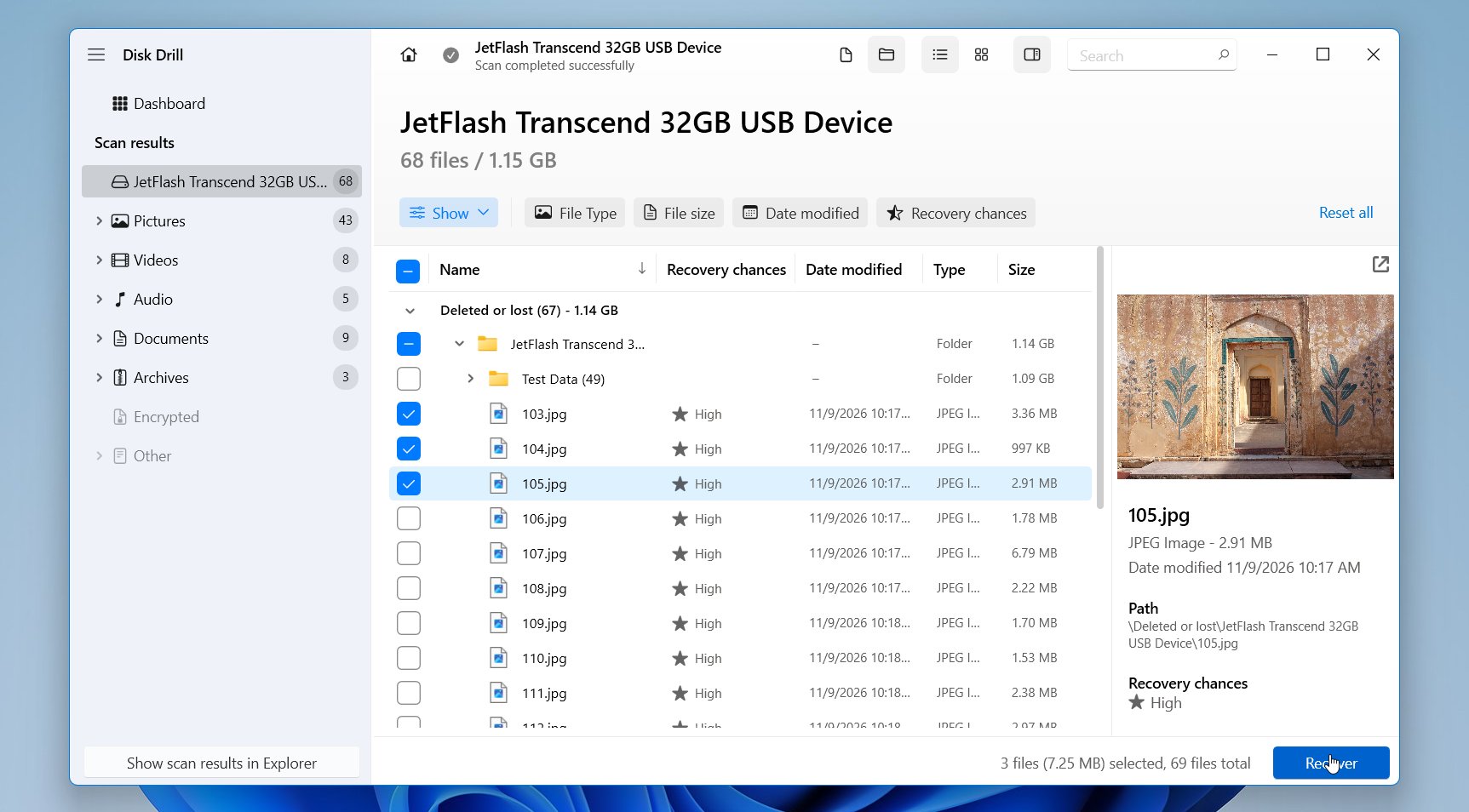
Disk Drill delivered perfect results in both cases, recovering all 68 out of 68 files each time. The scans took around 5–6 minutes each, which we found quite reasonable. We also liked how easy it was to check the results. Disk Drill sorted the files into categories, and previews worked reliably for most of them, allowing us to check their contents before recovery rather than restoring everything first.
Want to learn more about Disk Drill? Check out our detailed Disk Drill review and our article on whether Disk Drill is safe to use. If you’re considering other recovery tools, we’ve also put together a list of the best Disk Drill alternatives.
DMDE: What You Get and How Well It Works
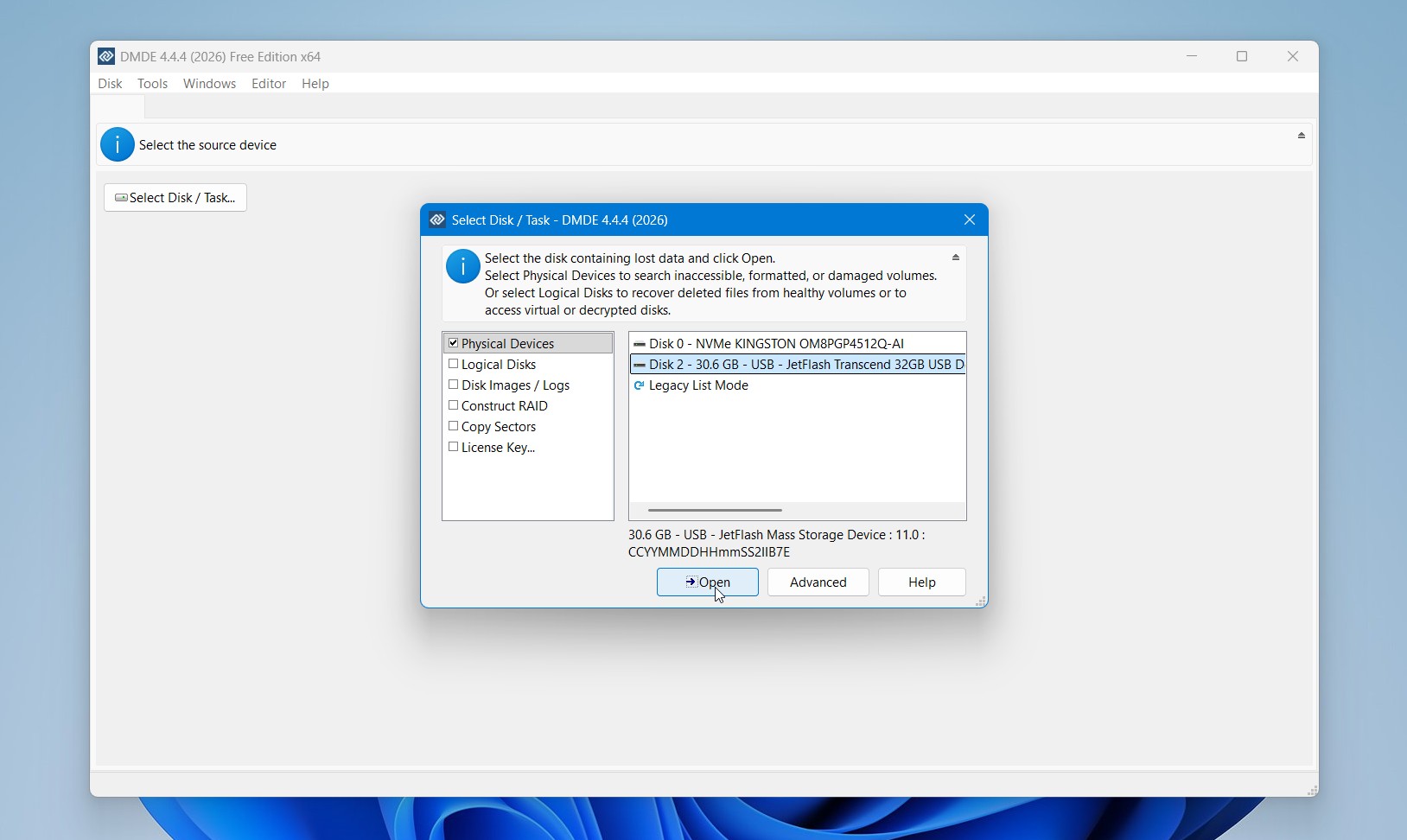
DMDE (short for DM Disk Editor and Data Recovery Software) has been around since 2006, and it works on Windows, macOS, Linux, and even DOS. It’s quite different from Disk Drill: instead of automating everything, it gives you hands-on tools and direct access to the disk’s inner structures. If you’re comfortable with partitions and file systems and like having full control, it’s a great choice.
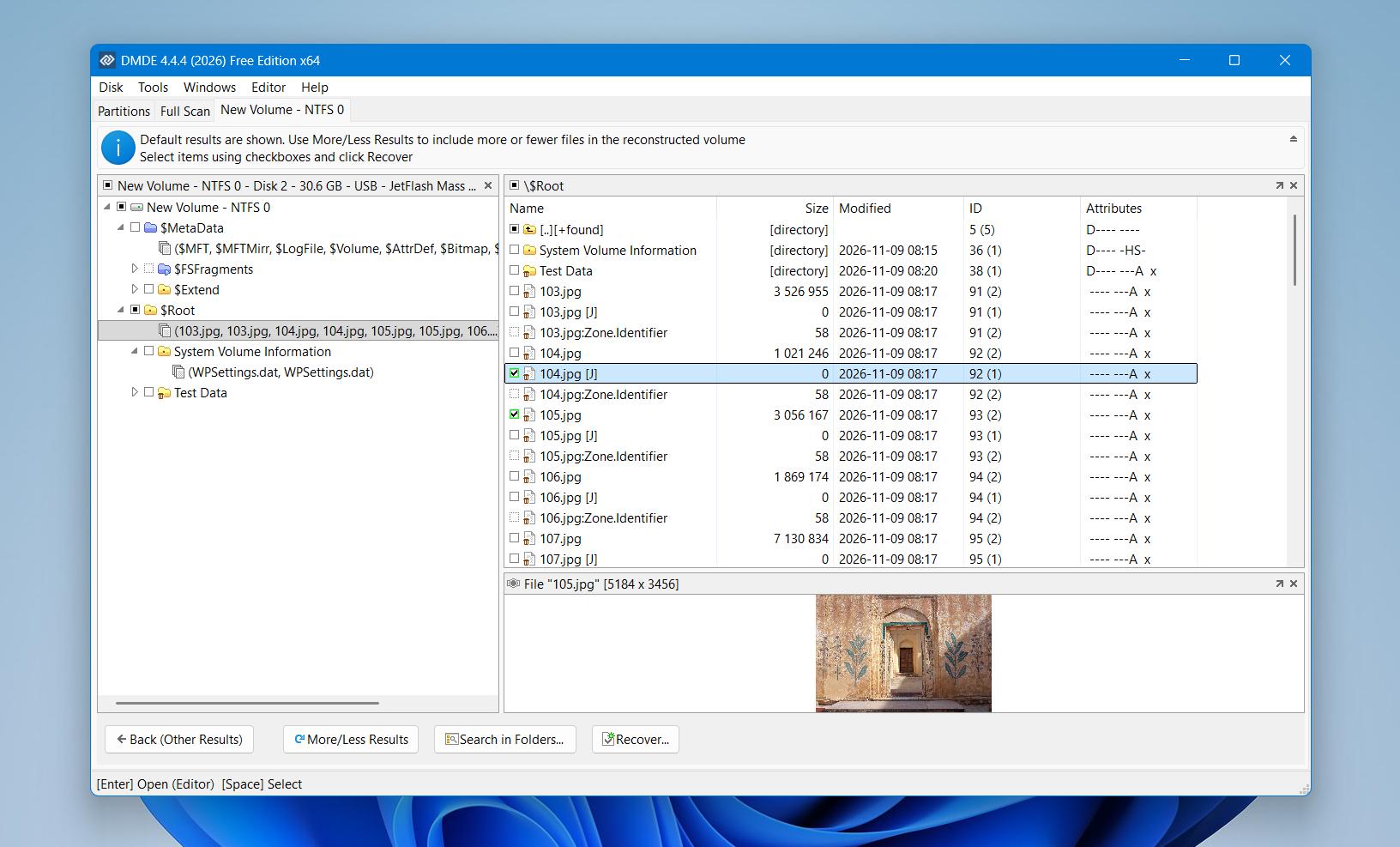
DMDE feels very technical from the start. Its main window lists physical devices, logical volumes, and partition information, along with a lot of settings. Even simple tasks, like finding files after a scan, take more effort than they should, and preview support is limited, especially for RAW photos, so it’s harder to identify files before recovering them.
Its strengths are partition recovery and disk editing. It can find lost partitions, rebuild damaged file system structures, and let you inspect individual sectors in the built-in hex editor. It also supports custom file signatures, so experienced users can add formats missing from the default database, and it offers disk cloning and RAID reconstruction.
Another advantage is the free edition. DMDE allows recovery of up to 4,000 files from one selected directory per operation, with no limit on how many times you repeat the process. That’s considerably more generous than the free recovery options offered by many commercial alternatives.
Here’s what we’d highlight.
Pros:
- Advanced partition recovery tools
- Built-in hex editor and disk editor
- Custom file signature support
- RAID reconstruction and disk cloning
- Broad file system support
- Available for Windows, macOS, Linux, and DOS
- Generous free recovery allowance
- Affordable paid licences
Cons:
- Outdated, technical interface
- Steep learning curve for beginners
- Limited file preview support, especially for RAW photos
- Scan results can be difficult to browse
- Fewer built-in file signatures than some competitors
We tested DMDE on the same Windows 11 laptop and 32 GB USB flash drive containing 68 files, using the same two data loss scenarios: accidental file deletion and formatting.
DMDE performed well in both tests, recovering 67 out of 68 files after normal deletion and 65 out of 68 files after formatting. The scans took around 10 minutes each, making DMDE noticeably slower than Disk Drill. Reviewing the results also required more manual work. DMDE displayed the recovered files in a directory tree, but its limited preview support made it harder to check some files before recovery. Overall, the results were good, although DMDE fell slightly behind Disk Drill in both recovery success and scan speed.
For a closer look at DMDE, check out our full DMDE review, where we cover its features and limitations. If you’re interested in similar tools, you can also browse our list of the best DMDE alternatives.
DMDE vs. Disk Drill: Pricing, Features, Usability, and Device Support
You now know what Disk Drill and DMDE offer and how they performed in our tests. The next step is to compare them directly on pricing, features, ease of use, and device support, so you can see which one suits your needs better.
Disk Drill vs DMDE: Pricing Comparison
Both Disk Drill and DMDE offer free versions with limited recovery allowances, as well as paid licenses that unlock full recovery. However, their pricing models differ considerably, especially in how licenses are structured, what they allow you to do commercially, and how many platforms and devices they cover.
Disk Drill Pricing
Unlike many competing tools, Disk Drill lets you use a single license on both Windows and macOS. It’s available as an annual or lifetime license, and here’s what each plan includes:
Plan |
Price |
What you get |
Disk Drill Basic |
Free |
Unlimited scanning and previews, up to 100 MB of free recovery on Windows |
Disk Drill PRO (Annual) |
$89/year |
Unlimited recovery, all features and upgrades while subscribed |
Disk Drill PRO (Lifetime) |
$149 one-time |
Unlimited recovery and all future upgrades for the lifetime of the product |
Disk Drill Enterprise |
Custom pricing |
Business licensing for your specific requirements |
Additional details:
- A license supports one user on up to three devices.
- Both paid plans allow personal and business use.
- The annual subscription renews automatically unless canceled.
DMDE Pricing
DMDE has its own licensing system, with editions designed for personal use, businesses, and professionals who recover data for clients. Unlike software that mainly separates plans by subscription length, DMDE bases its licenses on how the program will be used. Prices are relatively low, but each license covers only one computer and one OS family (Windows, macOS, Linux, or DOS). The Professional edition also offers an all-OS option.
Plan |
Price |
What you get |
DMDE Free |
Free |
Browse the directory tree and recover up to 4,000 files per request from a selected directory, with no limit on the number of requests. Non-commercial use only |
Express (1-Month) |
$9.95 |
Time-limited license with bulk folder recovery, for personal use, 1 OS family |
Express (1-Year) |
$20/year |
Same as above for one year |
Standard (Perpetual) |
$48 one-time |
Bulk folder recovery, lifetime updates, personal and internal business use, volume discounts up to 80% |
Professional (Perpetual) |
$95 (1 OS family) or $133 (all OS families) |
Everything in Standard, plus commercial data recovery for clients and Pro features |
Additional details:
- Each license covers one PC. Professional licenses also support portable activation, so the software can run on different computers via a connected portable device.
- Express is for personal, non-commercial use only. Standard covers business use for your own needs, but not offering recovery services to third parties. That requires Professional.
- Licenses are delivered by email, and you can pay by credit card, PayPal, bank transfer, and other methods depending on your country.
- Refunds are available for non-activated licenses within 30 days of purchase. Activated licenses are generally not refundable, except where required by consumer protection laws or if the software fails to work as described. DMDE recommends testing recovery with the free version before buying.
DMDE has a clear advantage in terms of upfront cost. However, Disk Drill offers better value when you consider what each license includes. A single purchase covers both Windows and macOS, with activation on up to three devices. You can also use any paid license for business purposes without having to purchase a separate edition. DMDE, on the other hand, generally limits each license to one PC and one OS family, with different editions depending on how you intend to use the software. Disk Drill’s lifetime license is particularly attractive for users who want to make a one-time purchase and keep the software available for future recovery needs.
When it comes to free recovery, DMDE offers a more generous allowance. You can recover up to 4,000 files from the current directory per request, with no limit on the number of requests. Disk Drill for Windows allows you to recover up to 100 MB for free, although you can scan drives and preview recoverable files without paying.
Overall, DMDE wins on price, but Disk Drill makes a stronger case for long-term value and convenience. Its lifetime license, cross-platform support, and three-device allowance make it a particularly appealing choice for users who work with multiple computers or want a recovery tool they can return to whenever they need it. DMDE remains a good budget option, especially for users who only need recovery software on a single machine.
Disk Drill vs DMDE: Features Comparison
Basic file recovery is only part of what Disk Drill and DMDE can do. Each includes tools for working with damaged partitions, creating disk images, and handling more complicated recovery scenarios. Still, the two don’t match feature for feature, and some functions are better developed in one than in the other.
Let’s compare them:
Feature |
Disk Drill |
DMDE |
Quick and deep scanning |
✅ |
✅ Quick and Full Scan |
File signature recovery |
✅ |
✅ Custom signatures supported |
Lost partition detection and recovery |
✅ |
✅ Includes partition restoration |
File previews |
✅ Extensive format support |
⚠️ Limited image preview support |
File filtering and sorting |
✅ |
✅ Filename, size, date, and ID filters |
Recovery chance prediction |
✅ |
⚠️ Volume quality indicators and file signature markers |
Recovery during scanning |
✅ |
✅ Can open found volumes before scan completion |
Save and resume scan sessions |
✅ |
✅ Scan logs and resume support |
Disk imaging |
✅ Advanced, with bad sector handling and resume support |
✅ Bad-sector handling; resume and multi-pass copying in Professional |
S.M.A.R.T. disk health monitoring |
✅ |
⚠️ S.M.A.R.T. report reading, not continuous monitoring |
Advanced Camera Recovery |
✅ |
❌ No dedicated module |
RAID and NAS recovery |
✅ Broad support |
⚠️ RAID reconstruction; NAS disks or images accessible locally |
Remote recovery over SSH |
✅ |
❌ No dedicated SSH recovery feature documented |
Hex viewer |
✅ |
✅ Hex editor with disk editing |
Mount scan results as a virtual disk |
✅ |
⚠️ Virtual file system within DMDE, not an OS-mounted disk |
File repair tools |
✅ |
⚠️ Low-level file system repair tools |
Real-time backup |
❌ |
❌ |
Dark mode |
✅ |
⚠️ No dedicated dark mode |
Disk Drill and DMDE have a lot in common when it comes to core recovery features, such as deep scanning, partition recovery, disk imaging, and RAID support. Where DMDE pulls ahead is in low-level disk tools: a built-in hex editor, manual partition repair, and custom file signatures. Together, these give experienced users greater control over complicated recovery jobs.
Disk Drill, on the other hand, covers everyday recovery needs more completely. Extensive file previews, recovery chance predictions, and a dedicated Advanced Camera Recovery module help you locate and restore the files you want with less effort. It also adds S.M.A.R.T. monitoring, remote recovery over SSH, and wider NAS support.
Overall, DMDE is a strong choice for users who need advanced disk-level controls, while Disk Drill offers a better balance of recovery capabilities and convenience, with more built-in tools that don’t require technical knowledge to use.
Disk Drill vs. DMDE: Which Is Easier to Use?
Disk Drill and DMDE can both recover lost files, but the experience of using them is quite different. Disk Drill has a modern interface that guides users through the recovery process, while DMDE relies on a more technical layout with additional settings and manual controls. This makes DMDE better suited to experienced users, while Disk Drill is easier to learn.
Here is how they handle common recovery tasks:
Task |
Disk Drill |
DMDE |
Winner |
Installation and first launch |
Quick installation, clean interface, and clearly organized tools. |
Portable Windows version requires no installation. Extract the ZIP file and launch the program directly. |
Tie |
Starting a recovery scan |
Select a device, click Search for lost data, and choose a scan mode when prompted. |
Select a physical disk or volume, open it, and configure Full Scan settings if needed. |
Disk Drill |
Monitoring scan progress |
Clear progress indicators, live file counts, and categories of found files. |
Displays scan progress and technical information, but the presentation is less visual. |
Disk Drill |
Finding specific files |
Search, folder views, and filters for file type, size, date, and recovery chances. |
Directory tree with filename, size, date, and file ID filters. Results may require more manual inspection. |
Disk Drill |
Previewing recoverable files |
Built-in previews for many formats, including RAW photos and large videos. |
Basic preview functionality with limited format support, particularly for RAW photos. |
Disk Drill |
Checking recovery chances |
Displays estimated recovery chances for individual files. |
Provides volume quality indicators, but no comparable per-file recovery chance estimates. |
Disk Drill |
Recovering selected files |
Select files, click Recover, and choose a destination. |
Select files or folders, open the recovery dialog, and configure the output settings. |
Disk Drill |
Resuming an interrupted scan |
Automatically saves scan sessions and allows users to resume later. |
Supports saving scan logs and resuming scans, but requires more manual interaction. |
Disk Drill |
Working with lost partitions |
Automatically detects lost partitions and presents recoverable files in a familiar folder view. |
Offers detailed partition analysis, manual editing, and restoration options for experienced users. |
DMDE |
Creating a disk image |
Dedicated Byte-to-byte Backup tool with visual progress, bad-sector handling, and resume support. |
Advanced disk copying with error-handling options; multi-pass copying and log-based resume available in Professional. |
Disk Drill |
Using advanced disk tools |
Provides a graphical hex viewer and dedicated recovery utilities with straightforward controls. |
Includes a full hex editor, sector-level access, and manual disk editing capabilities. |
DMDE |
Disk Drill vs DMDE: Device Support Comparison
Both Disk Drill and DMDE support a wide range of storage devices, from internal hard drives and SSDs to USB flash drives and memory cards. However, there are some important differences when it comes to more specialized recovery scenarios, such as NAS storage and mobile devices. The table below compares their device support to show where each tool has an advantage.
Device or Storage Type |
Disk Drill |
DMDE |
Internal HDDs and SSDs |
✅ |
✅ |
External HDDs and SSDs |
✅ |
✅ |
USB flash drives |
✅ |
✅ |
SD, microSD, and other memory cards |
✅ |
✅ |
Unmountable partitions |
✅ |
✅ |
RAID arrays |
✅ |
✅ |
NAS devices |
✅ |
⚠️ Via direct disk access or disk images |
Remote recovery over SSH |
✅ |
❌ No built-in support |
iPhones and iPads |
✅ macOS version |
❌ |
Android phones and tablets |
✅ macOS version, compatible devices |
⚠️ Only if accessible as a block device |
Advanced camera video recovery |
✅ Dedicated feature |
⚠️ Standard file recovery only |
DMDE Data Recovery Software vs Disk Drill for Mac
DMDE is available for macOS, but from what we’ve seen, it’s basically the same program as the Windows version, with a similar interface and recovery tools. Disk Drill offers more features specifically for Mac users, including iPhone and iPad recovery, Time Machine backup support, and access to local APFS snapshots.
We also found that DMDE can be more troublesome to use on newer macOS versions. It supports macOS 10.12 and later, but Apple’s disk access restrictions can sometimes force you to unmount a drive manually or create a disk image before scanning it. Disk Drill isn’t exempt from some restrictions either, just like any other recovery tool. It requires Full Disk Access and, for certain internal drive scans, a kernel extension. However, it walks you through the setup rather than leaving you to figure it out yourself.
As for compatibility, the latest Disk Drill 6 supports macOS 10.15 through macOS 27, with older versions available for earlier systems. In our comparison, Disk Drill comes out as a better recovery tool for Mac users, mainly because of its Mac-specific recovery options and ease of use.
Disk Drill vs DMDE: Users’ Reviews
User reviews can tell us a lot about how recovery software performs outside controlled tests. To compare Disk Drill and DMDE, we looked at ratings on popular review platforms, including Trustpilot, G2, and Capterra, as well as discussions on Reddit and data recovery forums.
Ratings on Review Platforms
Disk Drill has a much larger presence on major review platforms, which makes it easier to find feedback from people who have used the software. On Trustpilot, customers frequently praise its intuitive interface and ability to recover lost files. Positive reviews also mention responsive customer support. Some users, however, express frustration with the free recovery limit and paid licensing.
DMDE has far fewer reviews on these platforms. Its Trustpilot profile has a 3.8/5 rating based on just five reviews, and we couldn’t find comparable ratings on G2 or Capterra. This difference suggests that Disk Drill is a more popular choice among general users, likely because its interface is more accessible to people without technical experience. However, the lack of reviews doesn’t necessarily reflect DMDE’s quality or usability, especially since it primarily targets a more technical audience.
Platform |
Disk Drill / CleverFiles |
DMDE |
Trustpilot |
4.4/5 (496 reviews) |
3.8/5 (5 reviews) |
G2 |
4.0/5 (64 reviews) |
No rating available |
Microsoft Store |
5.0/5 (6 reviews) |
No reviews available |
What Users Say on Reddit and Data Recovery Forums
The discussion looks somewhat different on Reddit, particularly in communities such as r/datarecovery and r/DataRecoveryHelp, where both programs are frequently mentioned.
On Reddit, users often praise Disk Drill for its recovery results and easy-to-use interface. In one thread titled “Disk Drill Just Saved Me”, a user recovered valuable client footage from a formatted Sony camera SD card after other tools failed. In another post, “DiskDrill saved my pics/vids off my unreadable USB stick”, a user reported recovering around 2,500 photos and videos from an unreadable USB drive. Both users appreciated the recovery results, while the second specifically highlighted the ability to preview files before purchasing a license.
DMDE is particularly popular among technically experienced users who want an affordable recovery tool. Reddit users often recommend its generous free version and inexpensive licenses. For example, in a discussion about free USB recovery software, DMDE was recommended because it allows users to recover up to 4,000 files per request. Its main drawback is usability, as the technical interface can be difficult for beginners.
Overall, Disk Drill receives more attention on major review platforms and generally positive feedback for its ease of use and recovery results. DMDE has a much smaller presence on these sites, but it remains a respected option in technical communities such as Reddit, where users appreciate its affordable pricing and advanced recovery capabilities.
Final Verdict
Disk Drill and DMDE are capable data recovery tools, but they appeal to different types of users. Disk Drill stands out for its ease of use, broader feature set, and strong recovery performance, while DMDE offers advanced disk-level controls at a much lower price.
🏆 Choose Disk Drill if:
- You want an easy-to-use recovery tool with a modern interface and a straightforward recovery process.
- You need reliable recovery of photos and videos, including fragmented footage from cameras and drones.
- You prefer extensive file previews, convenient filtering options, and recovery chance estimates.
- You want additional tools such as S.M.A.R.T. monitoring, advanced disk imaging, and remote NAS recovery.
- You use both Windows and macOS and want one license that covers up to three computers.
- You’re willing to pay more for a smoother recovery experience and a broader set of built-in features.
👍 Choose DMDE if:
- You’re comfortable with technical interfaces and want more manual control over the recovery process.
- You need advanced partition management, a hex editor, or direct access to disk structures.
- You want a generous free version that allows up to 4,000 files per recovery request.
- You need a recovery tool that also runs on Linux.
- You regularly work with complex disk configurations and prefer detailed recovery settings over automated workflows.
FAQ
Is DMDE better than Disk Drill for data recovery?
For most users, Disk Drill is better than DMDE because it’s easier to use, offers more convenient recovery features, and performed slightly better in our tests. It recovered 68 out of 68 files in both scenarios, compared with DMDE’s 67 and 65. However, DMDE may be a better choice for advanced users who need manual partition recovery tools, a hex editor, or more control over disk structures. It’s also cheaper.
Is DMDE really free, and what are its limitations?
Yes, DMDE has a genuinely free version that lets you scan drives, browse found files, and recover up to 4,000 files from one selected directory per recovery operation. You can repeat this process as many times as needed, so there’s no overall file count limit. However, the free edition doesn’t support recovering entire folder structures in one operation, which can make large recovery jobs tedious. It’s also limited to non-commercial use. For bulk folder recovery and fewer restrictions, you’ll need a paid licence.
Can DMDE and Disk Drill recover files from a RAW drive?
Yes, both DMDE and Disk Drill support RAW drive recovery. They can scan drives with damaged or missing file systems and attempt to recover files that Windows can no longer access. Disk Drill offers a simpler recovery process with file previews and automatic scan methods, while DMDE gives experienced users more control over partition analysis. However, regardless of the tool you choose, recovery success depends on how badly the file system is damaged and whether the original data remains intact.
Which is better for recovering photos and videos?
Disk Drill is generally the better choice for photo and video recovery. Here’s why:
- Media format support: Disk Drill recognizes more RAW photo and video formats, while DMDE has a smaller built-in signature database.
- File previews: Disk Drill lets you preview most photos and videos before recovery. DMDE has limited preview support, especially for RAW photos.
- Fragmented video recovery: Disk Drill includes Advanced Camera Recovery, which can reconstruct fragmented footage from cameras and drones. DMDE doesn’t have a dedicated feature for this.
Of course, DMDE can still recover photos and videos, but Disk Drill is better suited to media-heavy recovery tasks.
This article was written by Oleksandr Medvediev, a Junior Content Strategist at Handy Recovery Advisor. It was also verified for technical accuracy by Andrii Yasko, our editorial advisor.
Curious about our content creation process? Take a look at our Editor Guidelines.