
If you accidentally deleted a CR2 file or no longer see it where it definitely used to be, recovery is often still possible. If you want to recover these files, we detail everything you need to know. What affects the chances, how to recover deleted .cr2 photos, and how to repair files when they are damaged.
Is it Possible to Recover a Deleted CR2 File?
Yes, in many cases it is possible to recover a deleted CR2 file, but the outcome depends on several key factors. The most important ones are what exactly happened to the file, how much the storage was used afterward, and where the CR2 was stored (memory card, internal drive, SSD, etc.).*
Here’s how your recovery chances typically look, depending on what happened to the file:
Reason for Data Loss |
What Usually Happens |
Recovery Difficulty |
DIY Recovery Chances |
Accidental deletion |
File entry removed, data blocks remain intact |
Low |
High |
Quick format (in-camera or computer) |
File system reset, data blocks still present |
Medium |
High to medium |
Heavy use after deletion |
New photos or videos overwrite old data |
High |
Low to medium |
Interrupted file transfer |
File copied incompletely, structure broken, SD card can become corrupted |
Medium |
Medium |
Full format / secure erase |
Data blocks overwritten or wiped |
Impossible |
None |
Physical damage to the card |
Controller or memory chips are damaged |
Very high |
Low (lab recovery only) |
If a CR2 file was deleted by mistake or lost after a quick format and the card was not heavily reused, recovery chances are usually good. If the camera kept recording afterward, or the card was formatted multiple times, chances drop fast. That is why we always suggest stopping card use immediately and starting recovery as soon as possible.
Even when new data has already been written, recovery can still be possible. It depends on whether new files actually overwrite the same storage areas where the deleted photos or videos were located. For example, saving a new 10 MB CR2 file might overwrite that exact 10 MB portion of a deleted image, or it might be written elsewhere.
* The difference between memory cards and HDDs is not very large in this context. However, if the CR2 files were deleted from an SSD, especially an internal system SSD rather than an external one, there is a high chance that the TRIM command has already been executed, which can greatly reduce recovery possibilities.
How to Recover CR2 Files
Now let’s move on from theory to practice. We’ll show you how to recover CR2 photos using two popular photo recovery tools and cover when it makes sense to turn to a professional recovery service.
Method 1: Disk Drill
For CR2 files, we usually recommend Disk Drill because it is one of the few tools that can recover CR2 files reliably across common camera and memory card scenarios. Disk Drill supports Canon RAW formats directly, works well with SD, CF, and microSD cards. Its scan can rebuild RAW image entries after deletion or formatting, while file previews help confirm that CR2 files are intact before you restore them.
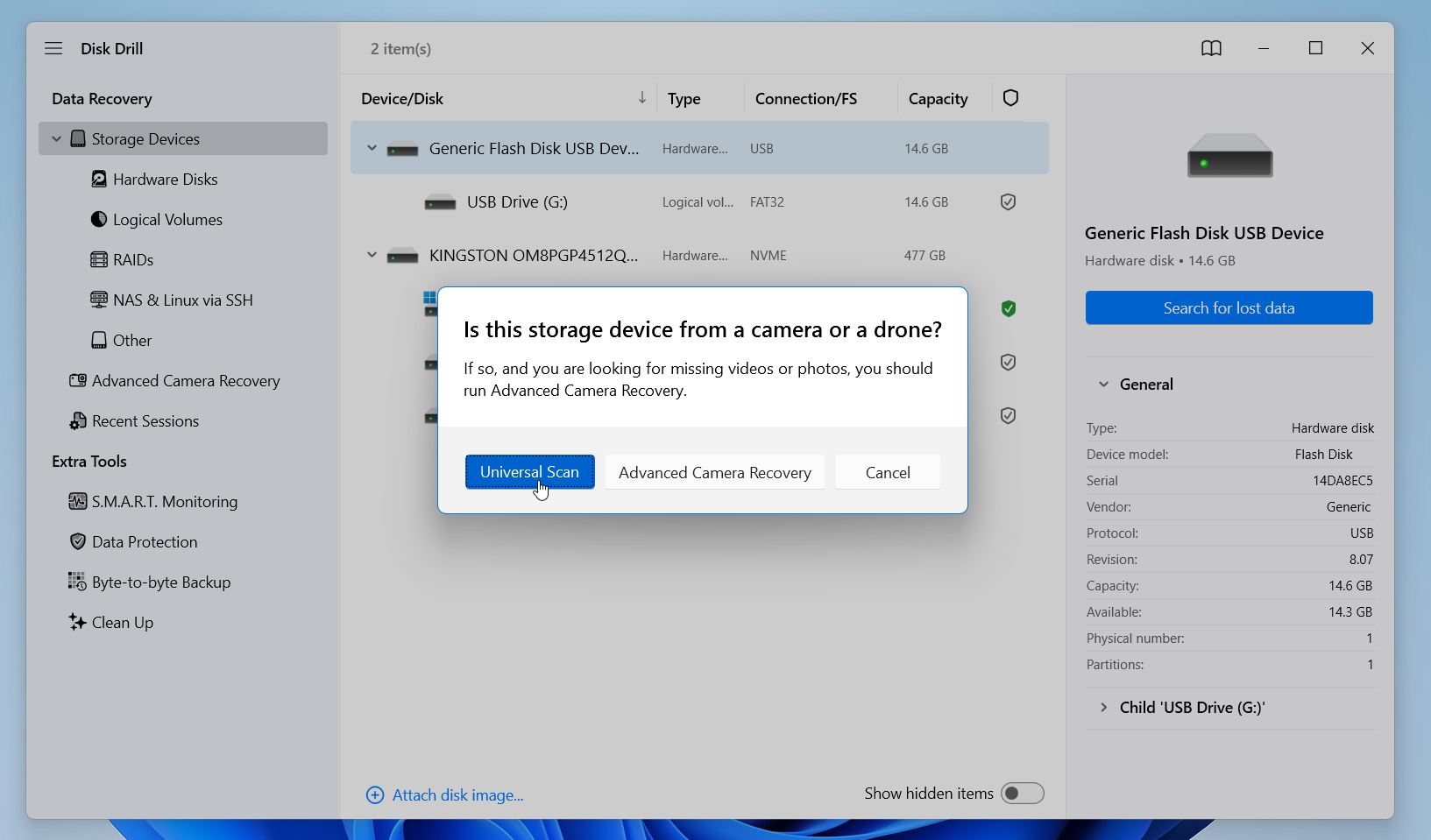
Another thing we like is that Disk Drill offers two recovery modes. The Universal Scan handles standard deletions and formatted cards and is sufficient for recovering CR2 photos. Advanced Camera Recovery is primarily intended for fragmented video files. If you also need to restore video footage in addition to CR2 images, use Advanced Camera Recovery.
Here is how to recover CR2 photos using Disk Drill:
- Remove the memory card from the camera and connect it to your computer with a card reader. Avoid connecting the camera directly via USB, as most cameras use the MTP protocol, which does not provide full low-level access to the storage. Limited MTP access blocks full access to the card and limits the software’s ability to recover lost files.
- Download and install Disk Drill on your computer. Install the software on a drive different from where the CR2 files were stored before they disappeared. This helps avoid overwriting recoverable data.
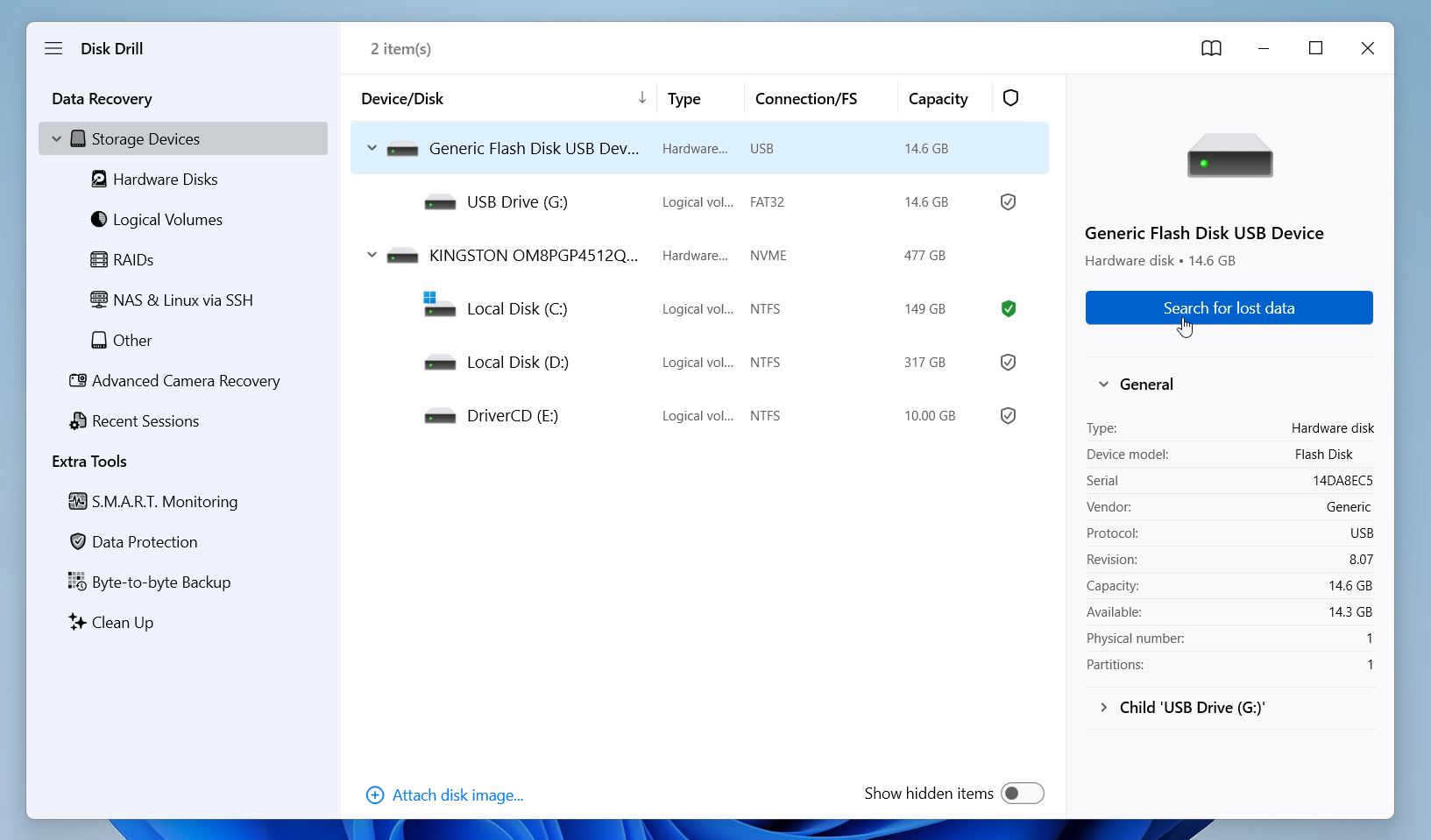
- Launch Disk Drill and select the memory card or drive where the CR2 files were stored.
- Click Search for lost data to start the scan.
- Choose the recovery mode. We will start with the Universal Scan. If the tool doesn’t recover the files you want, try Advanced Camera Recovery. Wait for the scan to complete. For large cards, this may take time, but you can check found files during scanning as they appear.
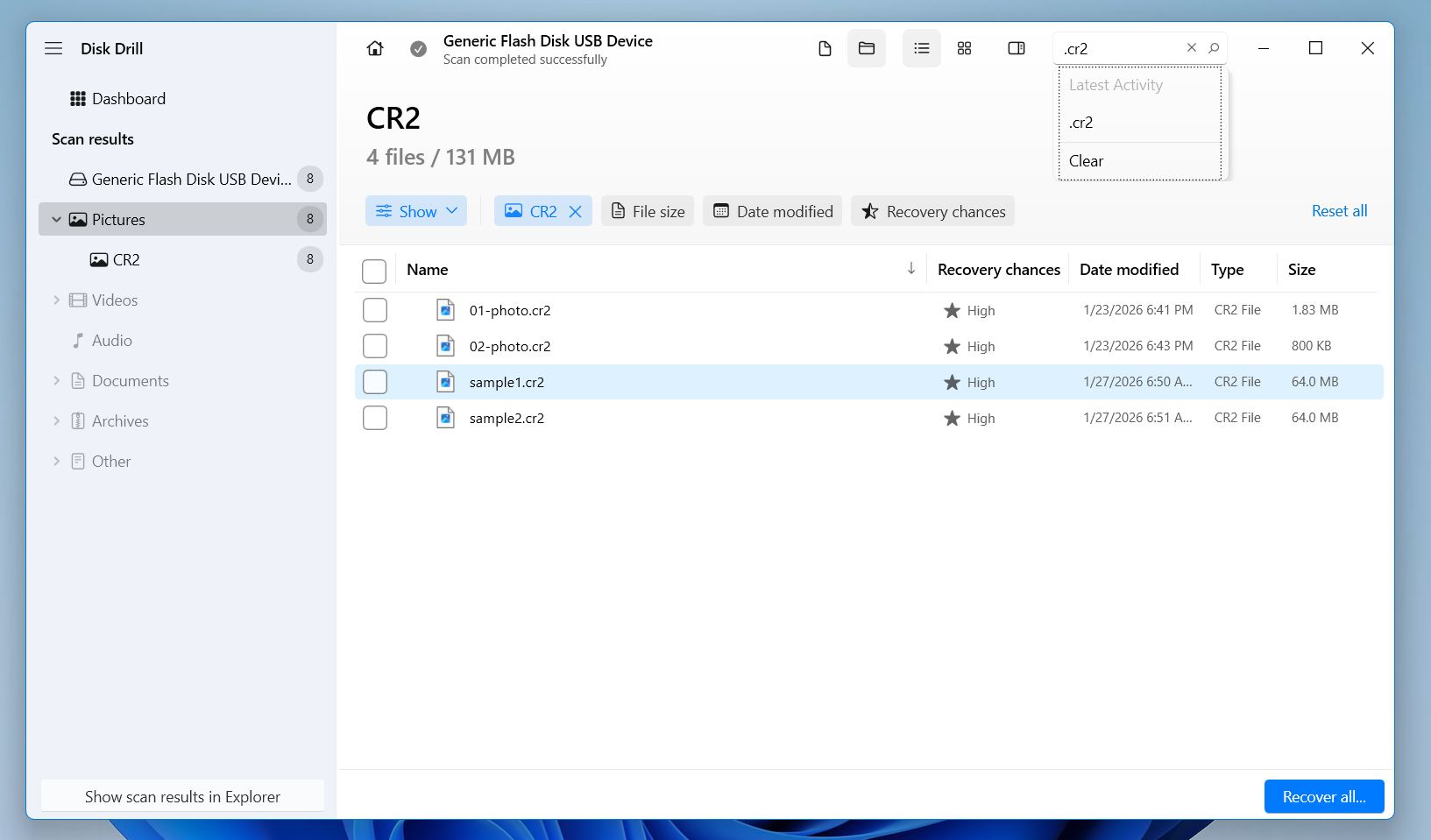
- Use filters to narrow results to Photos or search directly for .CR2 files. You can also filter files by file size, date modified, or recovery chances or use a search bar.
- Preview the found CR2 files. If the file opens without any issues, that’s a 100% indicator the file is fine and fully recoverable.
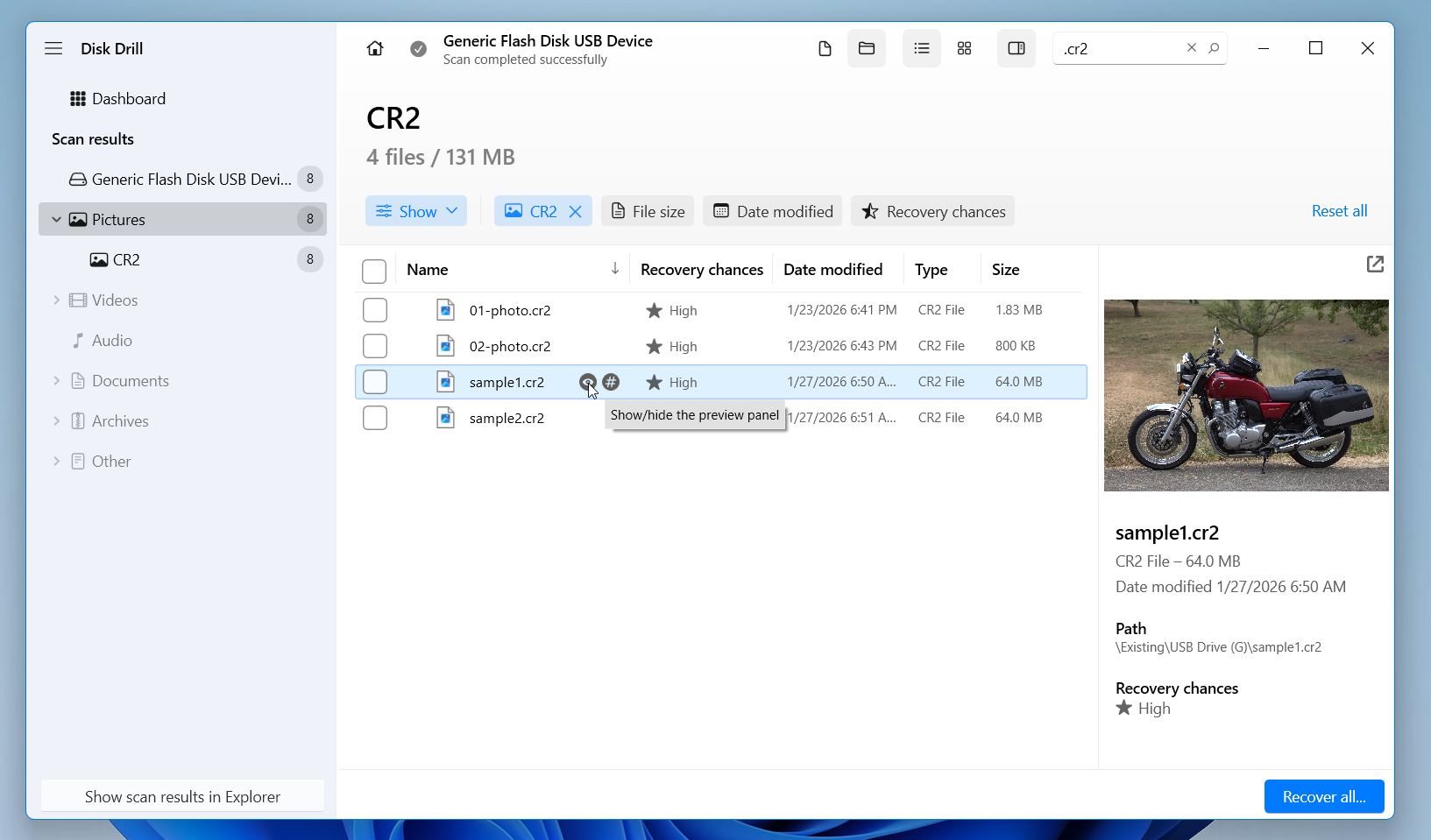
- Select the files you want and click Recover.
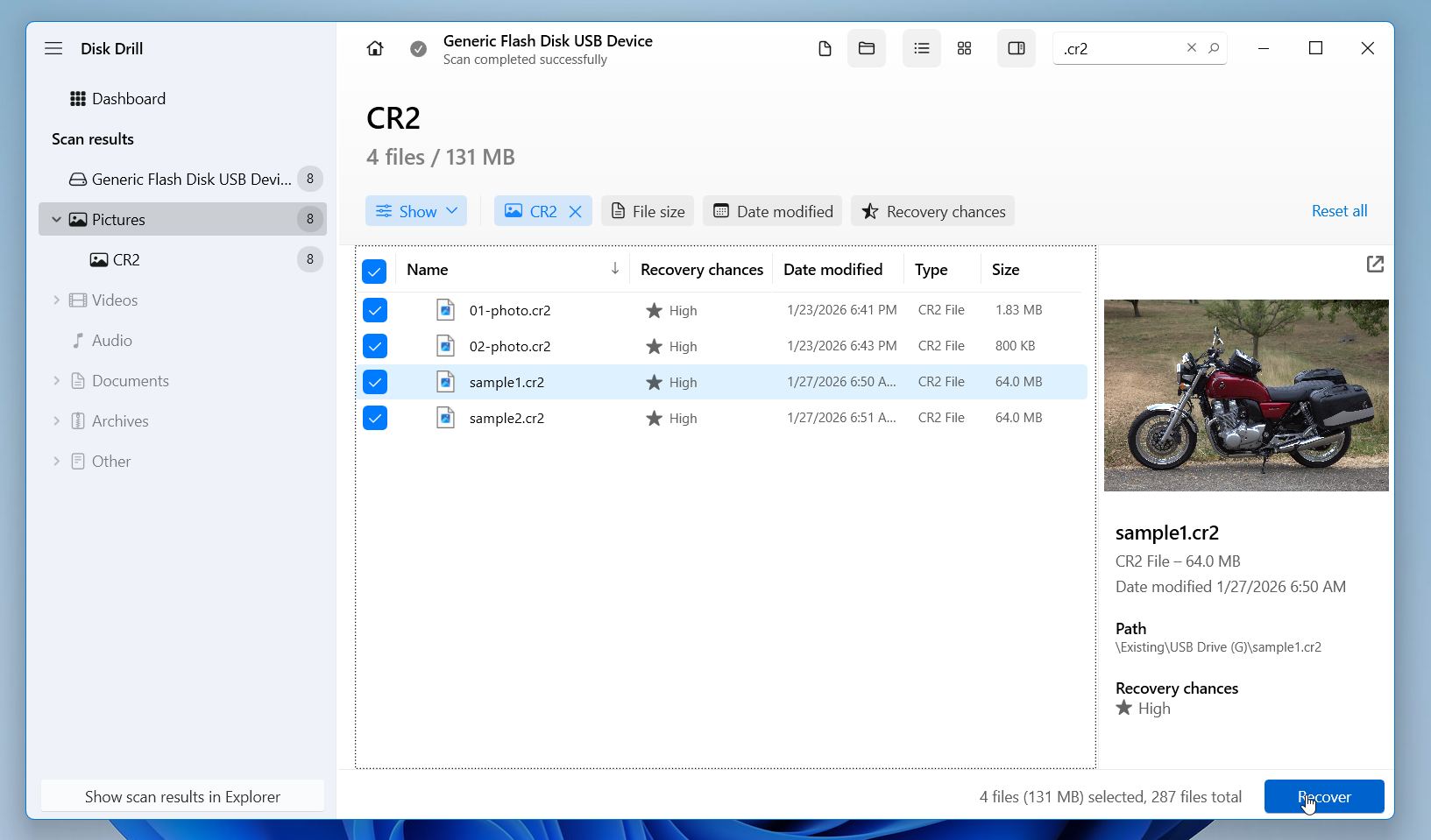
- Choose a recovery destination on a different drive, never back to the same memory card. Click Next.
On Windows, Disk Drill also lets you recover up to 100 MB of data for free. It’s enough to check if the files are recoverable and even get a couple of CR2 photos back. After the recovery, open the recovered CR2 files in Canon Digital Photo Professional or another RAW editor to confirm they open correctly.
If you want to learn more about Disk Drill capabilities, we recommend checking our Disk Drill review for test results and real-world examples, and our separate guide on whether Disk Drill is safe, where we break down security-related questions.
Method 2: R-Studio
R-Studio is another tool we suggest for Canon CR2 files, but it takes a more technical approach to recovery. It allows manual control over scan parameters and is also a solid option for CR2 recovery. However, compared to Disk Drill, R-Studio is far less convenient and requires more user input. The free data recovery limit is 1024 KB for a file, which is not enough to recover CR2 photos. Because of this, we generally recommend R-Studio for advanced users.
Here is how to restore CR2 files with R-Studio:
- Download R-Studio. Install and launch it on your computer.
- Select the correct device in the Drives panel. Choose the SD/CF/microSD card (or the external drive) where the CR2 files were stored. Double-check capacity and model name so you don’t scan the wrong disk.
- Click Scan.
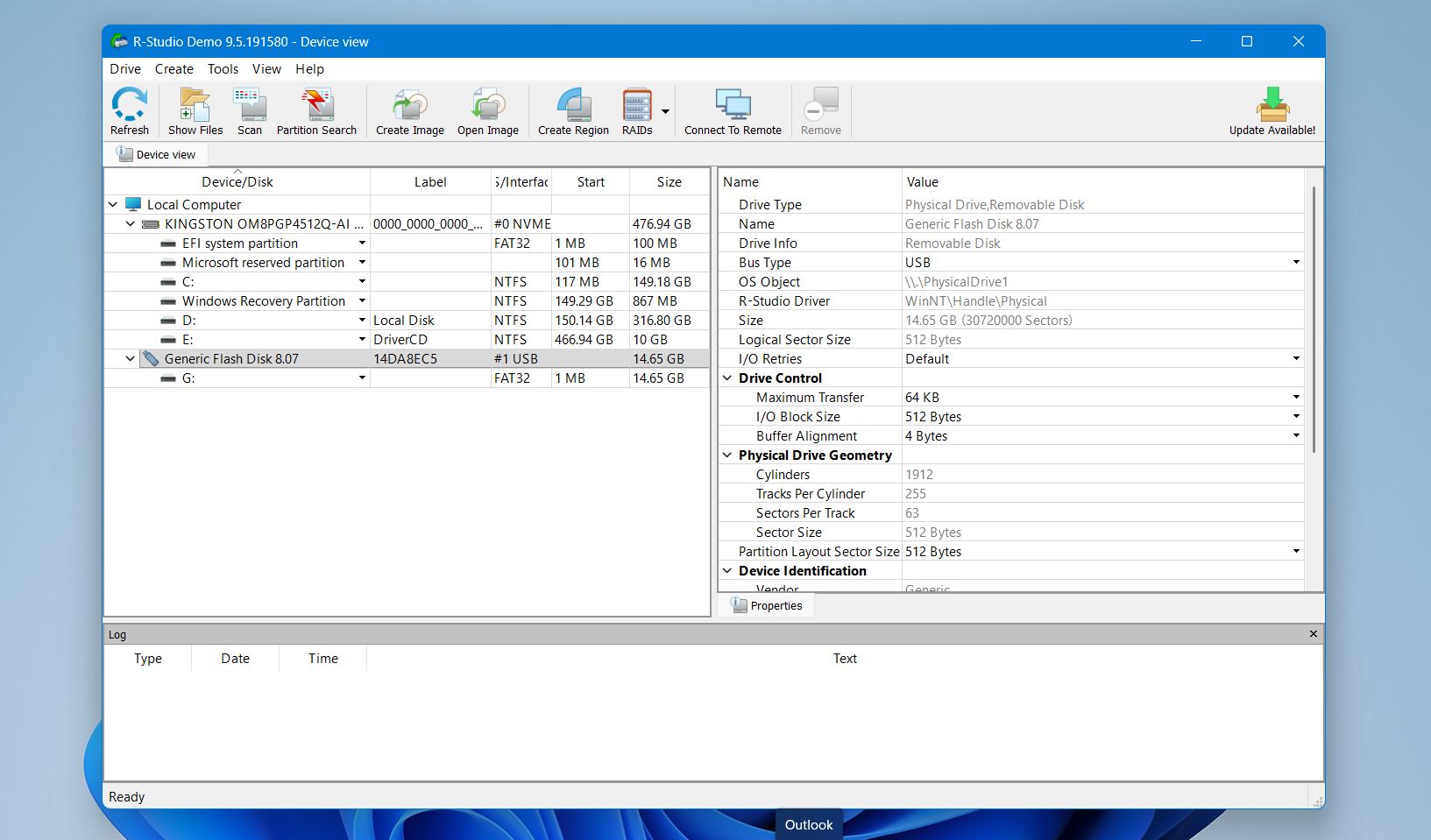
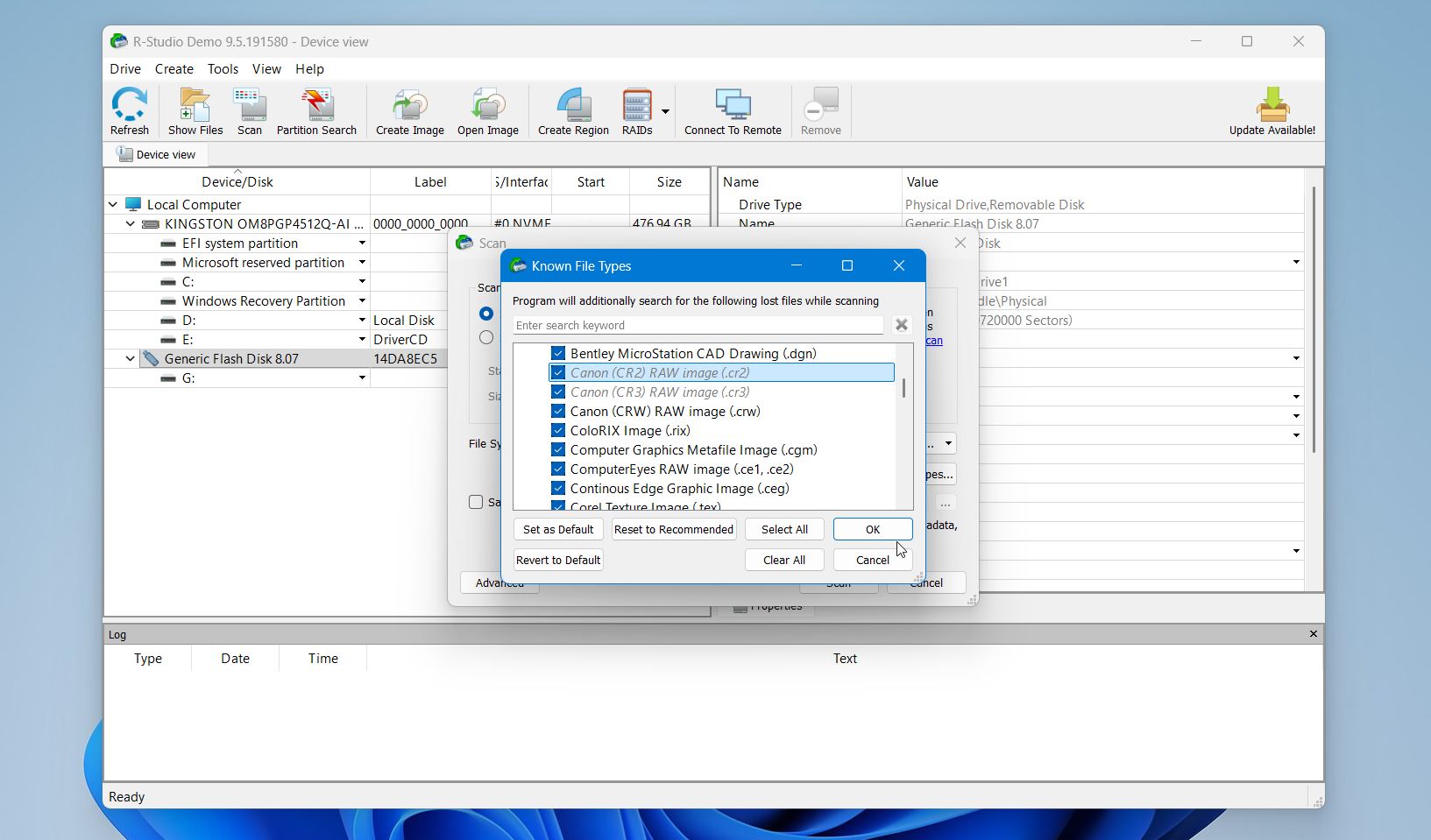
- In the scan settings, open the known file types (signatures) list and make sure Canon RAW / CR2 is enabled. This helps when the folder structure is damaged or missing. Wait until the scan completes. Large cards take time. Stopping early can skip CR2 files that sit deeper on the card.
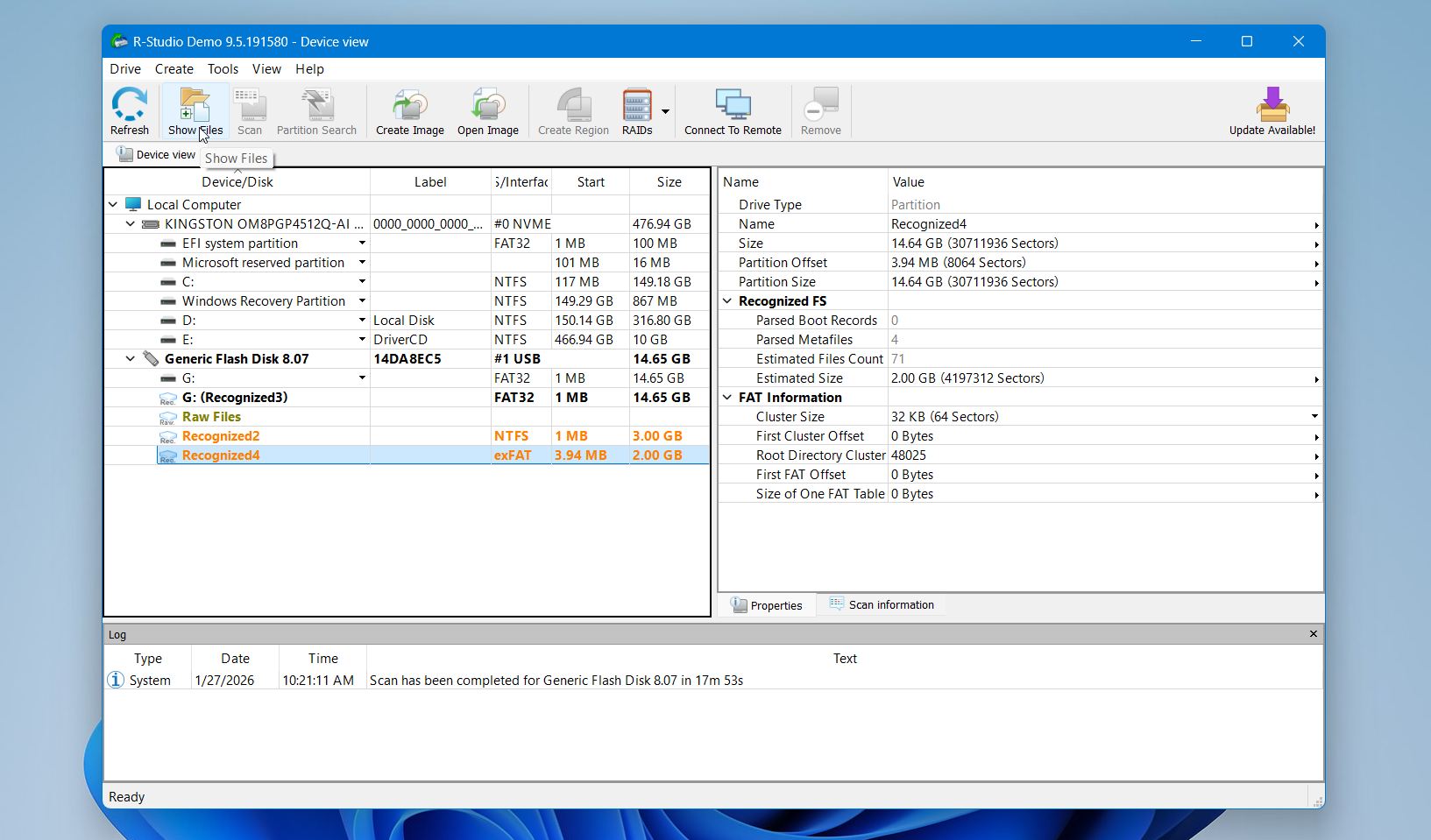
- Review scan results in “Recognized” and “Extra Found Files.” Select Show Files.
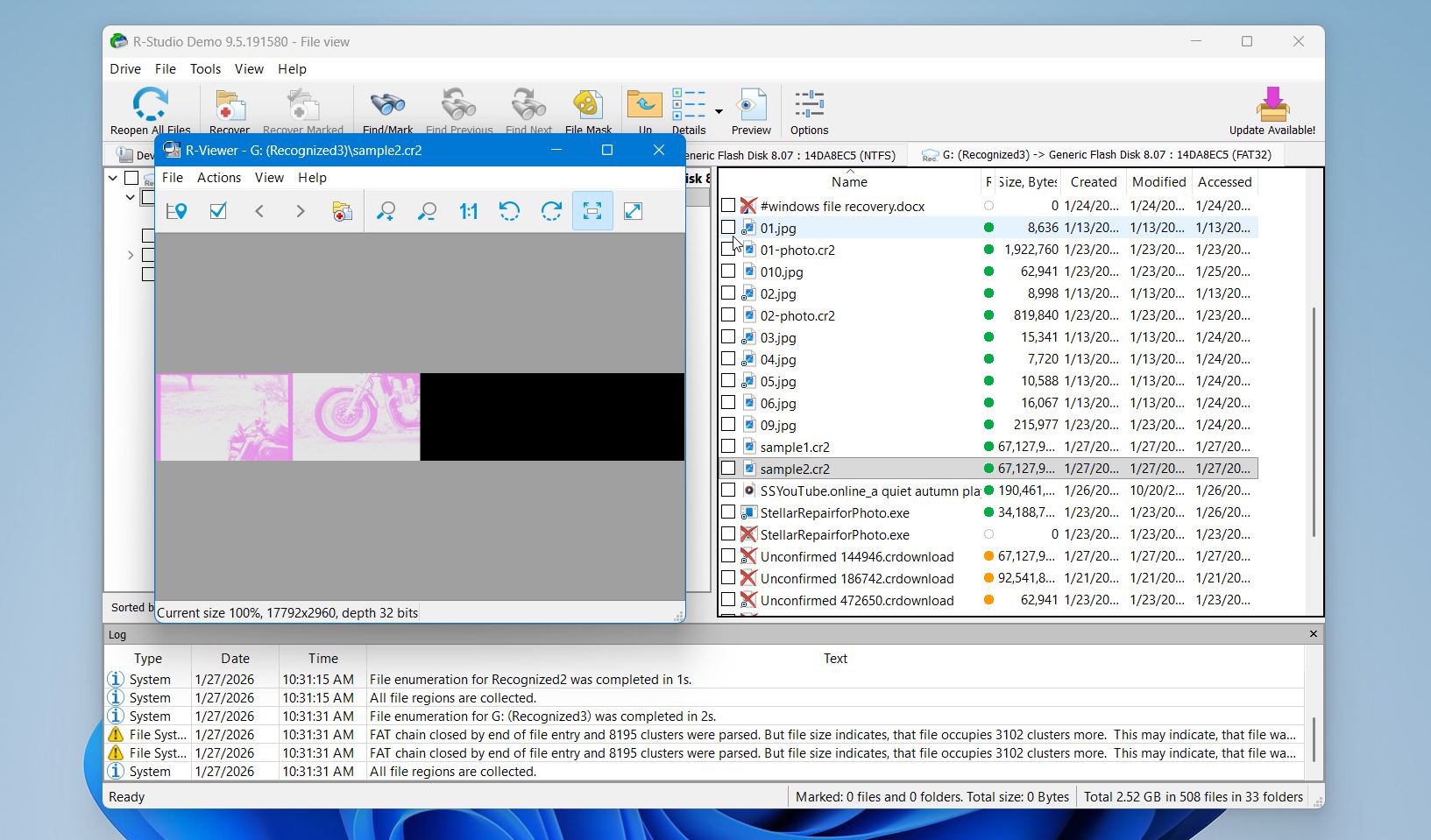
- Preview a few CR2 files before recovery. In our case, as you can see on the screenshot, the preview failed to show the image because the files were corrupted.
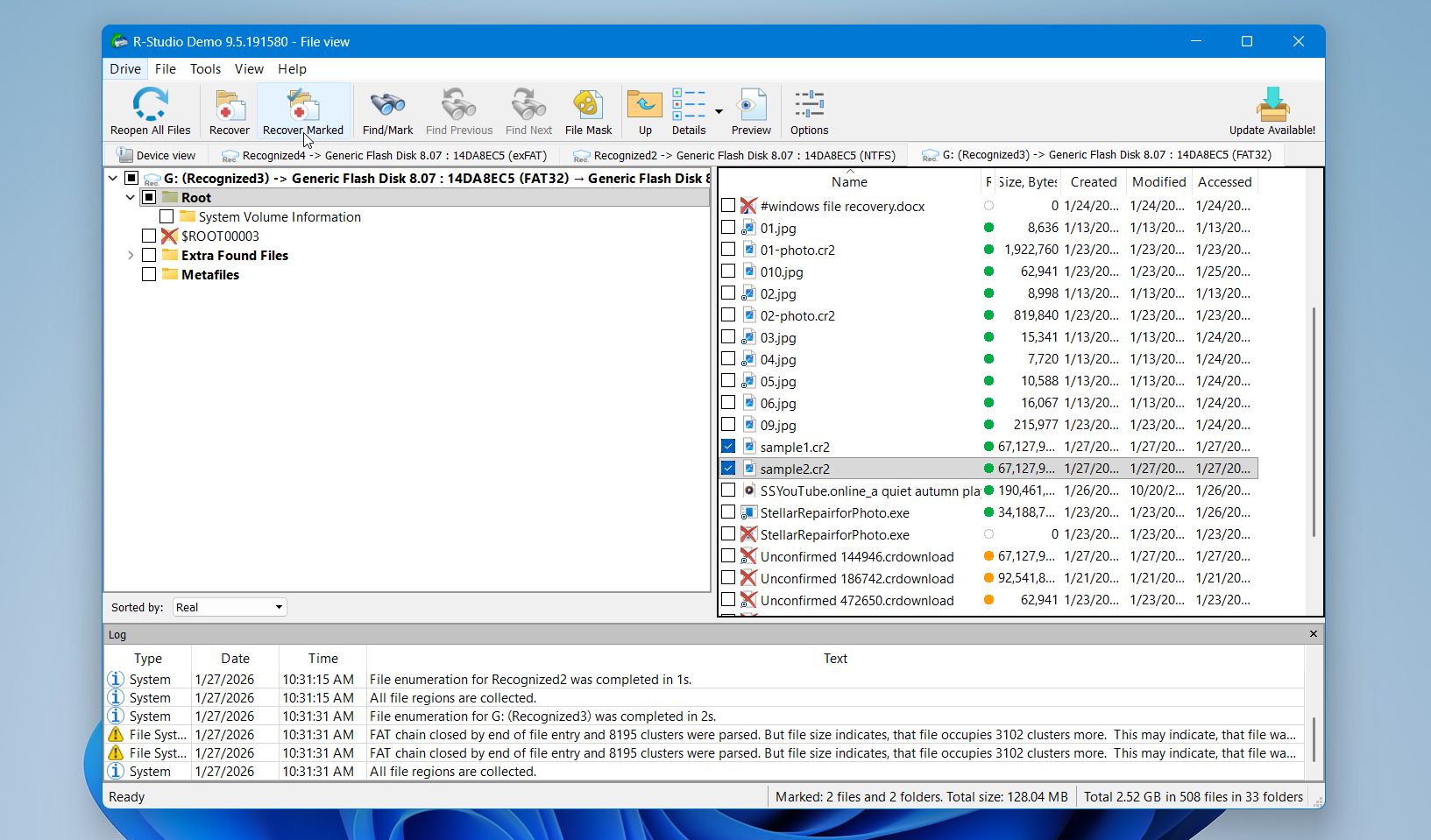
- Check the boxes near the files you want to recover and click Recover Marked.
- Save recovered files to a different drive. Choose a destination on your internal drive or another external disk, never back onto the same location.
If the results look incomplete or the files do not open correctly, you can try Disk Drill or move on to CR2 files repair tools.
R-Studio has a lot of options and some limitations, so it’s worth taking a look at our full R-Studio review before deciding if it’s the right tool for your case.
Method 3: Data Recovery Service
While you can easily recover files from a hard drive in many cases, sometimes you’ll need to rely on a professional data recovery service. If you were unable to recover files using a CR2 recovery software or your hard drive or SD card seems to have been physically damaged, it’s time to call a data recovery service.
Professional data recovery services can be expensive, and the price depends a lot on what went wrong with the drive. Before you go this route, it helps to know what costs to expect and what usually affects the final bill. If you’re planning to use a recovery service, we explain typical pricing in our guide on how much data recovery costs.
How to Repair Corrupted CR2 Photos
Sometimes recovered CR2 files look promising at first, but then they refuse to open or show broken colors and blocks. This usually means the image data survived, while the file header or internal structure did not. Recovery brings the file back, but repair makes it usable. That is why we move to the next step and show how to repair corrupted CR2 photos.
Method 1: Use a Different Program
Open the CR2 file in another program. RAW editors do not all read CR2 files the same way, so a photo that refuses to open in one app may load just fine in another. Start with Canon Digital Photo Professional, then test Adobe Lightroom, Photoshop (Camera Raw), or Capture One. This method helps only with small issues like broken previews or metadata, not serious damage, but it is quick, safe, and sometimes solves the problem in two clicks.
Method 2: Use a Dedicated CR2 Photo Repair Tool
If the previous method did not help, you can try Stellar Repair for Photo, but it is important to clarify what this software actually does. It is a narrowly focused repair tool, not a universal photo fixer.
Stellar Repair for Photo works with image files that already exist but fail to open or display correctly. It attempts to repair damaged JPEG structures, rebuild corrupted headers, remove invalid JPEG markers, and restore preview data. Stellar Repair for Photo supports CR2, NEF, ARW, DNG, JPG, PNG, and TIFF files. It handles common real-world issues such as camera freezes, interrupted transfers, memory card errors, or sudden power loss.
We use Stellar Repair for Photo simply as an example of this category. You can use other dedicated photo repair tools as well, as they operate in a similar way and offer comparable functionality.
How to fix a broken CR2 file with Stellar Repair for Photo:
- Copy the broken CR2 file to your computer. Work with a copy, not the original. RAW files deserve gentle treatment.
- Pick any normal CR2 photo taken with the same Canon camera model. Resolution and date do not matter much, but the camera model does.
- Download and install Stellar Repair.
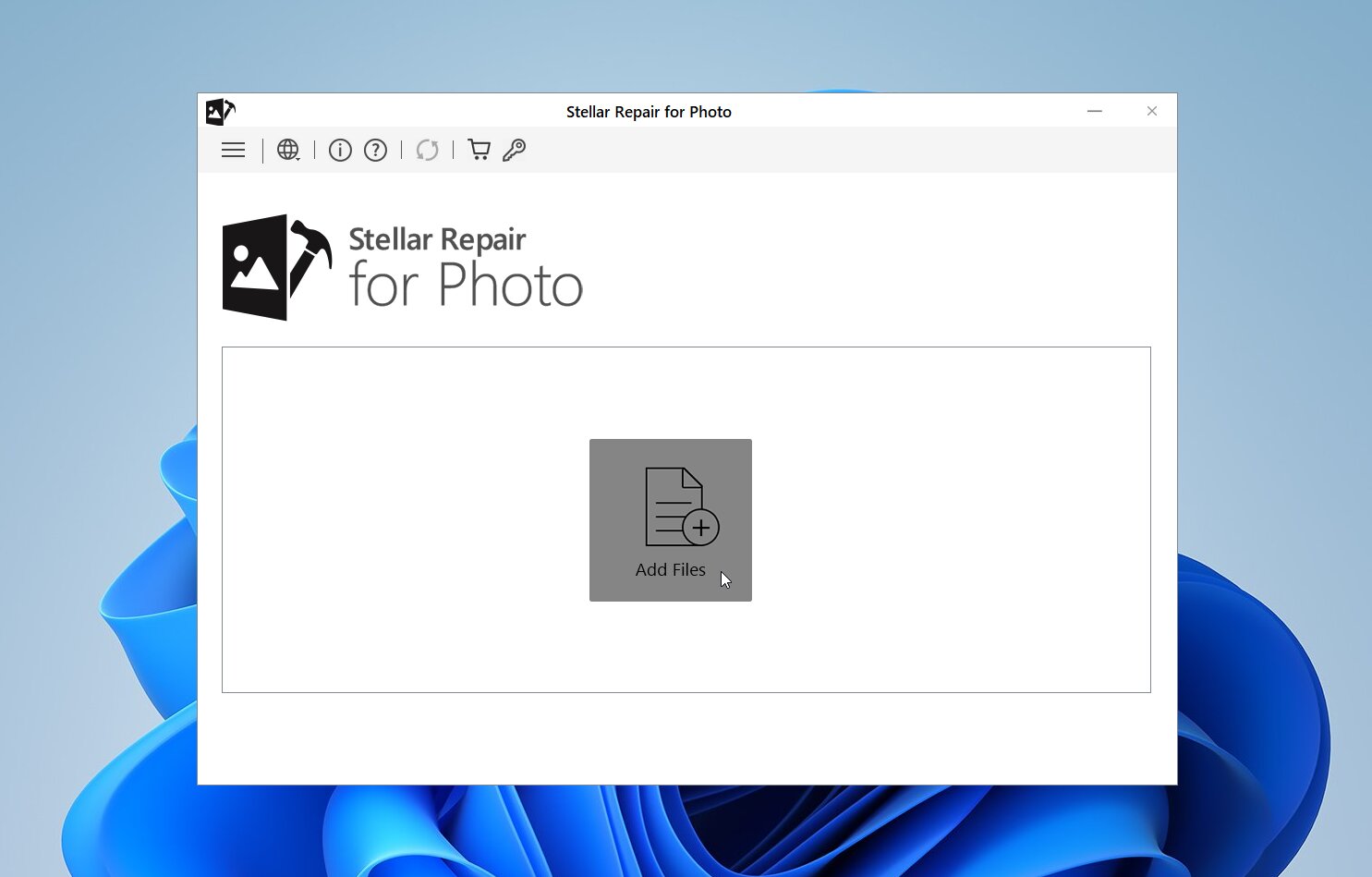
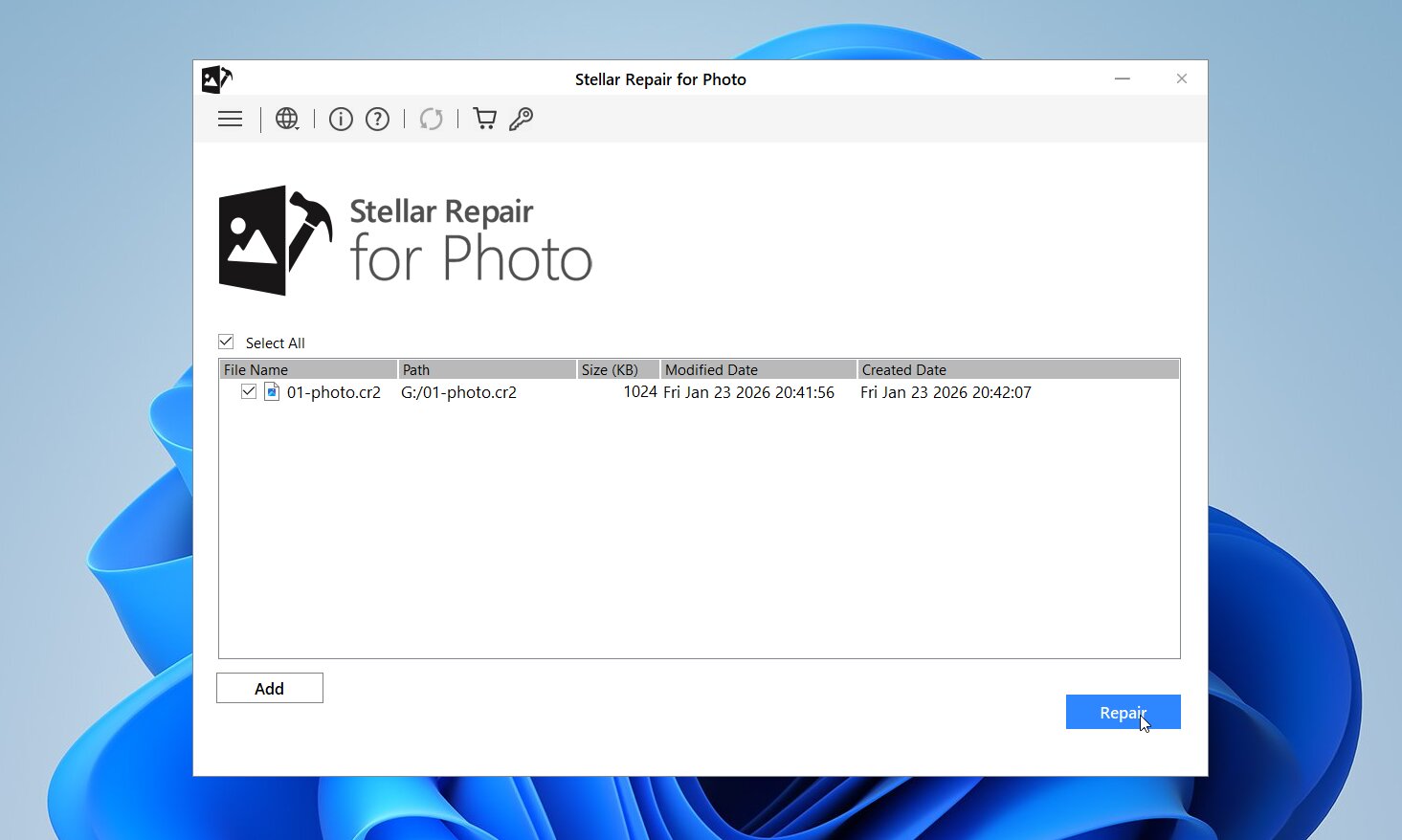
- Open the program and Click Add File. Select the broken CR2, and confirm. The file should appear in the file list inside the program.
- Start the repair. Click “Repair” and let the tool rebuild the file structure and headers.
- Preview the result. Zoom in and check details. Watch for gray blocks, color streaks, or missing areas.
- Save the repaired photo to a new folder. Never overwrite the original file.
Open the result in a RAW editor. Test it in Canon Digital Photo Professional, Lightroom, or Photoshop Camera Raw to confirm it exports cleanly. Remember, Stellar Repair helps when files refuse to open or show errors but still have data inside. It cannot recreate parts of a photo that were never saved or got overwritten, but for camera crashes and transfer failures, it often turns a “dead” CR2 back into an editable image.
Method 3: Extract JPEG Data Using JPEG-Repair
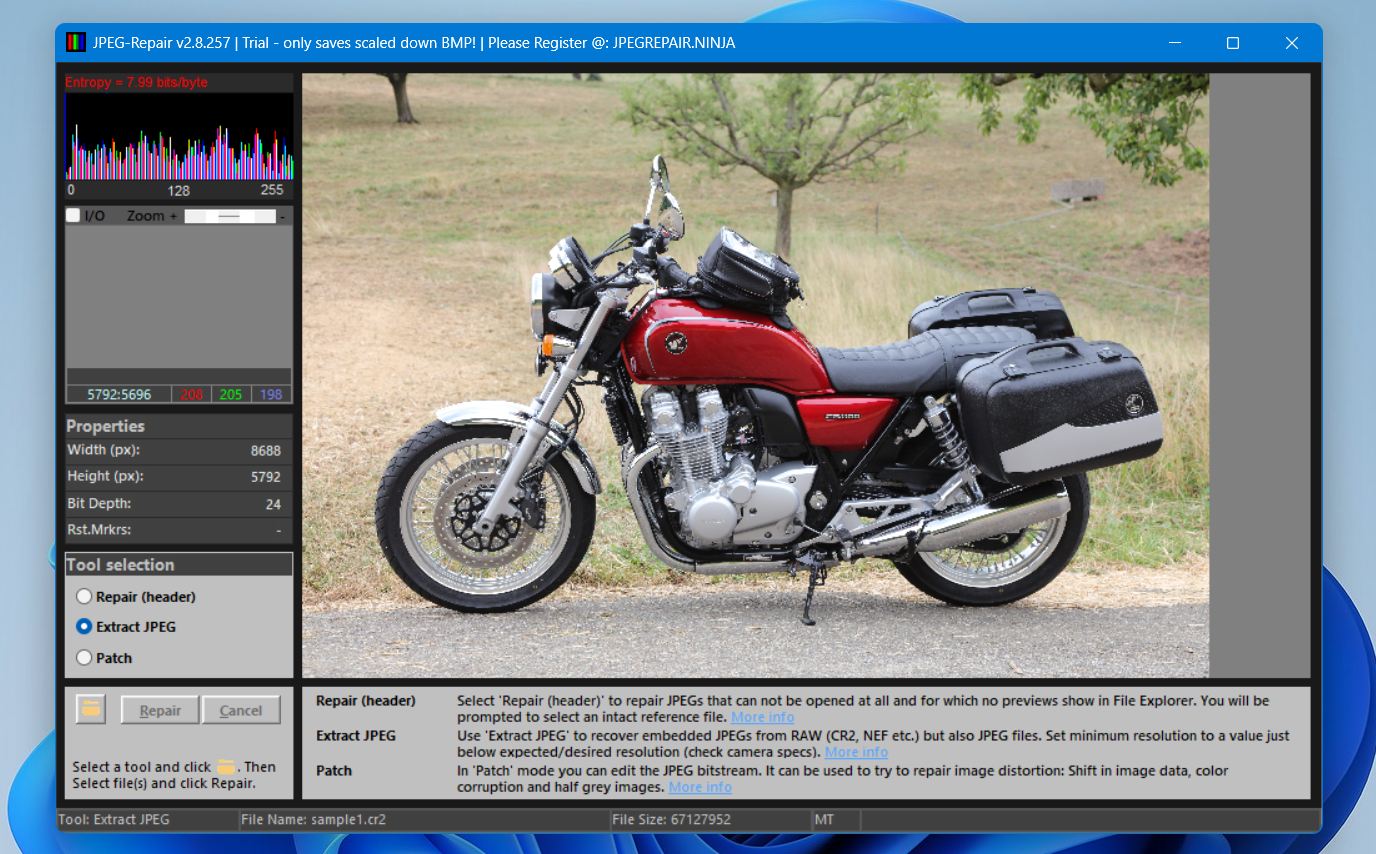
This method is the last in this article for one reason: sometimes it’s the only thing left that still works. That said, it’s important to be upfront: it does not perform real CR2 repair. It does not restore RAW image data or fix broken file structure. But it can still recover a visible image; the result is a JPEG file with lower resolution and less detail than the original CR2, but for important photos, that can still be worth it.
You can do this using a tool like JPEG-Repair.
- Download the JPEG-Repair toolkit.
- Open the zip file and run JPEGRapair.exe.
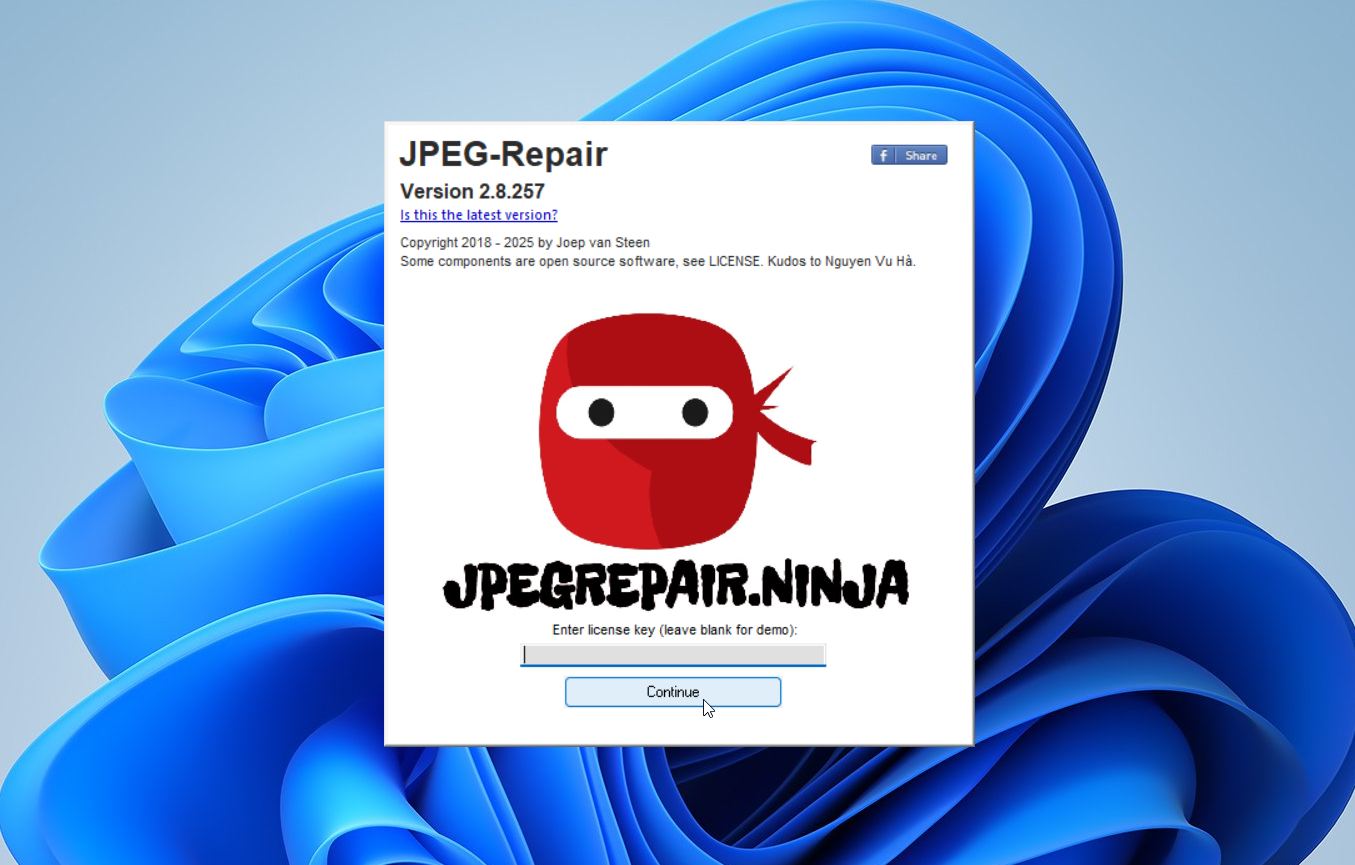
- Enter the key or use the trial version by clicking Continue.
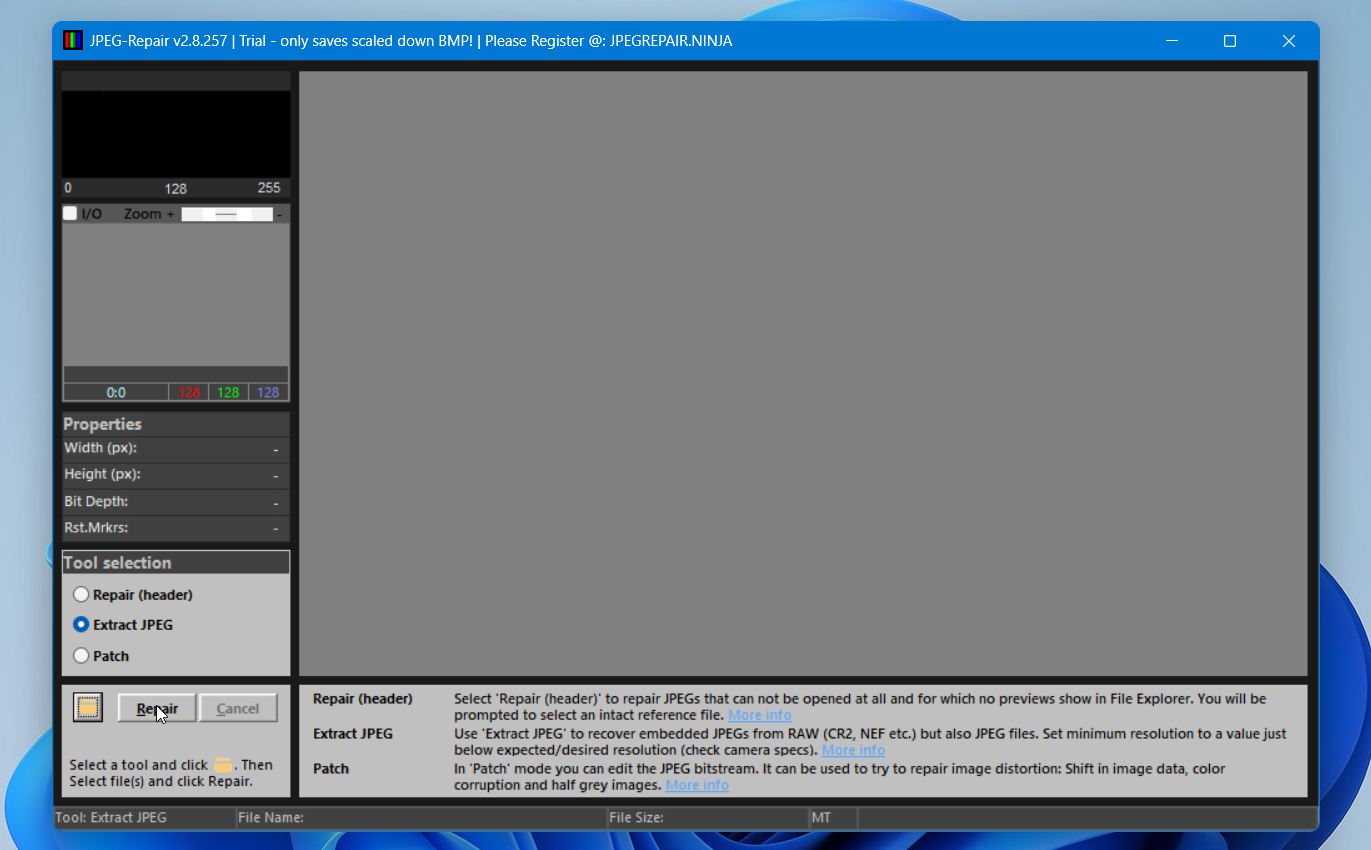
- Select Extract JPEG from Tool selection. Next, click on the folder icon to select the CR2 file you want to recover. Click Repair.
- Once you’re done, you’ll see the preview of the file. It will also be saved automatically in the folder where your CR2 file was saved.
Many online “CR2 repair” services do exactly this, hey only extract the embedded JPEG preview and present it as a repaired file. That is not a real repair. JPEG-Repair is useful because it is honest about what it does and gives you control over the result.
Conclusion
Here’s a quick summary of what to do when trying to recover deleted or damaged CR2 files:
- Stop using the card immediately to avoid overwriting recoverable data.
- Scan the card with recovery software like Disk Drill or R-Studio. Both can handle CR2 files, with Disk Drill being especially user-friendly for memory card recovery.
- Check if the recovered files open. If they don’t, the file header may be damaged.
- If the files are corrupted, Use a photo repair tool like Stellar Repair for Photo to fix them.
- Extract JPEG previews using JPEG-Repair if nothing else works. It won’t recover RAW quality but can still save part of the image.
FAQ
Why are my CR2 files corrupted?
CR2 files usually become corrupted after an interruption during the writing or transfer process. We most often see this after a camera freezes, the battery dies mid-shot, or the memory card gets removed too quickly. File system issues on the card or unstable USB connections can also damage the file structure. In many cases, the actual image data remains on the card, but the header or internal structure breaks, which makes the file unreadable.
Why are my CR2 files not opening?
CR2 files often refuse to open when their headers are damaged, or the file write never finished properly. The file may look normal, show the correct size, and even appear in a folder, but photo editors reject it because key structural information is missing. Software compatibility also plays a role. Older versions of RAW editors may not recognize CR2 files from newer Canon cameras. We also see opening issues after incomplete recovery, where the file exists but internal references point to missing data blocks.
What program can open a CR2 file?
CR2 files open in Canon Digital Photo Professional, Adobe Lightroom, Photoshop (Camera Raw), Capture One, and several other RAW editors. Basic image viewers usually do not support CR2. We always suggest starting with Canon’s own software, then you should test a second RAW editor if problems appear.
How do I convert a CR2 file to JPG?
You can convert a CR2 file to JPG by opening it in a RAW editor such as Lightroom, Photoshop (Camera Raw), or Canon Digital Photo Professional and exporting it as JPEG. This works only when the CR2 file opens correctly in the first place. Online converters follow the same rule: they can convert a file, not fix it. If the CR2 is corrupted and won’t open, conversion will fail until the file gets repaired.
This article was written by Arjun Ruparelia, a Contributing Writer at Handy Recovery Advisor. It was recently updated by Victoria Rybtsova. It was also verified for technical accuracy by Andrey Vasilyev, our editorial advisor.
Curious about our content creation process? Take a look at our Editor Guidelines.