

Duplicate photos can quietly take up storage on your iPhone, especially after repeated downloads, imports, edits, or transfers between devices. Fortunately, iOS can detect many of these copies automatically, and there are other ways to find duplicates that don’t appear in the built-in Duplicates collection.
We’ll cover four ways to find, merge, and remove duplicate photos on an iPhone, including models running the latest iOS 26. We’ll also explain what happens when you merge duplicates, why some copies may not appear in Photos, and what you need to do if you want to reclaim the storage they use.
TL;DR: For automatic duplicate cleanup on an iPhone, you have two main options:
- Apple Photos: Open Photos > Utilities > Duplicates and use Merge. iOS automatically groups the duplicates it detects, keeps one copy with the highest quality and relevant data, and moves the extras to Recently Deleted. It’s built in and easy to use, but some copies may not appear in the Duplicates collection.
- Clever Cleaner: A good choice if you want more automatic cleanup. It scans your library, groups duplicate photos, selects the copies it recommends you remove, and keeps a Best Shot from each group. Its AI can also detect visually similar photos that the native Duplicates collection may not group together.
There are a few additional ways to track down duplicates manually, including Photos Search on the iPhone and Smart Albums on Mac. We cover all four methods in the “How to merge duplicate photos on iPhone: 4 Methods” section, along with when each one makes sense.
Why Does Your iPhone Have Duplicate Photos?
It’s surprisingly easy to end up with duplicate photos on an iPhone, even when you haven’t intentionally created extra copies. Imports, downloads, transfers, editing apps, and cloud services can all add another copy of an existing photo to your library. In other cases, you may end up with separate versions that look almost identical.
Here are some of the most common causes:
| Cause | How It Creates Duplicates |
|---|---|
Repeated downloads |
You may save the same photo more than once from Messages, Mail, Safari, social media, or another app. |
Multiple imports |
If you import photos from a camera, computer, external drive, or another phone more than once, extra copies may appear in your library. |
Photo editing apps |
Some apps export an edited photo as a new file, so both the original and the exported copy remain in Photos. |
Transfers between devices |
Copying photos between an iPhone, Mac, PC, or another device can create duplicates if some of those images are already in your library. |
Different versions of the same file |
A photo may be saved again with a different format, resolution, or metadata. The images can look identical even though the underlying files aren’t exactly the same. |
We’ll cover how to find and remove existing duplicates in the next section. If you want to avoid new duplicates in the future, pay attention to repeated downloads and imports, and try not to transfer the same photo library through several different methods.
Where to Find Duplicate Photos on iPhone
If you want to check your iPhone for duplicate photos, the Duplicates album in Photos is the best place to start. However, duplicate copies can also appear elsewhere, especially if iOS doesn’t recognize them as exact duplicates.
Check these places:
- Photos > Collections > Utilities > Duplicates – the main location for duplicates detected automatically by iOS. You can review each group and use Merge to combine copies.
- Photos > Library – duplicate or near-duplicate photos that iOS hasn’t detected can Files app – images downloaded or saved to Files are separate from your Photos library, so you may have another copy there.
- iCloud Photos on a Mac or PC – if you use iCloud Photos, you can also review your synced photo library from a computer.
The main limitation is that the Duplicates album focuses on files iOS identifies as duplicates. Similar shots, edited versions, different crops, and other near-duplicates may stay in your regular library, so a broader cleanup may require manual review or a third-party duplicate photo finder.
How to Merge Duplicate Photos on iPhone: 4 Methods
There are several ways to find and deal with duplicate photos on an iPhone, with different levels of automation, control, and flexibility.
Here’s how the four methods compare:
| Method | Best For | Main Advantage | Main Limitation |
|---|---|---|---|
iOS Duplicates |
Quick built-in duplicate cleanup |
Automatically detects duplicates and lets you merge individual or multiple groups without installing anything |
Photos needs time to analyze the library, and some copies may not be grouped |
Third-party cleanup app |
Automatic cleanup of a large photo library |
Automatically groups duplicates, can find visually similar photos, and may preselect extra copies or the best shot for faster bulk cleanup |
Requires an additional app and photo-library access |
Photos Search |
Finding copies when you remember what they show or when they were taken |
Lets you narrow the library by people, places, dates, events, and objects |
Doesn’t detect duplicates automatically, so you have to compare and delete photos yourself |
Smart Albums on Mac |
Narrowing down a large library with custom criteria |
Lets you combine dates, filenames, keywords, titles, and other conditions to create targeted groups |
Requires a Mac and manual comparison; it doesn’t detect or merge duplicates automatically |
For the least manual work, start with iOS Duplicates or a third-party cleanup app. The other two methods take more effort, but they give you additional ways to track down copies that are difficult to find through automatic duplicate detection. We’ll walk through each method next.
Method 1: Merge Duplicate Photos Using the iOS Native Feature
The easiest place to start is the Duplicates collection built into the Photos app. Your iPhone automatically scans the photo library for duplicates and groups the matches it finds. When you merge a group, Photos keeps one copy that combines the highest quality and relevant data from the duplicates, while the other copies are moved to Recently Deleted.
You can merge individual groups or select multiple groups at once. Here’s how:
- Open the Photos app on your iPhone.
- Scroll down to Utilities and tap Duplicates.
- Review the duplicate groups that Photos has detected.
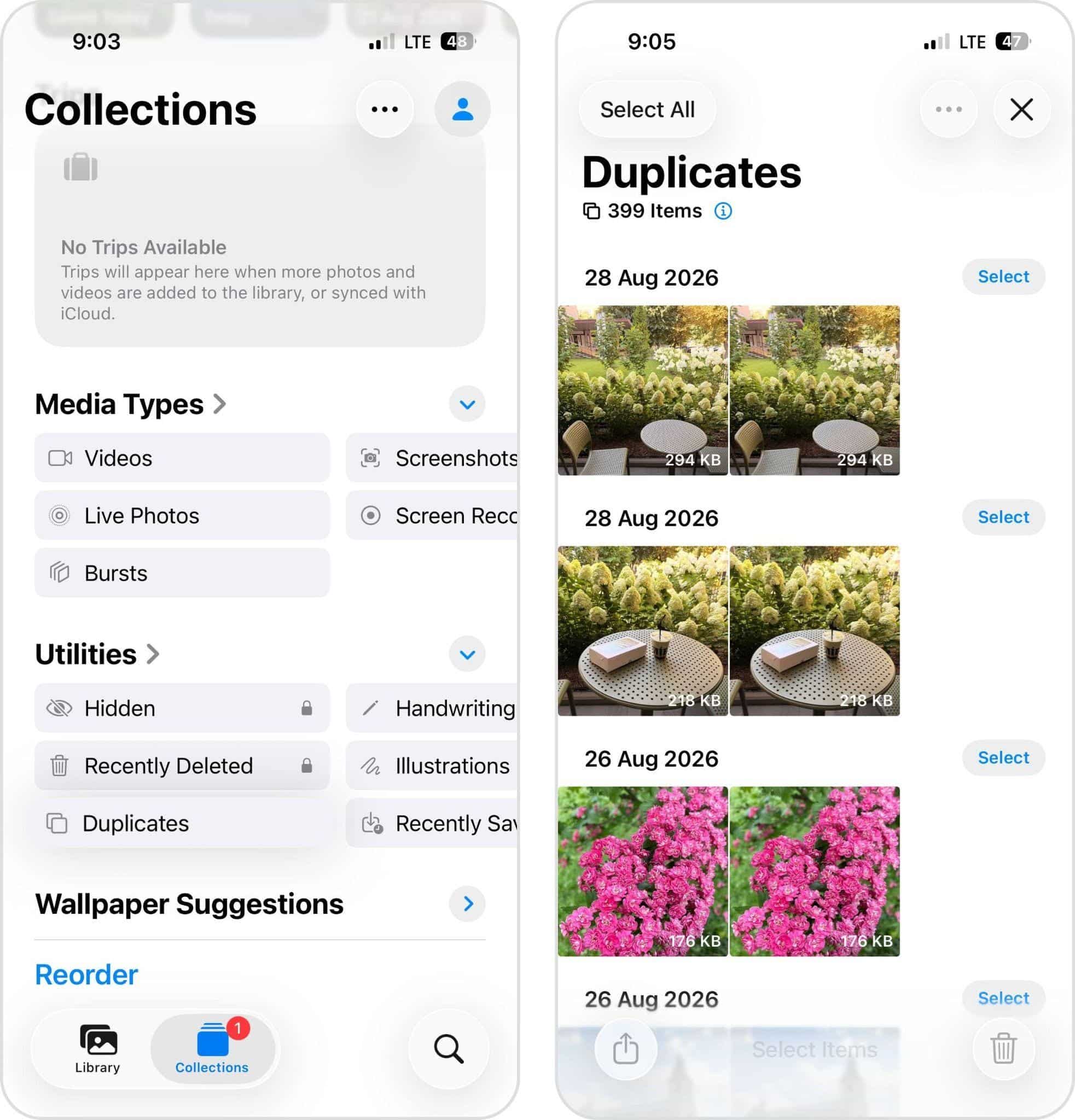
- Tap Merge next to a group if you only want to deal with those photos. To process several groups at once, tap Select, choose the groups you want, or tap Select All.
- Tap Merge and confirm your choice. Depending on the duplicates selected, Photos may give you the choice to merge Exact Copies Only or all selected items.
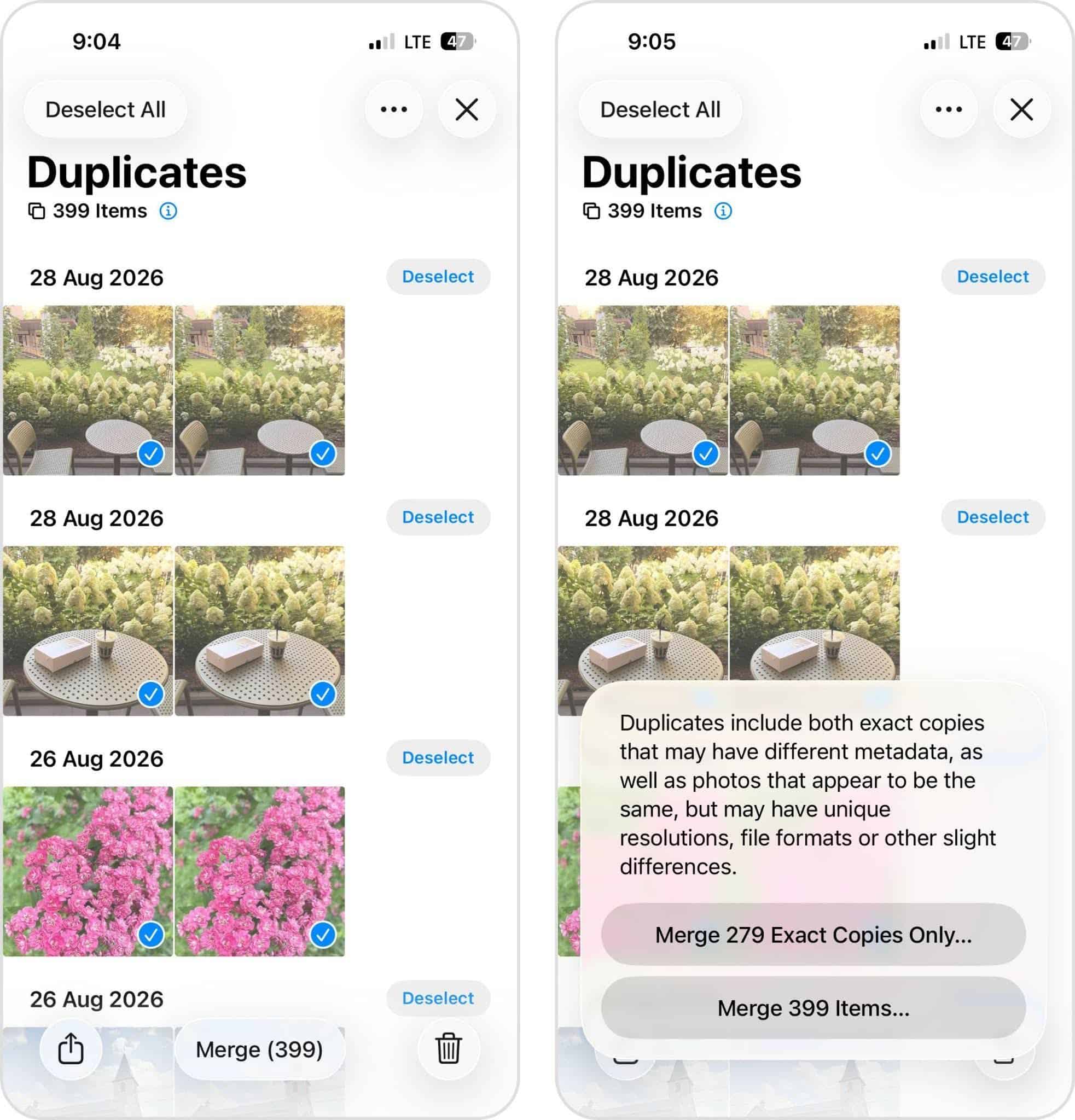
The Exact Copies Only option is the more conservative choice. Photos may also group images that appear to be duplicates but have differences in resolution, file format, or other details, so it’s worth reviewing the groups before you merge everything.
If your goal is to get more storage on your iPhone for Photos, there’s one more step. Open Recently Deleted and permanently remove the copies you just merged. Otherwise, they can remain there for up to 30 days before iOS deletes them automatically.
Method 2: Merge Duplicate Pictures on an iPhone Using a Third-party Tool
A third-party cleanup app gives you more options for dealing with duplicate photos than the built-in Duplicates collection. Besides exact copies, these apps can often detect visually similar shots, edited versions, and repeated photos that iOS may treat as separate images. They also tend to offer faster bulk cleanup and additional tools for organizing the rest of your photo library.
We’ve tested a bunch of duplicate cleaner apps, both free and paid. For this method, we’ll use Clever Cleaner: AI CleanUp App. We chose it mainly because it has a generous free version and, based on our testing, one of the more accurate AI algorithms for detecting both duplicate and visually similar photos. It groups the matches automatically and marks the strongest image in each group as the Best Shot, which makes it possible to deal with duplicates with very little manual sorting.
Here’s how to use it:
- Download Clever Cleaner from the App Store.
- Open the app and grant it full access to your photo library.
- Tap Similars. Clever Cleaner will scan the library and group duplicate and similar photos together.
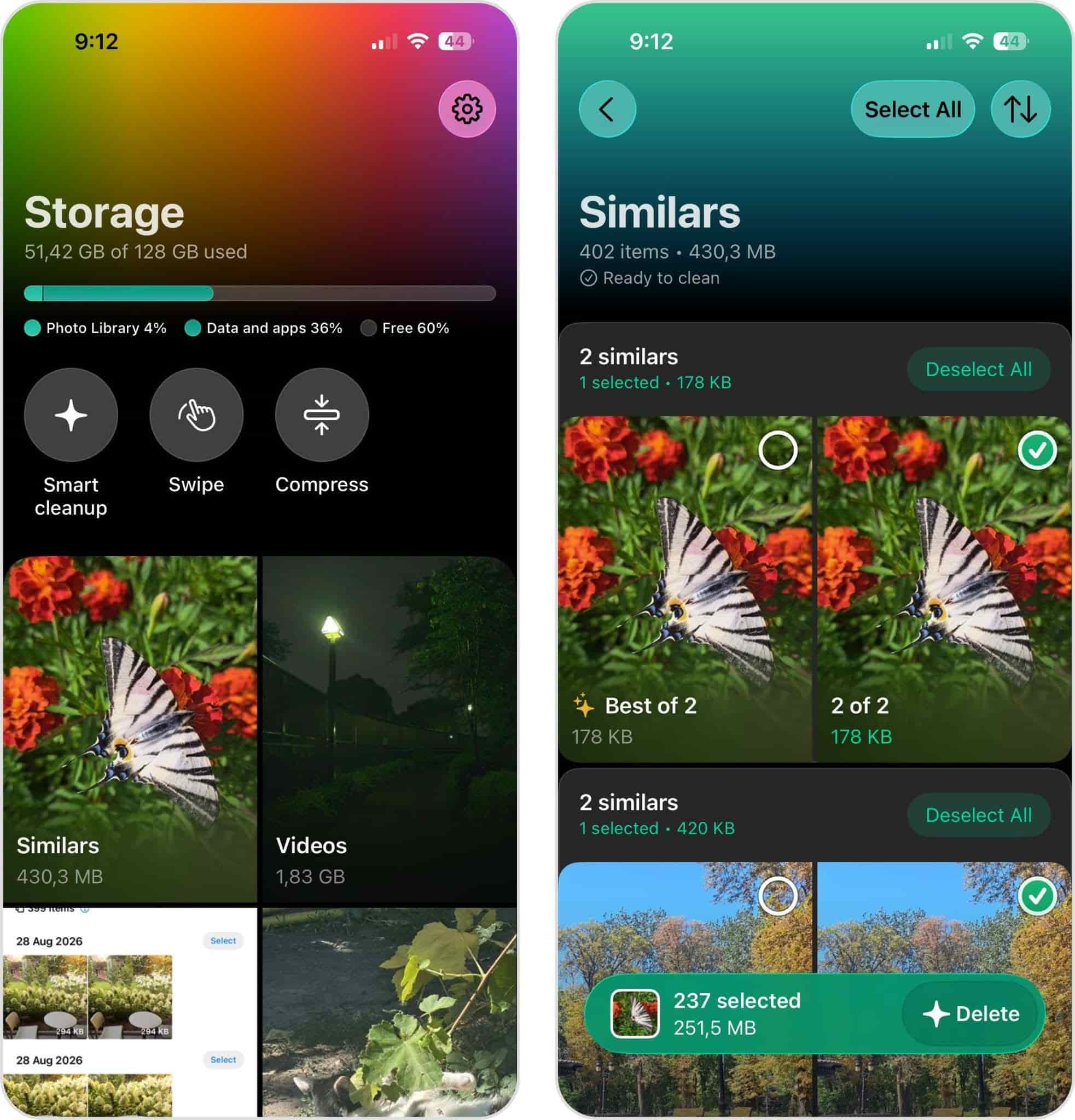
- Review the groups. The app marks one photo as the Best Shot and preselects the other copies for removal. You can change that selection if you want to keep a different image.
- If you want to handle everything at once, use Select All. Otherwise, review the groups one by one.
- Tap Delete, review the selected photos, and confirm the deletion.
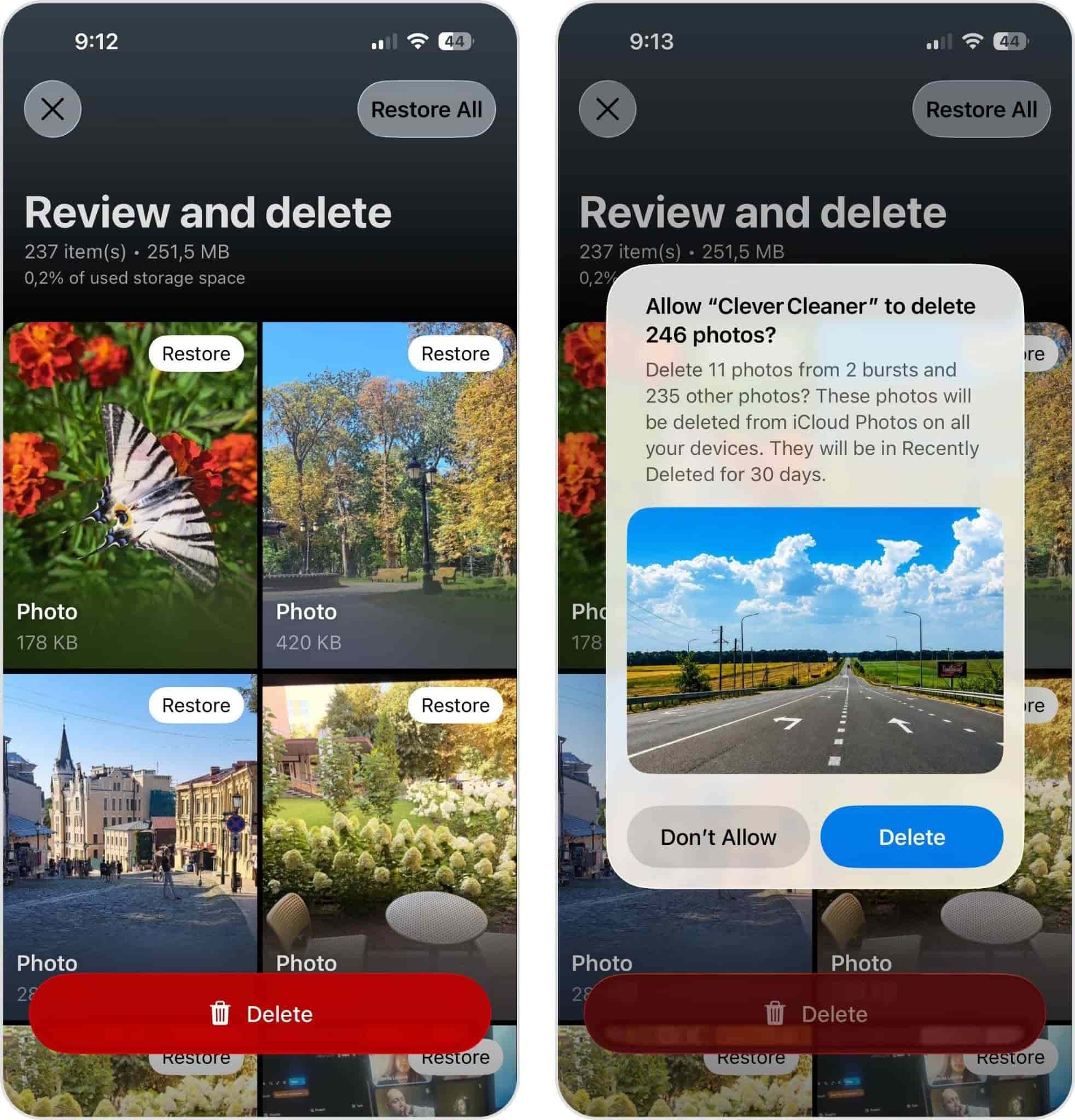
- Open Photos > Recently Deleted and remove the deleted copies there as well if you want to reclaim the storage immediately.
If you want an even quicker option, open Smart Cleanup and enable Remove Similars. Clever Cleaner will automatically select the extra copies from each duplicate or similar-photo group while keeping the best one, then let you confirm the cleanup. Clever Cleaner also includes a few other tools that can help clean up the rest of your photo library:
- Videos – find large videos, sort them by size, and delete or compress the ones you no longer need.
- Compress – reduce the size of photos, videos, screenshots, and Live Photos without deleting them.
- Swipe – review photos and videos one at a time and swipe to keep or remove them.
- Live Photos – delete unwanted Live Photos or convert them into regular still images to save space.
- Screenshots – compress or delete screenshots you no longer need.
- Smart Cleanup – handle several cleanup tasks at once, including similar photos, screenshots, and Live Photos.
That makes it useful not just for duplicate cleanup, but for a broader photo library cleanup once you’re already in the app.
Method 3: Merge Duplicate Photos with Advanced Search
The Search tool in Photos can also help you find duplicate or similar photos that are hard to spot while scrolling through your library. It doesn’t detect duplicates for you, but it can group photos based on things like people, places, dates, events, and objects in the picture.
For example, if you remember having several copies of the same beach photo, you can search for the location, date, or simply “beach” to bring related photos together. From there, it’s much easier to compare them and remove the copies you don’t need.
Here’s how to do it:
- Open Photos and tap Search.
- Enter something related to the photos you want to find, such as a person, place, date, event, or object.
- Add another search term if you need to narrow down the results.
- Look through the matching photos and find the copies you don’t need.
- Tap Select, choose those photos, and tap the Trash icon.
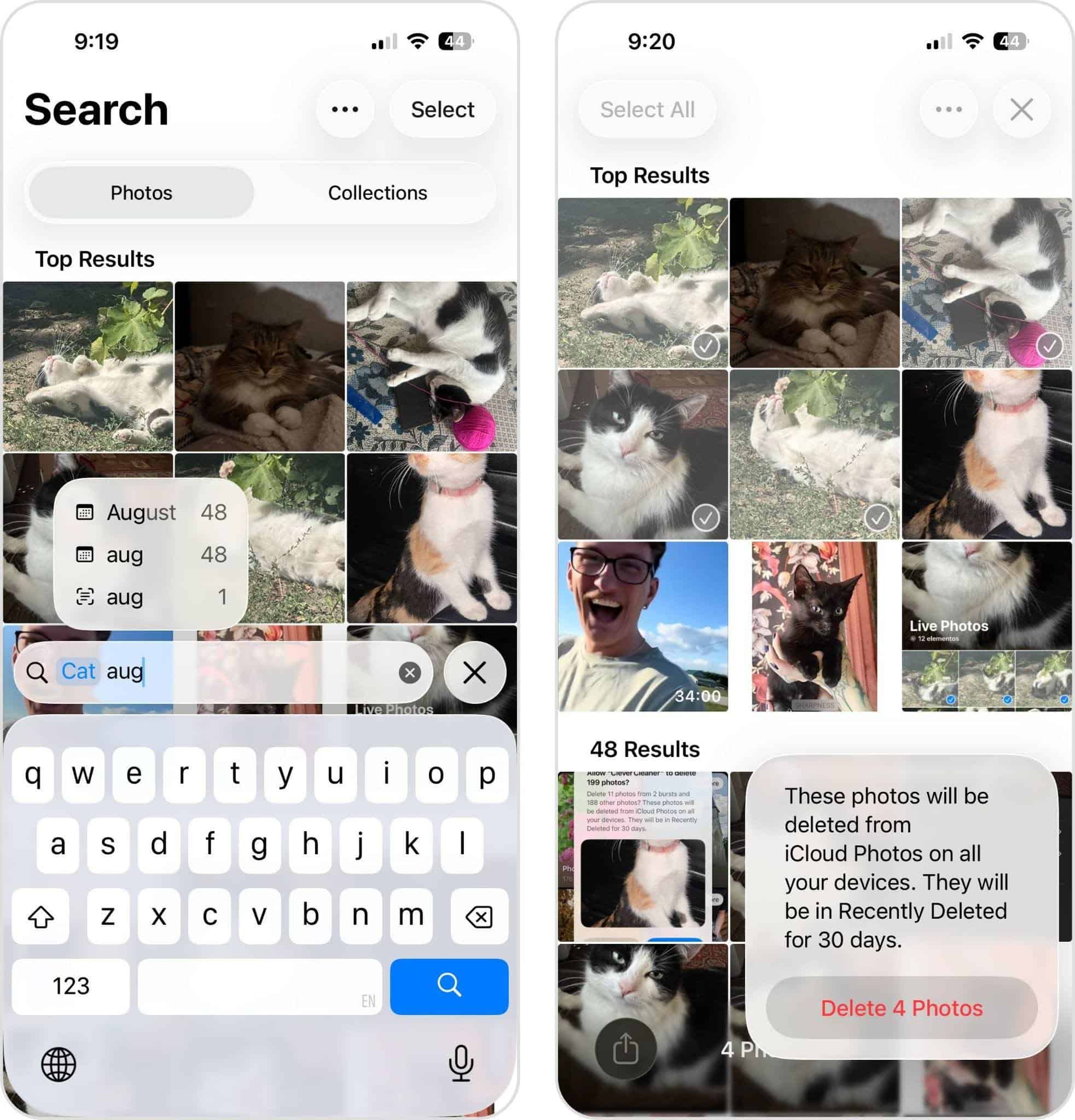
- Empty Recently Deleted if you want to free up the space right away.
We find this method useful when you have a rough idea of what the duplicate photos show or when they were taken. It takes more work than automatic duplicate detection, though. If you have a large library with lots of duplicate and similar photos, a cleanup app that finds them automatically will usually be much faster.
Method 4: Merge Duplicate Photos with Smart Albums on Mac
If you sync your iPhone photos to a Mac, Smart Albums give you another way to track down potential duplicates. They don’t detect or merge duplicates automatically. Instead, you can create custom rules that narrow a large photo library into smaller groups that are easier to compare.
Smart Albums are quite flexible. You can combine conditions based on dates, titles, keywords, filenames, and other available properties, then tell Photos to show images that match all or any of those conditions. You can also change the criteria whenever you need to refine the results.
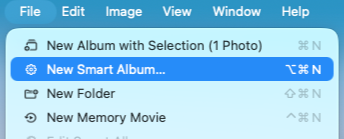
- Open Photos on your Mac.
- Select File > New Smart Album from the menu bar.
- Give the album a name and add the conditions you want to use to narrow down your photos.
- Add more conditions if necessary, then choose whether Photos should match all or any of them.
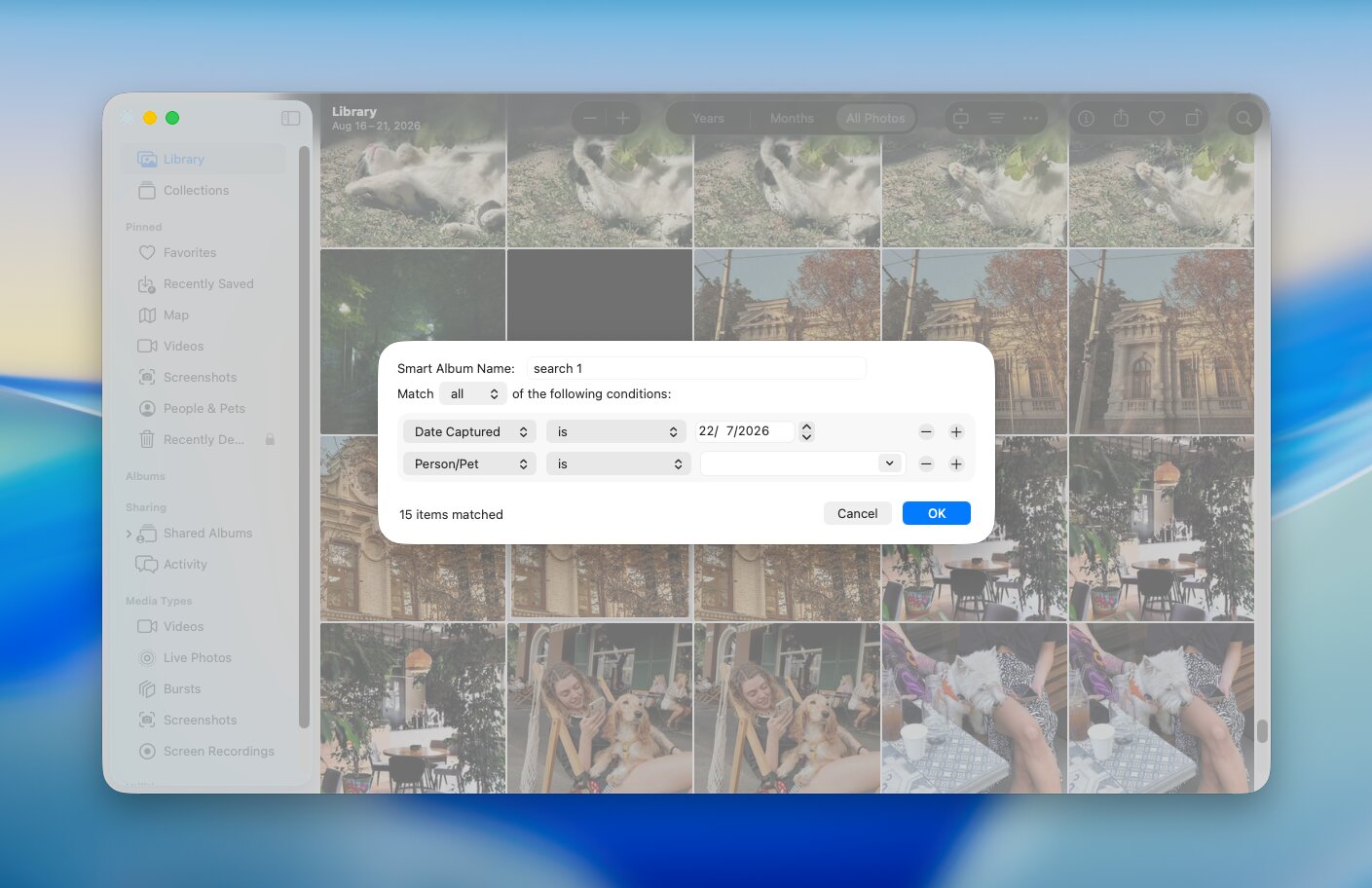
- Click OK and review the photos collected in the Smart Album.
- Select the copies you don’t need, right-click them, and choose Delete Photos.
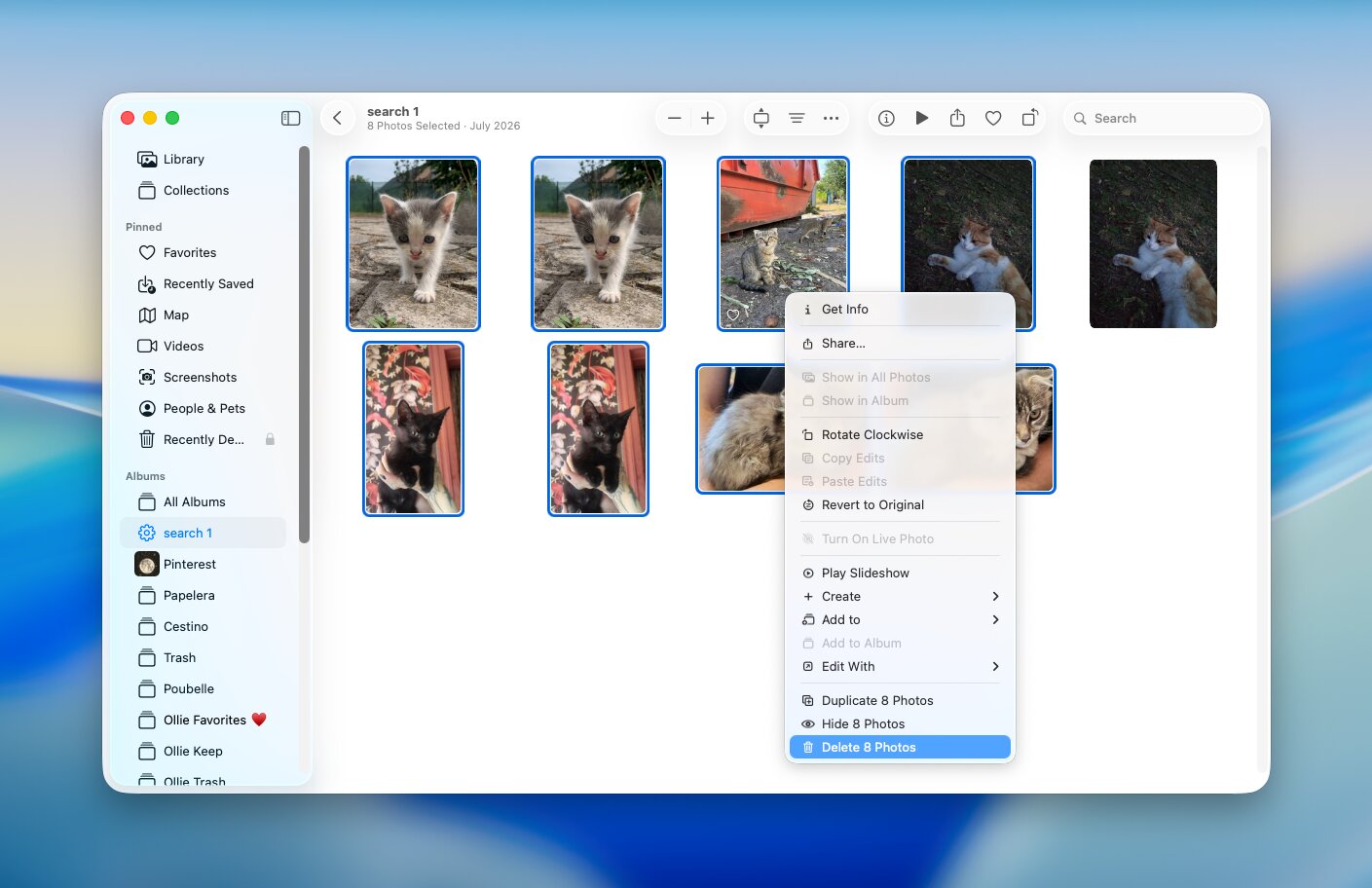
- Empty Recently Deleted if you want to reclaim the storage immediately.
We recommend keeping the conditions fairly specific so you don’t end up manually comparing hundreds of unrelated photos. A narrow date range combined with a filename or keyword, for example, can make potential duplicates much easier to spot.
Don’t Forget to Empty Recently Deleted
Before you wrap up, don’t forget this last step and clear out your Recently Deleted folder.
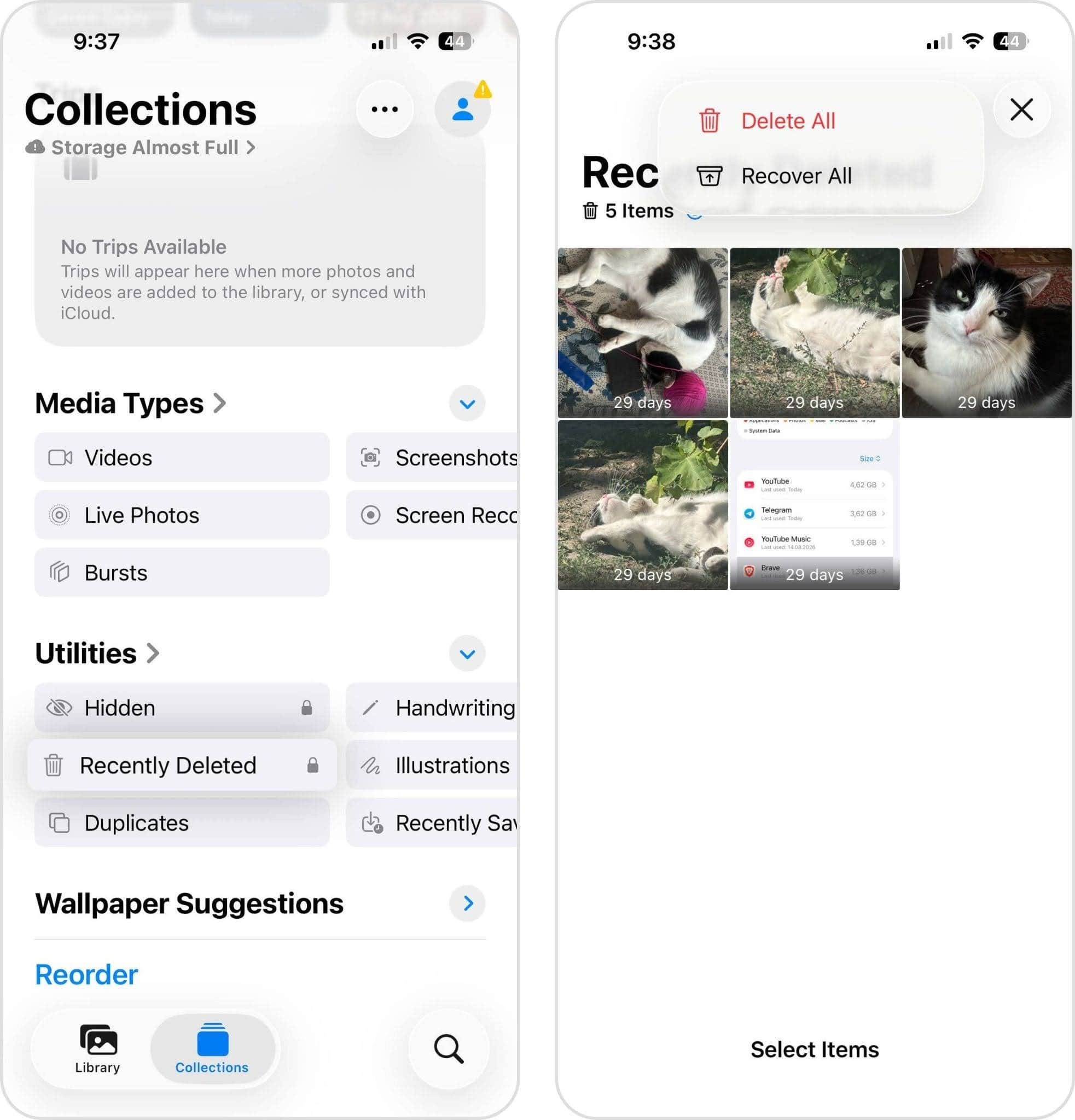
Deleted duplicates don’t leave right away, no matter what tool you use. They linger in that folder for 30 days, still using up storage. time. To truly reclaim space, you’ll need to permanently delete them from there too.
Go to Photos > Albums > Recently Deleted, tap Select, then Delete All if you’re sure. That’s when you’ll see the real space savings.
Conclusion
Here’s the quick version for anyone who skipped to the end.
- If you want the easiest built-in option, open Photos > Utilities > Duplicates. Tap Merge next to individual groups, or use Select > Select All > Merge to deal with multiple groups at once.
- If Duplicates doesn’t appear or some copies are missing, give Photos time to finish analyzing your library. Detection doesn’t always happen immediately.
- If you want more automatic cleanup, use a third-party app such as Clever Cleaner. It automatically groups duplicates, preselects extra copies, and marks a Best Shot to keep. It can also find visually similar photos that Apple may not group together.
- If you know roughly what the duplicate photo shows or when it was taken, try Photos Search. Search by a person, place, date, event, or object to bring likely copies together, then compare and remove them manually.
- If you have a Mac, Smart Albums give you another manual option. Create rules based on dates, filenames, titles, keywords, and other properties to narrow a large library into smaller groups that are easier to review.
- After you merge or delete duplicates, check Recently Deleted. Removed copies can stay there for up to 30 days, so permanently delete them if you want to reclaim the storage immediately.
If your main goal is to clear more storage, don’t stop at duplicates:
- Use Clever Cleaner to find and remove large videos you no longer need.
- Compress large photos and videos instead of deleting them.
- Review Screenshots and Live Photos, which can also take up unnecessary space.
- Use Swipe for a manual pass through photos and videos that the automatic cleanup tools don’t cover.
Duplicates may only account for part of the space used by your photo library. Once they’re gone, large videos, screenshots, Live Photos, and other unnecessary media are the next places we recommend checking.
FAQ
What happens when you merge duplicate photos on an iPhone?
When you merge duplicate photos, iOS creates one optimal image. The system keeps the copy with the highest resolution and best file format. It pools all metadata, which includes captions, tags, locations, and album assignments. It also preserves your edits. The extra copies move directly to the Recently Deleted album, where they sit for 30 days before permanent removal.
Is it better to merge or delete duplicates on an iPhone?
The preferred option is to merge because iOS automatically keeps the highest-resolution copy and pools all metadata into one file. But it really depends on what you want to do:
- Merge if you want a fast, safe cleanup that keeps the best image quality and blends your albums, tags, and edits automatically.
- Delete manually if you want full control to pick a specific version yourself, or if you need to clear out burst shots, flawed takes, and similar angles that iOS fails to flag as duplicates.
How to merge all duplicate photos on iPhone at once?
You can merge all duplicate photos detected by the Photos app at once:
- Open the Photos app.
- Scroll down to Utilities and tap Duplicates.
- Tap Select in the upper-right corner.
- Tap Select All.
- Tap Merge at the bottom of the screen.
- Confirm that you want to merge the selected duplicates.
Your iPhone will keep one copy from each duplicate set and move the extra copies to Recently Deleted.
Can I merge photos on an iPhone that are not exact copies?
As of iOS 26, no, the built-in Photos app can’t merge or flag photos that aren’t exact duplicates. If two shots look almost identical to you but have slight differences (like angle, lightning, edits, filters or crops), the native Duplicates feature won’t pick them up.
For these near-duplicate photos, you can use a third-party cleanup app that detects visually similar images and lets you review and remove the copies you don’t want.
Does merging duplicates free up storage?
Yes, when you merge duplicate photos on your iPhone, the Photos app keeps one copy and moves the redundant versions to Recently Deleted. This can free up storage, but the space may not become available immediately because the removed copies remain in Recently Deleted for up to 30 days unless you delete them manually.
This article was written by Romana Levko, a Staff Writer at Handy Recovery Advisor. It was recently updated by Roman Demian.
Curious about our content creation process? Take a look at our Editor Guidelines.